You can download the presentation here:

@vmdavinci asked the following on Twitter:

These are the registry settings you can change:
If you want to disable the notify if upgrade is available warning:
[HKEY_CURRENT_USER\Software\VMware, Inc.\VMware Tools]
@=dword:00000000
If you want to hide the Tools icon change the following registry key:
[HKEY_CURRENT_USER\Software\VMware, Inc.\VMware Tools]
"ShowTray"=dword:00000001
Or
[HKEY_LOCAL_MACHINE\Software\VMware, Inc.\VMware Tools]
"ShowTray"=dword:00000001

Alan Renouf is glad to announce the first Unofficial Online VMware User Group.
The Agenda at the moment is as follows:
- Introduction
- Presentation and Demonstration of The Virtualization EcoShell Initiative by Scott Herold
- Virtual Coffee break (bring your own coffee)
- Overview and Demonstration of vSphere new features by a VMware Employee
- Finish and details of next Unofficial Online VMUG
This meeting is being hosted over Microsoft Live meeting, if you have not installed the client it is recommended you do this 15 mins before the meeting.
Video: Video will be delivered via the Microsoft Live Meeting client.
Audio: For attendees, audio will be delivered via the Internet using your computer’s speakers. There will not be a call-in number for this meeting.The meeting will also be recorded for people who are unable to attend.
So where can I join this event?
Meeting Details:
Date: 1st June 2009
Time: 08:00 PM GMT / 03:00 PM EDT
Meeting URL: https://www.livemeeting.com/cc/winserver_usergroup/join?id=QP5K5Q&role=attend&pw=8%5E-%5CzqX
Meeting ID: QP5K5Q
Attendee Entry Code: 8^-\zqX
Registration Link:
http://www.clicktoattend.com/?id=138358
 `
`
A quote from KB1005593
This article assumes that you have extracted the contents of the sysprep deploy.cab file to the directory C:\sysprep on the VirtualCenter Server host. You must substitute the actual directory in the instructions below.
Log in to the VirtualCenter Server as Administrator.
Click Start > Programs > Accessories > Windows Explorer.
Navigate to the C:\sysprep directory.
Right-click on the sysprep.exe file and choose Properties.
Click the Version tab. Record the number at the top next to "File Version:"
The following list is a copy from: KB1005593. The list is sorted on Windows version, Download link and vCenter location.
Windows 2000 Server SP4 with Update Rollup 1
http://www.microsoft.com/downloads/details.aspx?FamilyID=0c4bfb06-2824-4d2b-abc1-0e2223133afb
C:\Documents and Settings\All Users\Application Data\VMware\VMware VirtualCenter\sysprep\1.1
Windows XP Pro SP2
http://www.microsoft.com/downloads/details.aspx?FamilyId=3E90DC91-AC56-4665-949B-BEDA3080E0F6
C:\Documents and Settings\All Users\Application Data\VMware\VMware VirtualCenter\sysprep\xp
Windows 2003 Server SP1
http://www.microsoft.com/downloads/details.aspx?familyid=A34EDCF2-EBFD-4F99-BBC4-E93154C332D6
C:\Documents and Settings\All Users\Application Data\VMware\VMware VirtualCenter\sysprep\svr2003
Windows 2003 Server SP2
http://www.microsoft.com/downloads/details.aspx?FamilyID=93f20bb1-97aa-4356-8b43-9584b7e72556
C:\Documents and Settings\All Users\Application Data\VMware\VMware VirtualCenter\sysprep\svr2003
Windows 2003 Server R2
http://www.microsoft.com/downloads/details.aspx?familyid=A34EDCF2-EBFD-4F99-BBC4-E93154C332D6
C:\Documents and Settings\All Users\Application Data\VMware\VMware VirtualCenter\sysprep\svr2003
Windows 2003 x64
http://www.microsoft.com/downloads/details.aspx?familyid=C2684C95-6864-4091-BC9A-52AEC5491AF7&displaylang=en
C:\Documents and Settings\All Users\Application Data\VMware\VMware VirtualCenter\sysprep\svr2003-64
Windows XP x64
http://www.microsoft.com/downloads/details.aspx?familyid=C2684C95-6864-4091-BC9A-52AEC5491AF7&displaylang=en
C:\Documents and Settings\All Users\Application Data\VMware\VMware VirtualCenter\sysprep\xp-64

In this post I will introduce a new VMware tool called VMware vSphere Host Update tool. With this tool you’re able to update an ESX host without VUM, just like the VMware Infrastructure Update utility. See my previous post here. An other interesting feature of the vSphere Host Update tool is the option to upgrade an existing ESX(i) Host to vSphere. In this post I will guide you through the upgrade process of an ESXi host which runs from a memory stick.
Start the vSphere Host Update Utility from Start – Programs – VMware – VMware vSphere Host Update Utility. When you already accessed your ESXi host with the VI Client, The host are already added to the Host List. If this is not the case, you can add your host via the Add Host… link at the right corner. So now we’re ready to upgrade. Select the host and press the upgrade button.

The ESXi 4.0 Upgrade Wizard starts. You’ll have to add the upgrade zip file which you can download from VMware.com if you’re a Beta user.

Enter the credentials for your host. In the screenshot below, you’ll see an error: The host must be in maintenance mode to perform an upgrade. So when the host is in maintenance mode, we can continue the upgrade process.

After the Host Compatibility check, the host will be upgraded to vShere.

After a couple of minutes the host is ready and is running ESXi 4.


After reading the post on http://www.virtualvcp.com/content/view/82/1/ about the VMware Tools status “not running” and in particular the part about the preferred work around:
I find that restarting the VMware Tools Service in the guest OS always gets by the problem, but loggin into every single VM that reports the wrong status for it’s VMware Tools could be a bit of a drag. So I choose to do this remotely rather that logging on to each VM.
From any Windows workstation/server, open a command pompt and run:
sc \\{vm-name-or-ip-address} stop "VMTools"
sc \\{vm-name-or-ip-address} start "VMTools"
I thought that can be done via Powershell and the VI Toolkit. So I created the following script that will restart the VMware Tools service on every running Windows VM.
$vCenter = Read-Host "Enter the vCenter servername" Connect-VIServer $vCenter $Service = "VMtools" $VMs = Get-VM | Where-Object { $_.PowerState -eq "PoweredON" ` -and ` $_.Guest.OSFullName -match "Windows" } foreach($VM in $VMs) { Write-Host "-------------------------------------------" Write-Host "Restarting the VMware Tools Service on" $VM $Svc = Get-WmiObject -Computer $VM win32_service ` -filter "name='$Service'" $Result = $Svc.StopService() sleep 5 $Result = $Svc.StartService() Write-Host "Done.. " Write-Host "-------------------------------------------" } Disconnect-VIServer -Confirm:$false |
This script generates the following output:

Other useful blog posts or kb articles on this subject:
Source for the restart service part in my script: http://blog.geekpoet.net/2008/10/manipulating-remote-services-with.html
 “
“
After adding my first HP ML 110 ESX3i to my brand new HA cluster I got the following error:

The host who gives the error, did not have the ScratchConfig.ConfiguredSwapState option enabled.
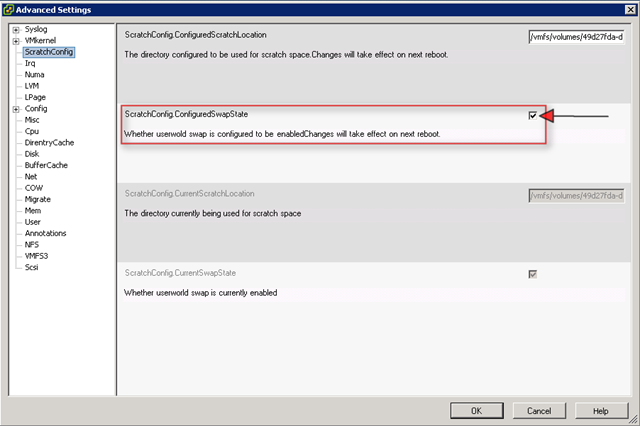
This is how you enable this option:
1. In VirtualCenter, select the ESX 3i server with the error.
2. Click the "Configuration" tab page and click "Advanced Settings"
3. Select "ScratchConfig"
4. Set the data store for ScratchConfig.ConfiguredScratchLocation to a valid directory with more than 1GB to hold the swapfile. This location can be local or shared storage.
5. Select the ScratchConfig.ConfiguredSwapState option.
6. Click OK.
7. reboot the 3i server to apply the changes.
Source: http://www.virtualvcp.com/content/view/33/43/
VMware KB: KB1004177

In this short tutorial you’ll learn how to create an ESXi USB Key.
Before we start you need the following tools:
After installing the tools we need to extract the *.dd file. Open the VMware-VMvisor-InstallerCD-3.5.0_UpdateX-XXXXXX.i386.iso with 7-Zip. Right click on install.tar and press Open Inside. Remember the Ctrl+PgDn shortcut.
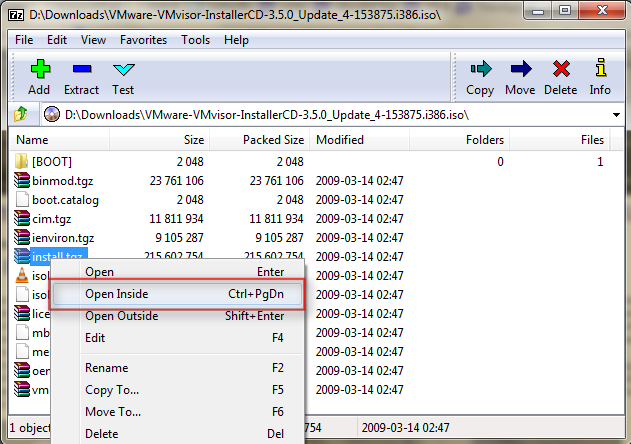
Open usr\lib\vmware\installer. Select VMware-VMvisor-big-3.5.0_Update_4-153875.i386.dd.bz2 and press Ctrl+PgDn again.
Extract the VMware-VMvisor-big-3.5.0_Update_4-153875.i386.dd file.
Now we have the *.dd file and we can write it back to an USB Key.
Open WinImage and pres Disk followed by Restore Virtual Hard Disk image on physical drive…

Select the USB Key. In my case it’s a SanDisk Cruzer.
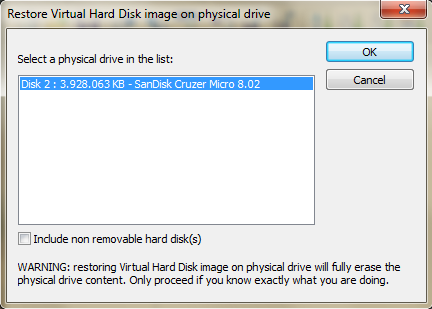
Open de *.dd file and answer Yes on the LAST WARNING.
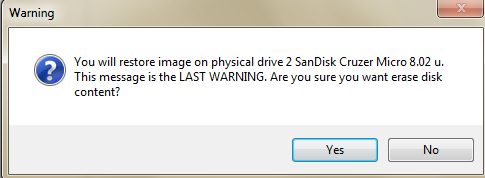
When the wizard completes without an error. The USB Key is ready to use.
Update:
if you’re running Windows Vista or Windows 7 x64 you might get an error like this:
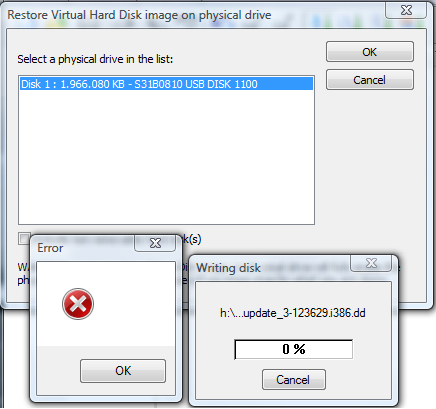
If someone knows a solution for this problem please leave a comment. If you run this tutorial on a Windows XP machine, it will work as expected.

While browsing through Feedreader (my RSS client), I found these three PDF documents:
I think these PDF documents are useful for every VI admin.

Gabrie has created a nice post about CPU compatibility with the new feature FT in vSphere.
With VMware vSphere there is a new exiting function called VMware Fault Tolerant or VMware FT. With VMware FT you can protect a VM against failure by running this VM in lockstep with an exact copy on a different host. Every interrupt in the source VM is immediately replicated to the destination VM, which is “invisble” on the network. Should the host with the source VM fail, then the destination VM will become visible on the network and the users will not experience any downtime. Also a new destination VM is created on a different (third) host and will be kept “in lockstep”.
Now when selecting new servers or in my case a whitebox for my own testlab at home, one should pay attention to the CPU that is in the system, because not all new CPUs have this feature….
Read the rest of the article here: http://www.gabesvirtualworld.com/?p=456
 ICT-Freak.nl