How to: Update ESX3i (USB) Without VUM


image

In this post you’ll find the information you need, to update your ESX3 i host without the VMware Update Manager.

In this whitepaper  vi3_35_25_3i_i_setup.pdf (page 115), you’ll find the following information about the Infrastructure Update tool:

When you install the VI Client, the software installs Infrastructure Update. Infrastructure Update lets you learn about, download, and install maintenance and patch releases, which provide security, stability, and feature enhancements for VMware Infrastructure.

Infrastructure Update downloads available updates. The downloads are background tasks and do not disrupt normal operation. The update service does not install updates for you. Instead, the update service displays a list of available updates that you can choose to install.
When new updates are available, the system tray icon for Infrastructure Update displays a notification. The notifications appear only if you keep automatic update notifications enabled.

This is how it works:

Open the VI Client. Logon to your ESX 3i server. Close the VI Client. Go to Start –> Programs –> VMware and open VMware Infrastructure Update.

image

To update an ESX3i host via VMware Infrastructure Update tool. You will need to follow these three steps:

Continue reading “How to: Update ESX3i (USB) Without VUM”

VMFS Volume Management Whitepaper


image

VMware released a new document about about VMFS volume management.

The guide explains the VMFS volume header metadata mechanism and describes the new 3.5 setting SCSI.CompareLUNNumber. A must read if you use third-party storage snapshot and replication technology.

Grab your copy here: vmfs_resig.pdf

Source:  http://frankdenneman.wordpress.com

Disable Multipathing on a VCB Proxy


image

In my journey of tuning my VCB Proxy for the best performance. I came across this post on the Veeam forums by drbarker: http://forum.veeam.com/. In this post, he describes the steps to be taken, if you want to disable multipathing on your VCB Proxy:

1. Log on to your VCB proxy as a user with administrative privileges.

2. Click Start. Right-click My Computer in the Start menu and select  Manage. The Computer Management window opens.

3. In the Computer Management window, select Storage > Disk Management.

If the Initialize and Convert Disk Wizard opens, close it.
The lower-right portion of the Computer Management window displays a list of all disks visible to the system.

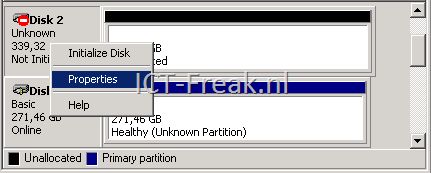
Inactive paths to disks are indicated by a No Entry icon placed over the disk.

image

4. To disable an inactive path, right-click its icon and select Properties from the context menu. The Disk Drive Properties dialog box opens.

image 

5. On the General tab, change the value for Device usage to "Do not use this device (disable)." This removes the disk from the list of devices presented by Disk Management.

image

6. Repeat Step 4 and Step 5 for all inactive paths.

Convert a *.VHD with VMware Converter 4


image

I created a short movie about the process of converting a Microsoft VHD image into a VMware Virtual Machine VMware Converter 4 Standalone. You can download the VMware Converter 4 standalone version here: http://www.vmware.com/download/converter/

screencast


Due to problems with embedded movie players and a WordPress.com hosted blog, I can’t embedded the movie here. So click on the above picture or op the following url: VMware_Converter_4_Standalone_Convert_VHD

VI Toolkit 1.5 + VUM = Error


image

I was experimenting with the VUM Powershell library. I ran the Get-Baseline cmdlet and then the following error occurred:

image

After some digging around at goolge and vmware.com. I found that  the VUM library doesn’t work with the new version of the VI Toolkit. VMware is aware of the problem according to the post from Carter on VMTN and the Release notes:

Carter Shanklin posted this information on VMTN:

Hi everyone,

There is an incompatibility between VI Toolkit 1.5 and the VUM cmdlets. For now if you need to use the VUM cmdlets you will need to do so on a system that has VITK 1.0 installed.
This incompatibility will be resolved by a minor update to VI Toolkit that will be shipped when the next version of VUM ships. The next version of VUM will have cmdlets that support that version as well as the current version.

We’ve updated the release notes to note the incompatibility. Sorry for the inconvenience.

From the release notes:

VI Toolkit (for Windows) 1.5 is not compatible with VMware Update Manager – PowerShell Library 1.0.

windowstoolkit15-200901-releasenotes.html

To fix this “problem” I removed the VI Toolkit v 1.5 and installed the VI Toolkit v 1 again. After the rollback, the VUM library is working again :-).

I hope that VMware will fix this soon.

VMware: VMware vCenter Mobile Access


image

John Troyer just dropped the news on Twitter:

image

This is what vCenter Mobile Access can do:

Introducing VMware vCenter Mobile Access (vCMA).  vCMA allows you to monitor and manage VMware Infrastructure from your mobile phone with an interface that is optimized for such devices. Specifically, it allows you to:

  • Search for virtual machines in your data center
  • Migrate virtual machines from one host to another using vMotion
  • Execute recovery plans using VMware Site Recovery Manager
  • Access Scheduled Tasks, Alarms and Events
  • And much more…

More info and a short demo can be found over here:  http://blogs.vmware.com/vmtn/2009/03/introducing-vmware-vcenter-mobile-access.html

VMware: Failed to get disk partition information


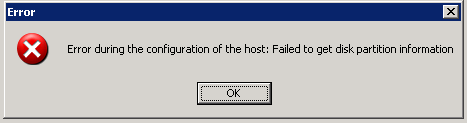
After creating a new IETD configuration at home, i wanted to add the new iSCSI LUN to my ESXi server. Everything went fine, the LUN was presented and the Add storage wizard has found the new LUN. But when i wanted to complete the wizard, the following error came up: 

image

In KB2240, you’ll find the following solution:

The easiest workaround is to use another disk for a datastore. If this is not possible, create the VMFS datastore manually. To do this:

  1. Use fdisk on the /dev/sd[a-z]* device. Create a partition with type 0xfb.
  2. Format the VMFS datastore using
    vmkfstools -C vmfs3 vmhbaI:T:L:P
    In this example, I corresponds to the initiator of the VMware host bus adapter, T corresponds to the target number of the disk, L is the LUN number, and P is the partition number of the newly created partition.

If you don’t know how to use fdisk, you can use this guide:

1. Log on to the console or use putty to connect to the ESX host remotely. If you have not created a user for yourself you will not be able to log in through putty.

2. SU to root. This must be done using the su – root command. If you do not use the – then you will not get root’s path and thus get error messages that say that commands cannot be found.

3. Run fdisk -l. This will give you a list of all of your current partitions. This is important because they are numbered. If you are using SCSI you should see that all partitions start with /dev/sda# where # is a number from 1 to what ever. Remember this list of number as you are going to be adding at least one more and will have to refer to the new partition by it’s number.

4. Run fdisk /dev/sda. This will allow you to create a partition on the the first drive. If you have more than one SCSI drive (usually the case with more than one RAID container) then you will have to type the letter value for the device you wish to create the partition on (sdb, sdc, and so on).

5. You are now in the fdisk program. If you get confused type "m" for menu. This will list all of your options. There are a lot of them. You will be ignoring most of them.

6. Type "n". This will create a new partition. It will ask you for the starting cylinder. Unless you have a very good reason hit "enter" for default. The program will now offer you a second option that says ending cylinder. If you press enter you will select the rest of the space. In most cases this is what you want.

7. Once you have selected start and end cylinder you should get a success message. Now you must set the partition type or it’s ID. This is option "t" on the menu.

8. Type "t". It will ask you for partition number. This is where that first fdisk is useful. You need to know what the new partition number is. It will be one more than the last number on fdisk. Type this number in.

9. You will now be prompted for the hex code for the partition type. You can also type "L" for a list of codes. The code you want is "fb". So type "fb" in the space. This will return that the partition has been changed to fb (unknown). That is what you want.

10. Now that you have configured everything you want to save it. To do so choose the "w" option to write the table to disk and exit.

11. Because the drive is being used by the console OS you will probably get an error that says "WARNING: Re-reading the partition table failed with error 16: device or resource busy." This is normal. You will need to reboot.

12. To reboot the server type "reboot" at the prompt.

13. Once you have rebooted you can now format the partition VMFS. DO NOT do this from the GUI. You must once again log into the console or remote in through putty.

14. Once you have su’d to root you must type in "vmkfstool -C vmfs3 /vmfs/device/disks/vmhba0:0:0:#" Were # is the number of the new partition. You shoulder now get a "successfully created new volume" message. If you get an error you probably chose the wrong partition. Do an fdisk – l and choose the number with the "unknown" partition type. Note: IF you have more than one SCSI disk or more than one container the first 0 may need to be a 1 as well.

15. Go to the GUI and in configuration/storage select refresh. You should now see your new VMFS volume.

Source: http://communities.vmware.com/docs/DOC-1382

VI-Toolkit: Enable PXE boot for all VM’s in a particular folder


The following script enables PXE boot for al the VM’s in a particular folder. After running this script, the VM’s are set to boot only from PXE, so all other options are disabled. The original part of the script is created by LucD and posted on de VMTN forums. See the source for more information.

enable-pxeboot-vm.ps1

$VC = Connect-VIServer (Read-Host "Enter vCenter server") 

$folder = (Read-Host "Enter folder name") 

$spec = New-Object VMware.Vim.VirtualMachineConfigSpec
$spec.extraConfig += New-Object VMware.Vim.OptionValue
$spec.extraConfig[0].key = "bios.bootDeviceClasses"
$spec.extraConfig[0].value = "allow:net"

    $vms = Get-Folder -Name $folder | Get-VM
        foreach ($vm in $vms){
            (get-view ($vm).ID).ReconfigVM_Task($spec)}

Disconnect-VIServer -Confirm:$False

The script in action:image

If you want to return to the default settings, you can run the next script:

disable-pxeboot-vm.ps1

$VC = Connect-VIServer (Read-Host "Enter vCenter server") 

$folder = (Read-Host "Enter folder name") 

$spec = New-Object VMware.Vim.VirtualMachineConfigSpec
$spec.extraConfig += New-Object VMware.Vim.OptionValue
$spec.extraConfig[0].key = "bios.bootDeviceClasses"
$spec.extraConfig[0].value = "allow:hd,cd,fd"

    $vms = Get-Folder -Name $folder | Get-VM
        foreach ($vm in $vms){
            (get-view ($vm).ID).ReconfigVM_Task($spec)}

Disconnect-VIServer -Confirm:$False

Source: LucD @ http://communities.vmware.com/thread/196651

VMware: VM Disk space calculator


This post is a copy from Cody Bunch his blogpost. Cody thanks for sharing!!!:

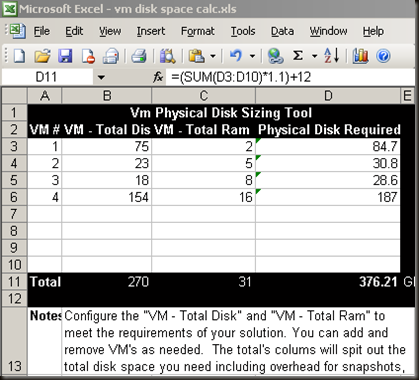
This is a tool that I created a while back to assist in sizing needed disk space in a deployment. Straight forward to use, the totals are calculated as follows: VMDK Size + Ram Size * 1.1 + 12Gb = Total Needed. While the VMDK may be obvious, the others are just as important. Ram Size is included, as ESX will create a swap file on the disk where the VM’s configuration resides (unless you specify otherwise) and needs to be included.  The * 1.1 is to add 10% to the overall solution, to allow for snapshots. This can likely be adjusted up or down depending on your specific requirements, but I’ve found that at least 10% works best.  The last number, 12GB. This one may seem like a mystery, and likely it is. This was originally included to allow for the ESX install on a local host, and some additional room for it’s related overhead.  If your VM’s are on SAN, this number can likely be left out, but… a little more overhead never hurt anyone.

image

Download link and source: http://professionalvmware.com/2008/12/08/virtual-machine-disk-sizing-tool/