
In de volgende twee filmpjes zie je hoe je een virtual appliance kunt maken via VMware Studio.
Part 1:
Part 2:
Bron: http://blogs.vmware.com/vmtn/2009/02/build-a-virtual-appliance-with-vmware-studio.html
In de volgende twee filmpjes zie je hoe je een virtual appliance kunt maken via VMware Studio.
Part 1:
Part 2:
Bron: http://blogs.vmware.com/vmtn/2009/02/build-a-virtual-appliance-with-vmware-studio.html
De Laatste weken zag ik het topic Partition/Disk Alignment verschillende malen langs komen. Ik maakte tot op heden nog geen gebruik van deze optie en wilde er nu wel eens het fijne van weten. VMware heeft een whitepaper gepubliseerd over dit onderwerp. Deze vind je hier:
Partition alignment is a known issue in physical file systems, and its remedy is well-documented. The goal of the testing reported in this paper was to validate the assumption that unaligned partitions also impose a penalty when the partition is a VMware Virtual Machine File System (VMware VMFS) partition.
This paper lists a summary of the results of our testing, recommendations for VMware VMFS partition alignment, and the steps needed to create aligned VMware VMFS partitions.
Nadat je de whitepaper hebt gelezen, wil je natuurlijk zelf ook wel eens kijken hoe dit in zijn werk gaat. Ik kwam een how to tegen, die geschreven is door Harley Stagner en gepost is op: http://searchvmware.techtarget.com/.
Voordat je door kunt gaan, heb je een pc of een VM nodig met daarop de Windows Automated Installation Kit (AIK) geïnstalleerd.
To install Windows AIK, you need to download the image from Microsoft, burn it to a DVD and install it. Once WindowsAIK is installed, go to Start, then Programs, then Windows AIK, then Windows PE Tools command prompt. Note: If you use Windows Vista, you have to right-click on the Windows PE Tools command prompt entry and select RunAs Administrator.
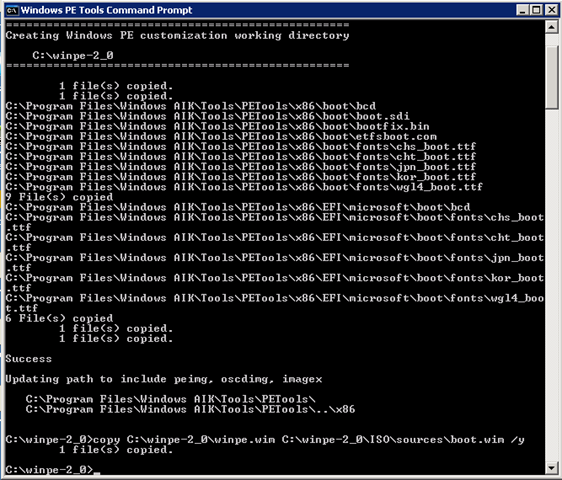
With the command prompt open, you need to run a command that will set up the directory structure needed to create your WinPE 2.0 disk. Run the following at the command prompt:
copype <arch> <destination>
Where <arch> is your processor architecture (x86, amd64, or ia64) and <destination> is a path to a local directory. Below is an example of running this command:
copype x86 c:\winpe-2_0 <enter>
copy c:\winpe\winpe.wim c:\winpe-2_0\iso\sources\boot.wim /y

The final step is the creation of the iso file. This can be done with the following command:
oscdimg -n -h -bc:\winpe-2_0\etfsboot.com c:\winpe-2_0\iso c:\winpe-2_0\winpe_diskpart.iso

Nu de iso klaar is, kunnen we een nieuwe VM opstarten met winpe_diskpart.iso

Run Diskpart:
Diskpart
select disk 0 (of een ander nummer, als je een andere disk wilt alignen)
create partition primary align=64
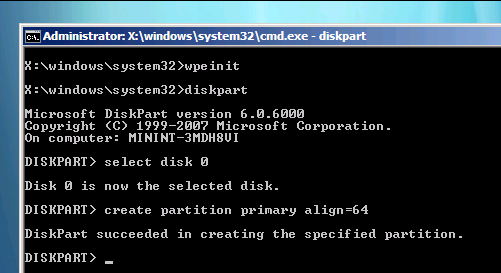
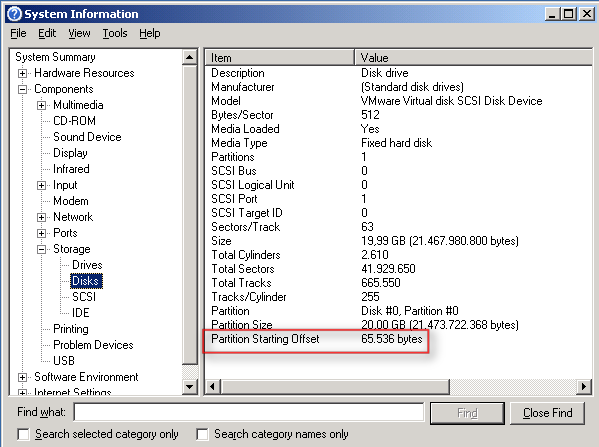
Via msinfo32 kun je de alignment nakijken.
How to tell if your disks are aligned
How can you tell if a disk is unaligned at the Windows partition level? Remember the MBR statement — that x86 systems use the first 63 sectors. Usually there are 512 bytes per sector. If you do the math, 63 x 512 = 32,256. To verify this, log into a machine (physical or virtual) as an administrator that has not had its system volume aligned. Go to Start, then Run, then type in "msinfo32.exe" and press enter. Navigate down to Components, then Storage, then Disks. Notice that the partition starting offset for Disk #0, Partition #0 (the system volume) is 32,256 bytes. This means that the disk is not aligned.If the partition Starting Offset is 65.536 bytes, the disk is aligned.

Meer informatie over disk alignment vind je hier: http://blogs.netapp.com/storage_nuts_n_bolts/2009/01/mbrscanmbralign.html
Als je kunt inloggen op now.netapp.com/. Dan kun je hier de tool mbrscan downloaden. Via deze tool kun je vanaf het Service Console de Alignment nakijken. Netapp is ook bezig met een ander script genaamd mbralign. Via dit script kun je de alignment aanpassen zonder dataverlies.
Update: Rudolf Kleijwegt poste de volgende reacite: In Windows 2008 is het niet meer nodig om de Windows Automated Installation Kit te gebruiken. Je kunt namelijk tijdens het installeren de toetsencombinatie SHIFT+F10 gebruiken om een command prompt te openen. Op dat moment heb je de beschikking over diskpart en kun je een uitgelijnde partitie aanmaken. Deze procedure gaat helaas niet op voor Windows 2003. Als je daar SHIFT+F10 gebruikt krijg je een recovery console met een uitgeklede diskpart.
From the original blogpost by Carter Chanklin:
We’ve added 32 new cmdlets, enhanced our existing cmdlets, and fixed tons of bugs. If you’re the sort of person who loves fine print, you can also have a look at our release notes. The release notes has a great table that shows all the differences between 1.0 and 1.5.
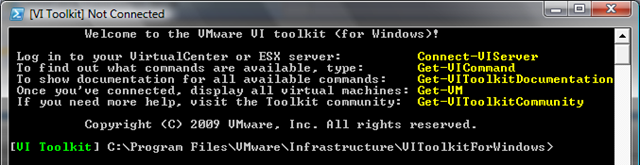
More info and videos can be found in the original blogpost: http://blogs.vmware.com/vipowershell/2009/01/vi-toolkit-15-released.html
Alan Renouf created a new powershell / vi toolkit script which draws a nice diagram of your VI environment.
Instructions:
You will need:
- Powershell V1 (I haven’t tried it on V2 yet)
- The VI Toolkit
- Microsoft Visio (I have only tried 2003 +)
How to use:
- Download the zip file from the bottom of this page
- Once extracted copy the ‘My-VI-Shapes.vss’ file to your ‘My Documents\My Shapes’ folder. If the folder does not exist create it and copy the file in.
- Run the powershell script with the following options:
To diagram the entire Infrastructure:
vDiagram.ps1 -VIServer MYVISERVER
To diagram a specific cluster use the following:
vDiagram.ps1 -VIServer MYVISERVER -Cluster "Production Cluster’
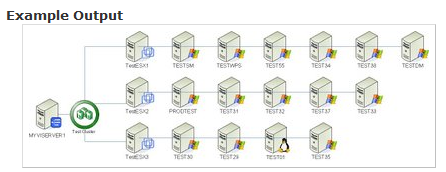
More info and the script can be found over here: http://teckinfo.blogspot.com/2009/01/vdiagram-document-your-vi-with-one.html
Alan keep up the good work!
Source:

guyrleech has written a document about VMware Server 2.0. In this document you will find some useful technical information about the before, during and after installation of VMware Server 2.0.
Check for the latest version of this document at http://communities.vmware.com/docs/DOC-9394.
This is not an official VMware document – it was written by an enthusiast to assist other enthusiasts.
It does not replace VMware documentation which should still be consulted.
Download the pdf over here: http://communities.vmware.com/docs/DOC-9394
Hugo heeft het weer geflikt. Deze keer heeft hij een script gemaakt die alle ESX Servers vergelijkt en daar een mooi rapportje van maakt.
This Powershell script generates an overview of any items that are not available to every ESX server in a VMware cluster. These items might prevent your vm’s being vmotioned by DRS or restarted by HA. Pretty serious business, I’d say!
The items involved are:
1. datastores
2. LUNs (important when using Raw Device Mappings)
3. port groupsThe output is a nicely formatted HTML page showing not only which items are misconfigured, but also where the are available and where they are absent.
Hieronder zie je een screenshot van de output: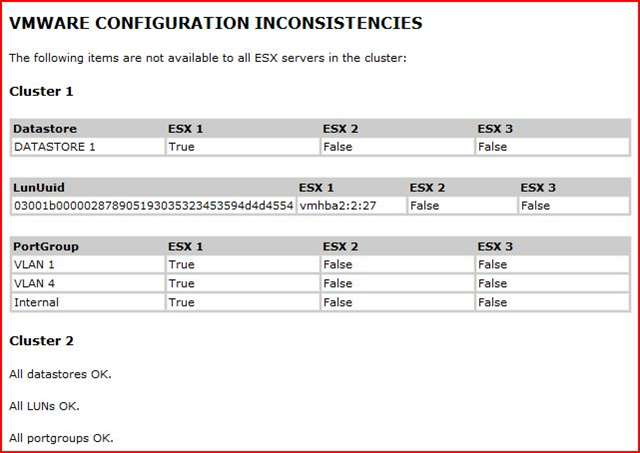
Het script kun je hier vinden: http://www.peetersonline.nl/index.php/vmware/check-vmware-configuration-with-powershell/
David Deeths heeft een post geplaats met daarin de VMworld labs over Perl scripting en het gebruik van Powershell.
Hello, my name is David Deeths and I’m a new contributor to the VMware Developer Blog. I wanted to share with the community the scripting lab we put together for VMworld 2008. This is a great introduction to scripting with the VI Toolkits in Perl or PowerShell. The PowerShell version doesn’t require any programming or scripting experience at all.
The labs will help you get started with scripting VMware Infrastructure to enable automation, extensibility, and integration with existing tools. When we ran this at VMworld, we had about 600 attendees and it was so popular some students camped out in line to attend the lab a second time. We had so many folks request a way to share this with their teams that we decided to publish the whole thing for the community.
The lab is available in two versions: one shows how to use the VI Perl Toolkit and the other shows how to use the PowerShell-based VI Toolkit (for Windows). The attached files contain the manuals for both versions of the lab and the exercises for both versions of the lab.
The lab takes 2-3 hours to complete (not including the time to set the environment up first), but is conveniently split into 20 minute exercises. You’ll walk away with a better understanding of VMware Infrastructure, resources for using the toolkits, and a variety of useful scripts for performing common administrative tasks. The exercises cover triggering tasks, examining VM attributes, performing actions on VMs, and exporting performance data.
Meer info en een aantal downloads vind je hier: an-introduction-to-scripting-vi-using-perl-or-powershell
Vmware heeft gisteren het vExpert programma online gezet. Hieronder een kleine quote van de blog post:
VMware is very proud to introduce the VMware vExpert Awards. The VMware vExpert Awards will be given to individuals who have significantly contributed to the overall community of VMware users over the past year, either online or offline. You might be contributing online to blogs, forums, wikis, or other online sites. You might be organizing VMUG meetings or otherwise getting the word out to local IT professionals. You’re helping spread the word about virtualization and making people successful in deploying this game-changing technology. We want to thank you.
Here is the nomination form. You can nominate yourself or someone else. We’re also taking nominations from people and programs within VMware, so you actually don’t even have to nominate yourself and you still could wake up one day with an award. You might want to fill out the form anyway, because we may not be aware of everything you’re doing.
Als je iemand wil nomineren, kun je dat doen door het bovengenoemde nomination form in te vullen.
Mocht je mijn persoontje willen nomineren, dan heb je de volgende gegevens nodig:
Alvast bedankt 😉
Bron: http://blogs.vmware.com/vmtn/2009/01/are-you-a-vexpert-announcing-a-new-community-award.html

 ICT-Freak.nl