Hardware: HP ML110 G5 VI.NEXT Compatible


Eric Sloof inspired me with his blogpost about the whitebox he is using (http://www.ntpro.nl/blog/archives/866-My-ESX-future-version-compatible-WhiteBox.html). After reading his posts I wanted to see if my HP ML 110 G5 is also compatible with the next version. And Yes it is! :-D.

In fact everything worked out of the box. Storage (onboard Sata controller), Onboard NIC and the DVD-Rom.

More info about the HP ML110 G5 can be found in this post: https://ict-freak.nl/2008/08/04/hardware-hp-ml110-g5-x3065/

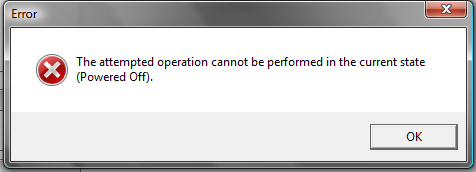
VMware: The attemped operation cannot be performed


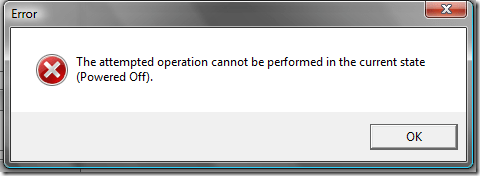
Tijdens de migratie naar ESX 3.5u3 (ik draaide nog ESX 3.02 met een uptime van 553 dagen :-)) Wilde ik de VM’s verplaatsen via een VMotion. Dit ging goed op een VM na. Deze VMotion task stopte na 10% met een time-out foutmelding. Ik moest door met de migratie en had dus niet te tijd om dit grondig te onderzoeken. Ik heb de VM netjes afgesloten en daarna via een Cold Migration verplaatst. Dit ging allemaal goed totdat ik de VM weer wilde optstarten. De volgende foutmelding kwam naar voren:
image

Na wat zoeken op google kwam ik de volgende topic tegen:

In dit topic kwamen de volgende oplossingen naar voren:

Potentially, your VC client on esx server is having issue. I would restart both vmware-vpxa and mgmt-vmware service. If status of the VM would not still sync with VC then, I would think VM itself has an issue.

If this is the case, kill VMPID by performing following;

#this would return all running VMs vmid#
cat /proc/vmware/vm/*/names/

#lookup actual group id
less -S /proc/vmware/vm/(your vmid)/cpu/status

#kill vm with group id you got from above
/usr/lib/vmware/bin/vmkload_app -k 9 (yourgroupID)

1. Disconnected my esx server from virtualcenter
2. Closed VI Client
3. Restarted VirtualCenter (windows service)
4. Open VI Client and re-added my host.

Geen van de oplossingen was de oplossing voor mijn geval. Ik heb de VM uit de inventory van ESX gehaald. Vervolgens heb ik het VMX bestand verwijderd. Daarna heb ik de vCenter service opnieuw gestart en de VM opnieuw aangemaakt met de bestaande VMDK. De VM werkte daarna weer zoals het hoort.

VMware: VPXD.exe flags


Recently I had to change the password for the vCenter DB. This can be done with starting the vpxd.exe with the –p or –P ‘password’ command. After finishing this task I was curious for the other flags so I started vpxd.exe /?.

The following options are available:

C:\Program Files\VMware\Infrastructure\VirtualCenter Server>vpxd.exe /?

Usage: vpxd.exe [FLAGS]
Flags:
      -r          Register VMware VirtualCenter Server
      -u         Unregister VMware VirtualCenter Server
      -s         Run as a standalone server rather than a Service
      -c         Print vmdb schema to stdout
      -o         port Listens on the specified port instead of 902
      -b         Recreate database repository
      -p         Reset the database password interactively
      -P pwd  Reset the database password to the specified password
      -v         Print the version number to stdout

VMware: Interpreting esxtop Statistics


Scott Drummond of VMware has just created a document of the forums that details the Esxtop command. The document is splitted in the following sections:

Section 1. Introduction
Section 2. CPU
Section 2.1 Worlds and Groups
Section 2.2 Global Statistics
Section 2.3 World Statistics
Section 3. Memory
Section 3.1 Machine Memory and Guest Physical Memory
Section 3.2 Global Statistics
Section 3.3 Group Statistics
Section 4 Disk
Section 4.1 Adapter, Device, VM screens
Section 4.2 Disk Statistics
Section 4.2.1 I/O Throughput Statistics
Section 4.2.2 Latency Statistics
Section 4.2.3 Queue Statistics
Section 4.2.4 Error Statistics
Section 4.2.5 PAE Statistics
Section 4.2.6 Split Statistics
Section 4.3 Batch Mode Output
Section 5 Network
Section 5.1 Port
Section 5.2 Port Statistics
Section 6. Interrupt

The rest of the article can be found over here: http://communities.vmware.com/docs/DOC-9279

VMware: Autostart from the COS


Duncan heeft vandaag de volgende blogpost http://www.yellow-bricks.com/2009/01/01/check-if-autostart-is-enabled-from-the-cos/ online gezet, over het nakijken van de autostart (van VM’s) feature in het COS.

I didn’t know this was possible. But you can easily check via the COS if autostarting of VM’s in enabled or not according to this KB article:

Via het volgende commando kun je nakijken of de setting op false staat:

cat /etc/vmware/hostd/vmAutoStart.xml | grep ‘<enabled>false</enabled>’

image

Via de volgende commando’s kun je deze setting aanpassen:

Om de setting op true te zetten voer je het volgende commando uit:

perl -p -i.old -e ‘s/<enabled>false/<enabled>true/g’ /etc/vmware/hostd/vmAutoStart.xml 
de optie –i.old zorgt er voor dat er een backup gemaakt wordt

Om de setting op false te zetten voer je het volgende commando uit:

perl -p -i.old -e ‘s/<enabled>true/<enabled>false/g’ /etc/vmware/hostd/vmAutoStart.xml

VMware: VMFS Best Practices


The VMware Virtual Machine File System (VMFS) is a high performance cluster file system that allows virtualization to scale beyond the boundaries of a single system. Designed, constructed, and optimized for the virtual server environment, VMFS increases resource utilization by providing multiple virtual machines with shared access to a consolidated pool of clustered storage. And VMFS provides the foundation for virtualization spanning multiple servers, enabling services such as VMware VmotionTM, Distributed Resource Scheduler, and VMware High Availability.
VMFS also reduces management overhead by providing a highly effective virtualization management layer, one that is especially suitable for large-scale enterprise data centers. Administrators employing VMFS find it easy and straightforward to benefit from the greater efficiency and increased storage utilization offered by the use of shared resources.
This paper gives a technology overview of VMFS, including a discussion of features and their benefits. The paper highlights how VMFS capabilities enable greater scalability and decreased management overhead. It also provides best practices and architectural considerations for deployment of VMFS.

You can download the whitepaper over here: http://communities.vmware.com/docs/DOC-9276

VMware: Creating VMware ESX Unattended Install Media


Paul Shannon heeft weer een super document gemaakt over het maken van een Unattended Installatie CD voor VMWare ESX. In de tijd van ESX 2.5.x heb ik ook eens zo’n CD gemaakt door de volgende guide te gebruiken: http://www.vmprofessional.com/index.php?content=kickstart_2. Helaas werkte deze guide niet meer met ESX 3.5. Ik ben dus erg blij met het document van Paul. Thanks Paul!

Paul schrijft het volgende op zijn blog:

I had a customer that had a requirement to backup the ESX Service Console settings and wanted to know the best files to backup. I suggested that it may be more prudent to create unattended installation media to make restores more seamless. This took a turn and I was asked to make a single CD that was capable of restoring any one of the 11 ESX hosts in the clusters. With a lot of reading and a lot of testing this was achieved and this document explains how I did it.

Download het document hier: http://www.vm-aware.com/files/tech_notes/Creating_Custom_ESX_CD.pdf

Bron: http://www.vm-aware.com/2008/12/22/creating-vmware-esx-unattended-install-media/

Add Custom Fields to VI Client with Powershell (Samples)


Hugo Peeters heeft zijn Powershell scripts voor het vullen van Custom Fields in vCenter gepost:

Snapshot Count

I already showed you how to do this, but I have now added an IF-statement so that only changes are updated (equal values are not overwritten). And I have added Julian Wood’s correction. Add-VMSnapshotCount.ps1

Total Snapshot Size

The number of snapshots is quite inetresting, but even more interesting, is the total size of the delta files all snapshots are occupying. They might be eating up all your precious SAN space. Plus, reverting to or committing a large snapshot is tricky. Add-VMSnapshotSize.ps1

Host Hardware Model

Want to see what models of hardware you are using in your datacenter? You could look at the summary tab of each host. Or run this script to add the info to the every Hosts tab in the VI Client. Select your Datacenter, select the Hosts tab and enjoy! Add-VMHostModel.ps1

Host ESX Version

Did you update all your ESX Servers to the latest version? Check it quickly using this script. Add-VMHostVersion.ps1

Host LUN Count

Last but certainly not least: are you sure every datastore you are using is available to all your ESX Servers? It is visible at a glance when you add the LUN Count to your VI Client! Add-VMHostLUNCount.ps1


Check zijn site voor allerlei top Powershell scripts: http://www.peetersonline.nl/


Bron: http://www.peetersonline.nl/index.php/vmware/add-custom-fields-to-vi-client-with-powershell-samples/