Danny Kort heeft een website opgezet waar je alles kunt lezen over Whitboxes voor voor VMware ESX. Het is ook mogelijk om je eigen configuratie toe te voegen. Klik op het plaatje om naar de website te gaan.

Danny Kort heeft een website opgezet waar je alles kunt lezen over Whitboxes voor voor VMware ESX. Het is ook mogelijk om je eigen configuratie toe te voegen. Klik op het plaatje om naar de website te gaan.

Versie 2.0 bevat de volgende nieuwe features:
- Five times faster – Veeam Backup 2.0 has a new optimized backup engine, which allows for up to five times faster backup and replication performance than the previous version.
- Windows Volume Shadow Copy Service (VSS) support – Veeam Backup 2.0 leverages VSS to ensure consistent backup and recovery of VSS-aware applications, including Active Directory, Microsoft Exchange and Microsoft SQL Server.
- ESXi support – Now customers can back up ESXi servers using VMware Consolidated Backup (VCB). File-level recovery is fully supported for guests running on ESXi, and full image restore is supported to ESX 3.x servers. These images can then be VMotioned to ESXi as needed.
- Enhanced reporting and notification – Comprehensive real-time job statistics are available, including automated e-mail notification of backup job status, activity and performance details.
- Backup portability – Veeam Backup users can now easily import backups made using previous versions of the software, or backups that have been archived to tape.
- Support for third-party tape backup systems – Now users can specify a script to automatically run when the VMware backup is finished, initiating tape backups to begin.
Veeam heeft ook een demo van Veeam Backup online staan. Deze kun je via de volgende button opstarten:
Meer informatie vind je hier: http://www.veeam.com/vmware-esx-backup.html

Paul Shannon van (http://www.vm-aware.com/) heeft een pdf gemaakt waarin hij de nieuwe feature Hot Extend Virtual Disks stap voor stap uitlegt.
One of the great new bits of functionality in ESX 3.5 Update is the ability to hot extend non-boot virtual disks without shutting down the VM.
I decided to give it a go with a Windows 2003 Standard VM and thought I’d provide a How To for anyone that might need/want it.
De pdf kun je hier downloaden: how-to-hot-extend-virtual-disks-using-esx-35-update-2
Ik ben nu even met ESX 3.5 en VC 2.5 update 2 aan het testen in een VM en kwam als eerste de volgende nieuwe features tegen:
Ik denk dat de Health Status nodig is voor de volgende optie:
VirtualCenter Alarms
VirtualCenter 2.5 Update 2 extends support for alarms on the overall health of the server by considering the health of each of the individual system components such as memory and power supplies. Alarms can now be configured to trigger when host health degrades.

De Health Satus zat ook al van ESX3i:

Hot Virtual Extend Support – The ability to extend a virtual disk while virtual machines are running is provided. Hot extend is supported for vmfs flat virtual disks without snapshots opened in persistent mode.
De XPVM staat aan een heeft een VMDK van 8GB deze ga ik via Hot Virtual Extend vergroten naar 10GB.

Voordat je deze optie kunt gebruiken moet je wel even de snapshots verwijderen.
Live Cloning of Virtual Machines – VirtualCenter 2.5 Update 2 provides the ability of creating a clone of a powered-on virtual machine without any downtime to the running virtual machine. Therefore, administrators are no longer required to power off a virtual machine in order to create a clone of it.

Dit kon al in VC 2.5. Hoe dit in zijn werk gaat lees je in deze post.
Windows Single Sign-on Support
You can now automatically authenticate to VirtualCenter using your current Windows domain login credentials on the local workstation, as long as the credentials are valid on the VirtualCenter server. This capability also supports logging in to Windows using Certificates and Smartcards. It can be used with the VI Client or the VI Remote CLI to ensure that scripts written using the VI Toolkits can take advantage of the Windows credentials of your current session to automatically connect to VirtualCenter.
VSS quiescing support – When creating quiesced snapshot of Windows Server 2003 guests, both filesystem and application quiescing are supported. With Windows Server 2008 guests, only filesystem quiescing is supported. For more information, see the Virtual Machine Backup Guide and the VMware Consolidated Backup 1.5 Release Notes.
Ik was al een tijdje aan het zoeken naar een goede features comparison sheet. Ik zat er zelfs al aan te denken om er zelf een te maken tot dat Aleks (virtualistic.nl) me de volgende site liet zien: http://www.it20.info/
Disclosures:
- I have limited the scope to x86 virtualization solutions
- Virtualization is such a broad topic that I have decided to limit this table to hardware virtualization only solutions. The only exceptions as of today are “SW Virtuozzo” and “Solaris Containers” which do not implement hw virtualization but rather OS virtualization. For a description of these various virtualization tehcnologies check this article.
- I have limited the solutions and the ISV to what I personally believe to be those that currently matter for the commercial/enterprise customers.
- To shape/structure and fill this table I have collected feedbacks from various communities and other tables I came across in the last few months (thanks to Andreas Groth for his inputs). I am trying to maintain this page for the sake of the community … not to get credit for a work that others have been doing and I am only integrating here.
- It’s proving to be very difficult to rate thorugh a simple yes/no table the value of a solution over the other. This is becoming even more challanging since most ISV’s are pushing into the value-add features rather than the pure hypervisor …
- …. but since so many people are looking for such a table I decided to try ….
- If you are one one the ISV’s mentioned below feel free to send me feedbacks and suggestions to the e-mail address above.
- Some of the info in the tables are facts. Other info are opinion of the author and as such should be treated.
Structure of the Comparison:
- High-level info and general market scenario (this will position the offering in the market)
- Host/Hypervisor specific information/characteristics (this will high-light the hypervisor features)
- Virtual Machines specific information/characteristics (this will high-light the potential virtual environments characteristics)
- Infrastructure Management specific information/characteristics (this will enlarge the scope to the out-of-the box infrastruxture management features)
De comparison sheet kun je hier bekijken: http://www.it20.info/misc/virtualizationscomparison.htm
Thanks Aleks voor de link!
Je kunt vanaf nu je license aanvragen. Klik op het plaatje om naar het forumlier te gaan.
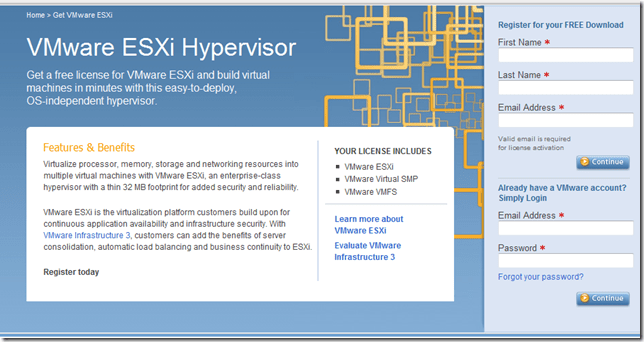
Bron: http://www.yellow-bricks.com/2008/07/28/esxi-pick-it-up-for-free-now/
Alvorens je aan de slag gaat met het upgraden van je omgeving, download en lees eerst de vi3_35_25_u2_upgrade_guide.pdf
Zodra je klaar bent met lezen start je de autorun.exe vanaf de VC_CD.
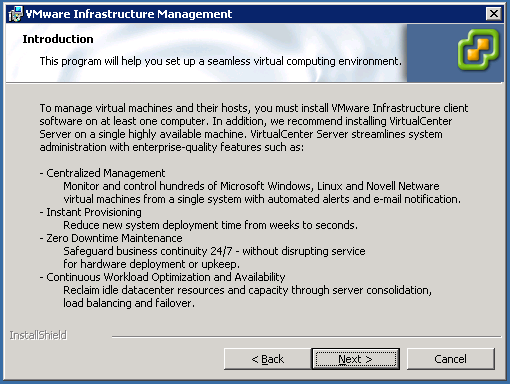
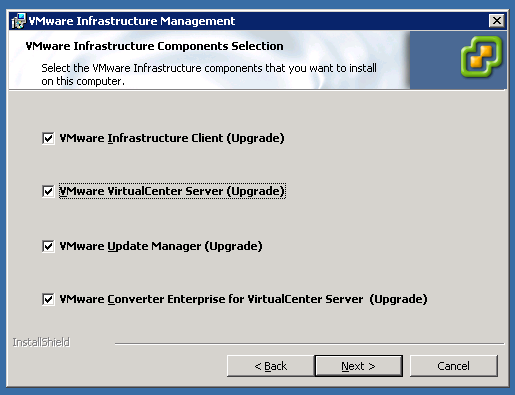
Vink je alles aan wat je wilt upgraden.
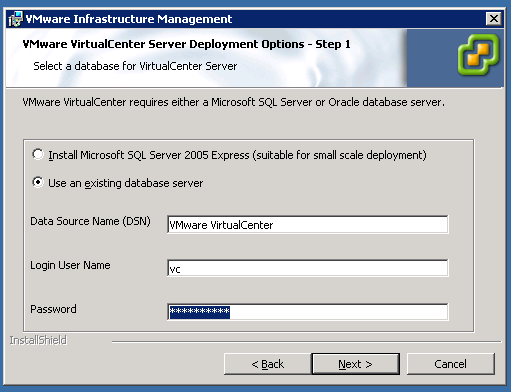
Geef de database settings op
De Database wordt later bijgewerkt van Versie 4 naar Versie 5.

Even een waarschuwing tussen door. De agent draait gewoon op mijn SQL server dus waarom dit is weet ik niet.

De volgende melding moet je wel even serieus nemen.

In vi3_35_25_u2_upgrade_guide.pdf staat het volgende om de bovenstaande melding op te lossen.
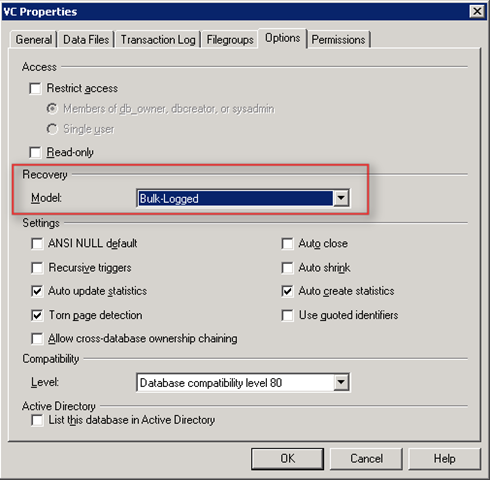
If you are upgrading a SQL database, you must first enable bulk logging in the
database.
a Open SQL Server Enterprise Manager.
b Right‐click the database and click Properties > Options > Recovery Mode.
c Select Bulk‐logged.
Zet het Recovery Model in op Bulk-Logged.
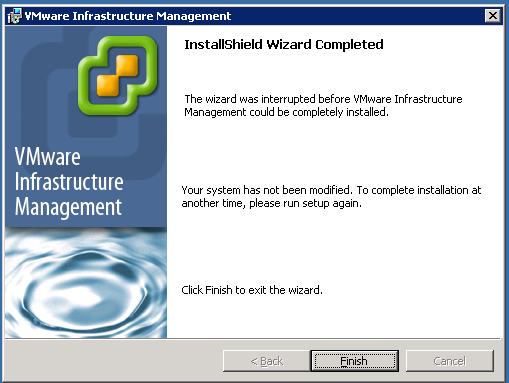
Hmm. En toen klapte de installatie eruit.
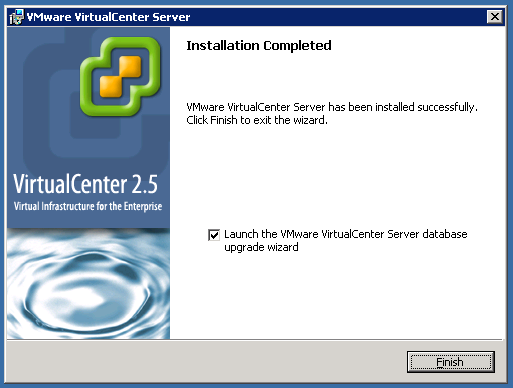
Ik kon nog niks vinden op google, over mogelijke oorzaken en oplossingen. De setup heb ik heb vervolgens in delen, met het handje gedaan.
Na de installatie van VirtualCenter server moet de database worden bijgewerkt:
De wizard word gestart
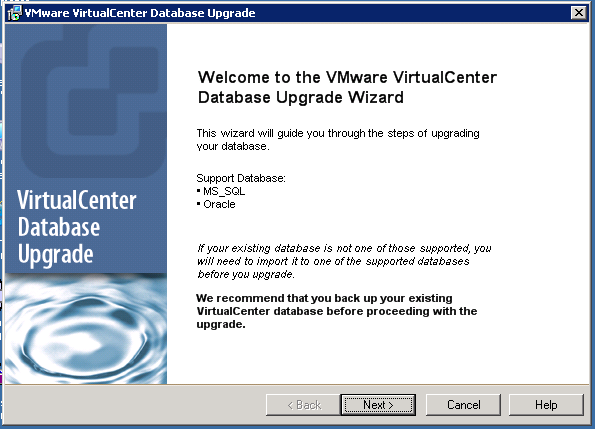
Ik heb hier de standaard waarden laten staan.
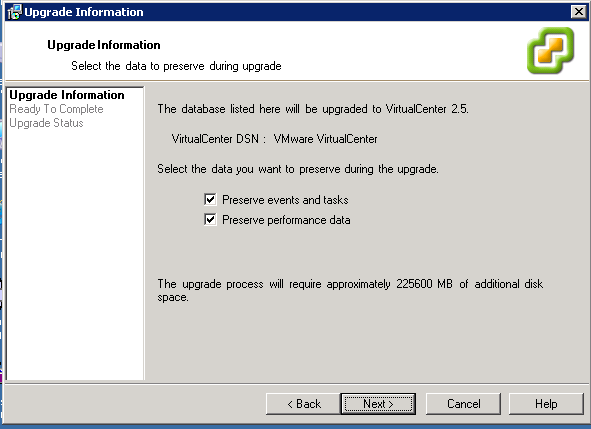
De database wordt bijgewerkt naar versie 5.
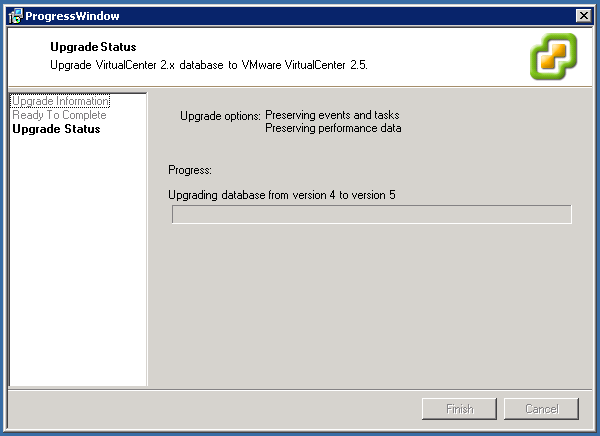
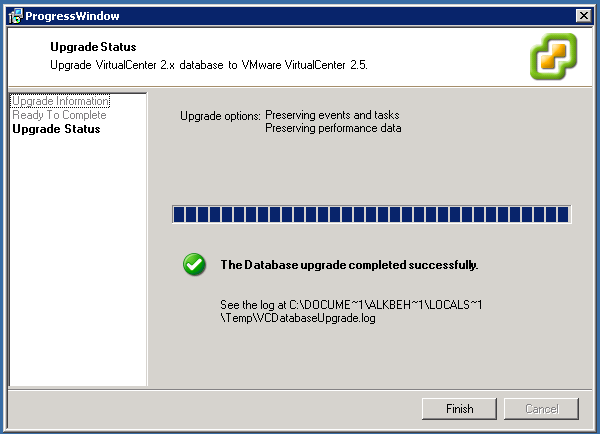
De upgrade is goed gegaan.
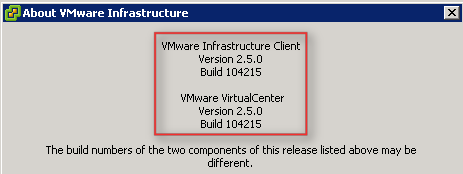
En alles is weer bijgewerkt naar de laatste builds.
Latest Version: 3.5 Update 2 | 7/25/2008 | Build: 103908 | Release Notes | Download
Latest Version: 3.5 Update 2 | 7/25/2008 | Build: 103909 | Release Notes | Download
Latest Version: 2.5 Update 2 | 7/25/2008 | Build: 104263 | Release Notes | Download
Latest Version: 1.5 | 7/25/2008 | Build: 102898 | Release Notes | Download
Ik liet de Spelling- en grammaticacontrole even haar werk doen in een Word document en toen kwam deze met de volgende suggestie:

Microsoft erkent het dus toch 😉

Download de tool hier: http://www.tripwire.com/configcheck/configcheckdownload.cfm#download
Daarna pak je de zip file uit.

Mocht je onder Vista werken zoals ik, dan moet je de configcheck.bat starten met Administrator rechten.
Even de license agreement accepteren.

Nu kun je de esx host opvoeren en op check configuration klikken.

Ik heb deze test gedaan op een ESX 3,5 VM die net was geïnstalleerd. Ik had root access voor ssh nog niet aangezet en kreeg daardoor de volgende foutmelding.

Gelijk even PermitRootLogin op Yes gezet
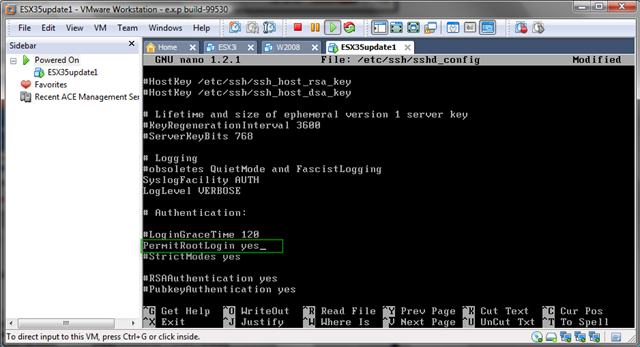
en /etc/init.d/sshd restart uitgevoerd.
Nu kon de test uitgevoerd worden.
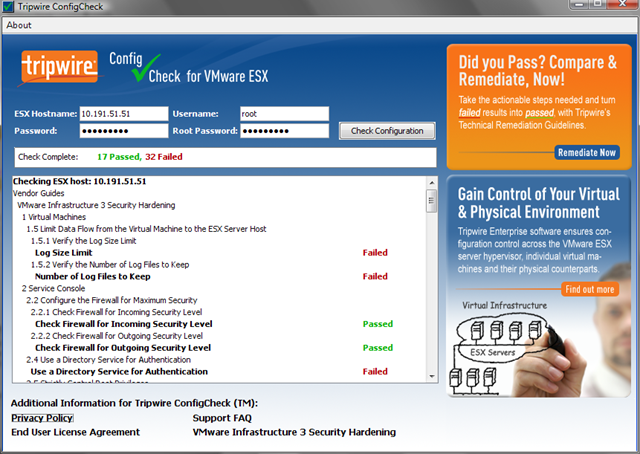
Nadat de test klaar is kun je via de onderstaande link de Remediation Guide aanvragen.
http://www.tripwire.com/configcheck/tw_remediation_guide.cfm?pg=ccrm
 ICT-Freak.nl