VMware: Fusion 2 Beta


The VMware Fusion team is proud to announce VMware Fusion 2.0 Beta 1

This public beta, a free download, boasts a handful of industry firsts for Mac virtualization, including true multi-display support for virtual machines and experimental DirectX 9.0 Shader Model 2 3D acceleration.

The team is also extremely happy to announce that VMware Fusion 2.0, when released, will be a free downloadable upgrade for all VMware Fusion 1.x customers, as a sincere thank you to our early supporters.

Now, on to the features!

In het onderstaande filmpje kun je zien tot wat de beta1 in staat is:

VMware: What VMware products support which VM OS?


Rich Brambley van vmetc.com heeft een tabel gemaakt over welk VMware product welk OS ondersteund. 

There are sections of installation instructions for every past and present operating system that is supported. What I am posting from this document is a very helpful table that is a quick reference of what VMware products support which VM operating systems. This table has been copied from the online version of the guide.

This table makes it very easy to answer questions like: 

  • Is a VM running Server 2008 supported on ESX?
  • Is Vista supported in VMware ACE?
  • Does VMware support running Solaris on VMware Server?
  • Can I run Windows ME or Windows 98 in an ESX guest?
  • Is Netware supported in VMware Workstation?

The answers to these questions along with every possible supported OS and VMware product combination can be found in this table:

http://vmetc.com/2008/05/05/what-vmware-products-support-which-vm-os/

SUN: VirtualBox 1.6


virtual-box-new

VirtualBox 1.6 is a major update, incorporating over 2000 improvements. Among the highlights:

  • The new Sun livery
  • Solaris and Mac versions no longer in beta
  • Guest Additions for Solaris
  • Seamless windowing for Solaris and Linux guests
  • SATA support for up to 32 hard disks per VM (first product in the industry to do SATA!)
  • PAE support for guests (memory model required by some server OSes)
  • Web Services API for remote management
  • Significant improvements to scalability

Zie de UserManual.pdf voor meer informatie.

VirtualBox 1.6 kun je via de site downloaden: https://cds.sun.com/

VMware: Unable to open network mapping libary


De onderstaande foutmelding kan optreden als je een VM die aangemaakt is in VMware Server 2.0 Beta2 wilt gebruiken in VMware Workstation 6.x.

Ws_error

Dit kun je als volgt oplossen:

Open het VMX bestand en verwijder de volgende twee regeles:

ethernet0.features = “1”
ethernet0.networkName = “Bridged”


Bron voor deze oplossing is een post van jensent1 in het VMware forum: http://communities.vmware.com/thread/127124

Vmware: Show VMware Tools version with BGInfo


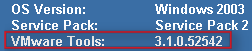
Ik denk dat de meeste van jullie de tool BGInfo wel kennen. Met deze tool kun je systeeminformatie tonen op de desktop. Ik wilde in onze VMware omgeving en ook in mijn Master VM’s het versie nummer tonen van VMware Tools. Dit kun je vrij eenvoudig doen in BGInfo.

Open BGInfo of je eigen *.bgi bestand. Klik daarna op ‘Custom..’ gevolgd door ‘New’. Geef nu een Identifier naam op. Daarna selecteer je ‘Version information for a file’. Als laatste browse je naar het bestand ‘VMwareService.exe’ en klik je op Ok..

Show_VMware_Tools_version_with_bginfo

Vanaf nu kun je VMware Tools version toevoegen aan je bgi bestand.

image

Nadat je het nieuwe *.bgi bestand hebt doorgevoerd, zie je vanaf dan het versie nummer van de VMware Tools. Je kunt het versie nummer controleren via het About scherm van de VMware Tools.

Hieronder zie je en printscreen van een VM in VMware Workstation.

image

In ESX 3.01 ziet het er zo uit:

image

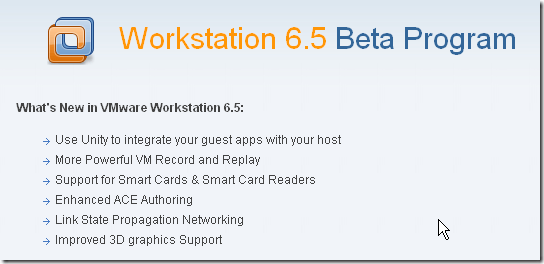
VMware: What’s new in VMware Workstation 6.5 beta 1


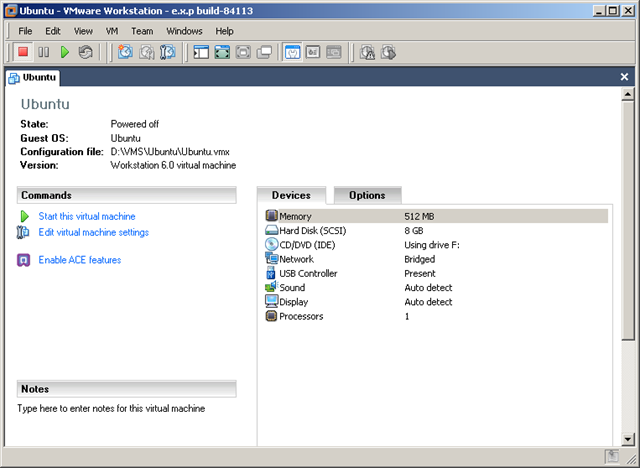
Het nieuwe virtualmachine scherm. Let op de gepimpte icoontjes.

image

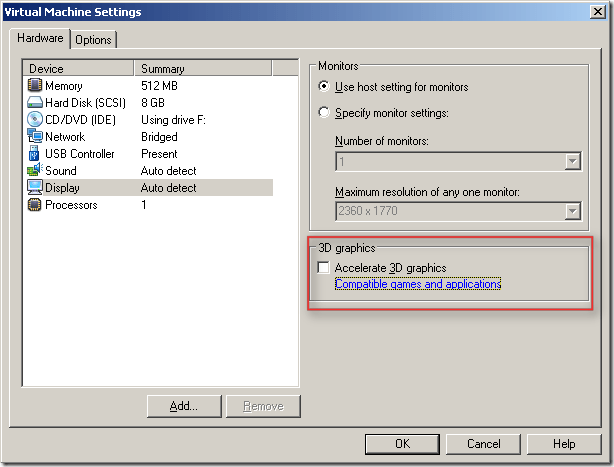
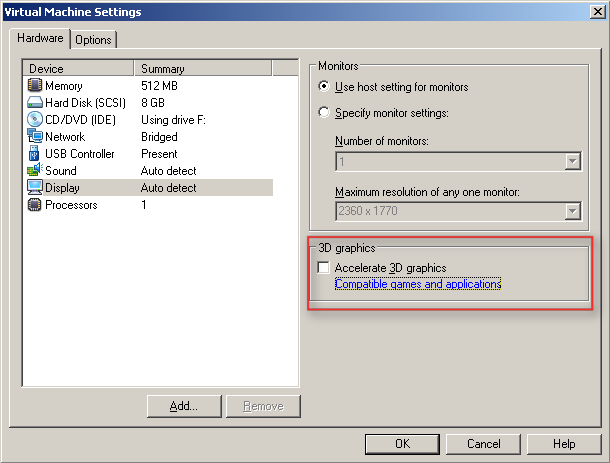
De nieuwe optie voor 3D graphics.

image

Meer informatie over de 3D graphics:

Support for Direct3D Graphics

To take advantage of the 3-D capabilities of Workstation, the virtual machine must be running the version of VMware Tools included with Workstation 6.5 or higher. For example, you do not need to upgrade a Workstation 6.0 virtual machine to Workstation 6.5, but you do need to upgrade the VMware Tools running inside it. If you move the virtual machine and want to use the 3-D capabilities, be sure you have the correct version of VMware Tools installed.

Support for applications that use DirectX 9 accelerated graphics applies only to Windows XP guests, on hosts running Windows 2000, Windows XP, Windows Vista, or Linux.


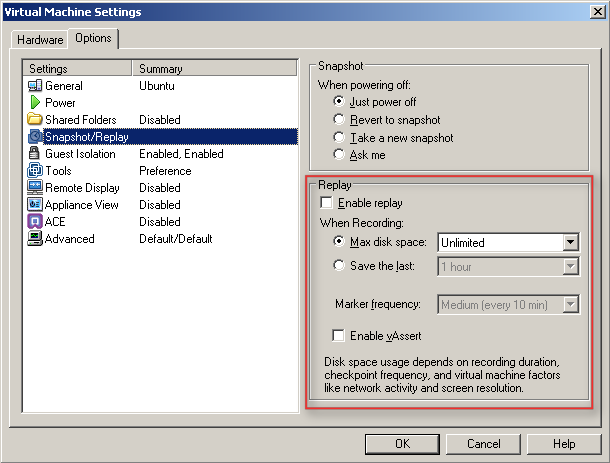
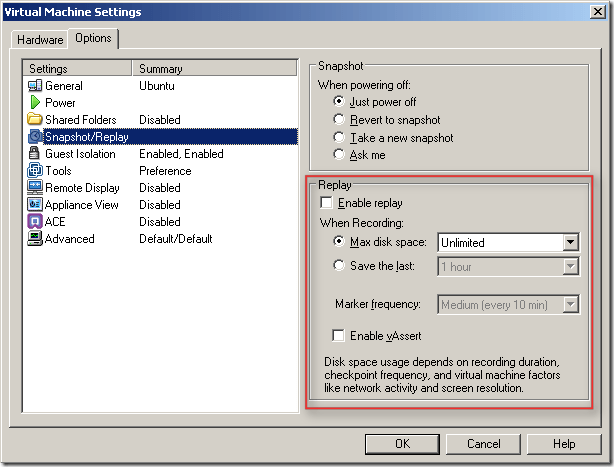
De snapshot en replay opties.
image

The replay control dialog box contains the following buttons:

  • Play/Pause – The button is labeled Play if you want to play the last recording you made for the selected virtual machine. If the virtual machine is powered off, it is resumed, as if it had been suspended. It is labeled Pause if you want to suspend the replay and click the button again to resume replay.
  • Go Live – Stops the replay that is in progress and reverts to the current state of the virtual machine.
  • Add Marker – Takes a replay-specific snapshot at the current location within the recording. You can use this marker during replay to skip ahead in a recording.
  • Go to Previous Marker – Plays the previous marker.
  • Go to Next Marker – Plays the next marker.
  • Current Replay Position Slider – Allows to preview a replay. You can drag and drop the Current Replay Position Slider to the nearest previous snapshot and start replaying. On Linux, the auto-scroll function of the zoomed in portion is enabled. The Current Replay Position Slider is a red arrow located in the progress timeline.
  • Zoom Control – Controls the zoom in and out function during replay.
  • Minimize – On Windows, the (-) button minimizes the dialog box to the bottom left hand side of the status bar. The minimized control allows you to view your recording in the virtual machine and use the controls in the status bar. The progress indicator in the status bar shows the timeline of the recording.
  • Note Keep in mind that you cannot close the replay control dialog box.

Replay Speed Control – Controls the replay speed of a recording. Click the right button to increase the replay speed to the maximum. Click the left button to decrease the replay speed to normal.

Note The speed of a playback depends on the host activity and workload of the guest.


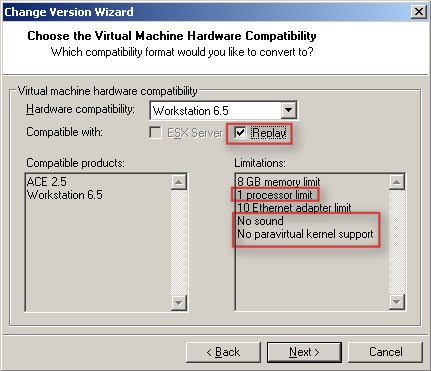
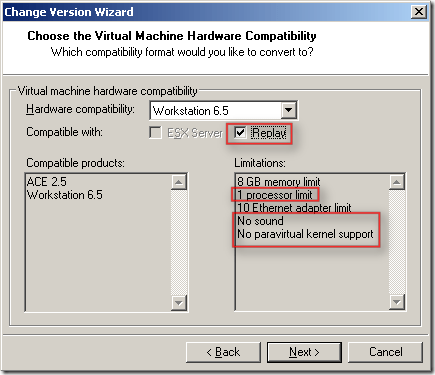
Voor de replay functie dien je wel de Hardware compatibility te verhogen naar Workstation 6.5.
image

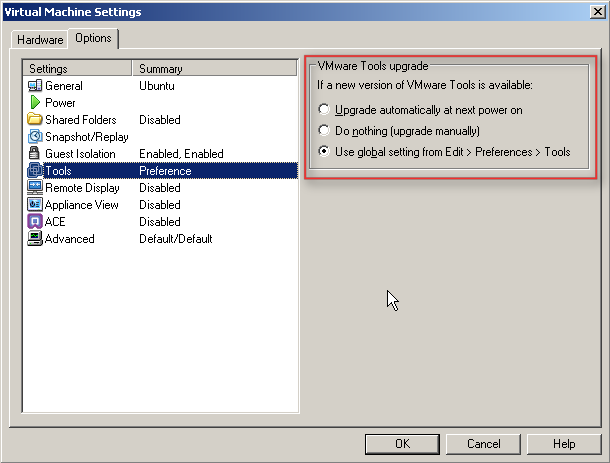
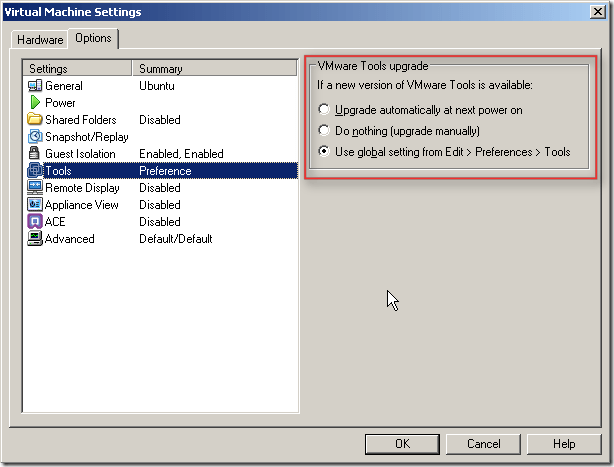
  Het upgraden van de VMware Tools heeft ook weer wat meer opties gekregen.
image

Bij het starten van de VM kwam de onderstaande melding.

image

Nadat je op Update Tools hebt gedruk krijg je netjes een uitleg over hoe je de upgrade uit kunt voeren.

image

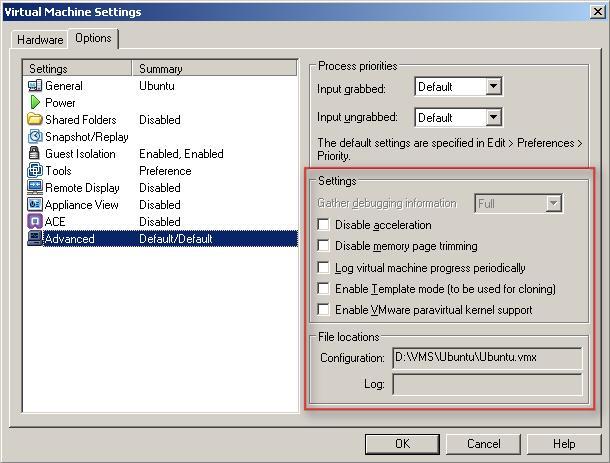
Wat verder opvalt bij de Advanced settings zijn de volgende opties:

  1. Disable Acceleration
  2. Disable memory page trimming
  3. Log virtual machine progress periodically
  4. Enable Template mode (to be used for cloning)
  5. Enable VMware parvirtual kernel support

image


Later meer……

VMware: Unity in Workstation 6.5 beta 1


Gabrie van de blog http://www.gabesvirtualworld.com/ heeft een filmpje gemaakt over de nieuwe Workstation 6.5 feature genaamd Unity. Met Unity kun je een Windows XP VM op de achtergrond draaien terwijl je de applicaties los op Linux desktop toont. Deze feature zit momenteel ook al in VMware Fusion.

Wil je zien hoe dit in zijn werk gaat, bekijk dan het onderstaande filmpje.


Gabrie keep up the good work.

Meer informatie over Unity vind je hier: http://www.chipx86.com/blog/?p=250