PowerCLI: Change VMware Tools Options


image

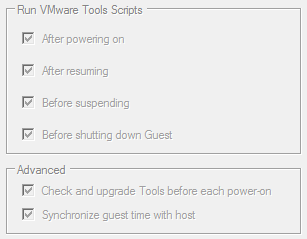
In this post you will learn how to change the VMware Tools settings in the Options menu which you can find in the vSphere Client:

image

You can enable or disable these features via the following PowerCLI script:

$vCenter = Read-Host "Enter vCenter Server name"

Connect-VIServer $vCenter

$vmConfigSpec = New-Object VMware.Vim.VirtualMachineConfigSpec
$vmConfigSpec.Tools = New-Object VMware.Vim.ToolsConfigInfo
$vmConfigSpec.Tools.AfterPowerOn = $true
$vmConfigSpec.Tools.AfterResume = $true
$vmConfigSpec.Tools.BeforeGuestStandby = $true
$vmConfigSpec.Tools.BeforeGuestShutdown = $true
$vmConfigSpec.Tools.SyncTimeWithHost = $true
$vmConfigSpec.Tools.ToolsUpgradePolicy = "Manual" # "UpgradeAtPowerCycle"

Get-VM | % { (Get-View $_.ID).ReconfigVM($vmConfigSpec)}

Disconnect-VIServer -Confirm:$false


Just change the $true values to $false if you want to disable the feature. If you want to change the Tools Upgrade Policy to Upgrade at startup just remove "Manual" # and it should change the Policy.

This is what you see when the VM is still active:

image image

This script will change the configured settings on All the VM’s.  If you want to change the settings on a particular VM just change Get-VM into Get-VM vmname

vCenter 4 on Windows x64 and 32 bit DSN


image

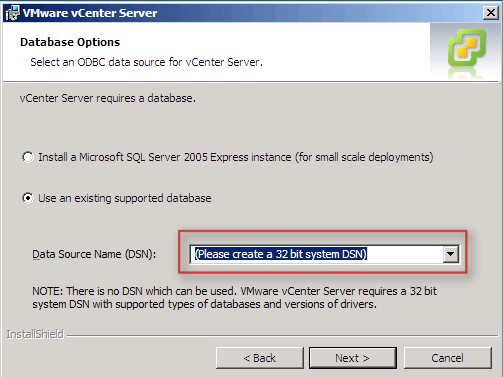
Today I installed a Windows Server 2008 x64 VM to use as vCenter 4 server. Everything went fine until the DSN option gave me the (Please create a 32 bit system DSN) message.

image

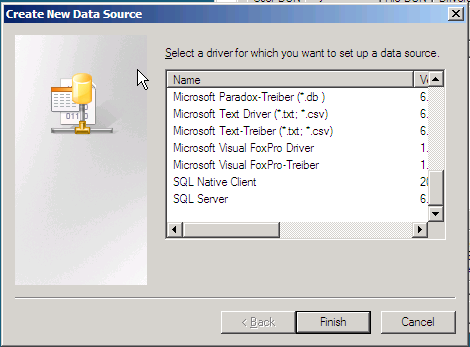
I created the DSN via: Start – Run – msodbcad32. The weird thing I noticed was the small amount of options available, only two as you can see in the picture below.

image 

To solve this issue, start Odbcad32.exe from the following location %systemdrive%\Windows\SysWoW64\Odbcad32.exe instead of Start –Run – Odbcad32.

Now we have the options we need:

image

Create a new system DSN for vCenter and vCenter Update Manager. Start the vCenter installer and select the right DSN:

image

More information about this issue can be found in: KB942976


Source: http://www.vmwarewolf.com/32-bit-odbc-dsn-for-vsphere/

PowerCLI: Generate an Excel sheet with VM info


image

The following script is part of another script but I wanted to show you some nice Powershell stuff in combination with Microsoft Excel.

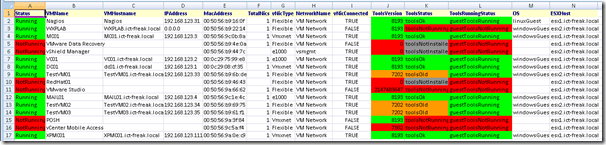
This script will generate an Excel sheet with some VM information. It will color the cell red if the Powerstate equals to NotRunning.

$vCenter = Read-Host "Enter your vCenter servername"

Connect-VIServer $vCenter

$xlCSV = 6
$xlXLS = 56
$csvfile = "C:\beforeHWchange.csv"
$xlsfile = "C:\beforeHWchange.xls"

$Excel = New-Object -ComObject Excel.Application
$Excel.visible = $True
$Excel = $Excel.Workbooks.Add()

$Sheet = $Excel.Worksheets.Item(1)
$Sheet.Cells.Item(1,1) = "Status"
$Sheet.Cells.Item(1,2) = "VMName"
$Sheet.Cells.Item(1,3) = "VMHostname"
$Sheet.Cells.Item(1,4) = "IPAddress"
$Sheet.Cells.Item(1,5) = "MacAddress"
$Sheet.Cells.Item(1,6) = "TotalNics"
$Sheet.Cells.Item(1,7) = "vNicType"
$Sheet.Cells.Item(1,8) = "NetworkName"
$Sheet.Cells.Item(1,9) = "vNicConnected"
$Sheet.Cells.Item(1,10) = "ToolsVersion"
$Sheet.Cells.Item(1,11) = "ToolsStatus"
$Sheet.Cells.Item(1,12) = "ToolsRunningStatus"
$Sheet.Cells.Item(1,13) = "OS"
$Sheet.Cells.Item(1,14) = "ESXHost"

$intRow = 2

$WorkBook = $Sheet.UsedRange
$WorkBook.Interior.ColorIndex = 19
$WorkBook.Font.ColorIndex = 11
$WorkBook.Font.Bold = $True


#$vms = Get-Folder Lab | Get-VM
$vms = Get-VM

foreach($vm in $vms){

  $vmnic = Get-NetworkAdapter -VM $vm
  $vmview = get-VM $vm | Get-View

if($vm.Guest.State -eq "NotRunning"){
  $Sheet.Cells.Item($intRow, 1) = [String]$vm.Guest.State
  $Sheet.Cells.Item($intRow, 1).Interior.ColorIndex = 3
}
elseif($vm.Guest.State -eq "Unknown"){
  $Sheet.Cells.Item($intRow, 1) = [String]$vm.Guest.State
  $Sheet.Cells.Item($intRow, 1).Interior.ColorIndex = 48
}
else{
  $Sheet.Cells.Item($intRow, 1) = [String]$vm.Guest.State
  $Sheet.Cells.Item($intRow, 1).Interior.ColorIndex = 4
}

$Sheet.Cells.Item($intRow, 2) = $vmview.Name 
$Sheet.Cells.Item($intRow, 3) = $vmview.Guest.HostName
$Sheet.Cells.Item($intRow, 4) = [String]$vm.Guest.IPAddress
$Sheet.Cells.Item($intRow, 5) = $vmnic.MacAddress
$Sheet.Cells.Item($intRow, 6) = $vmview.Guest.Net.Count
$Sheet.Cells.Item($intRow, 7) = [String]$vmnic.Type
$Sheet.Cells.Item($intRow, 8) = $vmnic.NetworkName 
$Sheet.Cells.Item($intRow, 9) = $vmnic.ConnectionState.Connected

if($vmview.Config.Tools.ToolsVersion -eq "8193"){
  $Sheet.Cells.Item($intRow, 10) = [String]$vmview.Config.Tools.ToolsVersion
  $Sheet.Cells.Item($intRow, 10).Interior.ColorIndex = 4
}
else{
  $Sheet.Cells.Item($intRow, 10) = [String]$vmview.Config.Tools.ToolsVersion
  $Sheet.Cells.Item($intRow, 10).Interior.ColorIndex = 3
}

if($vmview.Guest.ToolsStatus -eq "toolsNotInstalled"){
  $Sheet.Cells.Item($intRow, 11) = [String]$vmview.Guest.ToolsStatus
  $Sheet.Cells.Item($intRow, 11).Interior.ColorIndex = 48

}
elseif($vmview.Guest.ToolsStatus -eq "toolsNotRunning"){
  $Sheet.Cells.Item($intRow, 11) = [String]$vmview.Guest.ToolsStatus
  $Sheet.Cells.Item($intRow, 11).Interior.ColorIndex = 3    
}
elseif($vmview.Guest.ToolsStatus -eq "toolsOld"){
  $Sheet.Cells.Item($intRow, 10) = [String]$vmview.Config.Tools.ToolsVersion
  $Sheet.Cells.Item($intRow, 10).Interior.ColorIndex = 45
  $Sheet.Cells.Item($intRow, 11) = [String]$vmview.Guest.ToolsStatus
  $Sheet.Cells.Item($intRow, 11).Interior.ColorIndex = 45    
}
else{
  $Sheet.Cells.Item($intRow, 11) = [String]$vmview.Guest.ToolsStatus
  $Sheet.Cells.Item($intRow, 11).Interior.ColorIndex = 4
}    

if($vmview.Guest.ToolsRunningStatus -eq "guestToolsRunning"){
  $Sheet.Cells.Item($intRow, 12) = $vmview.Guest.ToolsRunningStatus
  $Sheet.Cells.Item($intRow, 12).Interior.ColorIndex = 4
}
else{
  $Sheet.Cells.Item($intRow, 12) = $vmview.Guest.ToolsRunningStatus
  $Sheet.Cells.Item($intRow, 12).Interior.ColorIndex = 3
}

$Sheet.Cells.Item($intRow, 13) = $vmview.Guest.GuestFamily
$Sheet.Cells.Item($intRow, 14) = $vm.Host.Name

$intRow = $intRow + 1}

$WorkBook.EntireColumn.AutoFit()

sleep 5

$Sheet.SaveAs($xlsfile,$xlXLS)
$Sheet.SaveAs($csvfile,$xlCSV) 

Disconnect-VIServer -Confirm:$false


The output will look like this:
image

Error when deploying an OVF on vSphere


image

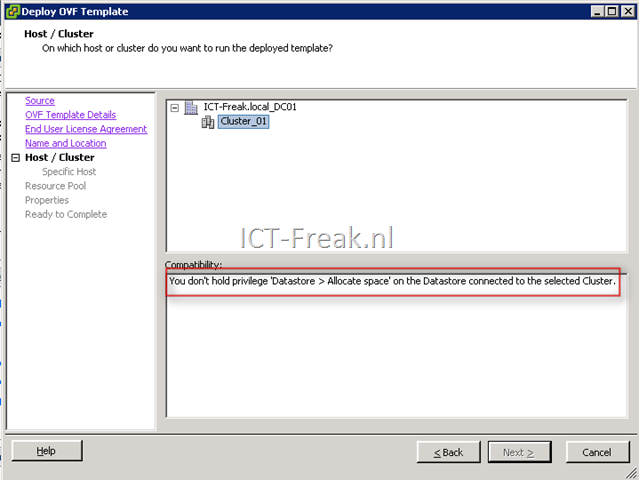
If you want to deploy an OVF template within vSphere, you might get the following warning/error:

You don’t hold privilege ‘ Datastore > Allocate space’ on the Datastore connected to the selected Cluster.

See the screenshot below:

image

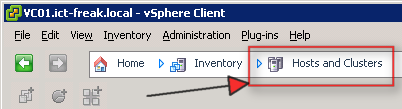
The solution is simple, click on Inventory followed by Host and Clusters:

image

Start the deploy OVF wizard again and the error/warning will not show up.

PowerCLI: Upgrading vHardware to vSphere Part 1: Templates


image

With the release of vSphere VMware introduced a new hardware level for VM’s. De upgrade process to the new hardware level is already described on Scott Lowe’s blog: http://blog.scottlowe.org/2009/06/01/vsphere-virtual-machine-upgrade-process/.

I wanted to see if I could script this process with PowerCLI. My first goal was to upgrade al my templates. So I created the following script: http://poshcode.org/1214

Upgrade-vHardware_Templates

The script does the following:

  • Export template names to CSV
  • Convert templates back to VM’s
  • Check the vHardware version of the VM. If the hardware version is version 4 start the VM
  • When the VM is ready check the VMware Tools version. If the VMware Tools are old, the script will install the new version.
  • When the VMware Tools are Ok the VM gets a shutdown.
  • When the VM is down, the vHardware will be upgraded
  • The final step is converting the VM back to a template.

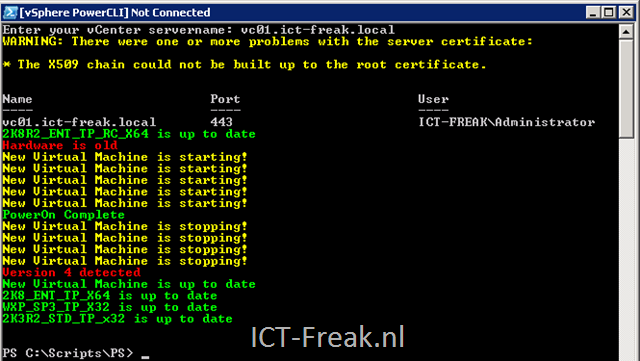
The following output will be shown at the PowerCLI console:

image

The next step will be the upgrade process of a regular VM. But for this process a need to capture the ip-address upgrade the vHardware and restore the ip-address into the VM. When I am finished with that part I am going to post Part 2.

Virtual Appliance: UDA 2.0 Beta


image 

These are the new features in UDA 2.0:

 
  • ESX4 Support
    Thanks to Mike Laverick!
  • Solaris Sparc Support
    Thanks to Bevan Brown and his team for sending in the solaris sparc details.
  • Based on Centos 5.3
    The UDA is now based on an enterprise ready Linux distribution.
  • First Boot Wizard
    Turn on the appliance and it will run a wizard that lets you configure the UDA before it tries to access the network.
  • Improved User Interface
    Well, that’s personal of course, just check it out and let me know what you think!
  • Operating System Flavors
    You can now add as many operating system flavors as you want. Many people on the forums asked about how to get e.g. Windows XP Home and Windows XP Professional on the UDA at the same time. It was possible by changing/remounting the ISO files and some manual fiddling, but now you can add as many as you like.
  • Subtemplates
    You can now specify a list of variables and values and use them all within the same template. You will not have to add a new template for every new system anymore. (You’ll need documentation to use this, but that is not ready yet 🙂
  • PXE password
    If you are using the UDA in an environment where you do not want all users to have access to the templates using PXE boot, you can use a menu password.
  • Mounting 256 ISO files
    On the forums we’ve seen people having troube with a ‘no free loop devices’ error. This was caused by the UDA not having enough reservations for mounting ISO’s. You can now mount up to 256 iso files at the same time.
  • Add VMware Tools from the web-interface
    Tell the UDA where your linux.iso file is containing the vmware tools and it will install them for you.
  • Manual Configuration
    Lots of people were creating their own additions for bootable floppies over PXE. Good stuff that would break when the UDA regenerated the boot menu. Now you can manage your manual configuration from within the web-interface (and they will stay on the menu :-).
  • Easily extend diskspace
    Extend the space for the local storage or the UDA system volume by adding as many virtual disks as you like. Use the webinterface to activate the new disks
  • Use the CDROM station(s) in the UDA virtual machine
    You can now add a cdrom drive to the UDA virtual machine and it will detect it.
  • More info and the latest version can be found here: http://www.ultimatedeployment.org/uda20beta.html

    VMware: HP EVA Storage Plugin for VI


    image

    I saw this Plugin in my RSS reader today:

    The EVA
    plug-in for Virtual Infrastructure Client provides administrators a
    tool to facilitate the discovery and identification of HP EVA storage
    arrays connected to VMware ESX servers.

    Administrators
    can have a global view across all storage layers (SAN array, VMware ESX server and Virtual Machines) to keep everything within a single pane of glass through the VI client interface. As a result, ESX storage
    management becomes easier and faster with a lower risk of configuration
    mistake.

    More info can be found here: http://www.k-ante.com/page_interne.php?lang=UK&ID=plug_in_vmware

    Watch a demo movie (Quicktime required): Video_Plug_in_VMware_for_EVA_EN.mp4 

    Source: http://communities.vmware.com/blogs/amodi/2009/06/22/plugin-eva-for-vmware

    Found New Hardware Wizard Loop


    image

    After upgrading one of my VM’s to vSphere (Hardware / VMware Tools). I get the following wizard over and over again.

    image

    After a search on google I found out that there are two topics on the VMware communities:

    I found the following “Solution”:

    I have this problem too. If you check Device Manager, you’ll probably see what I see – 32 PCI-to-PCI bridges! Sadly, there’s apparently no way to prevent Windows from showing the New Hardware Wizard if the already-installed driver is unsigned (which the Fusion beta drivers are). So just go through it 32 times.

    It’s true, after installing over and over again, the wizard stops popping up :-D. The weird thing is that this “bug” only appears on one of my VM’s. So I hope it will never popup again.

    Using Perfmon for accurate, ESX Performance Counters


    image

    Scott Drummonds created the following post:

    My colleague in product management, Praveen Kannan, has been working to extend Perfmon to show some ESX performance counters. This capability is automatically installed with VMware Tools on vSphere 4. But Praveen and I have made a stand-alone version available to those of you that are still on VI3. Download it here to give it a try.
    To install, place the file in an appropriately-named directory on any Windows VM on VI3. Double-click the executable, which will self-extract the files into the same directory. Run "install.bat" and you’re done.
    Once you bring up Perfmon you’ll see two new performance objects on your computer: "VM Memory" and "VM Processor". These objects contain counters exposed by ESX that accurately reflect the VM’s memory and CPU usage. Here’s Perfmon on my test VM after I’ve installed the tool.

    click here for more info.

    PowerCLI: Inventory VM Hardware version


    image

    With the release of vSphere we also got a new Hardware version of the VM. I created a PowerCLI script to inventory the VM’s, which are not upgraded yet.

    Get-VM |% {Get-View $_.ID} |`
    
    % {
    $vmVersion = $_.Config.Version
    $vmName = $_.Name
    
        if ($vmVersion -eq "vmx-04"){
            Write-Host $vmName "uses hardware version 4" 
        }
    }
    
    Disconnect-VIServer -Confirm:$false


    The output will look like this:

    image