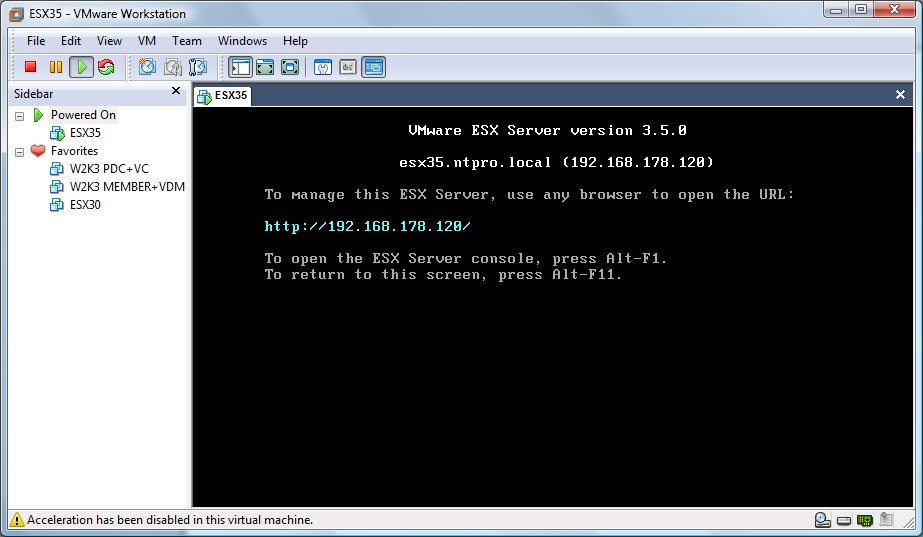
Will Crittenden heeft een mooie presentatie over Site Recovery Manager geplaatst.
Je kunt deze hier downloaden: http://communities.vmware.com/docs/DOC-3210
Will Crittenden heeft een mooie presentatie over Site Recovery Manager geplaatst.
Je kunt deze hier downloaden: http://communities.vmware.com/docs/DOC-3210
Wat het belangrijkste nieuws is, lees je inde volgende quote:
I contacted Keith Adams, he’s one of the WS 6.5 engineers and asked him he could confirm that we can use ESX 3.5 in the lasts build of VMware Workstation 6.5 and he confirmed :
Indeed, we’ve changed the nomenclature around. It’s now:
monitor.virtual_exec=”hardware”|”software”|”auto”
(Note: monitor, not monitor_control.)For all guest os types:
hardware = VT on Intel, SVM on AMD
software = BT for all 32-bit guests, and on BT-capable 64-bit AMD hardware for 64-bit guests as well
auto = Let us guess what to do (the default).
Lees de rest van zijn post hier.
Thanks Eric!
The downloadable version of the VMware Server 1.0 training currently posted on the VMware eLearning YouTube and Blip.TV channels is now available! You may download the course for free by accessing the following link:
http://www.yousendit.com/download/www/b1NMV28rd0FtNEkwTVE9PQ

Ik kwam bij toeval deze tool tegen. Met deze tool kun je het volgende doen:
VMNetBac is a handy little utility which allows you to backup and restore the network configuration of your VM’s. Designed for Windows 2000, 2003 and XP VM’s it can be useful as a quick recovery tool when performing intrusive or mass upgrade type tasks where there may be a risk of losing network configurations.
Usage:
Run the attached script in the zip file. A file in the root of the C drive is created, called IPINFO.VBS. This file contains the network adaptor information (IP address, Subnet, Gateway, DNS Servers, WINS Addresses);
If for any reason you lose your network configuration, either by VM hardware upgrade moving from ESX2 to VI3, general migration or ‘just-one-of-those-things’ type events then simply run the IPINFO.VBS file and the network configuration will be restored, including IP Address, Subnet Mask, Gateway, DNS and WINS addresses. The Hardware Acceleration for the SVGA adaptor is also reset to full in case the VM lost its configuration through a VMware Tools operation.
Restrictions:
– Only works with one VMware NIC
– Only support up to 2 WINS and 2 DNS Server addresses
De tool kun je hier downloaden: http://www.xtravirt.com
VMware® VirtualCenter uses a database to store metadata on the state of a VMware Infrastructure
environment. Performance statistics and their associated stored procedure operations constitute the largest
and the most resource‐intensive component of the VirtualCenter database. Hence the performance of your
VirtualCenter database depends upon the frequency at which you collect performance statistics and the level
of detail of the statistics you store. VirtualCenter 2.5 features a number of enhancements that are aimed at
greatly improving the performance and scalability of the performance statistics operations in the
VirtualCenter database. The purpose of this study is to present the performance results of tests we conducted
to validate these performance enhancements and to provide best practices information for configuring a
VirtualCenter database. The study also provides information for sizing the server you use to host the
VirtualCenter database based on these performance results. Although the new features in VirtualCenter 2.5
benefit users with any of the supported databases, the examples and performance data presented in this study
are specific to Microsoft SQL Server and the paper assumes that you have a working knowledge of SQL Server.This study covers the following topics:
“VirtualCenter 2.5 Database Overview” on page 2
“Performance Statistics Collection in VirtualCenter” on page 2
“Performance Statistics Database Operations and Their Effects on Performance” on page 3
“Performance Enhancement in VirtualCenter 2.5” on page 3
“Performance Tests” on page 4
“Performance Results” on page 5
“Sizing the VirtualCenter Database Server” on page 7
“Performance Best Practices” on page 8
“References” on page 9
“Appendix A: Configuring Performance Statistics Levels and Rollups with VirtualCenter” on page 10
“Appendix B: Configuring Memory Size for SQL Server” on page 11
“Appendix C: Monitoring
Je kunt de whitepaper hier downloaden: http://www.vmware.com/files/pdf/vc_database_performance.pdf
The VMware Fusion team is proud to announce VMware Fusion 2.0 Beta 1.
This public beta, a free download, boasts a handful of industry firsts for Mac virtualization, including true multi-display support for virtual machines and experimental DirectX 9.0 Shader Model 2 3D acceleration.
The team is also extremely happy to announce that VMware Fusion 2.0, when released, will be a free downloadable upgrade for all VMware Fusion 1.x customers, as a sincere thank you to our early supporters.
Now, on to the features!
In het onderstaande filmpje kun je zien tot wat de beta1 in staat is:
Rich Brambley van vmetc.com heeft een tabel gemaakt over welk VMware product welk OS ondersteund.
There are sections of installation instructions for every past and present operating system that is supported. What I am posting from this document is a very helpful table that is a quick reference of what VMware products support which VM operating systems. This table has been copied from the online version of the guide.
This table makes it very easy to answer questions like:
- Is a VM running Server 2008 supported on ESX?
- Is Vista supported in VMware ACE?
- Does VMware support running Solaris on VMware Server?
- Can I run Windows ME or Windows 98 in an ESX guest?
- Is Netware supported in VMware Workstation?
The answers to these questions along with every possible supported OS and VMware product combination can be found in this table:
http://vmetc.com/2008/05/05/what-vmware-products-support-which-vm-os/
De onderstaande foutmelding kan optreden als je een VM die aangemaakt is in VMware Server 2.0 Beta2 wilt gebruiken in VMware Workstation 6.x.

Dit kun je als volgt oplossen:
Open het VMX bestand en verwijder de volgende twee regeles:
ethernet0.features = “1”
ethernet0.networkName = “Bridged”
Bron voor deze oplossing is een post van jensent1 in het VMware forum: http://communities.vmware.com/thread/127124
Ik denk dat de meeste van jullie de tool BGInfo wel kennen. Met deze tool kun je systeeminformatie tonen op de desktop. Ik wilde in onze VMware omgeving en ook in mijn Master VM’s het versie nummer tonen van VMware Tools. Dit kun je vrij eenvoudig doen in BGInfo.
Open BGInfo of je eigen *.bgi bestand. Klik daarna op ‘Custom..’ gevolgd door ‘New’. Geef nu een Identifier naam op. Daarna selecteer je ‘Version information for a file’. Als laatste browse je naar het bestand ‘VMwareService.exe’ en klik je op Ok..

Vanaf nu kun je VMware Tools version toevoegen aan je bgi bestand.

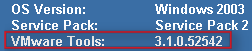
Nadat je het nieuwe *.bgi bestand hebt doorgevoerd, zie je vanaf dan het versie nummer van de VMware Tools. Je kunt het versie nummer controleren via het About scherm van de VMware Tools.
Hieronder zie je en printscreen van een VM in VMware Workstation.

In ESX 3.01 ziet het er zo uit:
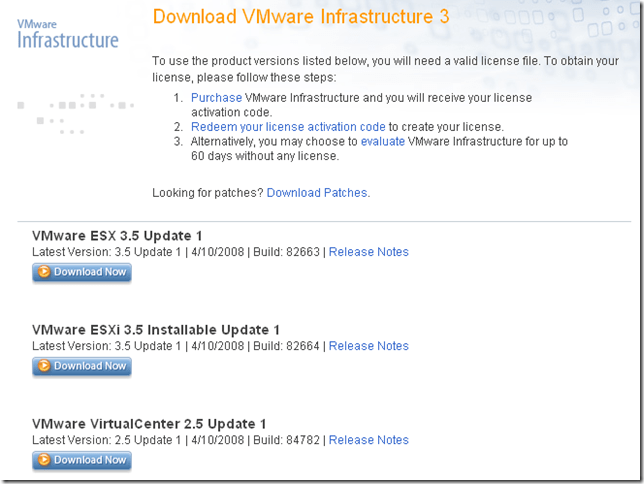
Je kunt hem vanaf nu downloaden. Druk op het plaatje voor meer informatie en de download.
 ICT-Freak.nl