vMotion error: Virtual machine must be running in order to be migrated


Today I wanted to Storage vMotion a VM to a new datastore. But for the first time I got a general error message:

image

followed up by a general system error message:
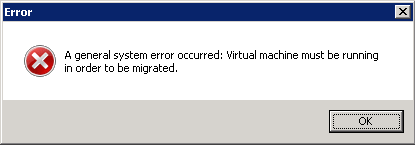
image

I got the same message when I tried to start a “normal” vMotion. So I start to troubleshoot this error. First I looked at the vmware.log of the VM. Nothing unusual in there. So the next stop was the VMkernel. But there was nothing unusual in it too. So I used the good old Microsoft like fix to restart the VMware services at the Service Console using the following command:

service mgmt-vmware restart

after a minute or so I was able to start a vMotion again and after the vMotion completed I started the storage vMotion I was planning to do and this worked like a charm again.

To recap. Sometimes you need to restart the mgmt-vmware to fix the connection between the vSphere host and vCenter.

Slow mouse performance on Windows 2008 R2 virtual machine


I wanted to migrate the lab to Windows Server 2008 R2 and found some problems with the video drivers provided with vSphere 4.0. After a quick search at http://kb.vmware.com I found the following KB article: KB1011709. This article mentioned the new WDDM driver:

Troubleshooting SVGA drivers installed with VMware Tools on Windows 7 and Windows 2008 R2 running on ESX 4.0

Details
  • You receive a black screen on the virtual machine when using Windows 7 or Windows 2008 R2 as a guest operating system on ESX 4.0.
  • You experience slow mouse performance on Windows 2008 R2 virtual machine.
Solution

This issue can occur due to the XPDM (SVGA) driver provided with VMware Tools. This is a legacy Windows driver and is not supported on Windows 7 and Windows 2008 R2 guest operating systems.

To resolve this issue, update to ESX 4.0 Update 1. A new WDDM driver is installed with the updated VMware Tools and is compatible with Windows 7 and Windows 2008 R2.

Note: After a VMware Tools upgrade, the driver files are located in C:\Program Files\Common Files\VMware\Drivers\wddm_video.

Continue reading “Slow mouse performance on Windows 2008 R2 virtual machine”

vCenter Server installation error 28035


If you want to install vCenter 4.1 on Windows 2008 Server R2. You might get the following error:

image 

This time the solution is simple. From: KB1013530:

When installing vCenter Server 4.1 on Windows 2008 Server R2, the installer completes but the installation fails.

You receive the error:
Error 28035.set up, failed to copy DSACLS.exe from system folder to %winder%\adam,folder

The solution is simple:

Some versions of Windows 2008 R2 may already have this component installed. However, it may be necessary to add the Application Server role in Server Manager or simply enable .NET Framework on Windows 2008 R2.  To verify that the .NET Framework is enabled, go to Server Manager > Add Features > .NET Framework 3.5.x Features.

Or you run the dism command line tool:

dism.exe /online /enable-feature /featurename:NetFx3

More info about dism.exe can be found here: http://technet.microsoft.com/en-us/library/dd799258(WS.10).aspx

When you’re done installing the .Net Framework 3.5.x you are able to install vCenter 4.1 on Windows Server 2008 R2.

Oh and don’t forget to use the Native SQL client 2008 and the 32bit DSN like I mentioned in my earlier post.

View 4.5 ThinApp Configuration: Failed to access the network path


Today I was playing with VMware View 4.5 and I wanted to test the ThinApp integration. This is a new feature of the View 4.5 release. From the release notes: http://www.vmware.com/support/view45/doc/view45_releasenotes.html

Integrated Application Assignment – Simplifies the delivery of ThinApp applications to end-users using the View Administrator console.

But when I configured the file share I received the following error:

image

Continue reading “View 4.5 ThinApp Configuration: Failed to access the network path”

Release: PowerCLI 4.1.1


Just noticed the new release of PowerCLI 4.1.1 on twitter:

image

There are a lot of new features:

  • Added support for the ESX CLI functionality through the Get-EsxCli cmdlet.
  • Added support for ESX Top statistics through the Get-EsxTop cmdlet.
  • Enhanced Get-VirtualSwitch, Get-VirtualPortGroup, Get-VMHost, Get-VM, New-NetworkAdapter, Set-NetworkAdapter, and Get-VMHostNetworkAdapter to add support for distributed switches and distributed switch port groups.
  • Added support for SCSI controllers through the New-ScsiController, Get-ScsiController, and Set-ScsiController cmdlets, and the new Controller parameter of New-HardDisk and Set-HardDisk.
  • Added support for querying and modifying vCenter Server alarms through the Get-AlarmDefinition, Set-AlarmDefinition, Get-AlarmAction, New-AlarmAction, Remove-AlarmAction, Get-AlarmActionTrigger, New-AlarmActionTrigger, and Remove-AlarmActionTrigger cmdlets.
  • Added the Get-AdvancedSetting, Set-AdvancedSetting, New-AdvancedSetting, and Remove-AdvancedSetting cmdlets for managing advanced vCenter Server settings and Cluster HA advanced options.
  • Added the Wait-Tools cmdlet that allows you to wait for VMware Tools of the specified virtual machines to load before proceeding.
  • Added support for querying disk and disk partition information of hosts through the Get-VMHostDisk and Get-VMHostDiskPartition cmdlets.
  • Added support for formatting host disk partitions through the Format-VMHostDiskPartition cmdlet.
  • Added support for querying the primary HA cluster nodes through the Get-HAPrimaryVMHost cmdlet.
  • Added support for zeroing out a virtual machine hard disk through a new ZeroOut parameter to Set-HardDisk cmdlet.

looking forward to test the new Get-EsxCli and the Get-EsxTop cmdlets.

The complete change log is available here.

You can download the new release from here: download link.

PowerCLI: RE: Disallowing Multiple VM Console Sessions


Frank Denneman posted today about disallowing multiple VM console session in a high-secure virtual infrastructure design: http://frankdenneman.nl/2010/11/disallowing-multiple-vm-console-sessions

The first thing popped up in my mind was why not automate this setting with PowerCLI. So I created a function called Set-MaxMKSConnections:

Function Set-MaxMKSConnections{
param(
    [parameter(Mandatory = $true)]
    [string[]]$vmName,
    $Sessions
)
    $vmConfigSpec = New-Object VMware.Vim.VirtualMachineConfigSpec

       $extra = New-Object VMware.Vim.optionvalue
    $extra.Key="RemoteDisplay.maxConnections"
    $extra.Value="$Sessions"
    $vmConfigSpec.extraconfig += $extra

        $vm = Get-VM $vmName | Get-View
        $vm.ReconfigVM($vmConfigSpec)
}

You can run this function by copying the code into the PowerCLI window. To run it on a single VM, you can use the following line:

Set-MaxMKSConnections -vmName Thinapp -Sessions 1

To run it on all your VM’s, you can use the following foreach loop:

$vms = Get-VM
foreach($vm in $vms){
    Set-MaxMKSConnections -vmName $vm -Sessions 1
}

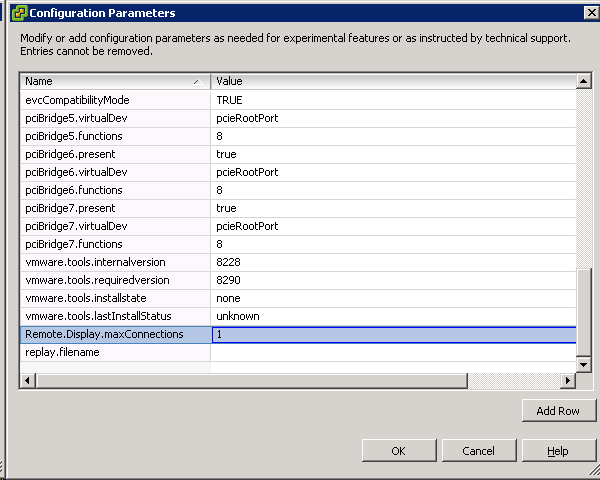
The configuration is changed even on Virtual Machines that are powered on (you need to restart the VM to activate the new setting):

image

If you want to raise the maxConnections value back to 2 or another value, you can change the –Sessions parameter with the correct value and run the script again.

Reconfigure DNS settings and add vSphere hosts to Windows DNS


I needed to change the DNS setup in our vSphere environment. Instead of doing this by hand on every host I decided to create a script. First I needed a script to add the A and PTR records to the Windows DNS servers. I remembered a post by the scripting guys so I took their function and added it to my script. The final step is to change de vSphere host DNS configuration. This one is easy with PowerCLI and a simle for loop.

Warning! If you are using vSphere 4.1 and the vSphere hosts are joined to a Windows domain. You are not able to change the DNS settings!

From the Hey Scripting Guy post I quote the following about the new-dnsrecord function:

I’ve written various scripts in the past to work with individual record types, and I’ve found that each class has slightly different syntax and requirements. This makes life awkward when you want to start automating this process, because you have to have a different script or function for each record type. I decided I wanted a universal script for creating records so that I could create multiple records at the same time from minimal information. The following script shows the function that I came up with to create A, PTR, MX, and CNAME records—these being the most common ones I have to deal with. We will be using the MicrosoftDNS_ResourceRecord class with varying inputs.

I have combined the new-dnsrecord function with some PowerCLI code to accomplish my goal of migrating the DNS settings of all the vSphere hosts and to add all the hosts to the DNS servers. I did this task by running the following script:

Continue reading “Reconfigure DNS settings and add vSphere hosts to Windows DNS”

Device eth0 has different MAC address than expected, ignoring.


After testing the Instant Recovery of a Linux web server. See my previous post about this Recovery process. The Linux web server has no network connection. I quick look at ifconfig only showed the loopback adapter. So I tried ifup eth0 and run into to following error:

image

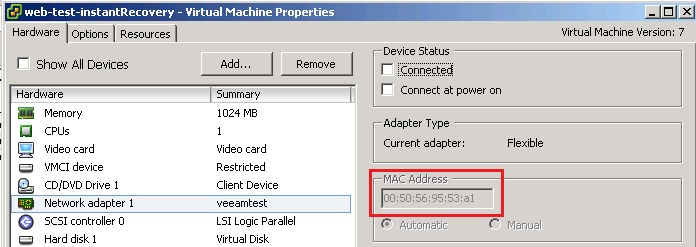
This can simply be fixed by changing the MAC address. Open the Virtual Machine Properties and write down the MAC Address:

image

open the /etc/sysconfig/network-scripts/ifcfg-eth0 in your favorite editor and change the HWADDR to the new MAC address and save the file.

image

The final step is to restart networking via /etc/init.d/network restart.

vSphere: Storage vMotion of a virtual machine might stop responding at 18%


For some reason a couple of storage vMotions went really slow. So I looked in the logs and found the following lines in the vmware.log:

Oct 15 11:43:37.889: Worker#0| DISKLIB-VMFS :CopyData ‘/vmfs/volumes/xxxxx/vm1/vm1_1-flat.vmdk’ : failed to move data (Cannot allocate memory:0xc0009).
Oct 15 11:43:37.890: Worker#0| DISKLIB-LIB : DiskLib_Clone: Could not perform clone using vmkernel data mover. Falling back to non-accelerated clone. Cannot allocate memory

I started a Google search and found the following thread http://communities.vmware.com/message/1545132 in the communities. A short quote from richardt his post:

"This problem is caused by the VMFS3-DM (Data Mover) having to use contiguous memory space on the host. Apparently, when host’s kernel memory usage is >50% and memory has been fragmented, the DM cannot allocate more space and throws the errors.

I couldn’t get any fix that day so a made an internal case and got focused on another case. The next day I was reading the release notes of patch ESX400-302009402-SG and found the following quote:

Storage vMotion of a virtual machine might stop responding at 18%, and might be completed after a long time, even though other Storage vMotion operations on the host might continue without any errors. If you try to cancel the Storage vMotion operation when it stops responding, the system disconnects the ESX host from the vCenter Server and automatically connects it after a few minutes.

The vmware.log file might contain the following error:
Could not perform clone using vmkernel data mover. Falling back to non-accelerated clone. Cannot allocate memory

The VMkernel log file might contain the following error:
status Out of memory copying 16777216 bytes from file offset 0 to file offset 0, bytesTransferred = 0 extentsTransferred: 0

This issue occurs because the DataMover cannot allocate contiguous physical space when the host’s kernel memory usage is around 50% and the memory is fragmented. The operation fails back to the Application layer data movement. The operation continues and succeeds, but might take more time when compared to the usual DataMove time. The DataMover requires 16MB of contiguous physical memory on the ESX host for each DataMover thread. This patch provides a fix to make DataMover work with fragmented memory.

Installing patch ESX400-302009402-SG did resolve this issue.


Source: KB1023759