VMware Tools: Uninstall failed. Please correct the failure


image

Today a ran into an issue with the VMware Tools installer on Linux:

image

The solution was simple this time. Just remove the locations file from from /etc/vmware-tools. You can do this by running the following command:

rm –f /etc/vmware-tools/locations

Now you are able to run the VMware Tool installer again. If you are installing the VMware Tools on it default locations, you can add the –default parameter to the ./vmware-install.pl command to install the VMware Tools on it’s default location.

Source: KB1013159

Backup and Restore DRS Rules with the VESI


image

In this short video I demonstrate another script which I integrated into the VESI. The video will show  how to create a backup of your DRS rules and how to restore  a DRS rule from a previous backup:

The original script can be found in this post.

PowerCLI: Move-Template


image

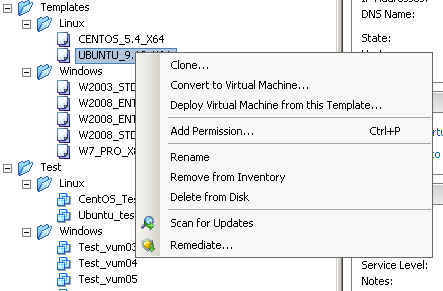
Storage vMotion is a great feature to Move your VMs to other datastores. But what if you want to move your Templates?
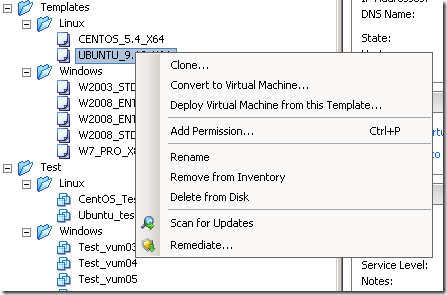
In the current version of vSphere there is no option within the Client:
image

So I created a PowerCLI function just to migrate the templates to another datastore.

function Move-Template{
    param( [string] $template, [string] $esx, [string] $datastore)

    if($template -eq ""){Write-Host "Enter a Template name"}
    if($esx -eq ""){Write-Host "Enter an ESX hostname"}
    if($esx -ne "" -and $datastore -eq ""){$vmotion = $true}
    if($datastore -ne ""){$svmotion = $true}

    Write-Host "Converting $template to VM"
    $vm = Set-Template -Template (Get-Template $template) -ToVM 

    if($svmotion){
        Write-Host "Migrate $template to $esx and $datastore"
        Move-VM -VM (Get-VM $vm) -Destination (Get-VMHost $esx) `
        -Datastore (Get-Datastore $datastore) -Confirm:$false
        (Get-VM $vm | Get-View).MarkAsTemplate() | Out-Null
    }        

    if($vmotion){
        Write-Host "Migrate $template to $esx"
        Move-VM -VM $vm -Destination (Get-VMHost $esx) -Confirm:$false
        ($vm | Get-View).MarkAsTemplate() | Out-Null
    }
}

The function above can be used to move a single template via

Move-Template <template> <esxhost> <datastore>

But what if you want to move only your Linux Templates or Windows Templates or even all the Templates at once.  For these options, I created two extra functions.

First I created a function to get al the Linux templates:

function Get-LinuxTemplates{
    $lnxtpl = Get-Template | Get-View | `
    where {$_.Guest.GuestFamily -eq 'linuxGuest'} | `
    Get-VIObjectByVIView
    return $lnxtpl
}

image

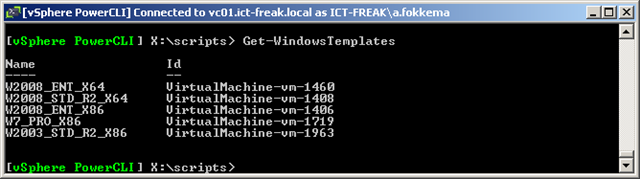
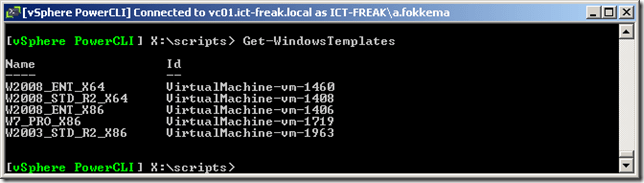
And if you want, you can also get al the Windows templates:

function Get-WindowsTemplates{
    $wintpl = Get-Template | Get-View | `
    where {$_.Guest.GuestFamily -eq 'windowsGuest'} | `
    Get-VIObjectByVIView
    return $wintpl
}
image

Now we can get all the different templates, we are able to move the templates to another host or datastore.

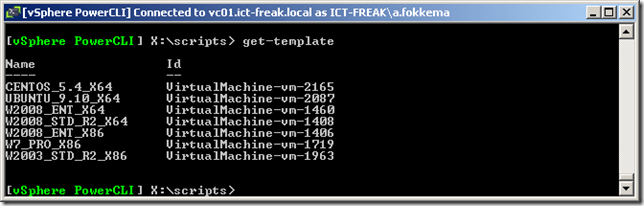
This is how you move all the templates to a new host and datastore:

$templates = Get-Template
foreach($tpl in $templates){
    Move-Template $tpl <esxhost> <datastore>
}
image

If you want to move all the Linux templates, you run the following commands:

$templates = Get-LinuxTemplates
foreach($tpl in $templates){
    Move-Template $tpl <esxhost> <datastore>
}

And finally, you can move all windows templates by running these commands:

$templates = Get-WindowsTemplates
foreach($tpl in $templates){
    Move-Template $tpl <esxhost> <datastore>
}

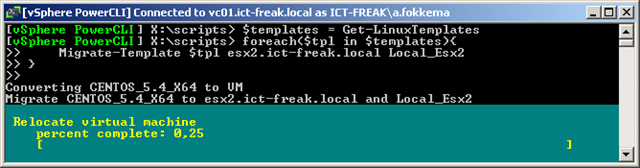
But how does it look when you run the function. I will do an example with the get-linuxtemplates function.
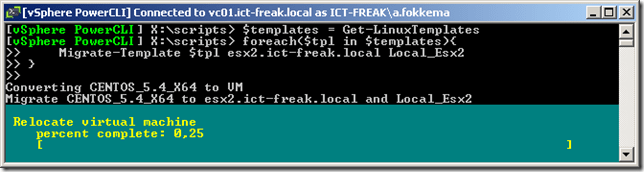
image

I am going to use this functions in another script and will transform it to a ready to use script for the EcoShell.

Update Linux VMs with PowerCLI thanks to Invoke-VMScript


image 
I created a new PowerCLI function to update the Linux Guest OS via PowerCLI. Be sure you use the check-vmware-tools script posted before: https://ict-freak.nl/2009/12/21/bash-script-auto-configure-vmware-tools-at-boot-time/

The function below will check if the VM is running Linux, if the VMware Tools are up to date and running, and last but not least it will determine the linux distribution so it will run the correct update command:

Function Update-LinuxVM{
 param($virtualmachine)
 $vm = Get-VM $virtualmachine
 $os = (Get-VM $vm | Get-View).Summary.Config.GuestFullName
 $toolsStatus = (Get-VM $vm | Get-View).Guest.ToolsStatus
 if($vm.powerstate -eq "PoweredOn"){
    if($toolsStatus -eq "toolsOk"){
        # Determining Linux Distro
        if($os -match 'Red Hat Enterprise Linux'){
            Write-Host "RedHat or CentOS installation found" -fore Yellow 
            $update = "yum clean all && yum update -y"
        }
        elseif($os -match 'Debian GNU'){
            Write-Host "Debian installation found" 
            $update = "apt-get update && apt-get upgrade -y"
        }    
        else{Write-Host "No update possible" -fore Red}
        
        # ifconfig
        if($ifconfig -ne ""){
        Write-Host "Configuring IP settings $ifconfig" -fore Yellow
        $vm | Invoke-VMScript -HostCredential $hc -GuestCredential $gc $ifconfig
        }

        # route
        if($route -ne ""){
        Write-Host "Setting default gateway route $route" -fore Yellow
        $vm | Invoke-VMScript -HostCredential $hc -GuestCredential $gc $route
        }
        
        # Update command
        Write-Host "Running $update command" -fore Yellow
        $vm | Invoke-VMScript -HostCredential $hc -GuestCredential $gc $update
        }
        else{Write-Host $vm "VMware Tools are out off date or not running" -fore Red }
    }
 else{Write-Host $vm "is not running" -fore Red }
}

You can use this function with the following parameters:

$hc = Get-Credential
$gc = Get-Credential
$ifconfig = ""
$route = ""

$hc will save the Host Credentials. These are the credentials you need to authenticate with the ESX Host

$gc will save the Guest Credentials. These are the credentials you need to authenticate with the Linux Guest OS.

$ifconfig can be used to set a temporary ip address. Example: ifconfig eth0 192.168.123.166 netmask 255.255.255.0

$route can be used to set a temporary gateway address: route add default gw 192.168.123.254

The following command will start the script:

Update-LinuxVM <vmname>

The Function in action:

image

PowerCLI: Document the ESX Hostname of the vCenter VM


image

I was reading Duncan Epping his post: http://www.yellow-bricks.com/2009/10/09/best-practices-running-vcenter-virtual-vsphere/ about Running vCenter virtual. The most of the steps described, you only have to do once but step 5 needs to be documented once in a while

5. Write a procedure to boot the vCenter / AD / DNS / SQL manually in case of a complete power outage occurs.

Nobody likes to document this thing so we will let PowerCLI do this job for us.

First you need to now the VMs. In most cases this will be your Domain Controller, Database Server and of course the vCenter VM.

$vms =  Get-VM "DC01", "DB01", "VC01" | Sort Name
$vms | Select Name, @{N="Cluster";E={Get-Cluster -VM $_}}, `
@{N="VMHost";E={Get-VMHost -VM $_}} 

The one-liner above will return the VM name, Cluster Name and ESX Host name:

 image

Now you are able to document where your VMs are. But you still need to put this information somewhere. So I created a simple script which will export the information displayed above to a CSV file. The script will also remove files older than 7 days.

You can change the variable if you want.

$now = Get-Date
$days = "7"
$targetFolder = "C:\vCenter"

if (Test-Path $targetFolder)
{
    Write-Host $targetFolder "Already exists"
}
else
{
    New-Item $targetFolder -type directory
    Write-Host $targetFolder "Created"
}

$lastWrite = $now.AddDays(-$days)
$files = get-childitem $targetFolder -include *.csv -recurse `
    | Where {$_.LastWriteTime -le "$lastWrite"} 

if (($files | Measure-Object).count -gt 0){
foreach ($file in $files)
{write-host "Deleting File $File" -foregroundcolor "Red"; `
    Remove-Item $file | out-null}
}

$filename = "C:\vCenter\" + (Get-Date -format  'yyyy-MM-dd hh-mm-ss') + '.csv'
$vms =  Get-VM "DC01", "DB01", "VC01" | Sort Name 
$vms | Select Name, @{N="Cluster";E={Get-Cluster -VM $_}}, `
@{N="VMHost";E={Get-VMHost -VM $_}} | `
Export-Csv -NoTypeInformation $filename

The script will generate a CSV file:

image

The CSV file will look like this:

"Name","Cluster","VMHost"

"DB01","Cluster_01","esx1.ict-freak.local"

"DC01","Cluster_01","esx1.ict-freak.local"

"VC01","Cluster_01","esx1.ict-freak.local"

You can schedule this script on a VM that runs on another cluster or maybe better, schedule the script on a physical box. If you want to know how to schedule a Powershell/CLI script, go check out this post from Alan Renouf: http://www.virtu-al.net/2009/07/10/running-a-powercli-scheduled-task/

Now you are able to track the most important VMs in your environment.

PowerCLI: Search VM via IP or MAC Address


image image

In this post you’ll find two scripts that will help you find a VM via an IP or MAC address. I found the MAC address script on the vmtn communities and it was written by Luc Dekens (@LucD22):

http://communities.vmware.com/message/1068045#1068045


IP Address:


The following script will return the VM name after a short search. The only thing you need to enter is the ip address:

$tgtIP = "192.168.123.1"
$vms = Get-VM
foreach($vm in $vms){
  
  $vmIP = $vm.Guest.IPAddress
  foreach($ip in $vmIP){
    if($ip -eq $tgtIP) {
      Write-Host "Found the VM!" 
      $vm.Name 
    }
  }
}

When you add the script to the Virtualizaion Eco Shell, you will have to change the $tgtIP line:

$tgtIP = Read-Host "enter IP address"

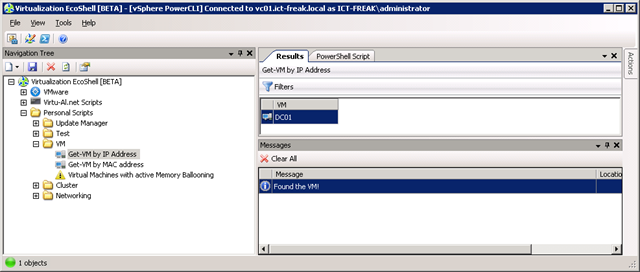
When you run the script from the Eco Shell, you’ll have to enter an ip address:

image

After a couple of seconds (if you have a large environment it will take a while 😉 ) The script will return the VM name:

image


MAC Address


The following script start a search based on the MAC address of the VM.

$tgtMAC = ""
$vms = Get-VM
foreach($vm in $vms){
  
  $vmMAC = $vm | Get-NetworkAdapter | select MacAddress
  foreach($mac in $vmMAC){
    if($mac.MacAddress -eq $tgtMAC) {
      Write-Host "Found the VM!" 
      $vm.Name 
    }
  }
}

You can also add the script to the Eco Shell. Just change the $tgtMAC line to:

$tgtMAC = Read-Host "enter MAC address"

Bash Script: Auto Configure vmware-tools at Boot time


This post is originally posted on my colleague Michel aka ‘HighKing’ blog: http://highking.nl/website/auto-config_vmware-tools

When you install a new kernel on a RHEL/CentOS VM, you need to reconfigure the vmware-tools using the ‘vmware-config-tools.pl’ script. I have created a simple script that does this automatically, so you don’t have to be there when the kernel is updated (handy for automatically updating machines).

Place this in a script called ‘check-vmware-tools’ in /etc/init.d:

#!/bin/bash
#
# check-vmware-tools
#
# chkconfig:   - 00 99
# description: Check whether or not the vmware-tools are installed at boot time.
# processname: check-vmware-tools
#

loadvmxnet() {
  if [ "`uname -i`" != "x86_64" ]; then 
        echo -n "Reloading vmxnet driver... "
        /sbin/rmmod pcnet32
        /sbin/rmmod vmxnet
        /sbin/depmod -a
        /sbin/modprobe vmxnet
        echo "done"
  fi
}

case $1 in
  start)
    echo -n $"Checking VMware-tools: "
   if [ ! -e /lib/modules/`/bin/uname -r`/misc/vmci.ko ]; then
      echo "Not available, running vmware-config-tools..."
      /usr/bin/vmware-config-tools.pl --default && loadvmxnet
   else
     echo "OK"
   fi
  ;;
  *)
    echo "Usage: $0 start"
    exit 1
  ;;
esac


Make it writeable with:

chmod +x /etc/init.d/check-vmware-tools


Next is to make it known by chkconfig with:

chkconfig --add check-vmware-tools


Now we have done that, we can simply enable it with:

chkconfig check-vmware-tools on

On the next boot, this script checks whether or not the vmware-tools are configured for the running kernel (by checking if vmmemctl.ko is in place). If not, it runs ‘vmware-config-tools.pl and reboots after that.

You can download the file here: check-vmware-tools

Source: http://highking.nl/website/auto-config_vmware-tools

PowerCLI: Find Resourcepool or VMs with Memory Ballooning/Swap Usage


 image image

In this post I will show you how to report Resource Pools and VMs with active Memory Ballooning. But what is Memory Ballooning. I short quote from the ESX3 memory whitepaper http://www.vmware.com/pdf/esx3_memory.pdf:

The balloon driver, also known as the vmmemctl driver, collaborates with the server to reclaim pages that are considered least valuable by the guest operating system. It essentially acts like a native program in the operating system that requires more and more memory. The driver uses a proprietary ballooning technique that provides predictable performance that closely matches the behavior of a native system under similar memory constraints. This technique effectively increases or decreases memory pressure on the guest operating system, causing the guest to invoke its own native memory management algorithms. When memory is tight, the guest operating system decides which particular pages to reclaim and, if necessary, swaps them to its own virtual disk.

You need to be sure your guest operating systems have sufficient swap space. This swap space must be greater than or equal to the difference between the virtual machine’s configured memory size and its reservation.

More information about Memory ballooning can also be found in this post by Arnim van Lieshout.

So let’s continue with the PowerCLI scripts.

The following script will report all the resource pools with active Memory Ballooning:

$myCol = @()
foreach($clus in (Get-Cluster)){
 foreach($rp in (Get-ResourcePool -Location $clus | Get-View | Where-Object `
  {$_.Name -ne "Resources" -and `
   $_.Summary.QuickStats.BalloonedMemory -ne "0"})){
   $Details = "" | Select-Object Cluster, ResourcePool, `
   SwappedMemory ,BalloonedMemory

    $Details.Cluster = $clus.Name
    $Details.ResourcePool = $rp.Name
    $Details.SwappedMemory = $rp.Summary.QuickStats.SwappedMemory
    $Details.BalloonedMemory = $rp.Summary.QuickStats.BalloonedMemory

    $myCol += $Details
  }
}
$myCol

#$myCol | Export-Csv -NoTypeInformation C:\RPs-Ballooning.csv

This will be the output:

image

If you add the script to a powerpack within the Virtualization EcoShell, It will look like this:

image

If you want to report the VMs with active memory ballooning, you can run the following script:

$myCol = @()
foreach($vm in (Get-View -ViewType VirtualMachine | Where-Object `
  {$_.Summary.QuickStats.BalloonedMemory -ne "0"})){
   $Details = "" | Select-Object VM, `
   SwappedMemory ,BalloonedMemory

    $Details.VM = $vm.Name
    $Details.SwappedMemory = $vm.Summary.QuickStats.SwappedMemory
    $Details.BalloonedMemory = $vm.Summary.QuickStats.BalloonedMemory

    $myCol += $Details
  }
$myCol

And within a couple of seconds, you’ll get a list with all the VMs with active ballooning:

image

If you add the script to a powerpack within the Virtualization EcoShell, It will look like this:

image

PowerCLI: Check Partition Alignment (Windows VMs Only)


image

Some time ago I  already created a script to report the disk alignment status of your Windows VM’s. I updated the script so you are able to export it to a CSV or XML file.

$myCol = @()
$vms = get-vm | where {$_.PowerState -eq "PoweredOn" -and `
$_.Guest.OSFullName -match "Microsoft Windows*" } | Sort Name 

foreach($vm in $vms){
$wmi = get-wmiobject -class "Win32_DiskPartition" `
-namespace "root\CIMV2" -ComputerName $vm            

    foreach ($objItem in $wmi){
        $Details = "" | Select-Object VMName, Partition, Status        
            if ($objItem.StartingOffset -eq "65536"){
                $Details.VMName = $objItem.SystemName
                   $Details.Partition = $objItem.Name
                $Details.Status = "Partition aligned"
            }
            else{
                $Details.VMName = $objItem.SystemName
                   $Details.Partition = $objItem.Name
                $Details.Status = "Partition NOT aligned"                    
            }
    $myCol += $Details
    }
}
$myCol | Export-Csv -NoTypeInformation "C:\Temp\PartitionAlignment.csv"
#$myCol | Export-Clixml "C:\Temp\PartitionAlignment.xml"


The script uses WMI to gather the information about the partition of the Windows VM. So if you’re using a Firewall, be sure to open the right ports. More info about WMI and Firewalls, can be found over here: http://msdn.microsoft.com/en-us/library/aa822854%28VS.85%29.aspx

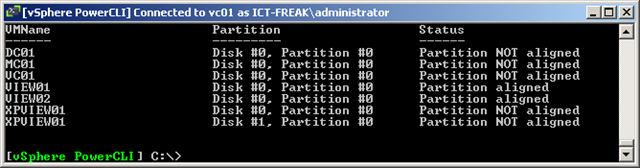
The output will look like this:

image