Vista: Photo Gallery Yellow Tint Background Problem


I had the same issue with a Samsung SyncMaster 940bw monitor.

When displaying and viewing photos in Windows Photo Gallery of Vista, some monitors or LCD flat panel displays may have a strange problem in which the images will be shown with a orange or yellowish tinge in photos’ background, affecting the display natural color of pictures to become something like Sepia effect. The entire window on WPG appears to be colored in slightly yellowish tint, and is therefore appear darker, including the panels on either side of the photo display which which appear yellow on the desktop but are white in actual.The yellow tinted photos may also affect other default image viewer in Windows Vista

image

The first workaround is by removing any existing ICC or WCS color profiles that are been associated with all display devices or monitors. Else, you can also try to change the default color profile for your system’s monitor to sRGB IEC61966-2.1, simply by clicking on Add, and then select sRGB IEC61966-2.1 from the list of profiles installed on system. After adding, click Set as Default Profile button. Exit from all dialogs and reboot your computer, and the color problem on Windows Photo Gallery is fixed.

If your system doesn’t have sRGB IEC61966-2.1 profile under the ICC Profiles, you can download the color profile from Adobe. Unpack the zip file, the right click on each of the .icc files in the RGB Profiles and CMYK Profiles folders (or simply just the one you need to use) and click “Install Profile” on context menu to install the color profile to system.

The first workaround was the solution for my system 😀
image

Source: http://www.mydigitallife.info/2007/07/11/windows-vista-photo-gallery-yellow-tint-background-problem/

VMware: Reference cards


Rick Scherer posted a post about some reference cards for VMware admins. The vmreference card by Forbes Guthrie is a well know one but the other two reference cards mentioned by Rick are also nice to have.

First is the vmreference VI3 card by Forbes Guthrie over at www.vmreference.com

Second and third are VI3 Command References and Linux Command References from the VMware Deploy, Secure & Analyze class.

Source: http://vmwaretips.com/wp/2008/12/12/esx-reference-cards/

BackupExec: Disable Corrupt Data Encounterd error.


Het kan zijn dat je Backup via Symantec Backup Exec in een error eindigt met de volgende foutmelding:

image

Deze melding kun je negeren. Hoe dit in zijn werk gaat lees je hier onder.

Voor Backup Exec 11/12

Als je deze melding wilt uitzetten voer je de volgende key in.

Windows Registry Editor Version 5.00

[HKEY_LOCAL_MACHINE\SOFTWARE\Symantec\Backup Exec For Windows\Backup Exec\Engine\Backup]
"Fail Jobs On Corrupt Files"=dword:00000000

Als je deze melding wilt aanzetten voer je de volgende key in.

Windows Registry Editor Version 5.00

[HKEY_LOCAL_MACHINE\SOFTWARE\Symantec\Backup Exec For Windows\Backup Exec\Engine\Backup]
"Fail Jobs On Corrupt Files"=dword:00000001


Voor Backup Exec 9/10

Als je deze melding wilt uitzetten voer je de volgende key in.

Windows Registry Editor Version 5.00

[HKEY_LOCAL_MACHINE\SOFTWARE\VERITAS\Backup Exec\Engine\Backup]
"Fail Jobs On Corrupt Files"=dword:00000000

 
Als je deze melding wilt aanzetten voer je de volgende key in.

Windows Registry Editor Version 5.00

[HKEY_LOCAL_MACHINE\SOFTWARE\VERITAS\Backup Exec\Engine\Backup]
"Fail Jobs On Corrupt Files"=dword:00000001


Bron: http://thebackroomtech.com/2008/12/04/howto-stop-backup-exec-from-failing-entire-backup-jobs-when-corrupt-files-are-encountered/

Live Writer: Twitter Notify Plugin


image

Zojuist heb ik Windows Live Writer geupgrade naar versie 14.0.8050.1202.  Voor deze versie van Live Writer zijn er een aantal plugins gemaakt. Een daarvan is de Twitter Notify plugin. Deze Plugin kun je hier downloaden: http://gallery.live.com/. De Plugin doet het volgende:

Send a Tweet announcing your newly published blog post. A shortened link to your post is automatically generated through the TinyURL service. Customize your default message in the options menu.

Zodra je de plugin hebt geïnstalleerd, kun je de opties aanpassen in de Plug-ins menu:

image

Zodra je de blogpost publiseert krijg je automatisch het onderstaande scherm.

image

En voila het werkt:

image

VMware: Comparison of Storage Protocol Performance


image

VMware heeft een nieuwe whitepaper uitgegeven over Storage Protocol Performance Whitepaper

This study provides performance comparisons of various storage connection options available to VMware® ESX Server. We used the widely used IOmeter benchmark for the comparison.
The results show that all four network storage options can reach wire‐speed throughput when properly configured. The wire‐speed throughput is also maintained with multiple virtual machines driving concurrent I/Os, indicating that the limiting factor in performance scalability is not in ESX Server. The data also demonstrates that, although Fibre Channel has the best performance in throughput, latency, and CPU efficiency among the four options, iSCSI and NFS are also

De whitepaper kun je hier downloaden: storage_protocol_perf.pdf

Tool: PrimalForms


image 

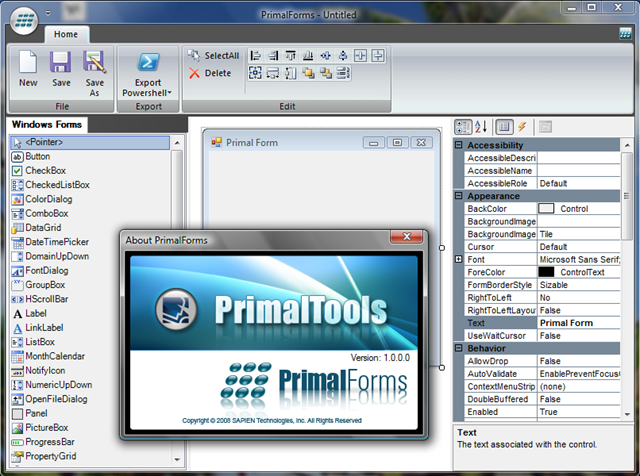
Met PrimalForms kun je eenvoudig een Form maken die je kunt gebruiken met je PowerShell script. PrimalForms werkt met PowerShell v1 en de huidige V2 CTP. Tijdens de installatie worden er ook een aantal sample forms geïnstalleerd. Deze forms zijn gemaakt door Jeffery Hicks.

Hier nog even een quote van de downloadpagina:

PrimalForms is a free GUI builder tool for PowerShell users. It edits and stores Windows Forms in a native XML format and generates PowerShell code on demand. Sample forms included.

Je kunt de tool hier downloaden: http://www.primaltools.com/freetools

image

Bron: http://blog.sapien.com/index.php/2008/11/03/free-primalforms-tool-for-powershell-released/

Citrix: Antivirus Strategy for Symantec Antivirus


De volgende processen kun je het beste uit de HKLM\SOFTWARE\Microsoft\Windows\CurrentVersion\Run verwijderen.  Zodra dit is gedaan worden deze processen niet meer in elke user sessie gestart en dat scheelt weer in het resource verbruik.

Process Info
ccApp Symantec Common Client User Session Process. ccApp calls the different program features in the Symantec products and makes sure that those programs are running, such as the Auto-Protect and E-mail Scanning mechanisms.
vptray Symantec Gold Shield Tray Icon. This is the Taskbar Icon and User Interface.

De poster op http://www.jhouseconsulting.com geeft nog de volgende tips mee

Tip Description
1 Scan local drives only. DO NOT scan network drives.
2 Only scan "Incoming" files (ie. write events).
3 Exclude the pagefile(s) from being scanned.
4 Exclude the "%ProgramFiles%\Citrix" folder from being scanned (the heavily accessed local host cache and Resource Manager local database are contained inside this folder).
5 We would recommend excluding the Profiles ("%SystemDrive%\Documents and Settings") folder, as well as the Print Spooler (%SystemRoot%\System32\spool\PRINTERS) folder.
6 If you do not exclude the Profiles, then exclude the user‘s Presentation Server Client bitmap cache ("%UserProfile%\Application Data\ICAClient\Cache" or "%AppData%\ICAClient\Cache") used for ICA pass-through connections by the locally installed PNClassic and PNAgent.

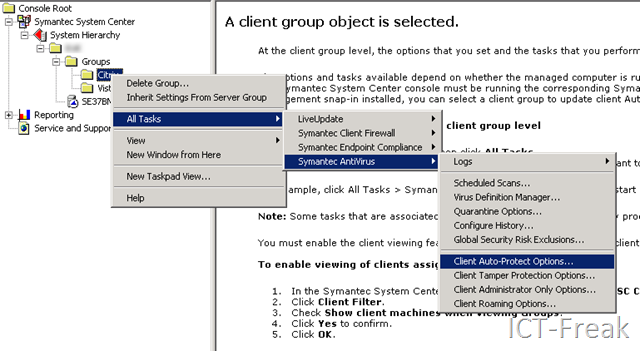
De bovenstaande tips kun je het beste instellen op een los staande antivirus group in Symantec System Center

image

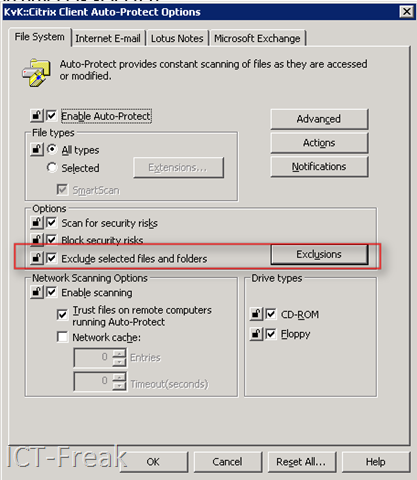
Daarna kun je bij Exclusions de verschillende folders excluden.

image

Mocht je de Citrix Edgesite Agent op de Citrix server draaien, dan kun je het beste het volgende document nog even na te lopen: CTX111062


Bron: http://www.jhouseconsulting.com/articles/antivirus_strategy_for_citrix_servers.html

Update: Open File Security Warning


Ik had over deze melding al een post gemaakt. Maar op de een of andere manier werkte dit niet meer.

Na wat zoeken op google vond ik op de website van Aaron Parker de oplossing.

Vink de optie ‘Automatically detect intranet networks’ uit.

image

Daarna voeg je het Windows domain toe aan de zone.

image

Je wilt deze oplossing niet met hand uitvoeren dus heb ik even de registry keys erbij gezocht. Kopieer de volgende twee blokken in notepad en sla deze dan op als *.reg file.

Domains.reg
Windows Registry Editor Version 5.00

[HKEY_CURRENT_USER\Software\Microsoft\Windows\CurrentVersion\Internet Settings\ZoneMap\Domains\kvk.nl] [HKEY_CURRENT_USER\Software\Microsoft\Windows\CurrentVersion\Internet Settings\ZoneMap\Domains\kvk.nl\*.k37] "*"=dword:00000001 [HKEY_CURRENT_USER\Software\Microsoft\Windows\CurrentVersion\Internet Settings\ZoneMap\Domains\kvk.nl\*.k94] "*"=dword:00000001

Zones.reg
Windows Registry Editor Version 5.00

[HKEY_CURRENT_USER\Software\Microsoft\Windows\CurrentVersion\Internet Settings\Zones\1]
"Flags"=dword:000000db
"2007"=dword:00010000

Daarna kun de files via een script laten importeren.

Proven practices for integrating Backup Software with VCB


image

Chris Skinner een Senior Technical Instructor at VMware PSO-Education heeft een aantal papers geschreven over het integreren van backup software en VCB.

Op de viops site van VMware kun je de volgende papers vinden:


Bron: http://www.ntpro.nl/blog/archives/692-Integrating-Symantec-Backup-Exec-12.5-with-VCB-1.5.html