Whitepaper: VMware and VSS: Application Backup and Recovery


Veeam schrijft het volgende:

More and more organizations are choosing VMware Infrastructure to virtualize their mission‐critical applications (Active Directory, Exchange, SharePoint, SQL Server) to create a flexible, easily administered virtual infrastructure.
Virtual machines (VMs) and any applications they contain must be protected against failure. Typically, in the virtual world, this is done by performing an image‐level backup of the whole machine (for instance, using VMware Consolidated Backup). This method results in what is known as a crash‐consistent image. Restoring a crash‐consistent image is essentially equivalent to rebooting a server after a hard reset. For operating systems, this has not been an issue, since they can easily handle this type of activity. For database applications as well as for applications featuring replication, however, such a restore will often result in lost data, data corruption, or application failure.
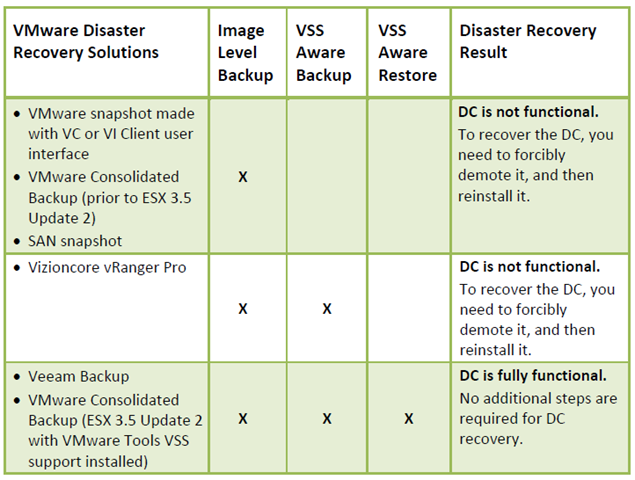
To illustrate this concept, let’s review the consequences of using different VM disaster recovery methods for one of the most common mission‐critical applications: a Microsoft Active Directory domain controller (DC). Depending on the solution used, the following results will be achieved:

image

Download de PDF hier: VMwareandVSS-ApplicationBackupandRecovery.pdf

Microsoft: FTP Service for IIS 7.0


 iis-logo-thumb

Microsoft has created a new FTP service that has been completely rewritten for Windows Server 2008. This new FTP service incorporates many new features that enable web authors to publish content better than before, and offers web administrators more security and deployment options. This new FTP service supports a wide range of features and improvements, and the following list contains several of the improvements in this version:

  • Integration with IIS 7.0: IIS 7.0 has a brand-new administration interface and configuration store, and the new FTP service is tightly integrated with this new design. The old IIS 6 metabase is gone, and a new configuration store that is based on the .NET XML-based *.config format has taken its place. In addition, IIS 7.0 has a new administration tool, and the new FTP server plugs seamlessly into that paradigm.
  • Support for new Internet standards: One of the most significant features in the new FTP server is support for FTP over SSL. The new FTP server also supports other Internet improvements such as UTF8, IPv6, and adaptive networking bandwidth usage.
  • Shared hosting improvements: By fully integrating into IIS 7.0, the new FTP server makes it possible to host FTP and Web content from the same site by simply adding an FTP binding to an existing Web site. In addition, the FTP server now has virtual host name support, making it possible to host multiple FTP sites on the same IP address. The new FTP server also has improved user isolation, now making it possible to isolate users through per-user virtual directories.
  • Extensibility and custom authentication: The new FTP server supports developer extensibility, making it possible for software vendors to write custom providers for FTP authentication. Microsoft is using this extensibility feature to implement two new methods for using non-Windows accounts for FTP authentication for IIS Managers and .NET Membership.
  • Improved logging support: FTP logging has been enhanced to include all FTP-related traffic, unique tracking for FTP sessions, FTP sub-statuses, additional detail fields in FTP logs, and much more.
  • New supportability features: IIS 7.0 has a new option to display detailed error messages for local users, and the FTP server supports this by providing detailed error responses when logging on locally to an FTP server. The FTP server also logs detailed information using Event Tracing for Windows (ETW), which provides additional detailed information for troubleshooting.

Download hier de FTP Service for IIS 7.0:

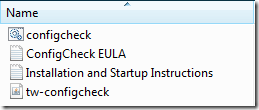
Zodra de software binnen is, kan er worden begonnen met de installatie. Dit is gewoon recht toe recht aan “next, next en finish”.
image

Hier kun je nog wat features kiezen.

image

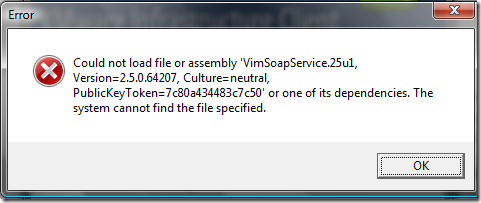
Mocht je de “oude” FTP server al geïnstalleerd hebben staan dan moet je deze verwijderen. Wat ik wel jammer vind is dat hij dit pas aan het einde van de wizard aangeeft.
image

Open de ServerManager en klik op Roles. Scroll naar de IIS role en klik op Remove Role Services.
image

Haal het vinkje weg bij FTP Publishing Service.
image

Even opnieuw opstarten en je kunt de installatie wizard opnieuw starten.
image

Nadat de wizard klaar is kun je deze sluiten.

image

Als je vervolgens de Servermanager start en naar de IIS tab gaat, zie je dat er een aantal nieuwe mogelijkheden zijn.
image

Jammer dat de FTP Service voor IIS 7.0 niet in de final release van Windows Server 2008 is verwerkt.

Backup Exec: Snapshot provider error (0x8007000E): Ran out of mem


Sinds ik SP2 op de SQL server had geïnstalleerd, kreeg ik de onderstaande foutmelding in mijn Backup Exec log file.

Click an error below to locate it in the job log


Backup- SQL1 
AOFO: Initialization failure on:
\\SQL\Shadow?Copy?Components.
Advanced Open File Option used: Microsoft Volume Shadow Copy Service (VSS).

Snapshot provider error (0x8007000E): Ran out of memoryCheck the Windows Event Viewer for details.

Dit probleem kun je oplossen door de hotfix te bestellen die vermeldt word in het volgende KB document: KB940239

Citrix: RSS Feeds for Citrix Hotfixes


Gus Pinto heeft een post geplaatst op BrianMadden.com over de nieuwe RSS feeds van de Citrix Support site.

Via deze RSS feeds kun je  eenvoudig op de hoogte blijven over de laatste hotfixes voor de verschillende Citrix producten.

Zie hier een overzicht van de feeds:


Bron: http://www.brianmadden.com/news/2289

Vmware: Show VMware Tools version with BGInfo


Ik denk dat de meeste van jullie de tool BGInfo wel kennen. Met deze tool kun je systeeminformatie tonen op de desktop. Ik wilde in onze VMware omgeving en ook in mijn Master VM’s het versie nummer tonen van VMware Tools. Dit kun je vrij eenvoudig doen in BGInfo.

Open BGInfo of je eigen *.bgi bestand. Klik daarna op ‘Custom..’ gevolgd door ‘New’. Geef nu een Identifier naam op. Daarna selecteer je ‘Version information for a file’. Als laatste browse je naar het bestand ‘VMwareService.exe’ en klik je op Ok..

Show_VMware_Tools_version_with_bginfo

Vanaf nu kun je VMware Tools version toevoegen aan je bgi bestand.

image

Nadat je het nieuwe *.bgi bestand hebt doorgevoerd, zie je vanaf dan het versie nummer van de VMware Tools. Je kunt het versie nummer controleren via het About scherm van de VMware Tools.

Hieronder zie je en printscreen van een VM in VMware Workstation.

image

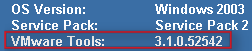
In ESX 3.01 ziet het er zo uit:

image

Ghost: There has been a signature failure


symantec

Sinds kort werken we met nieuwe pc’s en die installeren wij via een ghost image. Dit ging altijd zonder problemen totdat ik de nieuwe image op een tweede pc uitgerolt had. Toen deze pc opstarte kreeg ik de volgende melding:

There has been a signature failure

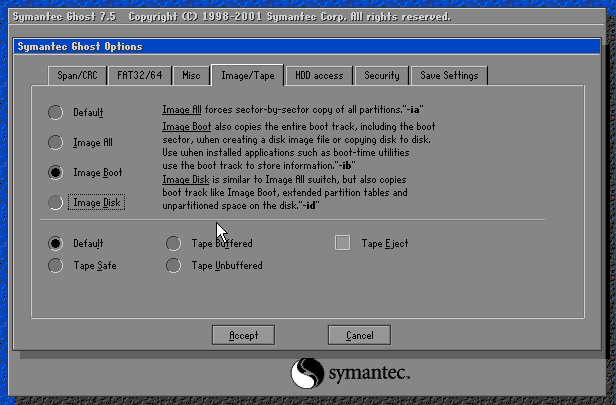
Dit kun je oplossen door de optie Image Boot (-ib) te gebruiken. Nadat ik weer een

image

Nadat ik weer een nieuwe basis image had gemaakt werkte alles naar behoren.

Citrix: An error has occurred while connecting to the requested resource.


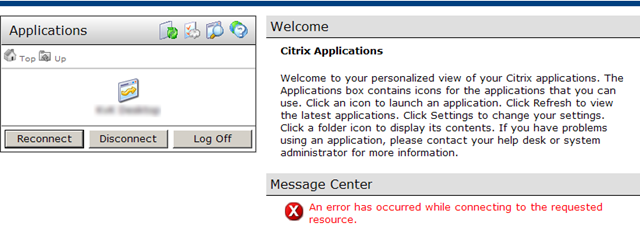
De onderstaande foutmelding kreeg ik bij het starten van een published desktop binnen de webinterface.

image

Dit kwam omdat de default.ica file was gerestored door een admin en wat bleek: de rechten waren afgestemt op het account die de file had teruggeplaatst. De oplossing was simpel: voeg de Authenticated users toe. De applicatie of desktop is daarna gelijk weer te gebruiken. Dit alles doe je trouwens op de webinterface server in de volgende map: C:\Inetpub\wwwroot\Citrix\AccessPlatform\conf.