
ADM-Template: Login Consultants TCT


De volgende zes modules zitten nu in de template:

· Windows 2003 – This module contains settings for Windows Server 2003 especially for Terminal Services, Connection Settings and User environment control

· Citrix – This module contains settings for Citrix Metaframe XP and Citrix Presentation Server 4.5

· Internet Explorer – This module is a replacement of inetres.adm and contains almost all registry settings for the Internet Explorer

· Custom – This module can contain settings that vary per environment. For example: the hide drives setting is here, because every customer wants to hide different drives.

· Softgrid (new!) – This module contains settings for the Softgrid Application

· Flex Profile Kit (new!) – This module contains settings for the Flex Profile Kit. 

Meer informatie over de ADM-Template vindt je hier: http://www.loginconsultants.com

Download de ADM-Template hier: http://www.loginconsultants.com voordat je het bestand kunt downloaden dien je eerst het registratie formulier in te vullen.

Release: VMmark


Quote van de VMwark website:

VMmark: The Industry’s First Virtualization Benchmark

VMmark is a free tool that hardware vendors, virtualization software vendors and other organizations use to measure the performance and scalability of applications running in virtualized environments. This virtualization benchmark software features a novel tile-based scheme for measuring application performance and provides a consistent methodology that captures both the overall scalability and individual application performance.

Traditional Benchmarking vs. VMmark Tile-Based Benchmarking

VMware developed VMmark as a standard methodology for comparing virtualized systems. The benchmark system in VMmark is comprised of a series of “sub-tests” that are derived from commonly used load-generation tools, as well as from benchmarks developed by the Standard Performance Evaluation Corporation (SPEC®). In parallel to VMmark, VMware is a member of the SPEC Virtualization subcommittee and is working with other SPEC members to create the next generation virtualization benchmark.

Meer informatie en de download vindt je hier: http://www.vmware.com

UDA: How to Install VMBK.pl


prerequirements

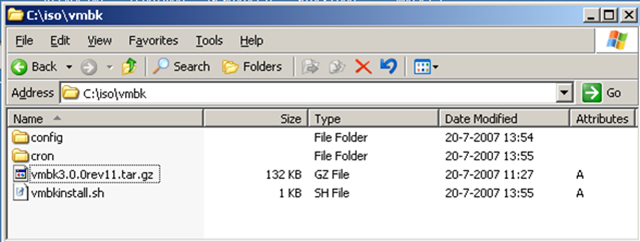
Op de NFS Share maak je de volgende twee mappen aan: config en cron. In de config map plaats je de custom config file welke je al gemaakt had voor het gebruik van VMBK. Dit geld ook voor de cron map.

Mocht je voor het eerst bezig zijn met VMBK dan raad ik je aan de volgende post te lezen: vmbk backup with different session names.

vmbkwithuda

Nadat je de mappen hebt aangemaakt voeg je de vmbk3.0.0rev11.tar.gz en het script vmbkinstall.sh toe.

Scripts

%post script

Voordat je het script kunt uitvoeren moet de NFS share iso eerst gemound worden. Dit gaat met het volgende commando:

esxcfg-nas -a iso -o vcserver.domain.nl -s iso

Vervolgens dien je op de firewall van ESX port 25 te openen.

esxcfg-firewall -o 25,tcp,out,SMTP

Daarna wordt het onderstaande script uitgevoerd.

## Install VMBK on ESX3.0.1.
# This little script installs VMBK3.0.0. rev 11 within the %post script from UDA
cp /vmfs/volumes/iso/vmbk/vmbkinstall.sh /tmp
cd /tmp/
chmod 755 vmbkinstall.sh
touch vmbkinstall.sh
./vmbkinstall.sh

Waarna als laatste de vmbkinstall.sh wordt aangeroepen. Dit script installeerd en configureerd VMBK.

vmbkinstall.sh

## Install VMBK on ESX3.0.1.
# This little script installs VMBK3.0.0. rev 11 within the %post script from UDA

## Copy the tar file from nfs:iso to /tmp
cp /vmfs/volumes/iso/vmbk/vmbk3.0.0rev11.tar.gz /tmp
cd /tmp/
tar zxf vmbk3.0.0rev11.tar.gz
cd vmbk/

## Install VMBK
./install.sh

## Copy Config file
cp /vmfs/volumes/iso/vmbk/config/vmbk-all.conf /usr/local/bin

Cronjob

Voeg de onderstaande code toe aan je %post script

touch /tmp/vmbkcron.txt
chmod 755 /tmp/vmbkcron.txt

cat <<EOF > /tmp/vmbkcron.txt
30 20 * * 1 /usr/local/bin/vmbk.pl -C /usr/local/bin/vmbk-all.conf > /dev/null 2>&1
30 20 * * 2 /usr/local/bin/vmbk.pl -C /usr/local/bin/vmbk-all.conf > /dev/null 2>&1
30 20 * * 3 /usr/local/bin/vmbk.pl -C /usr/local/bin/vmbk-all.conf > /dev/null 2>&1
30 20 * * 4 /usr/local/bin/vmbk.pl -C /usr/local/bin/vmbk-all.conf > /dev/null 2>&1
30 20 * * 5 /usr/local/bin/vmbk.pl -C /usr/local/bin/vmbk-all.conf > /dev/null 2>&1
30 20 * * 7 /usr/local/bin/vmbk.pl -C /usr/local/bin/vmbk-all.conf > /dev/null 2>&1
EOF

crontab /tmp/vmbkcron.txt

VMware: Comparing Intel Dual-Core and Quad-Core using VMmark


Het VROOM team heeft een interessant artikel geschreven over het verschil tussen een Intel Dual-Core en een Intel Quad-Core processor in het aantal Virtual Machines wat je kunt draaien op één CPU.

Een quote uit de orginele post:

The figure below shows the benchmark scores as the number of tiles was increased until CPU saturation was reached for each system. The dual-core system became fully saturated when running three tiles whereas the quad-core system became saturated at five tiles.

The systems achieved nearly identical benchmark scores for one and two tiles. This behavior was expected since neither system had exhausted its CPU resources. At three tiles, the dual core system was fully utilized, which limited the score, while the quad core systems continued to scale well due to the additional available CPU resources. The quad-core system delivered a 28% higher score with three tiles. The quad-core system became saturated at five tiles and ultimately achieved a score 70% higher than the dual-core system while supporting 67% more VMs.

Lees het complete artikel hier: http://blogs.vmware.com/

Tool: Virtual Machine MKS Client


Eric Sloof’s is bezig met een nieuwe tool genaamd de “Virtual Machine MKS Client”. In het begin werkte hij nog samen met Bouke Groenescheij aan de code maar zoals is te lezen in zijn post http://www.ntpro.nl/blog/archives/170-The-games-have-begun.html werken ze nu allebei appart aan een eigen tool.

De Virtual Machine MKS Client en de KVM-Tool.

Eric heeft inmiddels de eerste beta vrijgegeven en deze kun je hier downloaden: vmmksclient.zip

Zodra je de tool hebt geïnstalleerd, start deze gelijk op en vraagt om je VirtualCenter adres, username en password.

mksclient1.png

Zodra je deze hebt ingevoerd, worden de virtual machines geladen onder de knop Virtual Machines.

Daar selecteer je de Virtual Machine die je wilt besturen en daarna kun je aan de slag.

mksclient21.png

Eric en Bouke succes met het schrijven van de code en blijf ons vooral verassen met leuke en vooral handige tools.

VMware: Log files


VMware ESX 3.0.x

Hieronder vindt je een overzicht van de logbestanden die belangrijk zijn voor het troubleshooten en monitoren van een ESX 3.0.x Server.

Wat Waar Doel
Vmkernel /var/log/vmkernel Houd de activiteiten bij van de virtual machines en de ESX Server.
Vmkernel Warnings /var/log/vmkwarning Houd de activiteiten bij van de virtual machines.
Vmkernel Summary /var/log/vmksummary Wordt gebruikt voor het bepalen van de uptime en availabiltiy statistieken van de ESX Server. Een logfile die “human readable” is kun je vinden in /var/log/vmksummary.txt
ESX Server host agent log /var/log/vmware/hostd.log Bevat informatie over de agent die voor de configuratie van de ESX Server en zijn virtual machines zorgt.
Service Console /var/log/messages Bevat alle generieke log messages voor het gerbuik tijdens het troubleshooten bij problemen met de virtual machines op de ESX Server.
Web Access /var/log/vmware/webAccess Houd alle informatie bij over de Web-based access naar de ESX Server.
Authentication log /var/log/secure

Bevat data over de connecties die authenticatie vereisen. Bijvoorbeeld de VMware daemons en acties die gestart worden door de xinetd daemon.

VirtualCenter agent /var/log/vmware/vpx

Bevat informatie over de agent die communiceerd met de VirtualCenter Server.

Virtual Machines The same directory as the affected virtual machine’s configuration files; named vmware.log

Bevat informatie over een crash of abnormaal afgesloten virtual machine.


VMware ESX 2.5.x

Hieronder vindt je een overzicht van de logbestanden die belangrijk zijn voor het troubleshooten en monitoren van een ESX 2.5.x Server.

Wat Waar Doel
Vmkernel /var/log/vmkernel Houd de activiteiten bij van de virtual machines en de ESX Server.
Vmkernel Warnings /var/log/vmkwarning Houd de activiteiten bij van de virtual machines.
Vmkernel Summary /var/log/vmksummary Wordt gebruikt voor het bepalen van de uptime en availabiltiy statistieken van de ESX Server. Een logfile die “human readable” is kun je vinden in /var/log/vmksummary.txt
Service Console /var/log/messages Bevat alle generieke log messages voor het gerbuik tijdens het troubleshooten bij problemen met de virtual machines op de ESX Server.
Web Access /var/log/vmware/webAccess Houd alle informatie bij over de Web-based access naar de ESX Server.
Authentication log /var/log/secure

Bevat data over de connecties die authenticatie vereisen. Bijvoorbeeld de VMware daemons en acties die gestart worden door de xinetd daemon.

VirtualCenter agent /var/log/vmware/vpx/vpxa.log

Bevat informatie over de agent die communiceerd met de VirtualCenter Server.

Virtual Machines The same directory as the affected virtual machine’s configuration files; named vmware.log

Bevat informatie over een crash of abnormaal afgesloten virtual machine.


Bron: www.vmwarewolf.com

Tool: ESX Manager 2.1


Manfred Meier van www.esxguide.com/ heeft een tool gemaakt genaamd ESX Manager 2.1. Om deze tool te kunnen gebruiken die je wel de VI Client eerst te installeren.

Features:

Virtual Center independent
Keeps track of Virtual Machine Host Registration, Migrations and Status
Manage Virtual Machine Configuration
Display and work in the Virtual Machine Console
Kill Virtual Machine Process (if the VM can’t be powered off)
Rename Virtual Disks of registered Virtual Machines
Move Virtual Disks and keep the disk attached to the Virtual Machine
Virtual Machine Registration, Start , Restart , Reset, Power Off, Suspend
Extend Virtual Disks
View-Search-Filter Logfiles on the ESX Host.
Define and save custom SSH commands with Parameter handling
Publish and share custom SSH commands with other ESX Administrators

Download hier de featurelist met screen shots: http://www.esxguide.com/

De Tool kun je hier downloaden: www.esxguide.com/

How To: Install iSCSI Enterprise Target (IET) on FC5 (UDA VA)


In deze how to lees je hoe je de iSCSI Enterprise target installeerd op Fedora Core 5 wat als basis dient voor de UDA 1.4 virtual appliance.

Als eerste moet de kernel bijgewerkt worden. Dit doe je als volgt

uname -a

yum update kernel kernel-devel

reboot -n

Vervolgens dien je gcc en openssl-devel te installeren. Deze twee pakketjes zijn nodig voor de installatie van iSCSI Enterprise Target. Doe je dit niet dat loopt de installatie vast met een foutmelding.

yum install gcc

yum install openssl-devel wget

Als laatste stap in de voorbereiding download en pak je de iSCSI Enterprise target uit.

http://belnet.dl.sourceforge.net/sourceforge/iscsitarget/iscsitarget-0.4.15.tar.gz

tar xvfz iscsitarget-0.4.15.tar.gz

Nu beginnen we met de installatie


cd iscsitarget-0.4.15
export KERNELSRC=/usr/src/kernels/2.6.20-1.2320_FC5-i686
make && make install

cp etc/ietd.conf /etc

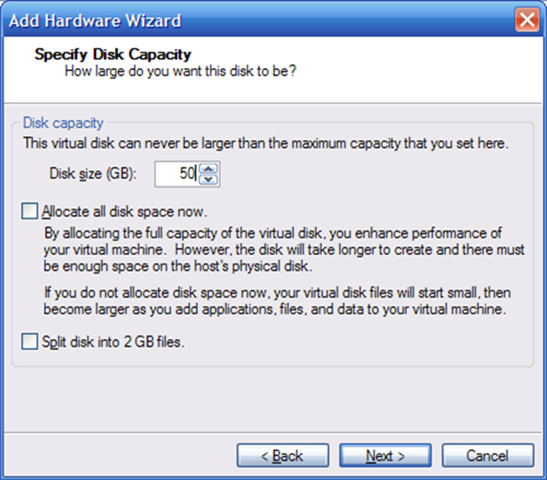
Voeg een extra VMDK toe aan de UDA VM.

image

edit de ietd.conf file en voeg de onderstaande tekst toe om zo de derde vmdk beschikbaar te stellen als iscsi target.

nano /etc/ietd.conf

Target iqn.2007-07.local.uda:storage.disk1
Lun 0 Path=/dev/sdc

Alias iSCSI

MaxConnections 8
InitialR2T Yes

De iSCSI service herstarten

/etc/init.d/iscsi-target start

De iSCSI service zo configureren dat deze automatisch start bij het starten van de VM.

chkconfig iscsi-target on

Vanaf nu kun je de iscsi target benaderen via de Windows client of via VI3.