vSphere: The Virtual Machine is installing VMware Tools and Cannot Initiate a Migration Operation


image_thumb1_thumb[1]

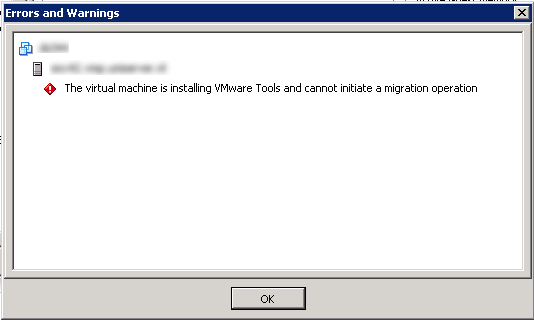
After upgrading a large group Virtual Machines  to the latest build of VMware Tools. I got an error when I started a vMotion task on a some VMs.

image

The warning is pretty clear but I couldn’t cancel the VMware Tools wizard from the vSphere client. After a short search on Google I found a post from Bob Plankers

The solution is quite simple. Logon to the ESX host where the VM is running on and run the following command:

/usr/bin/vmware-cmd -l

Now you get a list of all the registered VMs on that host. Copy the full path of the vmx from the VM you want to migrate with vMotion. Now run the vmware-cmd pathtovmx getid command:

/usr/bin/vmware-cmd /vmfs/volumes/datastore-name/vm-folder/vmx-file.vmx getid

The latest step is to run the following command. Just replace the idnumber with number you get with the previous command:

/usr/bin/vmware-vim-cmd vmsvc/tools.cancelinstall idnumber

Now you are able to migrate the VM with vMotion again.

Source http://lonesysadmin.net/2009/12/11/how-to-cancel-a-stuck-vmware-tools-install-from-the-esx-cli/

Release: vEcoShell 1.2.6


image

vEcoShell 1.2.6 is GA!!

Quote from vEcoShell blog:

The major difference in 1.2.6 is in how connections to multiple vCenter or ESX Servers are managed.  In previous versions, vEcoShell maintained all session management and required custom code in nearly all of it’s scripts to function properly.  These scripts could not run externally to vEcoShell, so the PowerShell Code tab provided limited value.  With the 1.2.6 release, vEcoShell now lets PowerCLI manage all connections.  This means we were able to remove all custom code from our script library.  Nearly every script that is in vEcoShell today can be run externally.  Simply copy a code block from the "PowerShell Code" tab after a script has completed and paste it into the script editor.  After running the Connect-VIServer command in the console window, the copied funciton will run just as it does in the admin console.

What’s new:

  • it’s the first stable release
  • compatible with PowerCLI 4.0 U1
  • easy Copy and Paste PowerCLI code
  • It will remain Freeware 🙂

You can download the vEcoShell 1.2.6 and language packs here: http://vcommunity.vizioncore.com/administration/vecoshell/p/downloads.aspx 

If you’re new to the vEcoShell, checkout the QuickTip videos from Scott Herold here: http://vcommunity.vizioncore.com

CentOS: How To Create a Local VMware Repository


image_thumb1[1] image_thumb[1]

The first step is to configure the repository server. Before you can start, you have to install the createrepo package. Just run the following command:

yum install createrepo

If you didn’t already, also install Apache on the Server that’s hosting the repository.

Let’s create a folder structure so we can place the rpm’s on the server. In case you want create a repository for 32 bit and 64 bit CentOS. You have to create a i386 and a x86_64 directory.

i368:

/var/www/html/repo/centos/5/i386/vmware

Upload your rpm files to the vmware directory and run the createrepo command:

createrepo /var/www/html/repo/centos/5/i386/vmware/

x86_x64

/var/www/html/repo/repo/centos/5/x86_64/vmware

Upload your rpm files to the vmware directory and run the createrepo command:

createrepo /var/www/html/repo/centos/5/x86_64/vmware/

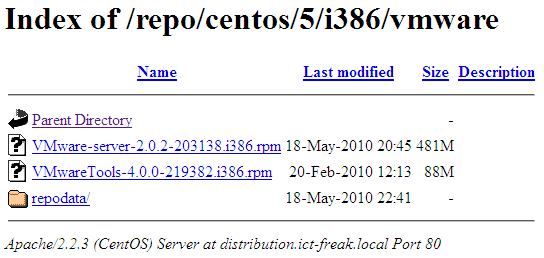
The next step is to test the repository. Just open your favorite web browser and browse to the url. In my case this is: http://distribution.ict-freak.local/repo/centos/5/i386/vmware.

image

If this works, your local vmware repository is ready for action. But first we need to add the repository on the client side.

Open the following file in your favorite text editor

/etc/yum.repos.d/vmware_local.repo

Add the following lines and edit the baseurl so it will match your environment.

[vmware_local]
name=Uniserver CentOS-$releasever-$basearch
baseurl=http://distribution.ict-freak.local/repo/centos/$releasever/$basearch/vmware/
gpgcheck=0
enabled=1

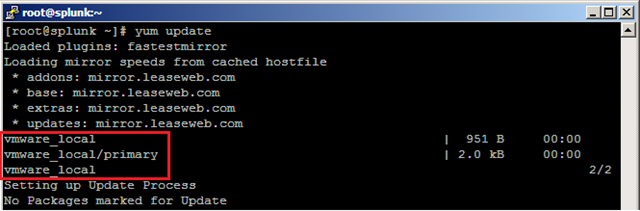
Save the vmware_local.repo file and run the yum update command.

image

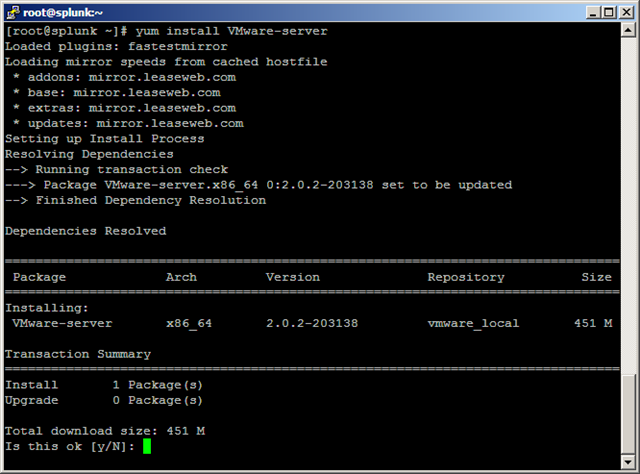
Now you’re ready to install packages from the vmware_local repository. Let’s install VMware server 2.0.2-203138 by running the following command:

yum install VMware-server

The install process will start:

image

When you also upload the VMware Tools rpm file, you can install or update the package with the following commands:

Install:

yum install VMwareTools

Update:

yum update VMwareTools

When you need to upgrade de VMware Tools, the only thing you have to do is upload the new rpm file and run the yum update command. The finals step is to run the vmware-config-tools.pl script. But this step can be replaced by the check-vmware-tools script. More info about this script can be found here: http://bit.ly/97fpcD

PowerCLI: Script to Schedule Memory and or vCPU up/downgrade


After creating the Restart-VMs.ps1 script, I also created a script to schedule vHardware changes. With this script, you’re able to upgrade or downgrade the amount of memory and or the amount of vCPU’s of a VM. Just lik the restart script, you can schedule this script and change the recommended parameters.

These are the parameters you need to supply to the script. The first two parameters are mandatory. When you supply all the parameters, you are able to add/remove Memory and add/remove vCPU’s.

-vCenter enter the vCenter server you want to connect to. It’s possible to connect to multiple vCenter servers.
-vmName enter the name of the VM you want
-MemoryMB enter the amount of memory you want to add or remove from the VM. Be sure you enter the amount in MB.
-MemoryOption Supply the option add or remove.
-CPUCount Enter the amount of vCPU’s you want to add or remove from the VM.
-CPUOption Supply the option add or remove.

This is how the script works.

  1. Connect to vCenter
  2. Shutdown the selected VM
  3. Add/remove memory and or vCPU’s
  4. Poweron the selected VM
  5. Disconnect vCenter

Now it’s time for an example. I have a VM called NAGIOS and needed to remove 512MB RAM and needed to add an extra vCPU. So I started the script with the following parameters:

.\Change-VM_Memory_CPU_Count.ps1 -vCenter vc01.ict-freak.local -vmName NAGIOS -MemoryMB 512 -MemoryOption Remove -CPUCount 1 -CPUOption Add

The VM is powered off and the memory is downgraded to 1024MB RAM and the total number of vCPU’s upgraded to 2.

image

You can download the script below.

Continue reading “PowerCLI: Script to Schedule Memory and or vCPU up/downgrade”

PowerCLI Schedule a restart job for one or multiple VM’s


I created the following script to schedule some restart jobs overnight. The goal for this script was to add some parameters so you don’t have to edit the script file itself to schedule it for another VM or a group of VM’s.

####################################################################
#
# Restart-VMs.ps1
# 
# -vCenter vCenter Server or Servers to connect to. 
# Example -vCenter "vc01","vc02"
# -vmName the VM or VMs to restart.
# Example -vmName "VM1" or -vmName "VM1","VM2"
# # Example: #.\Restart-VMs.ps1 -vCenter vc01.ict-freak.local -vmName "VM1","VM2" # # Version 1.0 May 2010 Arne Fokkema www.ict-freak.nl @afokkema # ##################################################################### param( [parameter(Mandatory = $true)] [string[]]$vCenter, [parameter(Mandatory = $true)] [string[]]$vmName ) $VIServer = Connect-VIServer $vCenter If ($VIServer.IsConnected -ne $true){ Write-Host "error connecting to $vCenter" -ForegroundColor Red exit } foreach($vm in $vmName){ Write-Host "Going to restart $vm" Restart-VMGuest -VM (Get-VM $vm) -Confirm:$false } Disconnect-VIServer -Confirm:$false

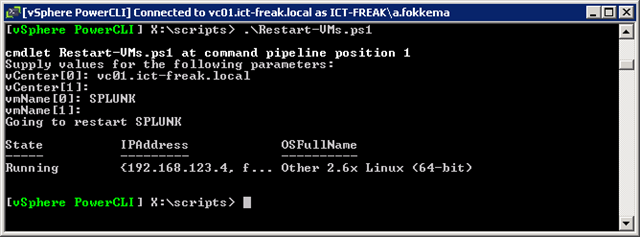
Let’s start to run the script from the PowerCLI console first:

image

I started the script without setting any of the parameters. Since these two parameters are necessary  to run the script, you will be asked to enter the parameters, before you can continue.


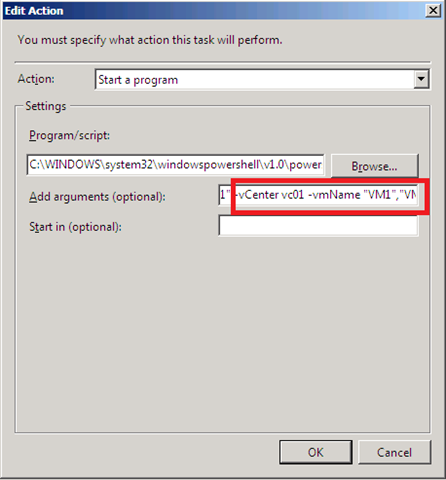
Now it’s time to schedule the script in Windows Server 2008. Just create a simple scheduled task with the following settings:

The first line below is the Program/script: setting. The second line is the Add arguments setting.

C:\WINDOWS\system32\windowspowershell\v1.0\powershell.exe

-PSConsoleFile "C:\Program Files (x86)\VMware\Infrastructure\vSphere PowerCLI\vim.psc1" " &  "C:\Scripts\Restart-VMs.ps1" -vCenter vc01 -vmName "VM1","VM2"

image

When you are going to use this script, be absolutely sure you are allowed to restart the VM’s you scheduled.

vSphere ISO containing Intel 82575 and 82576 Gigabit Ethernet Adapter drivers


This post is a complete re-post from Eric Sarakaitis blog: http://www.vmwareadmins.com


So, after spending three days on this, I was finally able to get the  Intel 82575 and 82576 Gigabit Ethernet Adapter driver slipstreamed onto the installation media.

I first followed this: http://patrickvanbeek.wordpress.com/2010/01/30/slipstreaming-drivers-in-the-esx4i-install-iso/ to get the post install drivers working.

But I still had the problem of not being able to see the NIC’s during the install.

to do that, I had to explode the ESX 4.0u1 ISO and grab the initrd.img file from the isolinux folder.

To do the modifications of the img file I needed a linux guest… so I fired up a Ubuntu image on Lab Manager and SCP’d the img file there.

To extract the IMG file do:

1.mkdir ~/tmp
2.cd ~/tmp
3.cp /boot/initrd.img ./initrd.gz
4.gunzip initrd.gz
5.mkdir tmp2
6.cd tmp2
7.cpio -id < ../initrd.img

now you should have a lot of files in ~/tmp/tmp2 directories, including a lot of subdirectories like sbin,lib

Now you need to extract the igb.xml and igb.o from the VMware RPM (http://www.vmware.com/support/vsphere4/doc/drivercd/esx40-net-igb_400.1.3.19.12-1.0.4.html.)

I then moved these files to their respective locations within the exploded initrd.

the igb.xml went into

1./usr/share/hwdata/pciids/

the igb.o went into

1./usr/lib/vmware/vmkmod/

then pack the files back into the archive using the following command

1.cd ~/tmp/tmp2
2.find . | cpio –create –format=’newc’ > ~/tmp/newinitrd
3.cd ~/tmp
4.gzip newinitrd

now you would have a newinitrd.gz
rename this now –
mv newinitrd.gz as newinitrd.img
this is the new boot image now !!

I then re-created the ISO. Oddly enough, it worked on the first try 🙂

and the link to the ISO… http://www.vmwareadmins.com

vSphere: Hot Add or Remove a VMDK with a Linux VM


In this post I will show you how to hot add a new VMDK to a Linux VM. I will also post how to remove a VMDK if necessary.


Hot Add a new VMDK

Add the new VMDK:

image

After you added the new VMDK login to the VM and run fdisk –l

[root@nagios ~]#  fdisk -l

Disk /dev/sda: 21.4 GB, 21474836480 bytes
255 heads, 63 sectors/track, 2610 cylinders
Units = cylinders of 16065 * 512 = 8225280 bytes

   Device Boot      Start         End      Blocks   Id  System
/dev/sda1   *           1          13      104391   83  Linux
/dev/sda2              14        2610    20860402+  8e  Linux LVM

The new disk isn’t available yet so we have to do a SCSI bus rescan. You can run the following command to do a rescan:

echo "- – -">/sys/class/scsi_host/host0/scan

When you run the fdisk –l command after the rescan, you will see the new disk.

[root@nagios ~]# fdisk -l

Disk /dev/sda: 21.4 GB, 21474836480 bytes
255 heads, 63 sectors/track, 2610 cylinders
Units = cylinders of 16065 * 512 = 8225280 bytes

   Device Boot      Start         End      Blocks   Id  System
/dev/sda1   *           1          13      104391   83  Linux
/dev/sda2              14        2610    20860402+  8e  Linux LVM

Disk /dev/sdb: 10.7 GB, 10737418240 bytes
255 heads, 63 sectors/track, 1305 cylinders
Units = cylinders of 16065 * 512 = 8225280 bytes

Disk /dev/sdb doesn’t contain a valid partition table

The new disk doesn’t contain a valid parition table. This can be fixed with running the fdisk /dev/sdb command:

fdisk –l /dev/sdb n p 1 1 {enter} x b 1 128 w q

The options x b 1 128 will align the new parition.  For more info about, see Bob Plankers his post here: http://lonesysadmin.net/2010/03/30/i-will-keep-saying-it-align-your-partitions/

Now we have a valid parition table but no file system. Run the mkfs.ext3 /dev/sdb1 command to accomplish this task:

[root@nagios ~]# mkfs.ext3 /dev/sdb1
mke2fs 1.39 (29-May-2006)
Filesystem label=
OS type: Linux
Block size=4096 (log=2)
Fragment size=4096 (log=2)
1310720 inodes, 2620595 blocks
131029 blocks (5.00%) reserved for the super user
First data block=0
Maximum filesystem blocks=2684354560
80 block groups
32768 blocks per group, 32768 fragments per group
16384 inodes per group
Superblock backups stored on blocks:
        32768, 98304, 163840, 229376, 294912, 819200, 884736, 1605632

Writing inode tables: done
Creating journal (32768 blocks): done
Writing superblocks and filesystem accounting information: done

This filesystem will be automatically checked every 39 mounts or
180 days, whichever comes first.  Use tune2fs -c or -i to override.

Run the fdisk –l command to verify the new configuration:

[root@nagios ~]# fdisk -l

Disk /dev/sda: 21.4 GB, 21474836480 bytes
255 heads, 63 sectors/track, 2610 cylinders
Units = cylinders of 16065 * 512 = 8225280 bytes

   Device Boot      Start         End      Blocks   Id  System
/dev/sda1   *           1          13      104391   83  Linux
/dev/sda2              14        2610    20860402+  8e  Linux LVM

Disk /dev/sdb: 10.7 GB, 10737418240 bytes
255 heads, 63 sectors/track, 1305 cylinders
Units = cylinders of 16065 * 512 = 8225280 bytes

   Device Boot      Start         End      Blocks   Id  System
/dev/sdb1               1        1305    10482381   83  Linux

if you want to auto mount the new disk, you have to create a new folder and add an entry to the /etc/fstab file.

mkdir /disk2
nano or vi /etc/fstab

add the following line:
/dev/sdb1               /disk2                  ext2    defaults        1 2

Now you are ready to mount the new disk.

mount /dev/sdb1 /disk2/

These are all the steps.

Hot Remove a VMDK

If you want to remove an extra VMDK from a Linux VM,you need to follow these steps.

First you need to unmount the /dev/sdb1:

umount /dev/sdb1

Remove the /disk2 folder:

rmdir /disk2/

Remove the entry from the /etc/fstab:

nano or vi /etc/fstab

remove the following line:
/dev/sdb1               /disk2                  ext2    defaults        1 2

Delete the device:

echo 1 > /sys/block/sdb1/device/delete

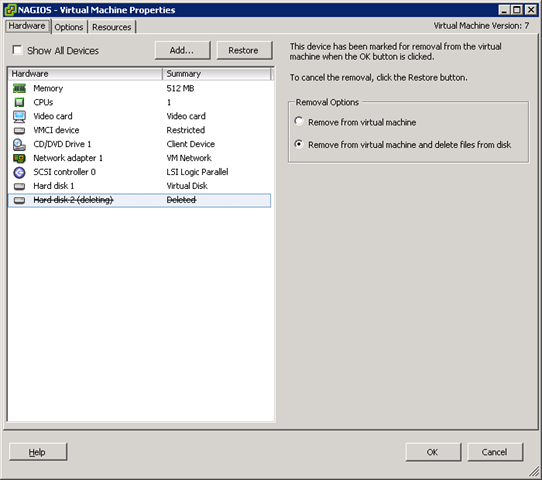
Remove the VMDK:

image

vSphere: Unattended ESX4 installation Tips & Tricks


In this post I will share some tips / tricks and scripts, which I used to create an unattended ESX4 installation.


One of the important lessons I have learned with creating a ks.cfg file for vSphere is how to use proper escaping.

for each $ in your script use a \ to escape it properly. See the example below:

VMHBA=\$(/usr/sbin/esxcfg-scsidevs -a |grep "Software iSCSI" |awk ‘{print \$1}’)

This form of escaping was necessary to get my script working. My script started with the following lines:

%post

cat > /root/esx01.sh <<EOF1

#!/bin/sh

and these are the last lines of the script:

##########################
# Finish
##########################
echo "Making sure the script runs only once"

EOF1

###Make esxcfg.sh eXcutable
chmod +x /root/esx01.sh

###Backup original rc.local file
cp /etc/rc.d/rc.local /etc/rc.d/rc.local.bak

###Make esx01.sh run from rc.local and make rc.local reset itself
cat >> /etc/rc.d/rc.local <<EOF
cd /tmp
/root/esx01.sh
mv -f /etc/rc.d/rc.local.bak /etc/rc.d/rc.local
shutdown -r now
EOF

The rest of this post, I will show you some tips about configuring Syslog, iSCSI, User creation, Change service console memory, Install Dell Open Manage agent, Set the host into maintenance mode.

But before I start with the tips mentioned above, I want to share a little trick a learned from  a comment from David on an excellent blog post by Robert Patton. In stead of using a long sleep at the beginning of your script, you can use the following tip:

hostd-vmdb

Before you start the post script, you have to wait until the hostd-vmdb service is ready. This is necessary  if you want to use the /usr/bin/vmware-vim-cmd command. With the following while loop, you can check the status of the hostd-vmdb service. When the service is ready, the script continues to configure your ESX server.

####################################################
#Wait until host service is ready
####################################################
while ! vmware-vim-cmd /hostsvc/runtimeinfo; do
sleep 20
done


I configured the Syslog settings at the beginning of my script, so I can monitor al the steps via the Syslog service:

Syslog

This is just an easy one. The only thing you have to do is echo the following lines:

####################################################
# Configure Syslog
####################################################
echo "# remote syslog server Splunk" >> /etc/syslog.conf
echo "*.* @192.168.123.219" >> /etc/syslog.conf
service syslog restart

The next tips is about the configuration of iSCSI.

Configure iSCSI

The following script part will add a new vSwitch1 called iSCSI and set the IP settings.

####################################################
# Add Storage Networking
####################################################
/usr/sbin/esxcfg-vswitch –add-pg="iSCSI" vSwitch1
/usr/sbin/esxcfg-vswitch –pg="iSCSI" -v 36 vSwitch1
/usr/sbin/esxcfg-vmknic -a -i 172.1.1.202 -n 255.255.255.0 "iSCSI"

/usr/sbin/esxcfg-route 192.168.123.254

# Refresh network settings
/usr/bin/vmware-vim-cmd internalsvc/refresh_network

The next step is to enable the iSCSI initiator and add a rule to the Firewall. After the 10 seconds sleep, the correct VMHBA will be selected for the rest of the steps. The VMHBA is saved in a variable which will be used to set the CHAP password, add the iSCSI Send Targets and perform a VMHBA rescan.

####################################################
# Configure iSCSI
####################################################
/usr/bin/vmware-vim-cmd hostsvc/firewall_enable_ruleset swISCSIClient
/usr/bin/vmware-vim-cmd hostsvc/storage/software_iscsi_enabled true

sleep 10

VMHBA=\$(/usr/sbin/esxcfg-scsidevs -a |grep "Software iSCSI" |awk ‘{print \$1}’)

# Set CHAP password
/usr/bin/vmware-vim-cmd hostsvc/storage/iscsi_enable_chap \$VMHBA iscsi_cluster_01 <chap_password>

# Add iSCSI Send Targets
/usr/bin/vmware-vim-cmd hostsvc/storage/iscsi_add_send_target \$VMHBA 172.1.1.10
/usr/bin/vmware-vim-cmd hostsvc/storage/iscsi_add_send_target \$VMHBA 172.1.1.11

sleep 15

/usr/sbin/esxcfg-rescan \$VMHBA

The rest of the vSwitches / Portgroups are left out of this post.


Add Users

If you want to add users with encrypted passwords, You can use the openssl passwd –1 command on
an existing ESX Server to generate a MD5 encrypted password.

image

This little trick can be used to generate the root password for ESX and to generate passwords for other users.

You can use the following line to set the root password during the installation:

# root Password
rootpw –iscrypted $1$EpQvSrYkznF6yCLKPQqZPUYr6z

and if you want to add more users to the Service console, you can use the following lines:

####################################################
# Add users
####################################################
/usr/sbin/useradd -p ‘\$1\$L4fGhr0F\$ImLwX47v3xZkAH4HrmBjr0′ -c "Arne Fokkema" afokkema

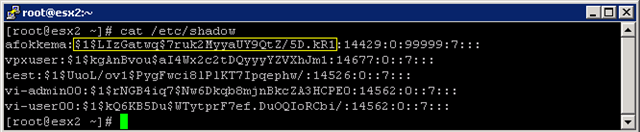
Instead of generating passwords, you can also use the string from the /etc/shadow file. You can open de file with cat and copy the string:
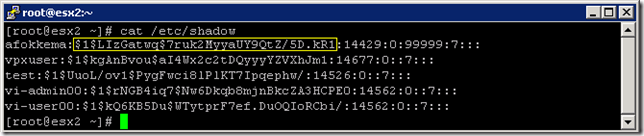
image


Change the vSwitch portnumber value to 120

To change the vSwitch portnumber to 120, you can use the following command:

####################################################
# Change the vSwitch portnumber to 120
####################################################
/usr/bin/vmware-vim-cmd  hostsvc/net/vswitch_setnumports vSwitch0 128

This will change the default setting to 120:
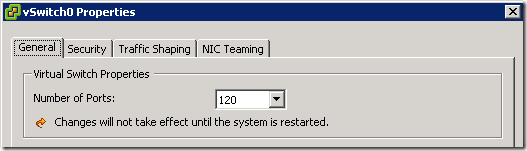
image


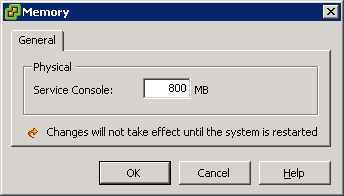
Change the Service Console Memory to 800MB

To change the Service Console memory to 800MB, you can use the following commands. These settings are applied after a reboot.

####################################################
# Configure Service Console Memory to 800MB
####################################################
/usr/bin/vmware-vim-cmd /hostsvc/memoryinfo 838860800
/usr/sbin/esxcfg-boot -b
/usr/sbin/esxcfg-boot -t

This is how it looks like in the vSphere client:

 image

Dell Open Manage Agent

The script below is a based on a script by Scot Hanson (aka @DellServerGeek) which you can find here.

This script will download the OM agent from an internal Webserver and opens the firewall for the Open Manage agent.

####################################################
# Dell OM Agent        
####################################################

mkdir -p /root/OM

#Download OM.tar.gz
esxcfg-firewall –allowOutgoing
lwp-download http://webserver/OM/OM.tar.gz /root/OM/.
esxcfg-firewall –blockOutgoing

cd /root/OM
tar -zxf OM.tar.gz
chmod a+x *.*

./linux/supportscripts/srvadmin-install.sh -x
#./linux/supportscripts/srvadmin-services.sh start

/usr/sbin/esxcfg-firewall -o 1311,tcp,in,OpenManageRequest

Enable vMotion

To enable vMotion, We use another variable to capture the right vmkernel portgroup:

####################################################
# Enable vMotion on the vMotion PG
####################################################

service mgmt-vmware restart
sleep 1m

VMK=\$(esxcfg-vmknic -l |grep vMotion |awk ‘{print \$1}’)
/usr/bin/vmware-vim-cmd hostsvc/vmotion/vnic_set \$VMK

# Refresh network settings
/usr/bin/vmware-vim-cmd internalsvc/refresh_network

Enter Maintenance mode

When the installation is ready, the ESX host will enter maintenance mode before it restarts to finalize the installation.

####################################################
# Enter Maintenance mode
####################################################
/usr/bin/vmware-vim-cmd /hostsvc/maintenance_mode_enter


It can cost you a lot of time to create a ks.cfg to match your vSphere environment. But when it’s ready, it will save you a lot of time deploying new hosts or redeploy other hosts.

If you have any additional scripts or tips please leave a comment or contact me on twitter: @afokkema


Sources:

vSphere: An error occurred, please try again in another vSphere session


image


From KB1014213:

When trying to update host data, you may experience these symptoms:
The vCenter Service Status shows the error:

An error occurred, please try again in another vSphere session.
The Hardware Status tab shows the error:

An error occurred, please try again in another vSphere session.

From: KB1013893

The VirtualCenter Server Service Status fails with the errors:

Cannot access the health service!

Login to the query service failed

Do not have permission for this command

The solutions mentioned in both the KB articles didn’t solve the issue for me. In my case name resolution was the problem. We use another domain for our vCenter server. The clients where not able to resolve the FQDN of the vCenter server. So I added the FQDN and ip address to the hosts file. After this little change and reconnecting the vSphere client, everything worked as it should be.

Release: PowerCLI Update Manager cmdlets


image

Just saw the news on Twitter. The PowerCLI Update Manager cmdlets are back!

Quote from the PowerCLI blog:

Cmdlet Name

Cmdlet Description

Attach-Baseline

Attaches baselines to the specified Template, VirtualMachine, VMHost, Cluster, Datacenter, Folder, and VApp objects.
Attaching a baseline to a container object such as a folder or datacenter transitively attaches the baseline to all objects in the container.

Detach-Baseline

Detaches baselines from the specified inventory objects.

Download-Patch

Downloads new patches into the Update Manager patch repository from the enabled patch download sources.

Get-Baseline

Retrieves the baselines specified by the provided cmdlet

parameters.

Get-Compliance

Retrieve baseline compliance data for the specified object of type Template, VirtualMachine, VMHost, Cluster, Datacenter, Folder, and VApp.

Get-Patch

Retrieves all available patches or those specified by the provided cmdlet parameters.

Get-PatchBaseline

Retrieves all patch baselines or those specified by the provided cmdlet parameters.

New-PatchBaseline

Creates a new patch baseline. Patch baselines can be applied to either hosts or virtual machines. Depending on the patch criteria you select, patch baselines can be either dynamic or static (fixed).

Remediate-Inventory

Remediates an inventory object against the specified baselines.

Remove-Baseline

Deletes the specified baselines from their servers. Before the

removal, the baselines are detached from all entities they have been attached to.

Scan-Inventory

Scans inventory objects for baselines attached to them.

Set-PatchBaseline

Modifies the properties of a patch baseline. You can specify explicitly the patches you want to include in the baseline through the IncludePatch parameter.

Stage-Patch

Initializes staging of patches. Staging allows you to download

patches from the Update Manager server to the ESX/ESXi hosts, without applying the patches immediately.


Download and more information can be found here: http://communities.vmware.com/

Release Notes can be found here: http://communities.vmware.com/docs/DOC-12075

The online manual can be found here: http://www.vmware.com/


You need to install PowerCLI 4 update 1 before you install the Update Manager cmdlets