PowerCLI: Find Resourcepool or VMs with Memory Ballooning/Swap Usage


 image image

In this post I will show you how to report Resource Pools and VMs with active Memory Ballooning. But what is Memory Ballooning. I short quote from the ESX3 memory whitepaper http://www.vmware.com/pdf/esx3_memory.pdf:

The balloon driver, also known as the vmmemctl driver, collaborates with the server to reclaim pages that are considered least valuable by the guest operating system. It essentially acts like a native program in the operating system that requires more and more memory. The driver uses a proprietary ballooning technique that provides predictable performance that closely matches the behavior of a native system under similar memory constraints. This technique effectively increases or decreases memory pressure on the guest operating system, causing the guest to invoke its own native memory management algorithms. When memory is tight, the guest operating system decides which particular pages to reclaim and, if necessary, swaps them to its own virtual disk.

You need to be sure your guest operating systems have sufficient swap space. This swap space must be greater than or equal to the difference between the virtual machine’s configured memory size and its reservation.

More information about Memory ballooning can also be found in this post by Arnim van Lieshout.

So let’s continue with the PowerCLI scripts.

The following script will report all the resource pools with active Memory Ballooning:

$myCol = @()
foreach($clus in (Get-Cluster)){
 foreach($rp in (Get-ResourcePool -Location $clus | Get-View | Where-Object `
  {$_.Name -ne "Resources" -and `
   $_.Summary.QuickStats.BalloonedMemory -ne "0"})){
   $Details = "" | Select-Object Cluster, ResourcePool, `
   SwappedMemory ,BalloonedMemory

    $Details.Cluster = $clus.Name
    $Details.ResourcePool = $rp.Name
    $Details.SwappedMemory = $rp.Summary.QuickStats.SwappedMemory
    $Details.BalloonedMemory = $rp.Summary.QuickStats.BalloonedMemory

    $myCol += $Details
  }
}
$myCol

#$myCol | Export-Csv -NoTypeInformation C:\RPs-Ballooning.csv

This will be the output:

image

If you add the script to a powerpack within the Virtualization EcoShell, It will look like this:

image

If you want to report the VMs with active memory ballooning, you can run the following script:

$myCol = @()
foreach($vm in (Get-View -ViewType VirtualMachine | Where-Object `
  {$_.Summary.QuickStats.BalloonedMemory -ne "0"})){
   $Details = "" | Select-Object VM, `
   SwappedMemory ,BalloonedMemory

    $Details.VM = $vm.Name
    $Details.SwappedMemory = $vm.Summary.QuickStats.SwappedMemory
    $Details.BalloonedMemory = $vm.Summary.QuickStats.BalloonedMemory

    $myCol += $Details
  }
$myCol

And within a couple of seconds, you’ll get a list with all the VMs with active ballooning:

image

If you add the script to a powerpack within the Virtualization EcoShell, It will look like this:

image

PowerCLI: Check Partition Alignment (Windows VMs Only)


image

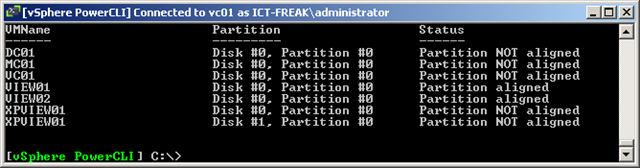
Some time ago I  already created a script to report the disk alignment status of your Windows VM’s. I updated the script so you are able to export it to a CSV or XML file.

$myCol = @()
$vms = get-vm | where {$_.PowerState -eq "PoweredOn" -and `
$_.Guest.OSFullName -match "Microsoft Windows*" } | Sort Name 

foreach($vm in $vms){
$wmi = get-wmiobject -class "Win32_DiskPartition" `
-namespace "root\CIMV2" -ComputerName $vm            

    foreach ($objItem in $wmi){
        $Details = "" | Select-Object VMName, Partition, Status        
            if ($objItem.StartingOffset -eq "65536"){
                $Details.VMName = $objItem.SystemName
                   $Details.Partition = $objItem.Name
                $Details.Status = "Partition aligned"
            }
            else{
                $Details.VMName = $objItem.SystemName
                   $Details.Partition = $objItem.Name
                $Details.Status = "Partition NOT aligned"                    
            }
    $myCol += $Details
    }
}
$myCol | Export-Csv -NoTypeInformation "C:\Temp\PartitionAlignment.csv"
#$myCol | Export-Clixml "C:\Temp\PartitionAlignment.xml"


The script uses WMI to gather the information about the partition of the Windows VM. So if you’re using a Firewall, be sure to open the right ports. More info about WMI and Firewalls, can be found over here: http://msdn.microsoft.com/en-us/library/aa822854%28VS.85%29.aspx

The output will look like this:

image

PowerCLI: Enable Changed Block Tracking


image
If you don’t know what Changed Block Tracking is, just read this excellent post from Eric Siebert.

You can check the status of Changed Block Tracking with the following PowerCLI one-liner:

Get-VM | Get-View | `
Sort Name | Select Name, `
@{N="ChangeTrackingStatus";E={$_.Config.ChangeTrackingEnabled}}

The output of the one-liner will look like this:

image

If you’re running a VM with only one VMDK, you can use the following function to enable Changed Block Tracking:

Function EnableChangeTracking{
    param($vm)
    $vmView = Get-VM $vm | Get-View

    if($vmView.Config.Version -eq "vmx-04"){
        Write-Host -ForegroundColor Red `
        "The Virtual Hardware version of this VM does not support Changed Block Tracking"
        return
        }

    $vmConfigSpec = New-Object VMware.Vim.VirtualMachineConfigSpec
    $vmConfigSpec.changeTrackingEnabled = $true
    $vmView.ReconfigVM($vmConfigSpec)

    sleep 3

    Get-VM $vm | New-Snapshot -Name "Temp" 

    sleep 5

    Get-VM $vm | Get-Snapshot | Where {$_.Name -eq "Temp"} | Remove-Snapshot -Confirm:$false
}

You can run the function via the following command:

image

I am going to updated the function later, so it will be able to enable Changed Block Tracking on a VM with multiple VMDKs.

Update: When the VM is powered off, you are able to set the Changed Block Tracking feature for all the VMDKs.

Update 2: There was a little chat about this subject on Twitter between @lamw @gabvirtualworld and me (@afokkema) where @gabvirtualworld posted the following tweet:

image

I can confirm this theory and update my script with this little trick. Now you’re able to enable Changed Block Tracking when your VM is powered on.

PowerCLI: Change Persistence mode (on the fly)


image

When you have some vmdk’s with the Independent Persistent mode enabled. You might get problems with Storage vMotion (some DMotion errors). I was able to fix this with disabling  the Independent mode and create and remove a snapshot of the VM. But within the vSphere client you’re not able to change the Independent setting of a running VM. With PowerCLI you can!

The first one-liner will return all the vmdk’s with the Independet Persistent mode enabled:

Get-VM | % { Get-HardDisk -VM $_ | Where {$_.Persistence -eq "IndependentPersistent"} }

This is what you see in the console.

image

Within the vSphere client, you can’t change this setting while the VM is powered on.

image

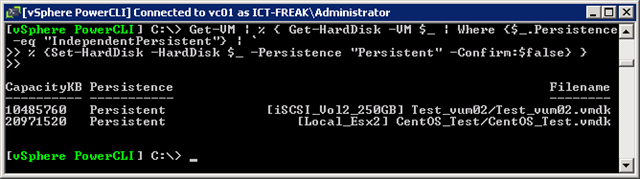
But why use the vSphere client when we have PowerCLI ;-). If you run the following one-liner, it will return all the vmdk’s with Independent Persistent mode enabled. The next step is to disable this setting.

Get-VM | % { Get-HardDisk -VM $_ | Where {$_.Persistence -eq "IndependentPersistent"} | `
% {Set-HardDisk -HardDisk $_ -Persistence "Persistent" -Confirm:$false} }

This is the output you’ll see:

image

When you check the settings within the vSphere client, you’ll notice that the Independent mode is disabled.

image

PowerCLI: Two Virtual Switch and Portgroup one-liners


image

In this post you’ll find two Powershell one-liners to do some maintenance on Virtual Switches and PortGroups.

The first one-liner is inspired by Hany Michel his post: vMotion vs. VMotion .. Vote for your favorite! In this post he starts the debate about which name it should be. I voted for the “new” name vMotion. If you want to change the name of the VMotion portgroups to the “new” standard. You can do this by hand but why, we got PowerCLI 😉 The following one-liner will do the job:

Get-VMhost | % { Get-VirtualPortGroup -VMhost $_ -Name VMotion `
| Set-VirtualPortGroup -Name vMotion -Confirm:$false }

The vSwitches with the VMotion Protgroup name will be changed to vMotion:image


The next one-liner will change the number of ports on vSwitch0. The default setting on vSwitch0 is 24 ports.

image

With PowerCLI you can easily change this again with an one-liner. This one-liner will change the value to 120 ports:

Get-VMHost | % {Get-VirtualSwitch -VMHost $_ -Name vSwitch0 | `
where {$_.NumPorts -lt "128"}} | `
% { Set-VirtualSwitch -VirtualSwitch $_ -NumPorts "128" }

You’ll see the following output:

image

You need to reboot the ESX host to apply the new setting.

VMware: vSphere & PowerCLI Update 1 released


image image

Finally the vSphere Client is supported on Windows 7 & Windows Server 2008 R2:

Windows 7 and Windows 2008 R2 support — This release adds support for 32-bit and 64-bit versions of Windows 7 as well as 64-bit Windows 2008 R2 as guest operating system platforms. In addition, the vSphere Client is now supported and can be installed on a Windows 7 platform.


You can find the downloads and release notes here:


ESX 4.0 Update 1: http://downloads.vmware.com/d/details/esx40u1/ZHcqYmQlcGpiZGVqdA==

Release note: http://downloads.vmware.com/support/vsphere4/doc/vsp_esx40_u1_rel_notes.html


ESXi 4.0 Update 1: http://downloads.vmware.com/d/details/esxi40u1/ZHcqYmQlcGhiZGVqdA==

Release Notes: http://downloads.vmware.com/support/vsphere4/doc/vsp_esxi40_u1_rel_notes.html


vCenter 4.0 Update 1: http://downloads.vmware.com/d/details/vc40u1/ZHcqYmQlcCpiZGVqdA==

Release notes: http://downloads.vmware.com/support/vsphere4/doc/vsp_vc40_u1_rel_notes.html


vSphere PowerCLI 4.0 Update 1: http://downloads.vmware.com/d/details/sdkwin40u1/ZHcqYmQlcHRiZGVqdA

Release notes: http://www.vmware.com/support/developer/windowstoolkit/wintk40u1/windowstoolkit40U1-200911-releasenotes.html

vSphere: Storage vMotion Fails with a Timeout


image

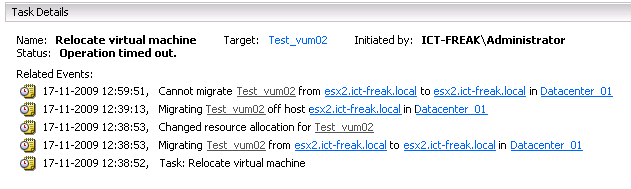
When I tried to Storage vMotion a VM to another LUN I got an “operation timed out error”:

image

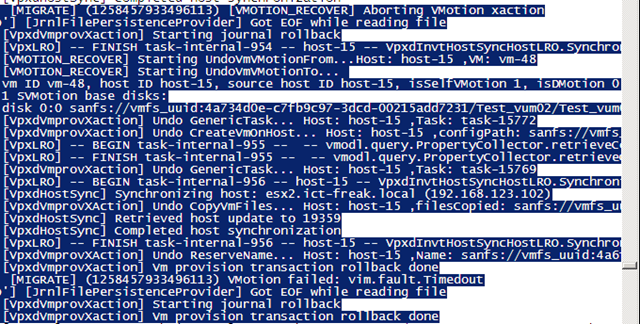
After analyzing the vpxd.log, I found the following lines:

image

The best part I found out, is that the VM was rolled back to it’s old location without losing data or getting corrupt.

This problem is documented in KB1010045. The following solution will resolve the timeout problem:

Increase the Storage VMotion fsr.maxSwitchoverSeconds setting in the virtual machine configuration file to a larger value.

The default is 100 seconds.

To modify fsr.maxSwitchoverSeconds:

  1. Right-click the virtual machine and click Edit Settings.
  2. Click the Options > Advanced > General.
  3. Click Configuration Parameters.
  4. From the Configuration Parameters window, click Add Row.
  5. For the Name field,  fsr.maxSwitchoverSeconds and for the Value field enter the new timeout value.
  6. Click OK twice to save.
  7. Restart the virtual machine for the changes to take effect.

You don’t want to change this by hand, so I created a PowerCLI script which will set the fsr.maxSwitchoverSeconds to 300 seconds for all your VM’s:

$vms = Get-View -ViewType VirtualMachine | where {-not $_.config.template}

    $vmConfigSpec = New-Object VMware.Vim.VirtualMachineConfigSpec
      
    $extra = New-Object VMware.Vim.optionvalue
    $extra.Key="fsr.maxSwitchoverSeconds"
    $extra.Value="300"

    $vmConfigSpec.extraconfig += $extra
    

foreach($vm in $vms){
    $vm.ReconfigVM($vmConfigSpec)
}

After changing the value to 300 seconds, I was able to Storage vMotion the VM.

PowerCLI: One-Liner to get VMs, Clusters, ESX Hosts and Datastores


image

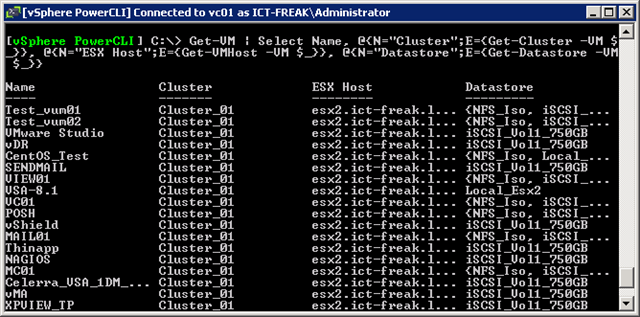
With the one-liner below, you’re able to create an overview of your VM’s, Clusters, ESX Hosts and Datastores.

Get-VM | Select Name, @{N="Cluster";E={Get-Cluster -VM $_}}, `
@{N="ESX Host";E={Get-VMHost -VM $_}}, `
@{N="Datastore";E={Get-Datastore -VM $_}} 

The following output will be generated:

image

If you add an extra line with the export-csv cmdlet, you can export the output to a CSV file.

Get-VM | Select Name, @{N="Cluster";E={Get-Cluster -VM $_}}, `
@{N="ESX Host";E={Get-VMHost -VM $_}}, `
@{N="Datastore";E={Get-Datastore -VM $_}} | `
Export-Csv -NoTypeInformation C:\Scripts\VM_CLuster_Host_Datastore.csv 

If you want, you can import the CSV file into Excel. Excel has some basic filtering options, so you’re able to filter on ESX Host, Cluster etc.

image

Project Onyx released – How to connect and use it


image image

Carter Shanklin just announced the release of Project Onyx. She his post here: http://blogs.vmware.com/vipowershell/2009/11/project-onyx-is-here.html

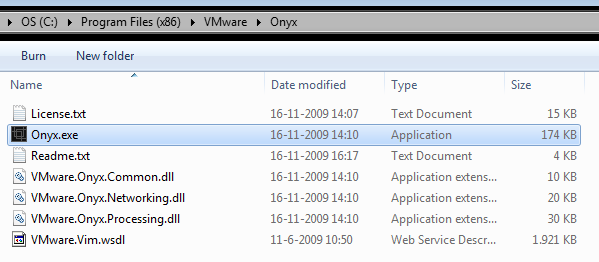
Download the zip file from here: http://bit.ly/vmwOnyx15 extract the zip file and start Onyx.exe. If you’re starting Onyx from your c: drive and you are running Windows Vista / , you’ve to run it with Administrator rights:

image

Accept the License Agreement to continue. The main screen opens. Click on connect and fill in the IP Address of you vCenter server:

image

When you’re connected to your vCenter server, Remember the second IP Address on top of the Onyx Screen:

image

Now open the vSphere Client and connect to the second IP Address with http:// on front of it:

image

You will see a warning message about the connection to server xxx.xxx.xxx.xxx is not secure. Click yes to continue.

The vSphere client opens and it will look and feel like we’re used to it. But here comes the great part. Click on the play button in Onyx:

image

Do the thing you wanted to do within the vCenter client and you will see that Onyx is generating some nice ready to use PowerCLI code:

image

To save the script, press the Save output to file button.

image