VMware: Performance Evaluation of VMXNET3 Virtual Network Device


image

VMware published a new paper about the performance evaluation of VMXNET3 virtual network device.

This paper compares the networking performance of VMXNET3 to that of enhanced VMXNET2 (the previous generation of high performance virtual network device) on VMware vSphere 4 to help users understand the performance benefits of migrating to this next‐generation device.

You can find the document here: http://www.vmware.com/resources/techresources/10065

vSphere: You do not have permission to run this command


vmware-logo-new-2009-400-300x48

Since the release of vSphere, there is a new feature called Hardware Status plug-in.

The new vCenter Sever 4 Hardware Status plug-in provides the ability to monitor the hardware health of your VMware ESX hosts,
including key components such as fans, system board, and power supply. The health information displayed by the vCenter Hardware
Status plug-in are defined and provided by the server hardware vendor through the industry-standard Common Information Model
(CIM) interface.

You can find it on a new tab at the host level in vCenter server:

image

But when I want to view the information in the Hardware Status tab I got the error: You do not have permission to run this command

Luckily I was not the only one with this problem and there is already a topic about this error on the VMware Communities: http://communities.vmware.com/message/1360601#1360601

These are the steps I took to fix this issue:

  1. Stop the VMware VirtualCenter Management Webservices service.
  2. Delete the C:\Program Files (x86)\VMware\Infrastructure\tomcat\webapps\vws\data\VcCache-default-0.XhiveDatabase.DB file.
  3. Start the VMware VirtualCenter Management Webservices service.
  4. Reconnect to the vCenter Server
  5. After reconnecting to the vCenter server, I was able to view the Hardware Status again.image

On Page 6 of what-is-new-in-vmware-vcenter-server-4.pdf you can find more information about the Hardware Status tab.

Powershell: Script to Query the Veeam Backup database


image

Earlier this year I wrote a post about how to query the Veeam Backup SQL database to get the total job running time. I wanted to see if I was able to run this Query via Powershell. So I started to search on Google and I found a great series of articles on http://www.databasejournal.com about how to use Powershell to access Microsoft SQL databases. After reading part two, I was able to create a script to run my Query.

The only thing you have to change are the next three variables:

$dbServer = "servername\instance" 
$db = "VeeamBackup"
$veeamJob = "VeeamJobName"


Run the next script to query the Veeam Backup database and return the total job time.

$dbServer = "servername\instance"
$db = "VeeamBackup"
$veeamJob = "VeeamJobName"
$Query = "SELECT [job_name],CONVERT(char(10),[creation_time], 101) AS start_date `
,CONVERT(varchar, [creation_time], 108) AS job_start,CONVERT(char(10), [end_time], 101) AS end_date `
,CONVERT(varchar, [end_time], 108) AS job_end, `
LEFT(CONVERT(VARCHAR,CAST([end_time] AS DATETIME)-CAST([creation_time] AS DATETIME), 108),5) AS total_time `
FROM [VeeamBackup].[dbo].[BSessions] WHERE [job_name] = '$veeamJob' ORDER BY start_date"

$SqlConnection = New-Object System.Data.SqlClient.SqlConnection
$SqlConnection.ConnectionString = "Server=$dbServer;Database=$db;Integrated Security=True"
$SqlCmd = New-Object System.Data.SqlClient.SqlCommand
$SqlCmd.CommandText = $Query
$SqlCmd.Connection = $SqlConnection
$SqlAdapter = New-Object System.Data.SqlClient.SqlDataAdapter
$SqlAdapter.SelectCommand = $SqlCmd
$DataSet = New-Object System.Data.DataSet
$SqlAdapter.Fill($DataSet)
$SqlConnection.Close()
$DataSet.Tables[0] | Format-Table -AutoSize 

You can also find the script on poshcode.org: http://poshcode.org/1316


The script generate the following output:

image

Book: Administering VMware Site Recovery Manager 1.0 for Free


Mike Laverick just dropped the news on Twitter:

image


image


This book will teach you how to install and configure VMware’s SRM. It also covers in detail the failover and failback processes – and I will guide you step-by-step through the set up of the product. This book is not filled with project management padding that typifies a lot of IT books. It is practical and technical, and assumes you are already pretty familiar with VMware’s Virtual Vi3 products. In this book you will learn the strengths and weaknesses of Site Recovery Manager, and I will show you the common pitfalls and errors that can happen, and also more importantly why they happen, and how to fix them.

So go and grab your copy here: http://www.lulu.com/content/4343147 and visit Mike’s blog for more great stuff about VMware!


Source: Twitter.com and http://www.rtfm-ed.co.uk/?p=1727

PowerCLI: Export, Import and Create DRS Rules v2


image

In my first post about this subject, I showed a script create by the PowerCLI Master @LucD. A couple of minutes later Hugo Peeters posted a comment why I did not used the object-oriented approach of Powershell. He also posted an example. So in this post I will show you the other way by using Export/Import-CliXml.

First we start with the export part. The following one-liner will export all the DRS Rules to a XML file:

# Export DRS
Get-Cluster -Name "Cluster_01" | Get-DrsRule | `
Export-CliXml 'C:\scripts\drs.xml'

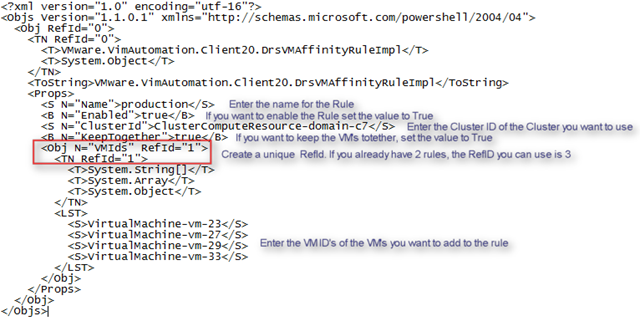
The XML file look like this:

<?xml version="1.0" encoding="utf-16"?>
<Objs Version="1.1.0.1" xmlns="http://schemas.microsoft.com/powershell/2004/04">
  <Obj RefId="0">
    <TN RefId="0">
      <T>VMware.VimAutomation.Client20.DrsVMAffinityRuleImpl</T>
      <T>System.Object</T>
    </TN>
    <ToString>VMware.VimAutomation.Client20.DrsVMAffinityRuleImpl</ToString>
    <Props>
      <S N="Name">production</S>
      <B N="Enabled">true</B>
      <S N="ClusterId">ClusterComputeResource-domain-c7</S>
      <B N="KeepTogether">true</B>
      <Obj N="VMIds" RefId="1">
        <TN RefId="1">
          <T>System.String[]</T>
          <T>System.Array</T>
          <T>System.Object</T>
        </TN>
        <LST>
          <S>VirtualMachine-vm-23</S>
          <S>VirtualMachine-vm-27</S>
          <S>VirtualMachine-vm-29</S>
          <S>VirtualMachine-vm-33</S>
        </LST>
      </Obj>
    </Props>
  </Obj>
</Objs>

The next one-liner will import the XML file, which we earlier created with the export one-liner. After the import, the one-liner will create a DRS rule:

# Import DRS
ForEach ($rule in (Import-CliXml 'C:\scripts\drs.xml')){
    New-DrsRule -Cluster (Get-Cluster -Name "Cluster_01") `
    -Name $rule.Name -Enabled $rule.Enabled `
    -KeepTogether $rule.KeepTogether `
    -VM (Get-VM -Id $rule.VmIds)}


If you want to see the DRS Rules for a cluster via the PowerCLI, You can run the following one-liner:

# DRS Rules One-Liner
Get-DrsRule -Cluster (Get-Cluster -Name Cluster_01) `
| Sort Name | Select Name, @{N="Enabled";E={$_.Enabled}}, `
@{N="KeepTogether";E={$_.KeepTogether}},`
@{N="Virtual Machines";E={$_.VMIds | % { Get-VM -Id $_ | `
% {$_.Name} }}} 

The following output will be generated:

Name Enabled KeepTogether Virtual Machines
appliances False False Nagios, vMA
production True True DC01,VC01,MC01,MAIL01

Before you can create a XML file with your new rules, you need to get the ID’s of the Cluster and the VM. You can get these ID’s via the following one-liner:

Get-VM | Sort Name | Select Name, `
@{N="VM ID";E={$_.Id}}, `
@{N="Cluster Name";E={Get-Cluster -VM $_}}, `
@{N="Cluster ID";E={Get-Cluster -VM $_ | % {$_.Id}}} | fl *

The output will look like this.

image

or you can export it to a CSV file:

Get-VM | Sort Name | Select Name, `
@{N="VM ID";E={$_.Id}}, `
@{N="Cluster Name";E={Get-Cluster -VM $_}}, `
@{N="Cluster ID";E={Get-Cluster -VM $_ | % {$_.Id}}} | `
Export-CSV -NoTypeInformation "D:\scripts\ps\vmids.csv"


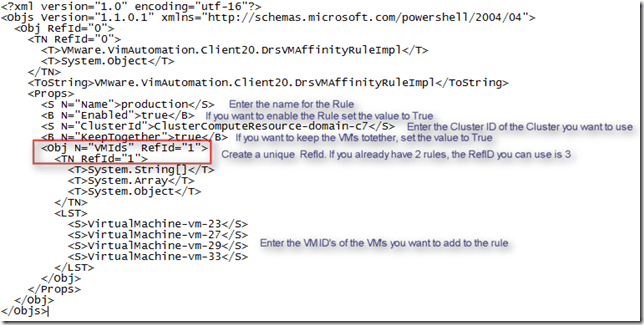
Now you have to create a XML file. You can use a file, you created with the export DRS one-liner and change the following lines:
image

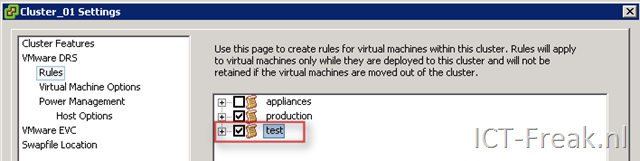
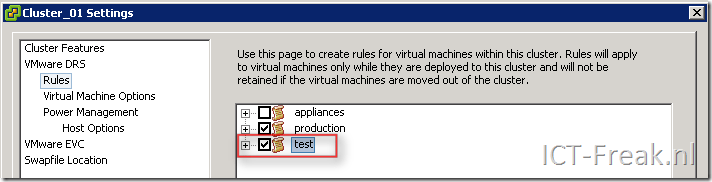
When you’re done with the XML file, you can run the Import DRS one-liner to import your new Rules. When you open the Cluster properties you will see that the new rule is added:
image

PowerCLI: Export, Import and Create DRS Rules


image 

I was trying to create a DRS Rule creation script but after a short search on the PowerCLI communities, I found some excellent stuff from @LucD. These are two scripts for Exporting and importing DRS rules.

To export your DRS-Rules, you can run the next script. The only thing you have to change is <cluster-name> to your cluster name.

#DRS-export-rules.PS1
$outfile = "C:\rules.txt" Remove-Item $outfile $clusterName = <cluster-name> $rules = get-cluster -Name $clusterName | Get-DrsRule foreach($rule in $rules){ $line = (Get-View -Id $rule.ClusterId).Name $line += ("," + $rule.Name + "," + $rule.Enabled + "," + $rule.KeepTogether) foreach($vmId in $rule.VMIds){ $line += ("," + (Get-View -Id $vmId).Name) } $line | Out-File -Append $outfile }


The import script looks like this:

#DRS-import-rules.PS1

$file = "C:\rules.txt"
$rules = Get-Content $file

foreach($rule in $rules){
  $ruleArr = $rule.Split(",")
  if($ruleArr[2] -eq "True"){$rEnabled = $true} else {$rEnabled = $false}
  if($ruleArr[3] -eq "True"){$rTogether = $true} else {$rTogether = $false}
  get-cluster $ruleArr[0] | `
    New-DrsRule -Name $ruleArr[1] -Enabled $rEnabled `
    -KeepTogether $rTogether `
    -VM (Get-VM -Name ($ruleArr[4..($ruleArr.Count - 1)])) 
}


If you want to create a new DRS-Rules, you only have to create your own rules.txt file like this:

<cluster-name>True,True,<vmname>,<vmname2>,<vmname3>

<cluster-name>,False,True,<vmname>,<vmname2>

Now run the Import DRS-Rules script and in a blink of an eye, the new rules are created.


Source: http://communities.vmware.com/thread/195733?start=10&tstart=0

Powershell: Export Installed Software to Excel


image

I created the next script to inventory the installed software on my servers. The only thing you need to create is a text file with all your servers in it and save it to Servers.txt.

#Create a new Excel object using COM
$Excel = New-Object -ComObject Excel.Application
$Excel.visible = $True
$Excel.SheetsInNewWorkbook = @(get-content "C:\Scripts\PS\Servers.txt").count

#Counter variable for rows
$i = 1

#Read thru the contents of the Servers.txt file
foreach ($server in get-content "C:\Scripts\PS\Servers.txt")
{
    $Excel = $Excel.Workbooks.Add()
    $Sheet = $Excel.Worksheets.Item($i++)
    $Sheet.Name = $server

    $intRow = 1

    # Send a ping to verify if the Server is online or not.
    $ping = Get-WmiObject `
    -query "SELECT * FROM Win32_PingStatus WHERE Address = '$server'"
       if ($Ping.StatusCode -eq 0) {

         #Create column headers
         $Sheet.Cells.Item($intRow,1) = "NAME:"
         $Sheet.Cells.Item($intRow,2) = $server.ToUpper()
         $Sheet.Cells.Item($intRow,1).Font.Bold = $True
         $Sheet.Cells.Item($intRow,2).Font.Bold = $True

         $intRow++

         $Sheet.Cells.Item($intRow,1) = "APPLICATION"
         $Sheet.Cells.Item($intRow,2) = "VERSION"

             #Format the column headers
             for ($col = 1; $col –le 2; $col++)
             {
                  $Sheet.Cells.Item($intRow,$col).Font.Bold = $True
                  $Sheet.Cells.Item($intRow,$col).Interior.ColorIndex = 48
                  $Sheet.Cells.Item($intRow,$col).Font.ColorIndex = 34
             }

             $intRow++

             $software = Get-WmiObject `
             -ComputerName $server -Class Win32_Product | Sort-Object Name 

             #Formatting using Excel

             foreach ($objItem in $software){
                $Sheet.Cells.Item($intRow, 1) = $objItem.Name
                $Sheet.Cells.Item($intRow, 2) = $objItem.Version

                   $intRow ++
             }

        $Sheet.UsedRange.EntireColumn.AutoFit()
    }
}

Clear

The following Excel file will be created. For each server in Servers.txt, there will be added a worksheet with the name of the server.

image

Powershell: Remove a Folder from every Home Directory


image

I had to remove a folder from every home directory. So I thought this is a nice thing to do with Powershell.

So I created the Remove-Folder function to do this for me :-).

The function will go through the following steps:

The begin part will browse to all the folders within the E:\users and export the full path to a CSV file. The path will look like this: E:\users\username\test\foldername.

In the process part it will remove all the folders which are saved in the CSV file.

Warning: The folders will be removed without a warning. So be sure you want to do this!!

function Remove-Folder{
    param($path,$folder)

    Begin{
        Get-Childitem $path -Recurse `
        | Where-Object { $_.Name -eq $folder } `
        | Select FullName `
        | Export-Csv -NoTypeInformation "$env:temp\remove.csv"
    }
    
    Process{
        $import = Import-Csv "$env:temp\remove.csv"
        foreach($folder in $import){
            Remove-Item $folder.FullName -Recurse -Force
        }
    Remove-Item "$env:temp\remove.csv"
    }
}

You can use the function with the following command:

Remove-Folder E:\users foldername

Via the following one-liner, you can validate the removal job:

Get-Childitem E:\users -Recurse `
| Where-Object { $_.Name -eq "foldername" } `
| Select FullName `
| Export-Csv -NoTypeInformation "$env:temp\remove.csv" 

Open the remove.csv file to verify the changes.

Powershell: Using SCHTASKS in Powershell


image

In this post you will see how powerful powershell is in combination with external applications like SCHTASKS.exe.

First you have to create a CSV file like this:

Name
Server1.domain.local
Server2.domain.local

The following one-liner imports the CSV file and creates a task on every server which is saved in the CSV file:

# Create a scheduled task on all the servers in *.csv
import-csv ".\*.csv" | % { schtasks /create 
/S $_.Name /SC DAILY /TN "Task_Name" 
/TR "program_or_script" /ST time /RU account}

The next one-liner imports the CSV file and will modify a scheduled task on every server which is saved in the CSV file:

# Change a scheduled task on all the servers in *.csv
import-csv ".\*.csv" | % { schtasks /change 
/TN "Task_Name" /S $_.Name 
/TR "program_or_script" /ST 23:05 /RU System }

The last one-liner imports the CSV file and will delete a scheduled task on every server which is saved in the CSV file:

# Delete a scheduled task on all the servers in *.csv
import-csv ".\*.csv" | % { schtasks /delete 
/tn "Task_Name" /f /s $_.Name }

More info about how to use SCHTASKS.exe can be found here: KB814596