Powershell: Check if partition is aligned or not


This script has the following Requirements:

  • VI Toolkit
  • Powershell
  • WMI query
  • Windows VM’s

The following script get al lists of all Windows VM’s which are powered on. The next step is a WMI query which queries the Win32_DiskPartition class. The final step is a match with the $StartingOffset variable.

Add-PSSnapIn VMware.VimAutomation.Core

# Connect to vCenter
$VC = Connect-VIServer (Read-Host "Enter vCenter server")

$StartingOffset = "65536"

# Get all VM’s with powerstate = PoweredOn
$VMS = Get-VM | Where {$_.PowerState -eq "PoweredOn"} |Sort Name
ForEach ($VM in $VMS)
    {
  
# Process only Windows Server VM’s
   if ($VM.Guest.OSFullName -match "Microsoft Windows*")
        {  
      
# Do a WMI Query
       $results = get-wmiobject -class "Win32_DiskPartition" -namespace "root\CIMV2" -ComputerName $VM

           foreach ($objItem in $results)
                {
              
# Do the match
               if ($objItem.StartingOffset -match $StartingOffset){
                  
write-host $objItem.SystemName
                  
write-host $objItem.Name
                  
write-host "Partition aligned" -foregroundcolor green
                  
write-host}
              
else{
                  
write-host $objItem.SystemName
                  
write-host $objItem.Name
                  
write-host "Partition NOT aligned" -foregroundcolor red
                  
write-host                  
                    }
                }
        }
    }
# Disconnect from vCenter
Disconnect-VIServer -Confirm:$False

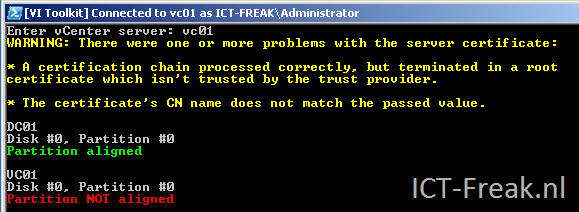
after running the script, the following output will be generated:

image

How To: Enable Remote WMI support in ISA 2004


 image

Ik wilde via een script WMI aanroepen op een van de ISA 2004 Servers maar dat werd uiteraard geblokkeerd. Na wat zoeken op Google, kwam ik de onderstaande oplossing tegen. Deze oplossing werkt perfect.

1.First you need to make explicict range form dcom high ports you can use via in the registry (see http://support.microsoft.com/?kbid=154596)
HKEY_LOCAL_MACHINE\Software\Microsoft\Rpc\Internet 
Edit the Ports multi-string to your liking. I use 5000-5100, this should be fine amount for a non application server.(see kb above)
Ports 5000-5100 (multi-string)

2. create two basic custom protocols for SMB and dcom,
cust_smb
445 tcp outbound
445 udp send
(no related application filters ticked!)

cust_dcom
135 tcp outbound
5000-5100 tcp outbound
(no related application filters ticked!)

3. create the rule, allow, source = trusted admin/monitor box(es), destination localhost, protocols: cust_smb, cust_dcom, all users

4. Edit the System policy
Untick the ‘enable’ for Microsoct Management Console, you don’t need it now because we have created a better rule for our trusted box(es) ( note having this ticked will create a hidden rule that can break wmi scripts and alike).
Untick the ‘force strict rpc compliance’ option for Active Dicrectory
Click ok, apply new configuration, restart the isa server

Je kunt ook de onderstaande reg file gebruiken i.p.v. stap 1 uit te voeren.

RPC_Ports.reg:

Windows Registry Editor Version 5.00

[HKEY_LOCAL_MACHINE\SOFTWARE\Microsoft\Rpc\Internet]
"Ports"=hex(7):35,00,30,00,30,00,30,00,2d,00,35,00,31,00,30,00,30,00,00,00,00,\
  00
"PortsInternetAvailable"="Y"
"UseInternetPorts"="Y"

Bron: http://forums.isaserver.org/m_410001100/mpage_1/key_/tm.htm#2002017878

Powershell: Check if KB patch is installed


Ik wilde weten of een bepaald KB nummer was geïnstalleerd op mijn VM’s. Dit wilde ik natuurlijk niet met het handje nakijken en heb hiervoor een script bij elkaar geraapt.

Het onderstaande script kun je gebruiken in een VMware VI omgeving.

#Add-PSSnapIn VMware.VimAutomation.Core

# Connect to vCenter
$VC = Connect-VIServer (Read-Host "Enter vCenter server")

# Enter the KB#
$HotFixID = (Read-Host "Enter KB#")
Write-Host

# Get all VM’s with powerstate = PoweredOn
$VMS = Get-VM | Where {$_.PowerState -eq "PoweredOn"} | Sort Name

ForEach ($VM in $VMS)

{
# Process only Windows Server VM’s
if ($VM.Guest.OSFullName -match "Microsoft Windows Server*")
  { 
 
# Get all the info using WMI
  $results = get-wmiobject -class "Win32_QuickFixEngineering" -namespace "root\CIMV2" -ComputerName $VM 
  
    # Loop through $results and look for a match then output to screen
    foreach ($objItem in $results)
            {
                # Do the match
                if ($objItem.HotFixID -match $HotFixID)
                    {
                    write-host $objItem.CSName
                    write-host "Hotfix "$HotFixID" installed"
                    write-host
                    }
            } 
   }
}
# Disconnect from vCenter
Disconnect-VIServer -Confirm:$False


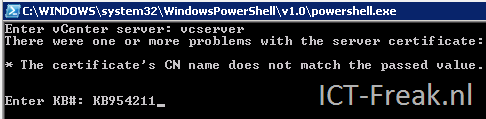
Zodra je het script start, word er gevraagd naar de vCenter server en het KB nummer wat je wilt nakijken.

image

De volgende output wordt gegenereerd:

image


Je kunt het onderstaande script gebruiken in een omgeving zonder VI3:

# Get content
$computers = get-content c:\computers.txt

# Get all the info using WMI
$results = get-wmiobject -class “Win32_QuickFixEngineering” -namespace “root\CIMV2″ -computername $computers

# Loop through $results and look for a match then output to screen
foreach ($objItem in $results)
{
    if ($objItem.HotFixID -match “KB932168″)
    {
        write-host $objItem.CSName
        write-host “Hotfix KB932168 installed”
        write-host
    }
}


Source: http://techittome.wordpress.com/2007/04/12/windows-powershell-script-to-check-for-specific-hotfix/

VMware: New Visio Shapes released


I just saw a nice present in one of my RSS feeds:


  1. ThinApp-Stencil- Objects for ThinApp

  2. Build your Own-Stencil – Stand-alone objectsto create your own diagrams

  3. VM-STencil – Objects that are related Virtual Machines

  4. VMware-Stencil – General Objects for VMware

  5. Products-Stencil – Diagrams and objects that are related to VMware products or technologies

Grab your own copy here: http://viops.vmware.com/home/docs/DOC-1346


Source: http://technodrone.blogspot.com/2009/02/small-present-for-you-all-vmware-visio.html

How To: Install Webmin on Ubuntu 8.04


image

This post is an upgrade to an earlier post from September 2006.

Before you can install Webmin, you have to install some other packages first:

sudo apt-get install perl libnet-ssleay-perl openssl libauthen-pam-perl libpam-runtime libio-pty-perl libmd5-perl

Go to the /tmp dir

cd /tmp

Download the deb file via wget:

wget http://prdownloads.sourceforge.net/webadmin/webmin_1.450_all.deb

The final step:

sudo dpkg -i webmin_1.450_all.deb

/tmp$ sudo dpkg -i webmin_1.450_all.deb
Selecting previously deselected package webmin.
(Reading database … 38179 files and directories currently installed.)
Unpacking webmin (from webmin_1.450_all.deb) …
Setting up webmin (1.450) …
Webmin install complete. You can now login to https://server:10000/
as root with your root password, or as any user who can use sudo
to run commands as root.

Open your favorite browser and go to: https://server:10000/

image

How To: iSCSI Target 0.4.17 op Ubuntu 8.04 Server


Hier even een korte handleiding over het installeren en configureren van de iSCSI target software op Ubuntu Server versie 8.04. De handleiding is gebasseerd op een eerdere post van Frederik Vos op http://www.l4l.be.

Download en installeer Ubuntu 8.04 Server zoals jij het wilt hebben. De ISO kun je hier downloaden: http://www.ubuntu.com/getubuntu/download. Hoe de installatie in zijn werk gaat, lees je hier: http://www.ubuntugeek.com/ubuntu-804-hardy-heron-lamp-server-setup.html

Na de installatie update je de server via de volgende twee commando’s:

sudo apt-get update

sudo apt-get upgrade

De volgende stap is het installeren van build-essential software

sudo apt-get install build-essential linux-headers-`uname -r` libssl-dev

Nadat de bovenstaande stap klaar is, kunnen we gaan beginnen met de installatie van de iscsitarget.

Open de /tmp directory:

cd /tmp

Download het installatie bestand:

sudo wget http://heanet.dl.sourceforge.net/sourceforge/iscsitarget/iscsitarget-0.4.17.tar.gz

Pak het bestand uit:

sudo tar xzvf iscsitarget-0.4.17.tar.gz

Open de nieuwe map:

cd iscsitarget-0.4.17

Via de volgende twee commando’s wordt de iSCSI target software geïnstalleerd:

sudo make

sudo make install

Om te achterhalen welke hardeschijven je in je systeem hebt, voer je het volgende commando uit:

sudo fdisk –l

Disk /dev/sda: 200.0 GB, 200049647616 bytes
255 heads, 63 sectors/track, 24321 cylinders
Units = cylinders of 16065 * 512 = 8225280 bytes
Disk identifier: 0x28781a14

   Device Boot      Start         End      Blocks   Id  System
/dev/sda1   *           1          31      248976   83  Linux
/dev/sda2              32       24321   195109425    5  Extended
/dev/sda5              32       24321   195109393+  8e  Linux LVM

Disk /dev/sdb: 320.0 GB, 320072933376 bytes
255 heads, 63 sectors/track, 38913 cylinders
Units = cylinders of 16065 * 512 = 8225280 bytes
Disk identifier: 0x00004688

   Device Boot      Start         End      Blocks   Id  System
/dev/sdb1               1       38913   312568641    5  Extended
/dev/sdb5               1       38913   312568609+  8e  Linux LVM

Disk /dev/sdc: 750.1 GB, 750156374016 bytes
255 heads, 63 sectors/track, 91201 cylinders
Units = cylinders of 16065 * 512 = 8225280 bytes
Disk identifier: 0x10a711d3

   Device Boot      Start         End      Blocks   Id  System
/dev/sdc1               1       91201   732572001    5  Extended
/dev/sdc5               1       91201   732571969+  8e  Linux LVM

Zoals je ziet, heb ik drie hardeschijven in deze machine. Ik ga de /dev/sdc gebruiken voor de iSCSI target.

De laatste stap is het configureren van het configuratie bestand.

Open het bestand in je favoriete editor:

sudo nano /etc/ietd.conf of sudo vi /etc/ietd.conf

Pas hier de iqn aan. Meer informatie vind je hier: http://en.wikipedia.org/wiki/ISCSI. Daarnaast moet je een LUN configureren. Hieronder zie je hoe ik /dev/sdc5 aankoppel. Het is ook mogelijk om een file te koppelen als LUN. Hoe dit in zijn werk gaat, lees je hier: http://www.l4l.be. Meer informatie over het ietd.conf bestand vind je hier: http://manpages.ubuntu.com/manpages/hardy/man5/ietd.conf.5.html

Target iqn.2009-02.local.ict-freak:storage.disk2.750.xyz
        # Users, who can access this target. The same rules as for discovery
        # users apply here.
        # Leave them alone if you don’t want to use authentication.
        #IncomingUser joe secret
        #OutgoingUser jim 12charpasswd
        # Logical Unit definition
        # You must define one logical unit at least.
        # Block devices, regular files, LVM, and RAID can be offered
        # to the initiators as a block device.
        Lun 0 Path=/dev/sdc5,Type=fileio

Sla het bestand op en sluit je editor.

Via de volgende twee commando’s start je de iscsi-target en bekijk je de status:

sudo /etc/init.d/iscsi-target start

sudo /etc/init.d/iscsi-target status

Deze target gebruik ik nu binnen VMware ESX 3.5u3.

image

Via het volgende commando kun je zien of de volume gebruikt word:

cat /proc/net/iet/volume

tid:1 name:iqn.2009-02.local.ict-freak:storage.disk2.750.xyz
        lun:0 state:0 iotype:fileio iomode:wt path:/dev/sdc5

op de ubuntu server kun je de iscsi target monitoren via:

cat /proc/net/iet/session

tid:1 name:iqn.2009-02.local.ict-freak:storage.disk2.750.xyz
        sid:564049469047296 initiator:iqn.1998-01.com.vmware:esx35srv1-673995f2
                cid:0 ip:172.1.1.211 state:active hd:none dd:none


Bron: http://www.l4l.be/docs/server/storage/iscsi/iscsitarget_ubuntu.php

VMware: VMname_2 na het opnieuw registreren van een VM


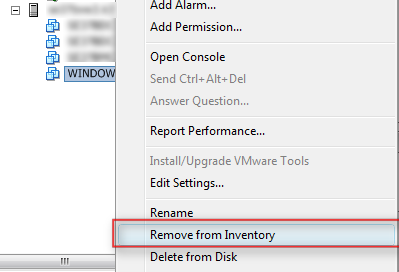
Het kan zijn dat je een VM, om wat voor reden dan ook, uit de vCenter inventory hebt verwijderd. Dit kun je doen via de Remove from Inventory optie.

image

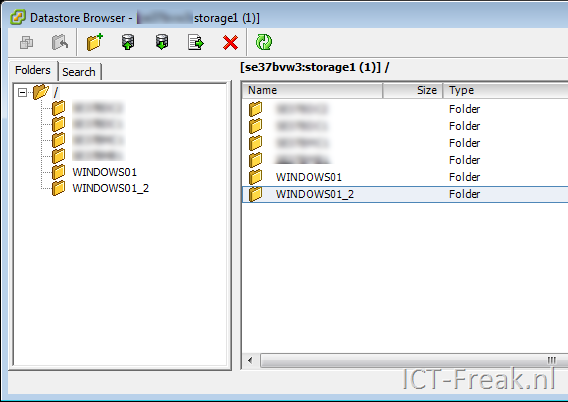
Als je na deze actie, gelijk weer een VM registreerd met dezelfde naam, dan zie je het volgende verschijnen in je Datastore.

image

Om deze actie voor te blijven, kun je het beste na de Remove from Inventory actie, eerst de vCenter service restarten.

Dit kun je als volgt doen: Op de vCenter server open je de commandpromt en voer je het volgende commando uit om de vCenter service te stoppen:

net stop “VMware VirtualCenter Server”

Vervolgens start je de service weer:

net start “VMware VirtualCenter Server”

Als je nu weer een VM registreert, met dezelfde naam, dan zal deze actie geen nieuwe vmname_2 folder aanmaken.

Virtual Appliance: EDA 0.87


image

Herco van Brug heeft een nieuwe versie van EDA uitgebracht. In versie 0.87 zijn de volgende punten gefixed / toegevoegd:

New in 0.87:
– editing the order of the scriptparts
– bulk creation and deletion of ESX hostnames/ip
– an fs.php page that allows for small remote updates
– ESXi support fixed again

Voor de mensen die niet weten wat EDA is, hier een quote:

ESX Deployment Appliance (EDA) is a small and easy to use appliance that makes deploying ESX servers a breeze. It has a very intuitive web-interface that can configure and deploy dozens of ESX servers in minutes. It has a script-builder that will allow any admin to create %post-scripts that will do most anything one needs to get the ESX hosts up and running! Even if deploying with RDP/Altiris or the UDA, this script-builder can help setting those up very quickly.

To set it up, just attach a ESX3 iso to it. It will automatically mount it and with one click, import the PXE bootfiles and strip the HBA drivers to do a save install while SAN LUNs are attached!

It also shares files with samba which makes getting files to the ESX host during installation very easy. the scriptbuilder will insert the correct scriptpieces to read files from the DL share (this is a readonly share). to put files on the EDA, go to the DL$ share (with the dollarsign) as root user.

This appliance is still in beta stage because there’s a todo list. But it’s fully functional and has been tested to work at least on HP DL380’s, BL460, BL480 and Dell 2950 servers.

Ik gebruik EDA sinds 0.71 en het werkt echt super. Het kost je misschien wat tijd om de %post scripts aan te maken en te testen maar als dat eenmaal op orde is, installeer je de ESX servers wel op een consistente manier. Herco keep up to good work!

Meer info en de download vind je hier: http://www.vmware.com/appliances/directory/1216