How To: Boot From A USB Flash Drive


Download de hpflash utility: http://www.bootdisk.com/plan40/hpflash1.zip

Installeer de hpflash util:

Screenshot - 13-2-2009 , 16_13_47_reg001

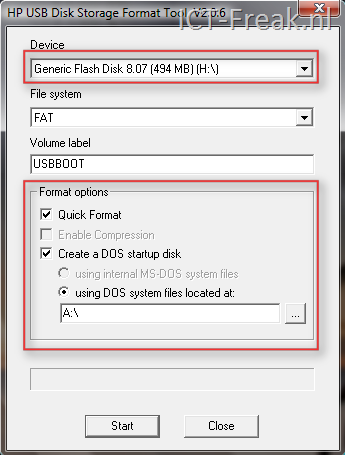
Daarna start je de util op. Kies nu het juiste USB apparaat.  Geef daaran de opties Quick Format en Create a DOS startup disk op. Voor deze optie heb je wel eenmalig een bootdisk nodig. Download de bootdisk hier: http://boot.oldos.net/boot98.exe. Zodra alles juist is ingesteld, druk je op start om te beginnen. Let op je usbstick wordt wel geformateerd!

Screenshot - 13-2-2009 , 16_15_18_reg001

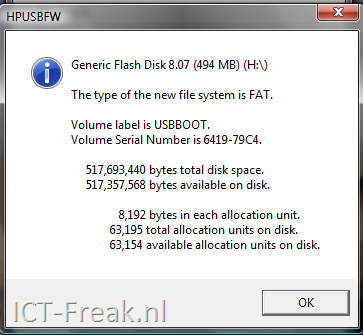
Je krijgt nog een keer een waarschuwing:

image

Na een aantal seconden is de USB Stick gereed:

Screenshot - 13-2-2009 , 16_17_50_reg002

Start nu de PC opnieuw op vanaf de USB Stick.

Als je niet weet hoe dit werkt, dan vind je hier een guide: http://www.weethet.nl/english/hardware_bootfromusbstick.php

Bron: http://www.bootdisk.com/pendrive.htm

VMware: vCenter Converter released


VMware vCenter Converter can run on a wide variety of hardware and supports most commonly used versions of the Microsoft Windows and Linux* operating systems. With this robust, enterprise class migration tool you can:

  • Quickly and reliably convert local and remote physical machines into virtual machines without any disruption or downtime.
  • Complete multiple conversions simultaneously with a centralized management console and an intuitive conversion wizard.
  • Convert other virtual machine formats such as Microsoft Virtual PC and Microsoft Virtual Server or backup images of physical machines such as Symantec Backup Exec System Recovery or Norton Ghost to VMware virtual machines.
  • Restore VMware Consolidated Backup (VCB) images of virtual machines to running virtual machines.
  • Clone and backup physical machines to virtual machines as part of your disaster recovery plan.


image

Download your copy here: https://www.vmware.com/download/converter/

*Linux P2V support is available for Standalone version only

Backup Exec: 0xE000FE1F: The Device cannot be found


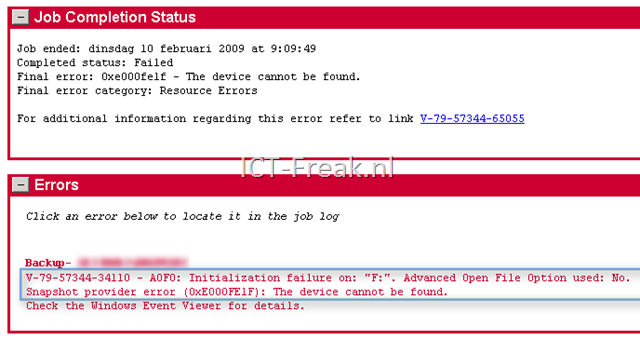
Sinds een change aan de backup server, een nieuw raid volume en een andere partitie indeling. Kreeg ik last van de onderstaande melding:

image

De F: schijf is niet meer ingebruik en zou dus niet meer in de backup mee moeten draaien.

Dus ik open de de backup job en zie dat bij de Selections de F: drive er niet tussen staat.

image

Maar bij de Resource Order, bleek de F: drive nog wel geselecteerd :-S

image

Om dit op te lossen, ga je weer terug naar Selections en klik dan op het tabblad View Selection Details. Selecteer hier de F:\*.* /SUBDIR en verwijder deze door op Delete te drukken.

image

Druk op OK om deze change door te voeren.

Conclusie: als je een fysieke harddisk verwijderd kijk dan ook even je selection lists door en pas het waar nodig aan. Scheelt je weer een error.

VMware: Dutch Blogger list


image

Tomas ten Dam van www.tendam.info heeft een lijst samengesteld met daarin een opsomming van de verschillende nederlandse blogsites.

Today, i have updated the Dutch bloggers list. I added a blogger called Rob van Hamersveld. I also made the page better readable and added rss feeds for each site. I placed an language icon with the bloggers name so you can see in which language the blogger writes.

There are now a total of 21 bloggers on the list! Go see for you self and add them to your rss reader.

De complete lijst kun je hier vinden: http://tendam.wordpress.com/dutchbloggers/

Veeam: Snapshot creation failed: Could not quiesce file system


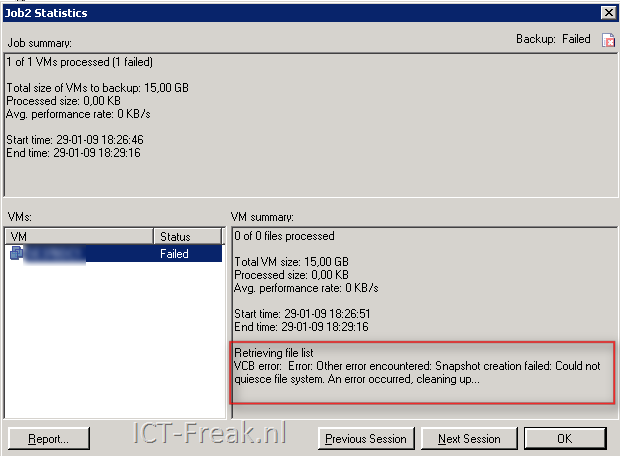
A couple of days ago, I was testing with Veeam backup and a new created VM. The backup stops with the following error:

image

In the Veeam Backup release notes (veeam_backup_2.0.1_release_notes.pdf) and the known errors section, you’ll find the following text:

If you attempt to backup a VM with VMware Tools VSS support module installed with Veeam Backup job having VSS option enabled, the backup would fail with the following error: VCB error: Error: Other error encountered: Snapshot creation failed: Could not quiesce file system. An error occurred, cleaning up…. To resolve this, disable VMware Tools quiescence in the backup job properties, or uninstall VSS support module.

So I checked de VM and uninstalled the VSS option.

Go to Control Panel –> Add/Remove Programs –> VMware Tools. The VMware Tools Setup starts and in this screen press modify.

image

Disable the VSS Support feature in the VMware Tools.

image

Finish the setup wizard and reboot the VM.


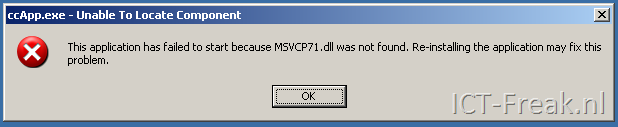
After a reboot, the following error might popup:

image

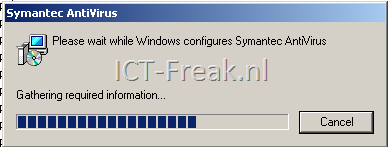
The fix was a little bit funny. When I pressed the right mouse button on My Computer or any other directory, the Symantec Antivirus installer starts with a repair job.

image

After the repair job is done and the VM is back online after a reboot, the VM acts normal again :-S

VMware: Partition/disk aligned or not?


De Laatste weken zag ik het topic Partition/Disk Alignment verschillende malen langs komen. Ik maakte tot op heden nog geen gebruik van deze optie en wilde er nu wel eens het fijne van weten. VMware heeft een whitepaper gepubliseerd over dit onderwerp. Deze vind je hier:

Partition alignment is a known issue in physical file systems, and its remedy is well-documented. The goal of the testing reported in this paper was to validate the assumption that unaligned partitions also impose a penalty when the partition is a VMware Virtual Machine File System (VMware VMFS) partition.

This paper lists a summary of the results of our testing, recommendations for VMware VMFS partition alignment, and the steps needed to create aligned VMware VMFS partitions.

http://www.vmware.com/pdf/esx3_partition_align.pdf

Nadat je de whitepaper hebt gelezen, wil je natuurlijk zelf ook wel eens kijken hoe dit in zijn werk gaat. Ik kwam een how to tegen, die geschreven is door Harley Stagner en gepost is op: http://searchvmware.techtarget.com/.

Voordat je door kunt gaan, heb je een pc of een VM nodig met daarop de Windows Automated Installation Kit (AIK) geïnstalleerd.

To install Windows AIK, you need to download the image from Microsoft, burn it to a DVD and install it. Once WindowsAIK is installed, go to Start, then Programs, then Windows AIK, then Windows PE Tools command prompt. Note: If you use Windows Vista, you have to right-click on the Windows PE Tools command prompt entry and select RunAs Administrator.

With the command prompt open, you need to run a command that will set up the directory structure needed to create your WinPE 2.0 disk. Run the following at the command prompt:

copype <arch> <destination>

Where <arch> is your processor architecture (x86, amd64, or ia64) and <destination> is a path to a local directory. Below is an example of running this command:

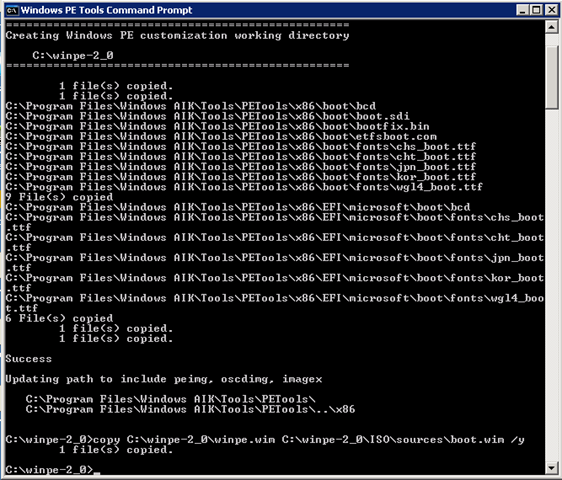
copype x86 c:\winpe-2_0 <enter>

copy c:\winpe\winpe.wim c:\winpe-2_0\iso\sources\boot.wim /y

image 

The final step is the creation of the iso file. This can be done with the following command:

oscdimg -n -h -bc:\winpe-2_0\etfsboot.com c:\winpe-2_0\iso c:\winpe-2_0\winpe_diskpart.iso

image


Nu de iso klaar is, kunnen we een nieuwe VM opstarten met winpe_diskpart.iso

image

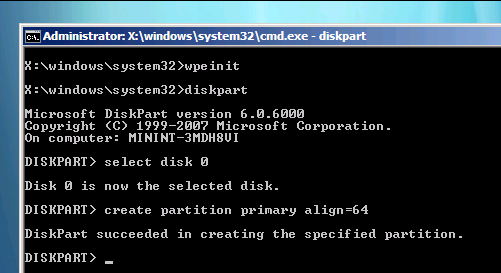
Run Diskpart:

Diskpart
select disk 0 (of een ander nummer, als je een andere disk wilt alignen)
create partition primary align=64

image

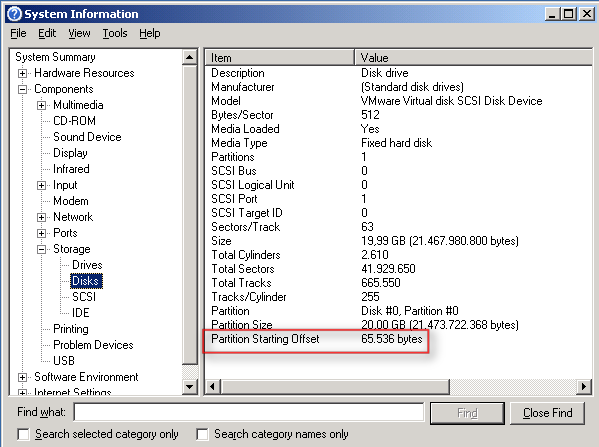
Via msinfo32 kun je de alignment nakijken.

How to tell if your disks are aligned
How can you tell if a disk is unaligned at the Windows partition level? Remember the MBR statement — that x86 systems use the first 63 sectors. Usually there are 512 bytes per sector. If you do the math, 63 x 512 = 32,256. To verify this, log into a machine (physical or virtual) as an administrator that has not had its system volume aligned. Go to Start, then Run, then type in "msinfo32.exe" and press enter. Navigate down to Components, then Storage, then Disks. Notice that the partition starting offset for Disk #0, Partition #0 (the system volume) is 32,256 bytes. This means that the disk is not aligned.

If the partition Starting Offset is 65.536 bytes, the disk is aligned.
image

Meer informatie over disk alignment vind je hier: http://blogs.netapp.com/storage_nuts_n_bolts/2009/01/mbrscanmbralign.html

Als je kunt inloggen op now.netapp.com/. Dan kun je hier de tool mbrscan downloaden. Via deze tool kun je vanaf het Service Console de Alignment nakijken. Netapp is ook bezig met een ander script genaamd mbralign. Via dit script kun je de alignment aanpassen zonder dataverlies.


Update: Rudolf  Kleijwegt poste de volgende reacite: In Windows 2008 is het niet meer nodig om de Windows Automated Installation Kit te gebruiken. Je kunt namelijk tijdens het installeren de toetsencombinatie SHIFT+F10 gebruiken om een command prompt te openen. Op dat moment heb je de beschikking over diskpart en kun je een uitgelijnde partitie aanmaken. Deze procedure gaat helaas niet op voor Windows 2003. Als je daar SHIFT+F10 gebruikt krijg je een recovery console met een uitgeklede diskpart.