Openfiler: Delete a Volume Group from the Commandline


Last week I decided to give Openfiler 2.3 a try. I downloaded the ISO and installed it on my “storage” box. After clicking around and having some trouble with the iscsi targer server, I did a rebuild of Openfiler. But somthing strange happend. All the volume groupes where deleted but somehow, one of the volume groups came back again. So I pressed delete volume group a several times but it wont get away :S.

So after digging around on google, I found the following site: http://tldp.org/HOWTO/LVM-HOWTO. On this page you’ll find everything about LVM.

So back to my problem with Openfiler. In the Select Volume Group you’ll find and dropdown menu with all the volume groups. Remember the group you want to delete.
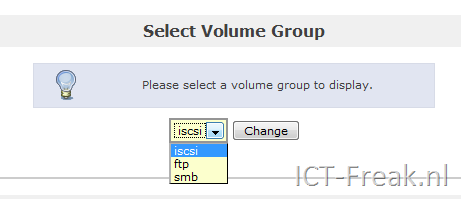
image

Go to the commandline on the Openfiler box or via Putty. 

With the following command you can disable the volume group”

vgchange –a n <volume group name>

image

After disableing of the volume group, you can delete the whole volume with the following command:

vgremove <volume group name>

If you’re sure about this, you press y to continue.

image

When you go back to the Openfiler screen and pressed F5 for refreshing the browser. You’ll notice that the volume group is gone.
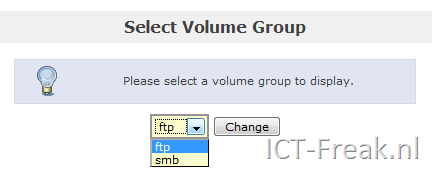
image

Everything is back to normal.


Source for the LVM commands: http://tldp.org/HOWTO/LVM-HOWTO/commontask.html

VMware: KB articles about Time(keeping)


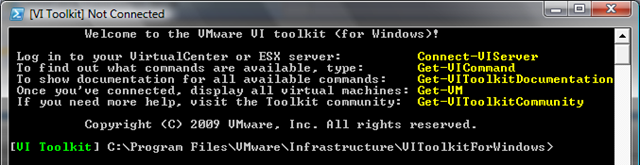
VMware: VI Toolkit 1.5 Released


From the original blogpost by Carter Chanklin:

We’ve added 32 new cmdlets, enhanced our existing cmdlets, and fixed tons of bugs. If you’re the sort of person who loves fine print, you can also have a look at our release notes. The release notes has a great table that shows all the differences between 1.0 and 1.5.

image

More info and videos can be found in the original blogpost: http://blogs.vmware.com/vipowershell/2009/01/vi-toolkit-15-released.html


Source: http://www.ntpro.nl/blog/archives/903-Carter-is-happy-to-announce-VMware-has-released-the-VI-Toolkit-1.5.html

Windows: Export and Analyze the Windows Eventlog


Aleks over at http://www.virtualistic.nl has posted a nice article about exporting the Windows eventlogs to a central share on the network via a scheduled job.

Since I reboot my Terminal Servers every day, I’ve made saving the eventlogs a part of my daily reboot script.

First off, download the tools DUMPEVT, LOGEVENT  and PSLOGLIST (=optional, you can also use DUMPEVT to clear the logs). These tools will help us save the logfiles, clear the logfiles and tell the eventlog what we’re doing.

My rebootscript is written in kixscript but this is up to you. (use cmd, vbscript or powershell if you know how).

A little chunk of the script looks like this (click).

The following things happen in this example:
1) A directory is created to save the logfiles (YEAR-MONTH-DAY)
2) We then use DUMPEVT to save the System, Application and the Security logs and save that to the location specified in step 1
3) PSLogList is used to clear the eventlogs we saved in step 2
4) Then we use LogEvent to log that we cleared the logs (are u still there?)
If everything went smoothly you should see this list at the fileserver location where the eventlogs have been stored.

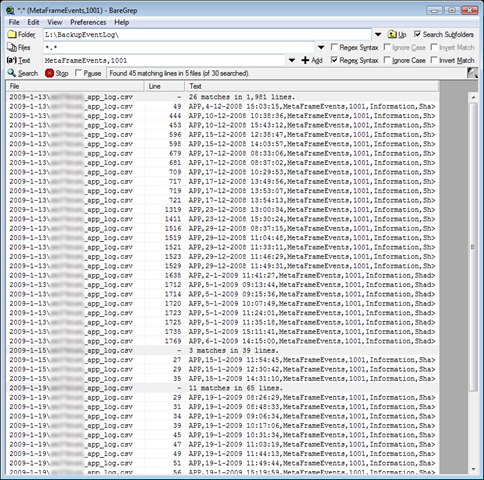
I asked Aleks which tool he used for analyzing his evelogs.csv files. He came up with the tool Ultraedit and I must say, it works fantastic but I wanted to see if there where more options. First I wanted to analyze the logfiles with Powershell but this was too heavy for me (at the moment 😉 ). A couple of days ago I saw the tool called BareGrep.exe. This is grep (linux command) with a Windows gui. Baregrep is a single executable, so you don’t have to install anything.

After downloaden BareGrep.exe just double click to start the tool. Select the options you want to use, enter the folder/path and the final step, enter your keyword(s) and press return.

image 

After a couple of seconds, depends on how much logfiles you want to search in. You’ll see the following output in BareGrep:

image

You can open the specific file with a double click on the line.

Conclusion: you can build a central store for al the eventlogs and analyze these files with different tools. I like BareGrep for this job, because it’s free, a single file, and easy to use.

VMware: vDiagram script by Alan Renouf


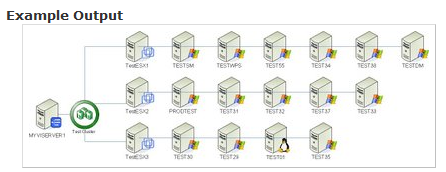
Alan Renouf created a new powershell / vi toolkit script which draws a nice diagram of your VI environment.

Instructions:

You will need:

  • Powershell V1 (I haven’t tried it on V2 yet)
  • The VI Toolkit
  • Microsoft Visio (I have only tried 2003 +)

How to use:

  1. Download the zip file from the bottom of this page
  2. Once extracted copy the  ‘My-VI-Shapes.vss’ file to your ‘My Documents\My Shapes’ folder.  If the folder does not exist create it and copy the file in.
  3. Run the powershell script with the following options:

To diagram the entire Infrastructure:

vDiagram.ps1 -VIServer MYVISERVER

To diagram a specific cluster use the following:

vDiagram.ps1 -VIServer MYVISERVER -Cluster "Production Cluster’

image

More info and the script can be found over here: http://teckinfo.blogspot.com/2009/01/vdiagram-document-your-vi-with-one.html

Alan keep up the good work!

Source:

image

VMware Server 2.0: Tips & Tricks


guyrleech has written a document about VMware Server 2.0. In this document you will find some useful  technical information about the before, during and after installation of VMware Server 2.0.

Check for the latest version of this document at http://communities.vmware.com/docs/DOC-9394.
This is not an official VMware document – it was written by an enthusiast to assist other enthusiasts.
It does not replace VMware documentation which should still be consulted.

Download the pdf over here: http://communities.vmware.com/docs/DOC-9394

Veeam: FastSCP 3 Public Beta


Veeam released a public beta of FastSCP a couple of days ago. I downloaded the beta and installed it. It looks pretty cool so far.

FastSCP 3.0 FAQ (from the forum)

Q: Do I need to switch ESXi into “unsupported” mode and enable additional service console daemons in order to be able to use FastSCP v3?
A: No, FastSCP v3 does not rely on ESXi service console components. Instead, it uses VMware file management API to copy files.
Q: Are 64bit OS supported?
A: Officially, 64bit OS are not supported. However, but I’ve been running FastSCP successfully on a 64bit Vista since day 1. The only issue I have run into so far, is a COM error appearing when trying to copy the file between two datastores. Copying from and to the local computer works fine.
Q: I am new user. How do I copy files to my ESXi server?
A: First, you need to add the source and target servers to the interface via Add Server command. Note that your local computer is already there. Then, you have two options:
– Copy interactively: drag and drop, or copy and paste the required file or folder (similarly to how you copy files in the Windows Explorer).
– Copy using scheduled file copy job (if you want to schedule file copy for off-hours).

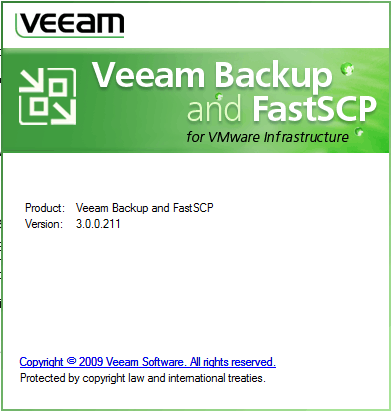
The about screen:

image

The new layout:

image

If you want to try it yourself, you can download your version over here: http://www.veeam.com for support and questions, go to the forum: http://www.veeam.com/forum/

Source: http://vmblog.com/archive/2009/01/18/veeam-s-free-fastscp-3-0-tool-reaches-public-beta.aspx

Backup Exec: Start a Backup Job from the Commandline


Today I found some information about the tool called bemcmd.exe. With this little tool you can run and create backup jobs in Symantec Backup Exec.

If you run bemcmd.exe /? >c:\bemcmd.txt a help file will be created. You can also download the file here: bemcmd.pdf

You can run a created job with the following command:

C:\Program Files\Symantec\Backup Exec\bemcmd.exe -o01 –j<backupjob>

image

As you can see, the backup job is started in Backup Exec.

image