VI Toolkit: Check VMware Configuration with Powershell


Hugo heeft het weer geflikt. Deze keer heeft hij een script gemaakt die alle ESX Servers vergelijkt en daar een mooi rapportje van maakt.

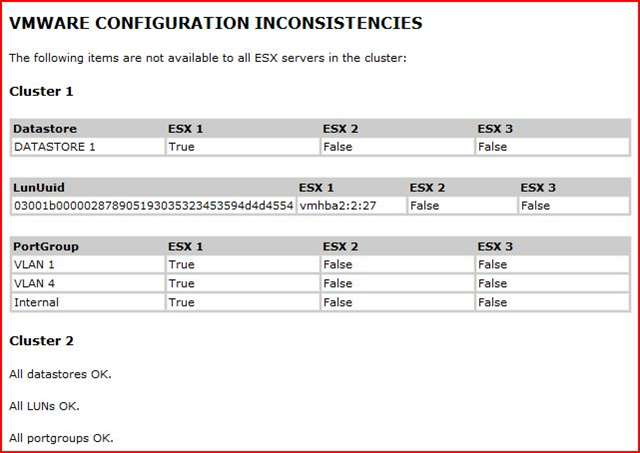
This Powershell script generates an overview of any items that are not available to every ESX server in a VMware cluster. These items might prevent your vm’s being vmotioned by DRS or restarted by HA. Pretty serious business, I’d say!

The items involved are:
1. datastores
2. LUNs (important when using Raw Device Mappings)
3. port groups

The output is a nicely formatted HTML page showing not only which items are misconfigured, but also where the are available and where they are absent.

Hieronder zie je een screenshot van de output:image
Het script kun je hier vinden: http://www.peetersonline.nl/index.php/vmware/check-vmware-configuration-with-powershell/

VMware: An introduction to scripting VI using Perl or Powershell


David Deeths heeft een post geplaats met daarin de VMworld labs over Perl scripting en het gebruik van Powershell.

Hello, my name is David Deeths and I’m a new contributor to the VMware Developer Blog. I wanted to share with the community the scripting lab we put together for VMworld 2008. This is a great introduction to scripting with the VI Toolkits in Perl or PowerShell. The PowerShell version doesn’t require any programming or scripting experience at all.

The labs will help you get started with scripting VMware Infrastructure to enable automation, extensibility, and integration with existing tools. When we ran this at VMworld, we had about 600 attendees and it was so popular some students camped out in line to attend the lab a second time. We had so many folks request a way to share this with their teams that we decided to publish the whole thing for the community.

The lab is available in two versions: one shows how to use the VI Perl Toolkit and the other shows how to use the PowerShell-based VI Toolkit (for Windows). The attached files contain the manuals for both versions of the lab and the exercises for both versions of the lab.

The lab takes 2-3 hours to complete (not including the time to set the environment up first), but is conveniently split into 20 minute exercises. You’ll walk away with a better understanding of VMware Infrastructure, resources for using the toolkits, and a variety of useful scripts for performing common administrative tasks. The exercises cover triggering tasks, examining VM attributes, performing actions on VMs, and exporting performance data.

Meer info en een aantal downloads vind je hier: an-introduction-to-scripting-vi-using-perl-or-powershell

VMware: vExpert


Vmware heeft gisteren het vExpert programma online gezet. Hieronder een kleine quote van de blog post:

VMware is very proud to introduce the VMware vExpert Awards. The VMware vExpert Awards will be given to individuals who have significantly contributed to the overall community of VMware users over the past year, either online or offline. You might be contributing online to blogs, forums, wikis, or other online sites. You might be organizing VMUG meetings or otherwise getting the word out to local IT professionals. You’re helping spread the word about virtualization and making people successful in deploying this game-changing technology. We want to thank you.

Here is the nomination form. You can nominate yourself or someone else. We’re also taking nominations from people and programs within VMware, so you actually don’t even have to nominate yourself and you still could wake up one day with an award. You might want to fill out the form anyway, because we may not be aware of everything you’re doing.

Als je iemand wil nomineren, kun je dat doen door het bovengenoemde nomination form in te vullen.

Mocht je mijn persoontje willen nomineren, dan heb je de volgende gegevens nodig:

  • VMware Communities UserID: ICT-Freak
  • E-mail adres: afokkema at gmail dot com

Alvast bedankt 😉


Bron: http://blogs.vmware.com/vmtn/2009/01/are-you-a-vexpert-announcing-a-new-community-award.html

Hardware: HP ML110 G5 VI.NEXT Compatible


Eric Sloof inspired me with his blogpost about the whitebox he is using (http://www.ntpro.nl/blog/archives/866-My-ESX-future-version-compatible-WhiteBox.html). After reading his posts I wanted to see if my HP ML 110 G5 is also compatible with the next version. And Yes it is! :-D.

In fact everything worked out of the box. Storage (onboard Sata controller), Onboard NIC and the DVD-Rom.

More info about the HP ML110 G5 can be found in this post: https://ict-freak.nl/2008/08/04/hardware-hp-ml110-g5-x3065/

Veeam Backup: VM “vmname” (ref: “vm-##”) is “invalid”


 Veeam_logo

I had a strange problem with one of my VM’s. The VM-ID was changed and this change was not forwarded to my vCenter server. I use Veeam Backup for creating backups and the job skipped this VM with the following error:

image

This problem can be solved by restarting the services on the ESX server and the vCenter server.

The following command will do this on the ESX Server.

service mgmt-vmware restart

For vCenter (Windows) you can do this from the command line:

net stop "VMware VirtualCenter server"

net start "VMware VirtualCenter server"

After restarting the services, the backup job completed successfully.

VMware: The attemped operation cannot be performed


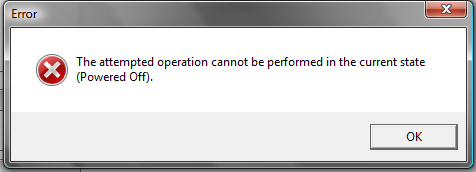
Tijdens de migratie naar ESX 3.5u3 (ik draaide nog ESX 3.02 met een uptime van 553 dagen :-)) Wilde ik de VM’s verplaatsen via een VMotion. Dit ging goed op een VM na. Deze VMotion task stopte na 10% met een time-out foutmelding. Ik moest door met de migratie en had dus niet te tijd om dit grondig te onderzoeken. Ik heb de VM netjes afgesloten en daarna via een Cold Migration verplaatst. Dit ging allemaal goed totdat ik de VM weer wilde optstarten. De volgende foutmelding kwam naar voren:

image

Na wat zoeken op google kwam ik de volgende topic tegen:

In dit topic kwamen de volgende oplossingen naar voren:

Potentially, your VC client on esx server is having issue. I would restart both vmware-vpxa and mgmt-vmware service. If status of the VM would not still sync with VC then, I would think VM itself has an issue.

If this is the case, kill VMPID by performing following;

#this would return all running VMs vmid#
cat /proc/vmware/vm/*/names/

#lookup actual group id
less -S /proc/vmware/vm/(your vmid)/cpu/status

#kill vm with group id you got from above
/usr/lib/vmware/bin/vmkload_app -k 9 (yourgroupID)

1. Disconnected my esx server from virtualcenter
2. Closed VI Client
3. Restarted VirtualCenter (windows service)
4. Open VI Client and re-added my host.

Geen van de oplossingen was de oplossing voor mijn geval. Ik heb de VM uit de inventory van ESX gehaald. Vervolgens heb ik het VMX bestand verwijderd. Daarna heb ik de vCenter service opnieuw gestart en de VM opnieuw aangemaakt met de bestaande VMDK. De VM werkte daarna weer zoals het hoort.

Veeam Backup: Not enough licenses


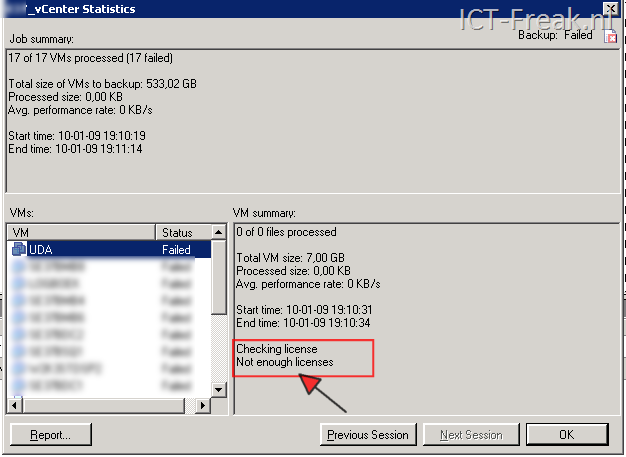
Nadat ik dit weekend de ESX Servers opnieuw had geïnstalleerd (upgrade naar ESX 3.5u3) werkte Veeam Backup niet meer. De volgende foutmelding verscheen in de logfiles:

image

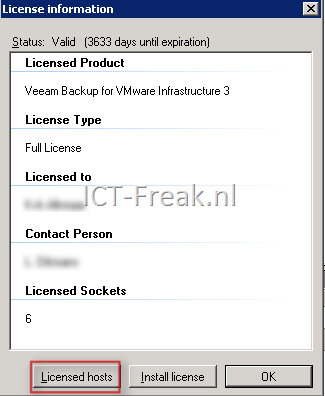
Dit is eenvoudig op te lossen. Ga naar Help –> License Information…

image

Klik op Licensed hosts

image

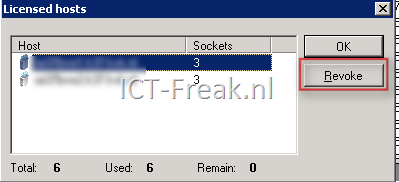
Klik daarna op de ESX Server gevolgd door Revoke

image

Daarna moet de backup weer normaal lopen.

Microsoft: Download Windows Server 2008 R2 (betá)


The new beta of Windows Server 2008 R2 can be downloaded for free:

This software is for evaluation and testing purposes. Evaluating any version of Windows Server 2008 R2 Beta software does not require product activation or entering a product key. Any edition of Windows Server 2008 R2 Beta may be installed without activation and evaluated for an initial 30 days. If you need more time to evaluate Windows Server 2008 R2 Beta, the initial 30 day evaluation can be extended to August 1st (at which time the OS will become inoperable) by entering the product key below for your selected edition.
Windows Server 2008 R2 Beta Product Keys for Evaluation
Windows Server 2008 R2 Beta Enterprise (7000.0.081212-1400_server_en-us-GB1SXFRE_EN_DVD.iso)

  • TFGPQ-J9267-T3R9G-99P7B-HXG47
    Windows Server 2008 R2 Beta Standard (7000.0.081212-1400_server_en-us-GB1SXFRE_EN_DVD.iso)
  • 2T88R-MBH2C-M7V97-9HVDW-VXTGF
    Windows Server 2008 R2 Beta Datacenter (7000.0.081212-1400_server_en-us-GB1SXFRE_EN_DVD.iso)
  • GQJJW-4RPC9-VGW22-6VTKV-7MCC6
    Windows Server 2008 R2 Beta for Itanium Based Systems (7000.0.081212-1400_serverenterprise64_en-us-GB1SIAIFRE_EN_DVD.iso)
  • CQ936-9K2T8-6GPRX-3JR9T-JF4CJ
    Windows Web Server 2008 R2 Beta (7000.0.081212-1400_serverweb_en-us-GB1WXFRE_EN_DVD.iso)
  • GT8BY-FRKHB-7PB8W-GQ7YF-3DXJ6
  • Download your copy overhere: http://www.microsoft.com/downloads/details.aspx?FamilyID=85cfe4c9-34de-477c-b5ca-75edae3d57c5&displaylang=en

    VMware: VPXD.exe flags


    Recently I had to change the password for the vCenter DB. This can be done with starting the vpxd.exe with the –p or –P ‘password’ command. After finishing this task I was curious for the other flags so I started vpxd.exe /?.

    The following options are available:

    C:\Program Files\VMware\Infrastructure\VirtualCenter Server>vpxd.exe /?

    Usage: vpxd.exe [FLAGS]
    Flags:
          -r          Register VMware VirtualCenter Server
          -u         Unregister VMware VirtualCenter Server
          -s         Run as a standalone server rather than a Service
          -c         Print vmdb schema to stdout
          -o         port Listens on the specified port instead of 902
          -b         Recreate database repository
          -p         Reset the database password interactively
          -P pwd  Reset the database password to the specified password
          -v         Print the version number to stdout