VMware: Service Console Memory


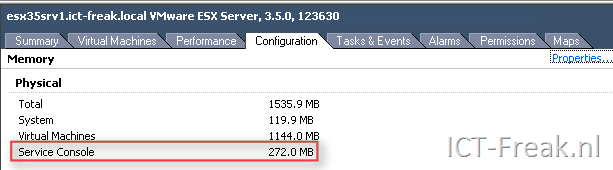
Als je ESX 3.x standaard installeerd krijgt het Service Console 272 MB geheugen.
image

Via fdisk –l  kun je de partitie informatie opvragen. Zoals je ziet heeft deze ESX server een Swap partitie van 1600MB. 

image

Standaard is de Swap partitie 544MB (2*272mb van het Service Console).  Mocht de swap partitie inderdaad “maar” 544mb groot zijn, dan kun je het geheugen van het Service Console niet verhogen. Hoe je dit verder kan oplossen lees je hier: http://communities.vmware.com/message/685697#685697

Je kunt het gehugen van het Service Console op twee manieren aanpassen, via de de VIC of via de commandline.

Via de VIC

klik op properties.

image

Voer daarna de juiste waarde in (800MB is de max):

image


Vanaf het Service Console

Via het onderstaande commando kun je opvragen hoeveel geheugen er voor het Service Console geconfigureerd is.

[root@esxserver root]# cat /etc/vmware/esx.conf | grep -i "memSize"
/boot/memSize = "272"

Als je dit wilt ophogen naar 800MB kun je dat doen via het commando:

vmware-vim-cmd hostsvc/memoryinfo 838860800 (http://communities.vmware.com/thread/173359)

Daarna even kijken of de settings is doorgevoerd.

[root@esxserver root]# cat /etc/vmware/esx.conf | grep -i "memSize"
/boot/memSize = "800"


Via de VI Toolkit:

$consoleMemMb = 800
Get-VMHost | Get-View | %{(Get-View -Id $_.ConfigManager.MemoryManager).ReconfigureServiceConsoleReservation($consoleMemMb*1mb)}
Thanks to LucD: http://communities.vmware.com/

De bovenstaande code past de setting aan op al je ESX servers in je VirtualCenter.

image

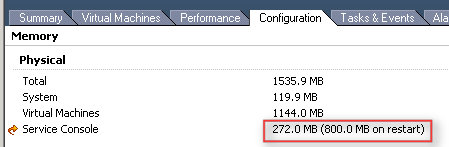
En in de VIC kun je zien dat de settings is aangepast en een herstart nodig is.
image

VMware: Missing Consolidation Button


Het kan zijn dat je in VirtualCenter 2.5.x geen beschikking hebt tot de Consolidation button. Na wat zoeken in de communities kwam ik de post van kjb007 tegen. Deze oplossing werkt als volgt:

Open c:\Documents and Settings\All Users\Application data\VMware\VMware VirtualCenter\vpxd.cfg in Wordpad. Verwijder daarna de geselecteerde tekst en sla het bestand op.

image

De volgende stap is het Installeren van de CapacityPlanner.exe. Deze vind je hier:

<cdrom>\vpx\CapacityPlanner.exe

Na de installatie herstart je de VirtualCenter server.

Zodra deze weer opgestart is op je services.msc en kijk je of de VMware Capacity Planner Service is gestart.

image

Als deze service gestart is kun je de VIC openen. Als het goed is heb je nu weer de beschikking over de Consolidation button.

image

VMware: Set VMware TimeSync option with the VI Toolkit


Ik was vandaag even met Gabrie van Zanten (http://www.gabesvirtualworld.com/) aan het brainstormen over het aanpassen van de Time synchronization optie, binnen de VMware Tools via de VI Toolkit.

image

Dit is uiteindelijk gelukt (met een beetje hulp van Niket en LucD http://communities.vmware.com/message/1106816).

Je kunt het script op twee manieren gebruiken:

Het aan of uitzetten van deze optie op alle VM’s kan via het onderstaande script.

$vCenter = ”

Connect-VIServer $vCenter

[Reflection.Assembly]::LoadWithPartialName("vmware.vim")

$vmConfigSpec = New-Object VMware.Vim.VirtualMachineConfigSpec
$vmConfigSpec.Tools = New-Object VMware.Vim.ToolsConfigInfo
$vmConfigSpec.Tools.SyncTimeWithHost = $True (or $False if you want to disable it)

Get-VM | % { (Get-View $_.ID).ReconfigVM($vmConfigSpec)} # For al VMs

Disconnect-VIServer -Confirm:$False


Wil je dit op een specifieke VM uitvoeren dan gebruik je de volgende Get-VM regel:

Get-VM -Name $vmname | % { (Get-View $_.ID).ReconfigVM($vmConfigSpec)} # VM with name vmname.

Je moet alleen dan wel de variable $vmname aanmaken.

Via het volgende commando kun je de actie controleren.

Get-VM | Get-View | %{Write-Host $_.Name $_.Config.Tools.syncTimeWithHost}

VMware: SRM Movies


De afgelopen week, was het de week van SRM. Verschillende blog posts zijn de rss feeds gepasseerd. Maar de meest uitgebreide kwam toch pas vandaag online. Chris heeft een video how to op zijn blog geplaatst. De blogpost vind je hier: getyournerdon.com

De volgende videos zijn zeker de moeite van het kijken waard:

Windows: Terminal Server and connected Terminal Services clients pause when a Terminal Services client logs on or logs off


De laatste weken ben ik samen met Aleks Nikolić van Virtualistic.nl bezig met het troubleshooten van verschilende TS problemen. Tijdens de zoektocht naar mogelijke oplossingen kwamen uit op KB324446.

In KB324446 wordt het volgende geschreven:

When a Terminal Services client logs on or logs off (either in a session or on the console of the Terminal server), the Microsoft Windows Server 2003-based or the Microsoft Windows 2000-based Terminal server together with the connected Terminal Services client computers may stop responding or may pause for several seconds. Users may also experience one or more of the follow symptoms:

  • When a user types in a document, characters do not appear on the screen until this pause has ended.
  • Keyboard input and mouse input are queued, but they are not processed until this pause has ended.
  • Live performance monitoring (Perfmon) graphs have missing data points during this pause.
  • All running programs appear to stop responding, or “hang,” during this pause.
  • When Spooler is under a load from a large number of users, a high CPU usage is displayed for it.

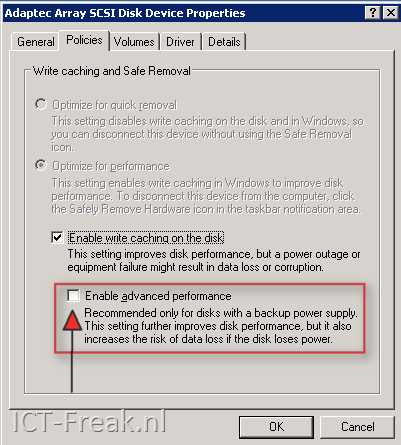
Als je een Terminal server hebt met twee voedingen (wat wel gebruikelijk is volgens mij) dan moet je zeker de volgende change doorvoeren: Deze optie moet je alleen instellen als je raidcontroller een battery-backup cache module heeft (thanks Sven).

Zet het vinkje aan bij “Enable advanced performance”

image

Nadat de bovenstaande settings zijn doorgevoerd, moeten er ook nog een aantal registry keys aangepast worden. Namelijk de volgende:

Note This section applies to both Windows Server 2003 and to Windows 2000.

  • In the HKLM\SYSTEM\CurrentControlSet\Services\Lanmanserver\Parameters subkey,
  • configure the following entries:
    • Name: MaxWorkItems
      Data Type: REG_DWORD
      Value data: 8192 (decimal)
    • Name: MaxMpxCt
      Data Type: REG_DWORD
      Value data: 2048 (decimal)
    • Name: MaxRawWorkItems
      Data Type: REG_DWORD
      Value data: 512 (decimal)
    • Name: MaxFreeConnections
      Data Type: REG_DWORD
      Value data: 100 (decimal)
    • Name: MinFreeConnections
      Data Type: REG_DWORD
      Value data: 32 (decimal)
  • In the HKLM\SYSTEM\CurrentControlSet\Services\Lanmanworkstation\Parameters subkey, configure the following entry:
    • Name: MaxCmds
      Data Type: REG_DWORD
      Value data: 2048 (decimal)
  • By default, your registry does not have a Configuration Manager subkey. To create the key, locate and then right-click the following subkey:HKEY_LOCAL_MACHINE\System\CurrentControlSet\Control\Session ManagerPoint to New, and then click Key. Type Configuration Manager, and then press ENTER.
    In the new HKEY_LOCAL_MACHINE\System\CurrentControlSet\Control\Session Manager\Configuration Manager subkey, configure the following entry:
  • Name: RegistryLazyFlushInterval
    Data Type: REG_DWORD
    Value data: 60 (decimal)

Ik heb deze registry keys even uitgewerkt in de volgende twee files:

LanManServerTuning_KB32446.reg

Windows Registry Editor Version 5.00[HKEY_LOCAL_MACHINE\SYSTEM\CurrentControlSet\Services\lanmanserver\parameters]
“MaxWorkitems”=dword:00002000
“MaxMpxCt”=dword:00000800
“MaxRawWorkItems”=dword:00000200
“MaxFreeConnections”=dword:00000064
“MinFreeConnections”=dword:00000020

KB32446_Extra.reg

Windows Registry Editor Version 5.00[HKEY_LOCAL_MACHINE\SYSTEM\CurrentControlSet\Control\Session Manager\Configuration Manager]
“RegistryLazyFlushInterval “=dword:0000003c

Nadat je alle changes hebt doorgevoerd, moet je de server opnieuw op starten.

VMware: Workstation 6.5.1 released


VMware just released VMware Workstation 6.5.1.

With this release of VMware Workstation, the following new features and support have been added:

  • Japanese localization — A localized version of Workstation is now available in Japanese for Windows hosts.
    Note: Technical Support services for Workstation are currently delivered in English. Japanese-speaking support engineers are available in a limited capacity during the operating hours of the local support center. For more information, see VMware local language support.
  • Smart card support for Linux guests — Smart cards are now experimentally supported with Linux guests.
  • Unity mode on Linux guests — Although support for Unity mode on Linux guests is still experimental, repainting of application windows is much improved.
  • 3-D graphics — Additional improvements have been made to improve 3-D performance on Windows XP guests.

Workstation 6.5.1 is also a maintenance bug fix release. See Resolved Issues.


You can download your copy here: http://www.vmware.com/download/ws/

VMware: Storage VMotion The Easy Way


Sinds ESX 3.5 bestaat de feature Storage VMotion. Deze feature stelt je in staat een actieve VM te verplaatsen naar een andere datastore zonder downtime. Ik was nog niet in de gelegenheid geweest om deze feature te testen. In het begin kon je een Storage VMotion alleen uitvoeren  via de remote cli (deze kun je hier downloaden: http://vmware.com/download/vi/drivers_tools.html) of je kunt gebruik maken van de VIMA. Bij deze twee opties moet je de Storage VMotion taak uitvoeren van de commandline. Gelukkig zijn er altijd nog gasten die kunnen programmeren. Zo ook Andrew Kutz. Hij heeft de Storage VMotion plugin voor VIC gemaakt. Meer informatie en de download vind je hier: http://sourceforge.net/projects/vip-svmotion/.

In de rest van de post lees je hoe eenvoudig het gebruik van deze plugin is.

Continue reading “VMware: Storage VMotion The Easy Way”

VMware: ESX 3.5 Update 3 VM’s spontaneously reboot


Verschillende blogs melden deze bug al eerder. Bij deze plaats ik ook nog even een post.

Ivo schrijft het volgende op zijn blog: http://www.ivobeerens.nl

We disabled in HA the option “Virtual Machine Monitoring” and set DRS to manual.  The problem with Virtual Machine monitoring is:

The Virtual Machine heartbeats are being dropped which is triggered by VMotion and the VM gets reset by the HA feature as it thinks it has gone offline. Since the feature is now off it should be safe to turn on DRS again.

There are more people who have this problem, read the following post on the VMware forum, 3.5U3 – any guinea pigs yet?.

I made a support request @ VMware. The told me today that 20 November patch 10 for VMware 3.5 Update 3 will be released. Patch 10 fixes SOME random reboot problems in Update 3. I hope it resolves this nasty issue.


Bron: http://www.ivobeerens.nl/?p=180

SRM in a Box


image


Tomas ten Dam release his final version of the SRM in a Box document. You can grab your copy here: srm-in-a-box-final-release-the-complete-setup.


The last few years “disaster recovery” has become a hot topic in the IT industry. Working in a 24/7 economy demands greater availability to our computer systems. But what to do if a disaster strikes at your production site? You can have backup tapes, disks or even a mirrored storage at another site, but it can take hours or even days to start up a new production site which is available to your employees. Customers can’t be served in those days, and that will result in financial losses. VMware Site Recovery Manager makes disaster recovery easy and will save you time when a disaster happened. The big problem for a consultant or engineer is how to test and learn how SRM is working. If you want to test this, expensive hardware must be available for quite some time. You need double storage, a couple of esx servers and some hardware to host 2 domain controllers, virtual center servers and SQL servers. And what if you need a demo for a customer? You can’t have all the expensive hardware at your site for just showing how it works. I am working with VMware and Netapp most off the time lately en was thinking; maybe it is possible to build a test lab with SRM in VMware workstation. I had a Netapp simulator and VMware esx is working in Workstation 6.5 so why not give it a try. And it works! In this document I am going to describe what I did to make it work. Have fun!