
Movie: Cisco Nexus 1000V in Action


Cisco just published a small preview clip about the Nexus 1000V:
Source: http://www.virtualization.info/2008/10/demo-cisco-nexus-1000v-and-vmware.html
Citrix: Antivirus Strategy for Symantec Antivirus


De volgende processen kun je het beste uit de HKLM\SOFTWARE\Microsoft\Windows\CurrentVersion\Run verwijderen. Zodra dit is gedaan worden deze processen niet meer in elke user sessie gestart en dat scheelt weer in het resource verbruik.
| Process | Info |
| ccApp | Symantec Common Client User Session Process. ccApp calls the different program features in the Symantec products and makes sure that those programs are running, such as the Auto-Protect and E-mail Scanning mechanisms. |
| vptray | Symantec Gold Shield Tray Icon. This is the Taskbar Icon and User Interface. |
De poster op http://www.jhouseconsulting.com geeft nog de volgende tips mee
| Tip | Description |
| 1 | Scan local drives only. DO NOT scan network drives. |
| 2 | Only scan "Incoming" files (ie. write events). |
| 3 | Exclude the pagefile(s) from being scanned. |
| 4 | Exclude the "%ProgramFiles%\Citrix" folder from being scanned (the heavily accessed local host cache and Resource Manager local database are contained inside this folder). |
| 5 | We would recommend excluding the Profiles ("%SystemDrive%\Documents and Settings") folder, as well as the Print Spooler (%SystemRoot%\System32\spool\PRINTERS) folder. |
| 6 | If you do not exclude the Profiles, then exclude the user‘s Presentation Server Client bitmap cache ("%UserProfile%\Application Data\ICAClient\Cache" or "%AppData%\ICAClient\Cache") used for ICA pass-through connections by the locally installed PNClassic and PNAgent. |
De bovenstaande tips kun je het beste instellen op een los staande antivirus group in Symantec System Center
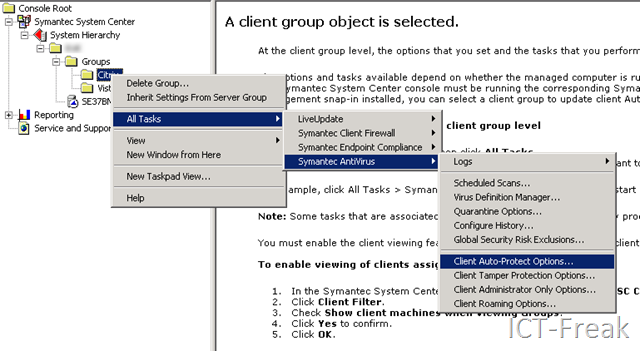
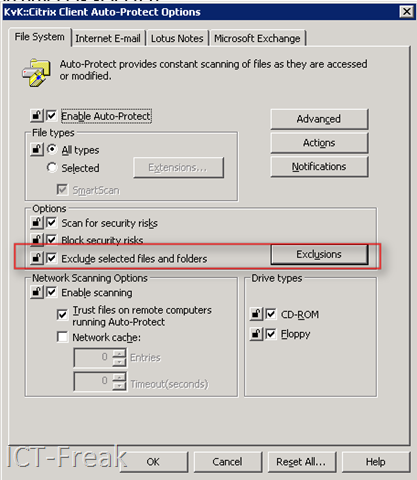
Daarna kun je bij Exclusions de verschillende folders excluden.
Mocht je de Citrix Edgesite Agent op de Citrix server draaien, dan kun je het beste het volgende document nog even na te lopen: CTX111062
Bron: http://www.jhouseconsulting.com/articles/antivirus_strategy_for_citrix_servers.html
Script: Set-VMVideoAccLevel

Hugo Peeters van www.peetersonline.nl heeft een powershell script gemaakt voor het instellen van de video hardware acceleration level. Zoals je weet staat dit bij een standaard installatie van Windows Server 2003 (en ook andere versies) standaard op none.
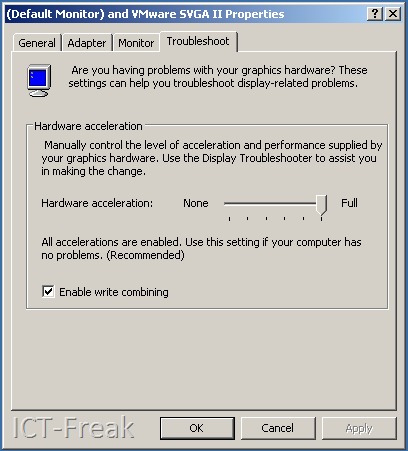
Via het script van Hugo kun je in een keer deze setting aanpassen op alle VM’s (Windows 2003 servers en deze moeten wel aan staan). Zie de onderstaande quote van Hugo:
I have created a simple, fire-and-forget script that sets the Hardware Video Acceleration Level for all your (Windows Server 2003 and Powered On) VM’s to Full. This way you can always enjoy smooth mouse movements when working in the console!
Het script kun je hier downloaden: http://www.peetersonline.nl/index.php/vmware/setting-video-hardware-acceleration-level/
Update: Open File Security Warning

Ik had over deze melding al een post gemaakt. Maar op de een of andere manier werkte dit niet meer.

Na wat zoeken op google vond ik op de website van Aaron Parker de oplossing.
Vink de optie ‘Automatically detect intranet networks’ uit.

Daarna voeg je het Windows domain toe aan de zone.

Je wilt deze oplossing niet met hand uitvoeren dus heb ik even de registry keys erbij gezocht. Kopieer de volgende twee blokken in notepad en sla deze dan op als *.reg file.
Domains.reg
Windows Registry Editor Version 5.00
[HKEY_CURRENT_USER\Software\Microsoft\Windows\CurrentVersion\Internet Settings\ZoneMap\Domains\kvk.nl] [HKEY_CURRENT_USER\Software\Microsoft\Windows\CurrentVersion\Internet Settings\ZoneMap\Domains\kvk.nl\*.k37] "*"=dword:00000001 [HKEY_CURRENT_USER\Software\Microsoft\Windows\CurrentVersion\Internet Settings\ZoneMap\Domains\kvk.nl\*.k94] "*"=dword:00000001
Zones.reg
Windows Registry Editor Version 5.00
[HKEY_CURRENT_USER\Software\Microsoft\Windows\CurrentVersion\Internet Settings\Zones\1]
"Flags"=dword:000000db
"2007"=dword:00010000
Daarna kun de files via een script laten importeren.
Citrix: Hotfix Rollup 03 for XenApp 4.5 and XenApp 5.0
Meer informatie en de download vind je hier: CTX115626
Tomas Koetzing schrijft het volgende:
Citrix recently released Hotfix Rollup 03 for Citrix Presentation Server 4.5, xenApp 5.0 for Windows 2003. Pay attention BEFORE installing the Rollup 03 because it has some important requirements.
- The Citrix License Server must be at version 11.5 to install this hotfix rollup pack.
The Microsoft Visual C++ 2005 SP1 Redistributable Package (x86) must be installed on all servers before installing this hotfix rollup pack. This can be obtained from the Microsoft Web site.
With CPS4.5 R02/CPS4.0 R05 Citrix introduced the Commandline Parameter Validation for XenApp, see Knowledge Center articles CTX117316 and CTX115245.
The Suite Monitoring and Alerting (SMA) service used by the Access Management Console might not start after installing Hotfix Rollup Pack 3 and restarting the system. In order to fix this problem, you must upgrade the .NET version on the system to .NET 2.0 SP1.
Before installing this hotfix rollup pack on servers licensed for Standard Edition, you must migrate those servers to Advanced Edition. Standard Edition was discontinued on Citrix Presentation Server 4.5; installing this hotfix rollup pack on servers licensed for Standard Edition might cause error message to appear.
After you install this hotfix rollup pack, Presentation Server 4.5 licensing will be enforced for the Application Streaming feature available in the Enterprise and Platinum editions. As a result, this feature will start to consume Presentation Server licenses.
VMware: vCenter Administrator Portal
Duncan posted a news item about the vCenter Administrator Portal Server over here: http://www.yellow-bricks.com/ and here http://blogs.vmware.com/.
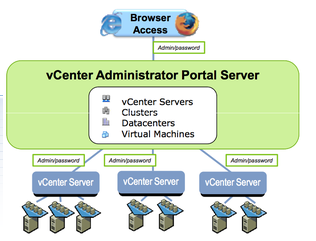
What can you expect at this moment:
- Single sign-on to multiple vCenter Servers
- Monitor events and alarms across multiple vCenter Servers
- Search and track inventory across multiple vCenter Servers
- Launch VI Client in context to manage vCenter Servers
- Search for virtual machines across multiple vCenter Servers
- Launch virtual machine consoles
- Utilizes permissions setup in vCenter Servers
- Unified view for: vCenter Servers, Datacenters, Clusters, Hosts, Virtual Machines
- Access summary view of inventory objects, rolled up across vCenter Servers, for comparison and monitoring purposes
You can download your copy here: http://communities.vmware.com/community/beta/vcadminportal
VMware: VMRUN for Workstation 6.5, Server 1.x and Server 2.0
Ik kwam VMRUN tegen in een post op de site: http://itknowledgeexchange.techtarget.com/virtualization-pro/ hier stond ook een link naar het volgende document: http://www.vmware.com/pdf/vix160_vmrun_command.pdf.
Hieronder laat ik even wat opties zien:
Power on a virtual machine with VMware Workstation on a Windows host:
vmrun start "drive:\path to vmx\vm.vmx"Power on a virtual machine with VMware Server 2.0:
vmrun -T server -h https://10.0.1.8/sdk -u root -p <pass> start "[storage1] WinXP/WinXP.vmx"Run CMD within the VM with VMware Workstation on a Windows host:
vmrun -T ws -gu <user> -gp <pass> runProgramInGuest WinXP\WinXP.vmx -activeWindow cmd.exeList processes in a Linux guest, and kill the process numbered 8192:
vmrun -T ws -gu <user> -gp <pass> listProcessesInGuest Ubuntu/Ubuntu.vmx
vmrun -T ws -gu <user> -gp <pass> killProcessesInGuest Ubuntu/Ubuntu.vmx 8192
List processes in a Linux guest, and kill the process numbered 8192:
vmrun -T ws -gu <user> -gp <pass> listProcessesInGuest Ubuntu/Ubuntu.vmx
vmrun -T ws -gu <user> -gp <pass> killProcessesInGuest Ubuntu/Ubuntu.vmx 8192
Best wel een krachtige tool. Toch had ik liever gezien dat VMware ook voor Workstation en Server een powershell omgeving had gemaakt. Misschien komt dit in de toekomst nog.
Free Tool: SolarWinds VM Monitor

In het onderstaande filmpje wordt in het kort uitgelegd wat de VM Monitor is en wat het kan:
Een stap voor stap walk through vind je hier: http://www.petri.co.il/monitor-vmware-esx-server-performance-for-free-vm-monitor.htm
Let er wel op dat je bij het configureren van het snmp verhaal de file /etc/snmp/snmpd.conf file moet editen en dat je in de firewall van VMware ESX de snmp server open zet.
Je kunt de tool hier downloaden: http://www.solarwinds.com/products/freetools/vm_monitor.aspx
 ICT-Freak.nl