PowerCLI: Export, Import and Create DRS Rules v2


image

In my first post about this subject, I showed a script create by the PowerCLI Master @LucD. A couple of minutes later Hugo Peeters posted a comment why I did not used the object-oriented approach of Powershell. He also posted an example. So in this post I will show you the other way by using Export/Import-CliXml.

First we start with the export part. The following one-liner will export all the DRS Rules to a XML file:

# Export DRS
Get-Cluster -Name "Cluster_01" | Get-DrsRule | `
Export-CliXml 'C:\scripts\drs.xml'

The XML file look like this:

<?xml version="1.0" encoding="utf-16"?>
<Objs Version="1.1.0.1" xmlns="http://schemas.microsoft.com/powershell/2004/04">
  <Obj RefId="0">
    <TN RefId="0">
      <T>VMware.VimAutomation.Client20.DrsVMAffinityRuleImpl</T>
      <T>System.Object</T>
    </TN>
    <ToString>VMware.VimAutomation.Client20.DrsVMAffinityRuleImpl</ToString>
    <Props>
      <S N="Name">production</S>
      <B N="Enabled">true</B>
      <S N="ClusterId">ClusterComputeResource-domain-c7</S>
      <B N="KeepTogether">true</B>
      <Obj N="VMIds" RefId="1">
        <TN RefId="1">
          <T>System.String[]</T>
          <T>System.Array</T>
          <T>System.Object</T>
        </TN>
        <LST>
          <S>VirtualMachine-vm-23</S>
          <S>VirtualMachine-vm-27</S>
          <S>VirtualMachine-vm-29</S>
          <S>VirtualMachine-vm-33</S>
        </LST>
      </Obj>
    </Props>
  </Obj>
</Objs>

The next one-liner will import the XML file, which we earlier created with the export one-liner. After the import, the one-liner will create a DRS rule:

# Import DRS
ForEach ($rule in (Import-CliXml 'C:\scripts\drs.xml')){
    New-DrsRule -Cluster (Get-Cluster -Name "Cluster_01") `
    -Name $rule.Name -Enabled $rule.Enabled `
    -KeepTogether $rule.KeepTogether `
    -VM (Get-VM -Id $rule.VmIds)}


If you want to see the DRS Rules for a cluster via the PowerCLI, You can run the following one-liner:

# DRS Rules One-Liner
Get-DrsRule -Cluster (Get-Cluster -Name Cluster_01) `
| Sort Name | Select Name, @{N="Enabled";E={$_.Enabled}}, `
@{N="KeepTogether";E={$_.KeepTogether}},`
@{N="Virtual Machines";E={$_.VMIds | % { Get-VM -Id $_ | `
% {$_.Name} }}} 

The following output will be generated:

Name Enabled KeepTogether Virtual Machines
appliances False False Nagios, vMA
production True True DC01,VC01,MC01,MAIL01

Before you can create a XML file with your new rules, you need to get the ID’s of the Cluster and the VM. You can get these ID’s via the following one-liner:

Get-VM | Sort Name | Select Name, `
@{N="VM ID";E={$_.Id}}, `
@{N="Cluster Name";E={Get-Cluster -VM $_}}, `
@{N="Cluster ID";E={Get-Cluster -VM $_ | % {$_.Id}}} | fl *

The output will look like this.

image

or you can export it to a CSV file:

Get-VM | Sort Name | Select Name, `
@{N="VM ID";E={$_.Id}}, `
@{N="Cluster Name";E={Get-Cluster -VM $_}}, `
@{N="Cluster ID";E={Get-Cluster -VM $_ | % {$_.Id}}} | `
Export-CSV -NoTypeInformation "D:\scripts\ps\vmids.csv"


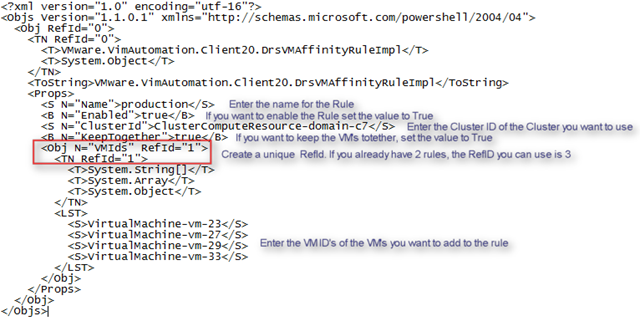
Now you have to create a XML file. You can use a file, you created with the export DRS one-liner and change the following lines:
image

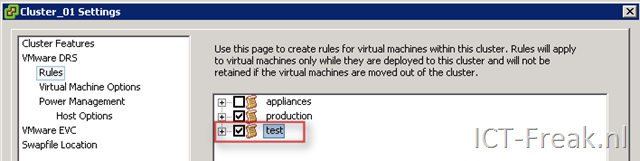
When you’re done with the XML file, you can run the Import DRS one-liner to import your new Rules. When you open the Cluster properties you will see that the new rule is added:

image

PowerCLI: Export, Import and Create DRS Rules


image 

I was trying to create a DRS Rule creation script but after a short search on the PowerCLI communities, I found some excellent stuff from @LucD. These are two scripts for Exporting and importing DRS rules.

To export your DRS-Rules, you can run the next script. The only thing you have to change is <cluster-name> to your cluster name.

#DRS-export-rules.PS1
$outfile = "C:\rules.txt" Remove-Item $outfile $clusterName = <cluster-name> $rules = get-cluster -Name $clusterName | Get-DrsRule foreach($rule in $rules){ $line = (Get-View -Id $rule.ClusterId).Name $line += ("," + $rule.Name + "," + $rule.Enabled + "," + $rule.KeepTogether) foreach($vmId in $rule.VMIds){ $line += ("," + (Get-View -Id $vmId).Name) } $line | Out-File -Append $outfile }


The import script looks like this:

#DRS-import-rules.PS1

$file = "C:\rules.txt"
$rules = Get-Content $file

foreach($rule in $rules){
  $ruleArr = $rule.Split(",")
  if($ruleArr[2] -eq "True"){$rEnabled = $true} else {$rEnabled = $false}
  if($ruleArr[3] -eq "True"){$rTogether = $true} else {$rTogether = $false}
  get-cluster $ruleArr[0] | `
    New-DrsRule -Name $ruleArr[1] -Enabled $rEnabled `
    -KeepTogether $rTogether `
    -VM (Get-VM -Name ($ruleArr[4..($ruleArr.Count - 1)])) 
}


If you want to create a new DRS-Rules, you only have to create your own rules.txt file like this:

<cluster-name>True,True,<vmname>,<vmname2>,<vmname3>

<cluster-name>,False,True,<vmname>,<vmname2>

Now run the Import DRS-Rules script and in a blink of an eye, the new rules are created.


Source: http://communities.vmware.com/thread/195733?start=10&tstart=0

PowerCLI: Reading the VMKERNEL logfiles with Powershell v2


image

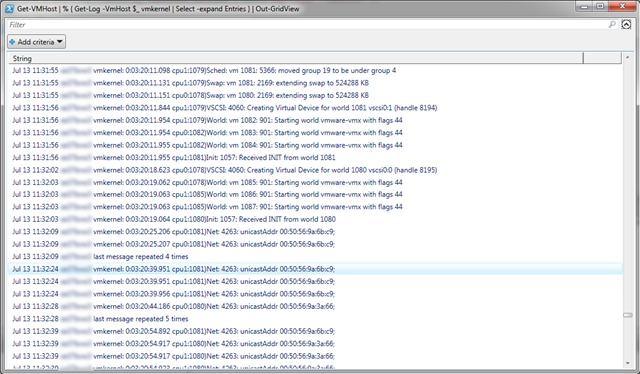
I was reading Alan Renouf his post about reading the vmkernel log files with PowerCLI. Carter Shanklin posted a comment with the Powershell v2 way of doing this task. I grabbed his one-liner and added a foreach ( % ) loop and the Out-GridView cmdlet. Now with the foreach loop, the one-liner will run against all my ESX Servers.

Get-VMHost |% {Get-Log -VmHost $_ vmkernel |Select -expand Entries } |Out-GridView

The Out-GridView cmdlet will show us all the vmkernel logfiles together in one window.

image

If want to filter on Warning messages only, run the following one-liner:

Get-VMHost | % { Get-Log -VmHost $_ vmkernel | 
Select -expand Entries | Select-String WARNING } | Out-GridView

If there are Warnings in the vmkernel log, the following GridView will be created:

image

If you want to filter the output in the GridView, just use the filter box and if necessary, you can add a criteria:

image

PowerCLI: Get Running VM’s per VMHost and more


image

This post is inspired by a one-liner from Alan Renouf and question from Jason Boche on Twitter. The original one-liner can be found here: http://www.virtu-al.net

The first one-liner in this post will show the Cluster name, ESX host and the total running VM’s on the host.

Get-VMHost | Select @{N="Cluster";E={Get-Cluster -VMHost $_}},Name, ` 

@{N="NumVM";E={($_ |Get-VM | where {$_.PowerState -eq "PoweredOn"}).Count}}

 image

The second one-liner will return the hostname with the least running VM’s on it:

Get-VMHost | Select @{N="Cluster";E={Get-Cluster -VMHost $_}},Name,  
@{N="NumVM";E={($_ |Get-VM | where {$_.PowerState -eq "PoweredOn"}).Count}} `
| Sort-Object NumVM | Select-Object Name -first 1


image

The next “two-liner” will return the VMHost with the least running VM’s and set the VMHost into maintenance mode. This can become handy if you want to patch a VMHost:

$ESXHost = Get-VMHost |Select @{N="Cluster";E={Get-Cluster -VMHost $_}},Name,  
@{N="NumVM";E={($_ |Get-VM |where {$_.PowerState -eq "PoweredOn"}).Count}}`
|Sort-Object NumVM |Select-Object Name -first 1

Get-VMHost $ESXHost.Name |Set-VMHost -State maintenance

The last “two-liner” will return the VMHost with the least running VM’s, Set the host into maintenance mode and shutdown the VMHost:

$ESXHost = Get-VMHost |Select @{N="Cluster";E={Get-Cluster -VMHost $_}},Name,  
@{N="NumVM";E={($_ |Get-VM |where {$_.PowerState -eq "PoweredOn"}).Count}}`
|Sort-Object NumVM |Select-Object Name -first 1

Get-VMHost $ESXHost.Name |Set-VMHost -State maintenance `
|%{Get-View $_.ID} |%{$_.ShutdownHost_Task($TRUE)}

PowerCLI: Two One-Liners


image 

In this post I will show you two One-Liners that will get you some info of where the VM is placed or running on.

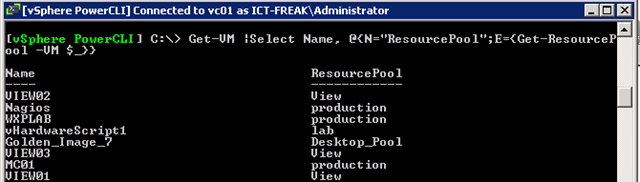
The first one-liner will show all the VMs’ and the ResourcePool where the VM’s are placed.

Get-VM |Select Name, @{N="ResourcePool";E={Get-ResourcePool -VM $_}}

 image

The second One-Liner will show the VM’s and the ESX server where the VM’s are running.

Get-VM |Select Name, @{N="ESX";E={Get-VMHost -VM $_}} 

image

PowerCLI: Set CPU Identification Mask


image

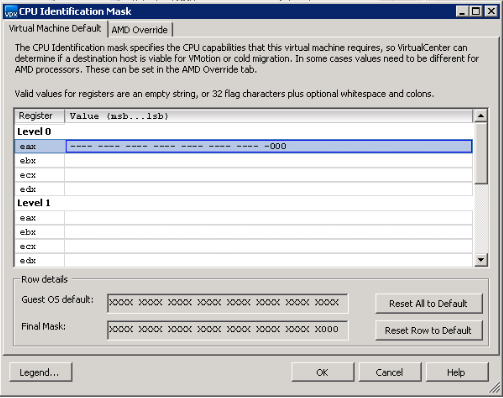
Today I received a question in my mailbox about setting the CPU Identification Mask on Multiple VM’s. The guy who asked the question wanted to set the following values:

image

So I started to search on the VMware Communities and I found the following function.

# Mask SSE 4.1 Extensions to the guest.
function Mask-Extensions($vm) {
    $view = get-view $vm.id

    $vmConfigSpec = new-object VMware.Vim.VirtualMachineConfigSpec
    $featureMask = new-object VMware.Vim.VirtualMachineCpuIdInfoSpec
    $featureMask.info = new-object VMware.Vim.HostCpuIdInfo

    $featureMask.info.ecx = "---- ---- ---- 0--- ---- ---- ---- ----"
    $featureMask.info.level = 1

    $vmConfigSpec.CpuFeatureMask = $featureMask

    $view.ReconfigVM($vmConfigSpec)
}

I changed it a little bit, so it matches the required settings (see picture above):

function Mask-Extensions($vm) {

    $view = get-view $vm.id
    write-host "Setting Mask for: "$vm.Name

    $vmConfigSpec = new-object VMware.Vim.VirtualMachineConfigSpec
    $featureMask = new-object VMware.Vim.VirtualMachineCpuIdInfoSpec
    $featureMask.info = new-object VMware.Vim.HostCpuIdInfo
    $featureMask.info.eax = "-----------------------------000"
    $featureMask.info.level = 0

    $vmConfigSpec.CpuFeatureMask = $featureMask

    $view.ReconfigVM($vmConfigSpec)
}

If you want to run this function against one VM, You can run the following command:

Mask-Extensions (get-vm "My VM")

You can also use this function in the pipeline:

get-vm | % {Mask-Extensions ($_)}


Source: http://communities.vmware.com/message/960123#960123

PowerCLI: Set Custom Fields


 image

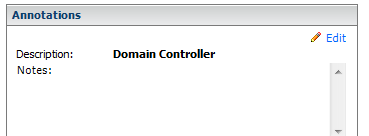
Last week I posted a script to add Notes to a VM. After posting this script there was a little discussion on Twitter with @vmdoug, @gabvirtualworld if the Notes field is the right field to add this kind of information. So @vmdoug introduced me to the world of Custom Fields.

So I changed my CSV file and added the Field entry. This Field entry will be de name of your custom field. In my case I called it Description.

VMName,Field,Note
DC01,Description,Domain Controller
VC01,Description,vCenter Server

 
The following one-liner will fix this for you:

Import-Csv
"D:\*.csv" | % { Get-VM $_.VMName |
Set-CustomField -Name $_.Field -Value $_.Note -Confirm:$false }

After running the script you will see the Description field with a new entry:

image 

This one-liner will run very slow on a Large environment. So if you have large environment you should definitely check out LucD post on Alan Renouf’s Blog:  http://www.virtu-al.net

PowerCLI: Add Notes To Multiple VM’s


image

My colleague asked me to add some notes to the VM’s so he knows what this VM is doing. So this is a nice job for PowerCLI 🙂 . In this post you will see how powerful PowerCLI /Powershell is.  With only one line of code (one-liner),  you are able to achieve this job.

First you have to create a CSV file with the following entry’s:

VMName,Note
VM1,Domain Controller
VM2,Database Server

The second step is to run this one-liner. The one-liner will add the Notes:

Import-Csv "D:\*.csv" | % { Set-VM $_.VMName -Description $_.Note -Confirm:$false}

When the one-liner is ready, you will find the Notes in the vSphere Client:

image

Note: This script will overwrite the existing Notes, so use it at your own risk!

PowerCLI: Fast vMotion script with GUI


image

Gabrie dropped the following message on Twitter:

@gabvirtualworld *sigh* Why do I always have to reselect the resource pool when migrating VMs? Now I can’t move multiple VMs at once when in diff pools.

Well I felt the same about this. For the people who don’t know what Gabrie means whit his tweet, I will add two screenshots to explain it. When you start the Migrate (VMotion) task, You need to select what kind of migration you want to do. I choose the Change host option:

image

If you want to migrate multiple VM’s then I think you will find the next screen as annoying as I and Gabrie find it.

image

So to get rid of this annoying option. I created a script with an UI to VMotion multiple VM’s at the same time. Note: You can only VMotion  to one Selected host.

This is a printscreen of the GUI of the script:

image

I created a movie of the script in action:

You can download the script here: http://poshcode.org/1220

Gabrie thanks for testing the script!