PowerCLI: Find and Set the Service Console Memory value


image

Last year I wrote a blog post about changing the COS memory. You can find the post here: https://ict-freak.nl/2008/11/26/vmware-service-console-memory/ (it’s written in Dutch). In that post there is already a one-liner made by LucD butt in this post you’ll get an extra one-liner to determine the COS memory value.

If you want to see how much memory is allocated for the Service Console run the next script:

Get-VMHost | Sort Name | Get-View | Select Name, `
@{N="Service Console Memory";E= {"" + `
[math]::round($_.Config.ConsoleReservation.ServiceConsoleReserved / 1MB, 0) + " MB "}}


Just add | Export-Csv -NoTypeInformation "D:\cosmem.csv" to export the data to a CSV file.

The output will look like this:

image

The script/one-liner:

Get-VMHost | Get-View | % { 
$_.Name | Where { $_.Config.ConsoleReservation.ServiceConsoleReserved -eq "314572800" }
(Get-View -Id $_.ConfigManager.MemoryManager).ReconfigureServiceConsoleReservation(800*1mb) }
 

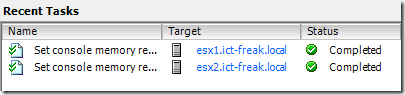
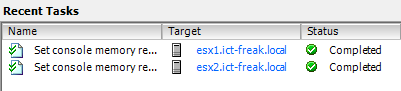
You can monitor the changes in vCenter:

image 

More information about the maximum values can be found here:  vsp_40_config_max.pdf.

The maximum value for the COS Memory is 800MB so that’s what the script will use to set the COS memory.

Note: You have to restart the server to apply the changes.

PowerCLI: Upgrading vHardware to vSphere Part 2: VM’s


image

Disclaimer: use this script at your own risk 😉

In part 1 you could find a script to upgrade your templates to hardware version 7. In this post you’ll find a script that will upgrade your VM’s to hardware version 7.

Note: This script will upgrade the VMware Tools if necessary and will shutdown the VM!!!!!

You can download the script here: upgrade-vhardware_vm and here: http://poshcode.org/1217

The script will perform the following actions:

  • Connect to vCenter
  • Get all the VM’s in the folder you need to specify
  • Create a CSV file with some info about the VM. I will post the content later.
  • Update the VMware Tools if necessary (The VM will restart after the installation)
  • Shutdown the VM
  • Upgrade the vHardware to version 7
  • Start the VM
  • Create an Excel sheet with an overview of the VM’s and their IP settings

During the process of the script, the VM will be unavailable for 5 minutes or less. So be sure that nobody uses the VM.

The beforeHWchange.csv will look like this:

image

The script in action:

image

The last step, the creation of an Excel sheet with an overview of the VM’s. Here you can see if the IP Address is changed or not.

image

To do list:

  • Create a proper VM report function (export to csv) so I can capture multiple network adapters.
  • Create a before Excel sheet with a nice overview of the environment.

PowerCLI: Two “vHardware” One-Liners


image

The first one-liner will return all the Virtual Machines which are not upgraded to vSphere yet.

Get-View -ViewType VirtualMachine | Where-Object `
{-not $_.config.template -and $_.Config.Version -eq "vmx-04" } | Select Name

The second one-liner will return all the Virtual Machines which are not upgraded to vSphere and where the VMware Tools are not upgraded.

Get-View -ViewType VirtualMachine | Where-Object `
{-not $_.config.template -and $_.Config.Version -eq "vmx-04"`
-and $_.Guest.ToolsVersion -lt "8193"} | Select Name


Update: If you want to count the Virtual Machines then you can run this one-liner:

(Get-View -ViewType VirtualMachine | Where-Object `
{-not $_.config.template -and $_.Config.Version -eq "vmx-04"`
-and $_.Guest.ToolsVersion -lt "8193"} | Select Name).Count


These two one-liners are part of a much bigger script. So keep an eye on http://ict-freak.nl 😉

PowerCLI: Add multiple values to a VMX file


image

@bjornbats asked me if I knew a way to add multiple values to a VMX file via PowerCLI. I remembered a blog post from Carter at http://blogs.vmware.com/vipowershell/ about this subject. So I tested the code and changed it a little bit. Now you can create a CSV file with the Keys and Values you want to change and the script will add them to the VMX file.

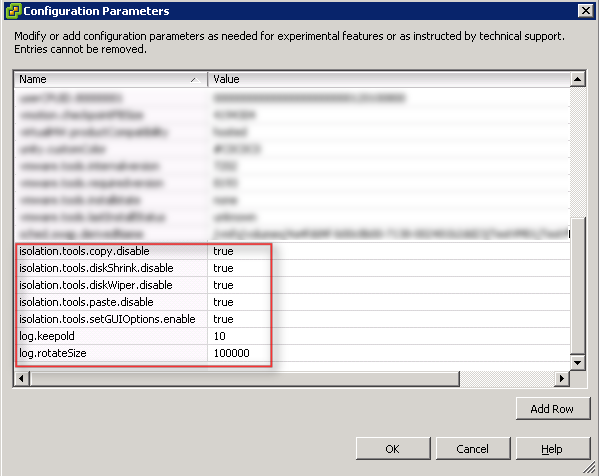
The CSV file I used looks like this:

Key,Value
isolation.tools.copy.disable,true
isolation.tools.diskShrink.disable,true
isolation.tools.diskWiper.disable,true
isolation.tools.paste.disable,true
isolation.tools.setGUIOptions.enable,true
log.keepOld,10
log.rotateSize,100000

The script below will add the entry’s from the CSV file to every VMX file, even when the VM is still running. I don’t know if you need to reboot the VM to apply the changes. So if someone can test that for me, please leave a comment with the results.

$vCenter = Read-Host "Enter your vCenter servername"
Connect-VIServer $vCenter

$import = Import-Csv "C:\Scripts\PS\vmxsettings.csv"

$vms = Get-View -ViewType VirtualMachine | where {-not $_.config.template}

$vmConfigSpec = New-Object VMware.Vim.VirtualMachineConfigSpec

    foreach($item in $import){

        $extra = New-Object VMware.Vim.optionvalue
        $extra.Key=$item.Key
        $extra.Value=$item.Value
        $vmConfigSpec.extraconfig += $extra
    }

    foreach($vm in $vms){

        $vm.ReconfigVM($vmConfigSpec)
    }

Disconnect-VIServer –Confirm:$false

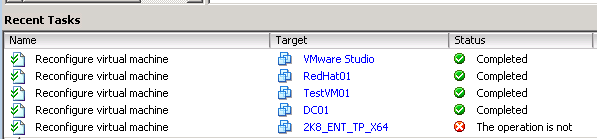
When you start the script, you will notice that vCenter is very busy reconfiguring the virtual machines:

image

You will notice The operation is not… warning in the recent tasks window. This is because the Get-View -ViewType VirtualMachine will also add the Templates.

And here you can see the added lines into your VMX file:

image

PowerCLI: Change VMware Tools Options


image

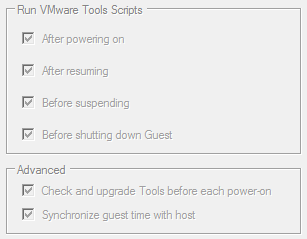
In this post you will learn how to change the VMware Tools settings in the Options menu which you can find in the vSphere Client:

image

You can enable or disable these features via the following PowerCLI script:

$vCenter = Read-Host "Enter vCenter Server name"

Connect-VIServer $vCenter

$vmConfigSpec = New-Object VMware.Vim.VirtualMachineConfigSpec
$vmConfigSpec.Tools = New-Object VMware.Vim.ToolsConfigInfo
$vmConfigSpec.Tools.AfterPowerOn = $true
$vmConfigSpec.Tools.AfterResume = $true
$vmConfigSpec.Tools.BeforeGuestStandby = $true
$vmConfigSpec.Tools.BeforeGuestShutdown = $true
$vmConfigSpec.Tools.SyncTimeWithHost = $true
$vmConfigSpec.Tools.ToolsUpgradePolicy = "Manual" # "UpgradeAtPowerCycle"

Get-VM | % { (Get-View $_.ID).ReconfigVM($vmConfigSpec)}

Disconnect-VIServer -Confirm:$false


Just change the $true values to $false if you want to disable the feature. If you want to change the Tools Upgrade Policy to Upgrade at startup just remove "Manual" # and it should change the Policy.

This is what you see when the VM is still active:

image image

This script will change the configured settings on All the VM’s.  If you want to change the settings on a particular VM just change Get-VM into Get-VM vmname

PowerCLI: Generate an Excel sheet with VM info


image

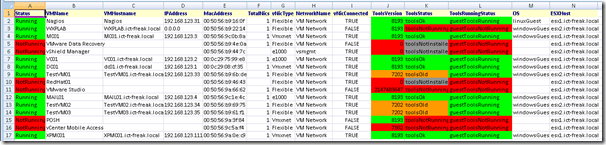
The following script is part of another script but I wanted to show you some nice Powershell stuff in combination with Microsoft Excel.

This script will generate an Excel sheet with some VM information. It will color the cell red if the Powerstate equals to NotRunning.

$vCenter = Read-Host "Enter your vCenter servername"

Connect-VIServer $vCenter

$xlCSV = 6
$xlXLS = 56
$csvfile = "C:\beforeHWchange.csv"
$xlsfile = "C:\beforeHWchange.xls"

$Excel = New-Object -ComObject Excel.Application
$Excel.visible = $True
$Excel = $Excel.Workbooks.Add()

$Sheet = $Excel.Worksheets.Item(1)
$Sheet.Cells.Item(1,1) = "Status"
$Sheet.Cells.Item(1,2) = "VMName"
$Sheet.Cells.Item(1,3) = "VMHostname"
$Sheet.Cells.Item(1,4) = "IPAddress"
$Sheet.Cells.Item(1,5) = "MacAddress"
$Sheet.Cells.Item(1,6) = "TotalNics"
$Sheet.Cells.Item(1,7) = "vNicType"
$Sheet.Cells.Item(1,8) = "NetworkName"
$Sheet.Cells.Item(1,9) = "vNicConnected"
$Sheet.Cells.Item(1,10) = "ToolsVersion"
$Sheet.Cells.Item(1,11) = "ToolsStatus"
$Sheet.Cells.Item(1,12) = "ToolsRunningStatus"
$Sheet.Cells.Item(1,13) = "OS"
$Sheet.Cells.Item(1,14) = "ESXHost"

$intRow = 2

$WorkBook = $Sheet.UsedRange
$WorkBook.Interior.ColorIndex = 19
$WorkBook.Font.ColorIndex = 11
$WorkBook.Font.Bold = $True


#$vms = Get-Folder Lab | Get-VM
$vms = Get-VM

foreach($vm in $vms){

  $vmnic = Get-NetworkAdapter -VM $vm
  $vmview = get-VM $vm | Get-View

if($vm.Guest.State -eq "NotRunning"){
  $Sheet.Cells.Item($intRow, 1) = [String]$vm.Guest.State
  $Sheet.Cells.Item($intRow, 1).Interior.ColorIndex = 3
}
elseif($vm.Guest.State -eq "Unknown"){
  $Sheet.Cells.Item($intRow, 1) = [String]$vm.Guest.State
  $Sheet.Cells.Item($intRow, 1).Interior.ColorIndex = 48
}
else{
  $Sheet.Cells.Item($intRow, 1) = [String]$vm.Guest.State
  $Sheet.Cells.Item($intRow, 1).Interior.ColorIndex = 4
}

$Sheet.Cells.Item($intRow, 2) = $vmview.Name 
$Sheet.Cells.Item($intRow, 3) = $vmview.Guest.HostName
$Sheet.Cells.Item($intRow, 4) = [String]$vm.Guest.IPAddress
$Sheet.Cells.Item($intRow, 5) = $vmnic.MacAddress
$Sheet.Cells.Item($intRow, 6) = $vmview.Guest.Net.Count
$Sheet.Cells.Item($intRow, 7) = [String]$vmnic.Type
$Sheet.Cells.Item($intRow, 8) = $vmnic.NetworkName 
$Sheet.Cells.Item($intRow, 9) = $vmnic.ConnectionState.Connected

if($vmview.Config.Tools.ToolsVersion -eq "8193"){
  $Sheet.Cells.Item($intRow, 10) = [String]$vmview.Config.Tools.ToolsVersion
  $Sheet.Cells.Item($intRow, 10).Interior.ColorIndex = 4
}
else{
  $Sheet.Cells.Item($intRow, 10) = [String]$vmview.Config.Tools.ToolsVersion
  $Sheet.Cells.Item($intRow, 10).Interior.ColorIndex = 3
}

if($vmview.Guest.ToolsStatus -eq "toolsNotInstalled"){
  $Sheet.Cells.Item($intRow, 11) = [String]$vmview.Guest.ToolsStatus
  $Sheet.Cells.Item($intRow, 11).Interior.ColorIndex = 48

}
elseif($vmview.Guest.ToolsStatus -eq "toolsNotRunning"){
  $Sheet.Cells.Item($intRow, 11) = [String]$vmview.Guest.ToolsStatus
  $Sheet.Cells.Item($intRow, 11).Interior.ColorIndex = 3    
}
elseif($vmview.Guest.ToolsStatus -eq "toolsOld"){
  $Sheet.Cells.Item($intRow, 10) = [String]$vmview.Config.Tools.ToolsVersion
  $Sheet.Cells.Item($intRow, 10).Interior.ColorIndex = 45
  $Sheet.Cells.Item($intRow, 11) = [String]$vmview.Guest.ToolsStatus
  $Sheet.Cells.Item($intRow, 11).Interior.ColorIndex = 45    
}
else{
  $Sheet.Cells.Item($intRow, 11) = [String]$vmview.Guest.ToolsStatus
  $Sheet.Cells.Item($intRow, 11).Interior.ColorIndex = 4
}    

if($vmview.Guest.ToolsRunningStatus -eq "guestToolsRunning"){
  $Sheet.Cells.Item($intRow, 12) = $vmview.Guest.ToolsRunningStatus
  $Sheet.Cells.Item($intRow, 12).Interior.ColorIndex = 4
}
else{
  $Sheet.Cells.Item($intRow, 12) = $vmview.Guest.ToolsRunningStatus
  $Sheet.Cells.Item($intRow, 12).Interior.ColorIndex = 3
}

$Sheet.Cells.Item($intRow, 13) = $vmview.Guest.GuestFamily
$Sheet.Cells.Item($intRow, 14) = $vm.Host.Name

$intRow = $intRow + 1}

$WorkBook.EntireColumn.AutoFit()

sleep 5

$Sheet.SaveAs($xlsfile,$xlXLS)
$Sheet.SaveAs($csvfile,$xlCSV) 

Disconnect-VIServer -Confirm:$false


The output will look like this:
image

PowerCLI: Upgrading vHardware to vSphere Part 1: Templates


image

With the release of vSphere VMware introduced a new hardware level for VM’s. De upgrade process to the new hardware level is already described on Scott Lowe’s blog: http://blog.scottlowe.org/2009/06/01/vsphere-virtual-machine-upgrade-process/.

I wanted to see if I could script this process with PowerCLI. My first goal was to upgrade al my templates. So I created the following script: http://poshcode.org/1214

Upgrade-vHardware_Templates

The script does the following:

  • Export template names to CSV
  • Convert templates back to VM’s
  • Check the vHardware version of the VM. If the hardware version is version 4 start the VM
  • When the VM is ready check the VMware Tools version. If the VMware Tools are old, the script will install the new version.
  • When the VMware Tools are Ok the VM gets a shutdown.
  • When the VM is down, the vHardware will be upgraded
  • The final step is converting the VM back to a template.

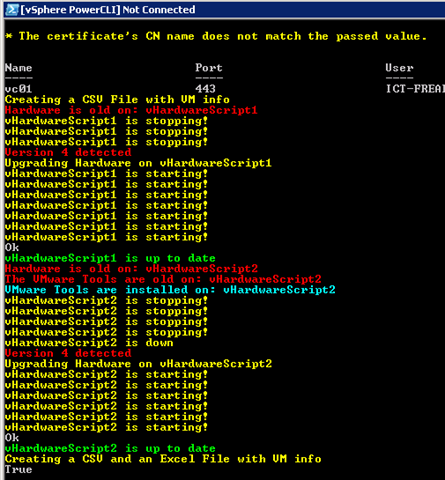
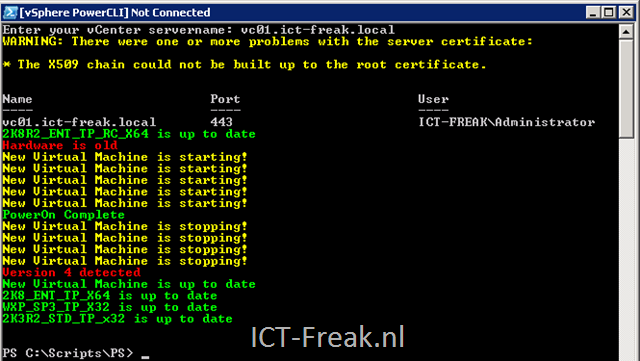
The following output will be shown at the PowerCLI console:

image

The next step will be the upgrade process of a regular VM. But for this process a need to capture the ip-address upgrade the vHardware and restore the ip-address into the VM. When I am finished with that part I am going to post Part 2.

PowerCLI: Inventory VM Hardware version


image

With the release of vSphere we also got a new Hardware version of the VM. I created a PowerCLI script to inventory the VM’s, which are not upgraded yet.

Get-VM |% {Get-View $_.ID} |`

% {
$vmVersion = $_.Config.Version
$vmName = $_.Name

    if ($vmVersion -eq "vmx-04"){
        Write-Host $vmName "uses hardware version 4" 
    }
}

Disconnect-VIServer -Confirm:$false


The output will look like this:

image

PowerCLI: Export VM Memory Limits to csv


image

I wanted to see how the memory limits are configured in my VI3 environment. You can do this via the VIC, but you can also do it via a PowerCLI script and export it to a csv file.

Copy the script and run it. The script will ask you to enter the vCenter server and a path to save the csv file (like c:\temp\memlimits.csv).

$vCenter = Read-Host "Enter vCenter Server"
$csvFile = Read-Host "Enter csv file"

Connect-VIServer $vCenter

Get-VM | sort name | % { $vm = $_ | Get-View ; $vm | select `
    @{ Name = "VM Name"; Expression ={ $vm.Name }},`
    @{ Name = "Memory in MB"; Expression ={ $vm.Config.Hardware.MemoryMB }},`
    @{ Name = "Memory Limits in MB"; Expression ={ $vm.Config.MemoryAllocation.Limit }}`
    } | Export-Csv -NoTypeInformation $csvFile

Invoke-Item $csvFile

Disconnect-VIServer -Confirm:$false

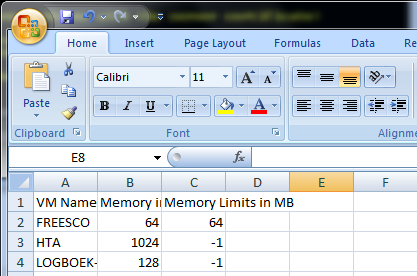
The output will look like this:

image

PowerCLI: Set VM Startup Policy


image

Update: I added a little script block which enables the Startup Policy on the ESX Host.

If you want to change the VM Startup Order under Configuration – Virtual Machine Startup/Shutdown by hand will costs you a lot of time. So I wanted to see if I was able to script these settings with PowerCLI.

You can check the Startup Order via:  Get-VMHost |Get-VMStartPolicy |Sort StartOrder

And this is how you can see if the Startup Policy is enabled: Get-VMHostStartPolicy              -VMHost ( Get-VMHost )

image

First, I created a CSV file:

VMName,StartupOrder

DC01,1

MC01,2

VC01,3

MAIL01,4

XPMC01,5


In this CSV file, I have entered my VM’s and the startup order value. I have tested it with multiple servers and it’s possible to enter two VM’s with the same StartupOrder value if the VM’s are placed on different ESX Hosts.

The following script imports the CSV file and loops through all the items and configures the VM Startup Policy:

$vCenter = Read-Host "Enter the vCenter server name"

Connect-VIServer $vCenter

$hosts = Get-VMHostStartPolicy -VMHost (Get-VMHost)
$vms = "c:\scripts\ps\vmsStartup.csv"
$csv = Import-CSV $vms

foreach($item in $csv){
    $vm = $item.VMName
    $order = $item.StartupOrder

    $vmStartup = Get-VMStartPolicy -VM $vm
    Set-VMStartPolicy -StartPolicy $vmStartup `
        -StartAction PowerOn -StartOrder $order 

}

foreach($esx in $hosts){
    Set-VMHostStartPolicy -VMHostStartPolicy $esx -Enabled:$true
    }

Disconnect-VIServer -Confirm:$false


I created a short movie about the script in action: