vCenter 4.0 and SQL 2008 as a Database server


image

Last week I had to install a vCenter 4.0 server with a database on a SQL 2008 x64 server. Before you can connect to the SQL 2008 x64 you have to install the new SQL server 2008 Native client. You can find it here:

Download and install the package:

image

In my earlier post about how to create an ODBC connection to use with vCenter 4 on a x64 version of Windows 2008. You already read about the “special” way of starting the ODBC data Source Administrator. Start it via: Start –Run – %systemdrive%\Windows\SysWoW64\Odbcad32.exe. The next step is to select the new Native Client version 10.0

image 
The rest of the stuff is still the same 😉

vSphere: False alarms on high VM Memory usage in vCenter 4.0


image

Since the upgrade to vCenter 4.0 and ESX 4.0 we got a lot of false alarms on VM memory usage. If you take a look in the advanced performance tab, at VM level. You’ll see that the VM is using all the assigned memory. When you take a look on the host OS, you’ll see that there is less memory usage then vCenter reports to you. I asked on Twitter if anyone else had seen this behavior before. @DuncanYB responded with a post, which he did earlier this year.  

So with the information from @DuncanYB I started a search at http://kb.vmware.com/ and found the following KB article: http://kb.vmware.com/kb/1014019. This article describes one of the symptoms that apply on our environment:

Summaries and Symptoms

Issues fixed in this patch (and their relevant symptoms, if applicable) include:

  • Fixes an issue where a guest operating system’s memory usage might be overestimated on Intel systems that support EPT technology or AMD systems that support RVI technology. This issue might cause the memory alarms in vCenter to go off spuriously even if the guest is not actively accessing a lot of memory.
  • Fixes an issue where DVFilter API’s fail for particular message types during message reordering.
  • Fixes an issue where DVfilter socket reads might fail if zero bytes are returned due to a connection close.
  • Fixes an issue with a DVFilter API where ESX might fail if a guest operating system is moved from one vswitch port to another. This fix allows dropping frames which are accidentally or maliciously posted to a different portset.
  • Fixes an issue where incorrect SysAlert() messages might be displayed on certain systems if the number of cache colors is not calculated correctly.
  • Fixes an issue with monitor or vmkernel crashing when running certain guest operating systems with a 32-bit monitor running in binary translation mode.
Deployment Considerations

BEFORE INSTALLING THIS PATCH: If you have set Mem.AllocGuestLargePage to 0 to workaround the high memory usage issue detailed in the Summaries and Symptoms section, undo the workaround by setting Mem.AllocGuestLargePage to 1.

I installed the patch on a Cluster whit this problem. After the installation of the patch mentioned in the KB article above, vCenter keeps sending false alarms. After a short search on the vmtn communities I found the following post of Paul1

I go to the Top-Level in Vcenter, klick "Alarms" and than "Definitions". Edit one of the definitions (don’t change anything) and then save it. After this the old alarms was gone in my environment

After “changing” the VM Memory Alarm definition, vCenter stops sending out false alarms.

My vCenter Orchestrator Installation Notes


image 

In this post I will share my vCenter Orchestrator Installation Notes.  For the people who doesn’t know what vCenter Orchestrator is, click on the next url: http://www.vmware.com

Before you can install the vCenter Orchestrator service, you have to configure a database first. For this job a created a script. You can use the following lines to create a database on SQL 2005 server:

CREATE DATABASE VCO;
GO
CREATE LOGIN [VCOUSER] WITH PASSWORD=’vmware’, DEFAULT_DATABASE=[VCO], CHECK_EXPIRATION=OFF, CHECK_POLICY=OFF
GO

USE VCO
GO
EXEC sp_grantdbaccess [VCOUSER]
GO
EXEC sp_addrolemember ‘db_owner’, [VCOUSER]
GO
EXEC sp_addsrvrolemember [VCOUSER] ’sysadmin’
GO

Joep has posted his installation notes here: http://www.virtuallifestyle.nl so I was curious about the product and wanted to see if I could install it. So with Joep his post as a reference I tried to install the product. I tried to find the vCenter Orchestartor Configuration service. But I could not find it.

After installation, open the Microsoft Services tool to enable the ‘VMware vCenter Orchestrator Configuration’ service. I recommend it to start every time the OS starts up, i.e. ‘Automatic’. Start it manually as well to start working with Orchestrator immediately

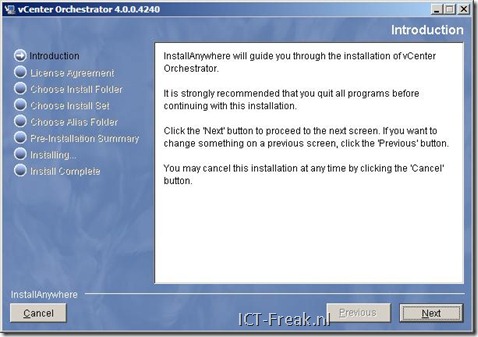
So I mounted the vCenter 4 cd-rom and installed the vCenter Orchestrator via:

<cd-rom>\vpx\vmo\vCenterOrchestrator.exe
orchestrator_1

When the installation is finished, open Services.msc and check if the vCenter VMware vCenter Orchestrator Configuration is started. If this is not the case, set the service to start automatic and start the service.  When the vCenter Orchestrator Configuration service is started, Start the vCenter Orchestrator Web Configuration service.

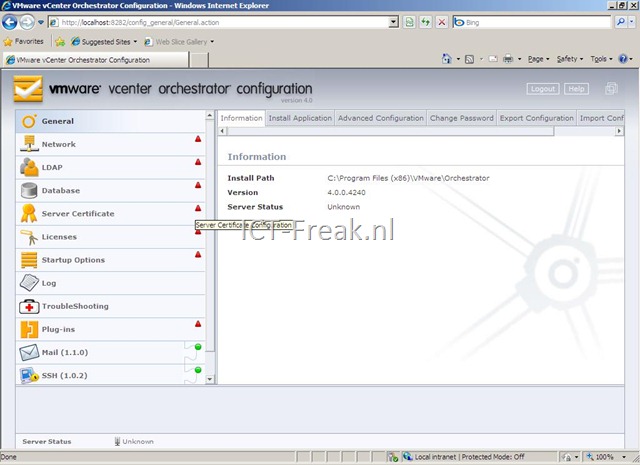
Now it’s time to configure the vCenter Orchestrator. Open a browser and go to http://vco-server:8282. Login with the default credentials: username vmware and password vmware.orchestrator_3
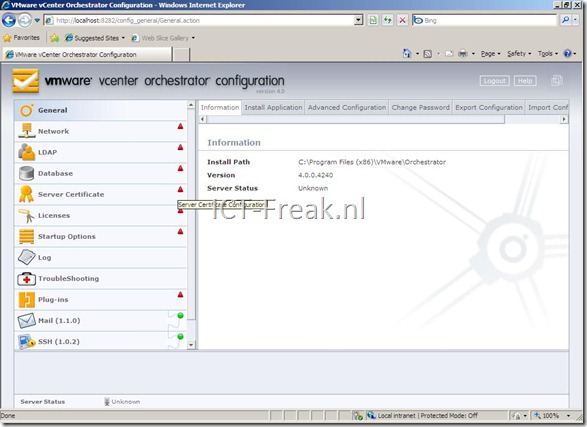
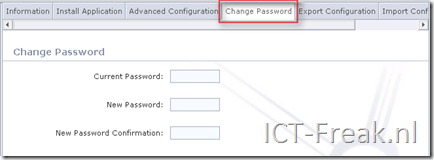
Change the default password. Go to General and press on the tab Change Password:
image

Click on Network to configure network settings. Select the IP Address of your vCenter server.

 image

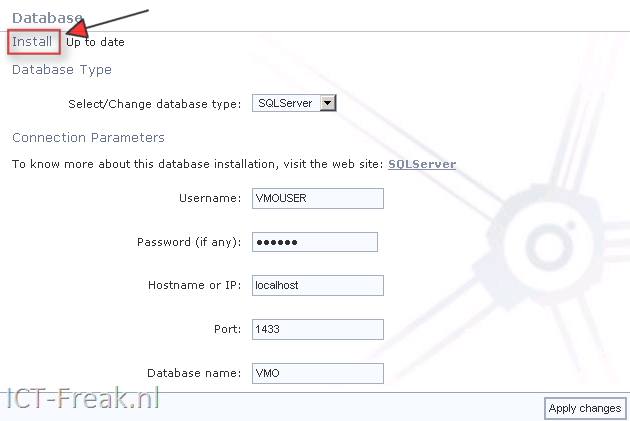
Click on Database to configure your database. Configure the Database connection settings and press install database. Click on Apply changes.

image

The rest of the setup can you read in Joep his post: http://www.virtuallifestyle.nl

VMware: Remove Snapshot stuck at 95%


 image

This morning a woke up and grabbed my BlackBerry to see if there was any news (mail / twitter). The first e-mail I read was one from our monitoring system that one of the VM’s did not respond anymore. So I started a remote session and logged on to vCenter. There I saw a running task which was running since last night :-S.

image

These are the steps I took to solve this issue:

  1. Connect to the ESX Host via SSH.
  2. Run this command Service mgmt-vmware restart to restart the service
  3. If the VM is still okay then you don’ t have to restart the ESX Host, otherwise restart the ESX Host.
  4. Open the snapshot manager of the VM and create a new snapshot
  5. Now delete all snapshots
  6. Poweron the VM


I want to thank @Depping, @diederikm, @laurensdekoning and @sanderdaems for pointing me in the right direction.

Release: vCenter 2.5 Update 5


image

Be sure to read the release notes: vi3_vc25u5_rel_notes.html especially the Know Issues: vi3_vc25u5_rel_notes.html#knownissues 

What’s new:

Support for High Consolidation in VMware HA Clusters – VirtualCenter 2.5 Update 5 includes significant performance and scalability improvements to VMware HA. Use VirtualCenter 2.5 Update 5 for environments with more than 35 virtual machines per host in an HA cluster.
For information on the ESX Server host settings required for this scalability improvement, see ESX Server host settings required for environments with up to 80 virtual machines per host in an HA Cluster (KB 1012002).

You can download the new version here: http://www.vmware.com/download/vi/

vCenter 4 on Windows x64 and 32 bit DSN


image

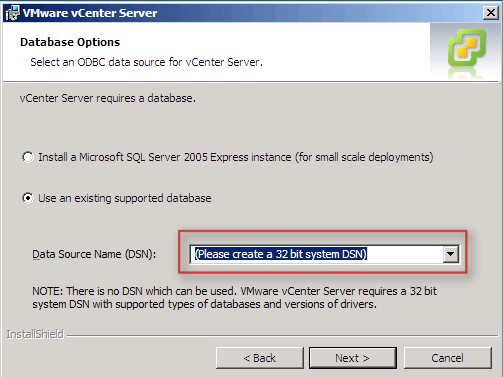
Today I installed a Windows Server 2008 x64 VM to use as vCenter 4 server. Everything went fine until the DSN option gave me the (Please create a 32 bit system DSN) message.

image

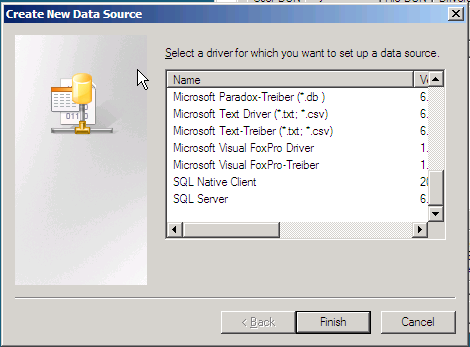
I created the DSN via: Start – Run – msodbcad32. The weird thing I noticed was the small amount of options available, only two as you can see in the picture below.

image 

To solve this issue, start Odbcad32.exe from the following location %systemdrive%\Windows\SysWoW64\Odbcad32.exe instead of Start –Run – Odbcad32.

Now we have the options we need:

image

Create a new system DSN for vCenter and vCenter Update Manager. Start the vCenter installer and select the right DSN:

image

More information about this issue can be found in: KB942976


Source: http://www.vmwarewolf.com/32-bit-odbc-dsn-for-vsphere/

PowerCLI: Set VM Startup Policy


image

Update: I added a little script block which enables the Startup Policy on the ESX Host.

If you want to change the VM Startup Order under Configuration – Virtual Machine Startup/Shutdown by hand will costs you a lot of time. So I wanted to see if I was able to script these settings with PowerCLI.

You can check the Startup Order via:  Get-VMHost |Get-VMStartPolicy |Sort StartOrder

And this is how you can see if the Startup Policy is enabled: Get-VMHostStartPolicy              -VMHost ( Get-VMHost )

image

First, I created a CSV file:

VMName,StartupOrder

DC01,1

MC01,2

VC01,3

MAIL01,4

XPMC01,5


In this CSV file, I have entered my VM’s and the startup order value. I have tested it with multiple servers and it’s possible to enter two VM’s with the same StartupOrder value if the VM’s are placed on different ESX Hosts.

The following script imports the CSV file and loops through all the items and configures the VM Startup Policy:

$vCenter = Read-Host "Enter the vCenter server name"

Connect-VIServer $vCenter

$hosts = Get-VMHostStartPolicy -VMHost (Get-VMHost)
$vms = "c:\scripts\ps\vmsStartup.csv"
$csv = Import-CSV $vms

foreach($item in $csv){
    $vm = $item.VMName
    $order = $item.StartupOrder

    $vmStartup = Get-VMStartPolicy -VM $vm
    Set-VMStartPolicy -StartPolicy $vmStartup `
        -StartAction PowerOn -StartOrder $order 

}

foreach($esx in $hosts){
    Set-VMHostStartPolicy -VMHostStartPolicy $esx -Enabled:$true
    }

Disconnect-VIServer -Confirm:$false


I created a short movie about the script in action:

VMware: Determining the correct version of sysprep to use


image `

A quote from KB1005593 

This article assumes that you have extracted the contents of the sysprep deploy.cab file to the directory C:\sysprep on the VirtualCenter Server host. You must substitute the actual directory in the instructions below.

  1. Log in to the VirtualCenter Server as Administrator.

  2. Click Start > Programs > Accessories > Windows Explorer.

  3. Navigate to the C:\sysprep directory.

  4. Right-click on the sysprep.exe file and choose Properties.

  5. Click the Version tab. Record the number at the top next to "File Version:"

The following list is a copy from: KB1005593. The list is sorted on Windows version, Download link and vCenter location.

Windows 2000 Server SP4 with Update Rollup 1

http://www.microsoft.com/downloads/details.aspx?FamilyID=0c4bfb06-2824-4d2b-abc1-0e2223133afb

C:\Documents and Settings\All Users\Application Data\VMware\VMware VirtualCenter\sysprep\1.1

Windows XP Pro SP2

http://www.microsoft.com/downloads/details.aspx?FamilyId=3E90DC91-AC56-4665-949B-BEDA3080E0F6

C:\Documents and Settings\All Users\Application Data\VMware\VMware VirtualCenter\sysprep\xp

Windows 2003 Server SP1

http://www.microsoft.com/downloads/details.aspx?familyid=A34EDCF2-EBFD-4F99-BBC4-E93154C332D6

C:\Documents and Settings\All Users\Application Data\VMware\VMware VirtualCenter\sysprep\svr2003

Windows 2003 Server SP2

http://www.microsoft.com/downloads/details.aspx?FamilyID=93f20bb1-97aa-4356-8b43-9584b7e72556

C:\Documents and Settings\All Users\Application Data\VMware\VMware VirtualCenter\sysprep\svr2003

Windows 2003 Server R2

http://www.microsoft.com/downloads/details.aspx?familyid=A34EDCF2-EBFD-4F99-BBC4-E93154C332D6

C:\Documents and Settings\All Users\Application Data\VMware\VMware VirtualCenter\sysprep\svr2003

Windows 2003 x64

http://www.microsoft.com/downloads/details.aspx?familyid=C2684C95-6864-4091-BC9A-52AEC5491AF7&displaylang=en
C:\Documents and Settings\All Users\Application Data\VMware\VMware VirtualCenter\sysprep\svr2003-64


Windows XP x64
http://www.microsoft.com/downloads/details.aspx?familyid=C2684C95-6864-4091-BC9A-52AEC5491AF7&displaylang=en
C:\Documents and Settings\All Users\Application Data\VMware\VMware VirtualCenter\sysprep\xp-64

VMware: Troubleshooting ESX Server


image

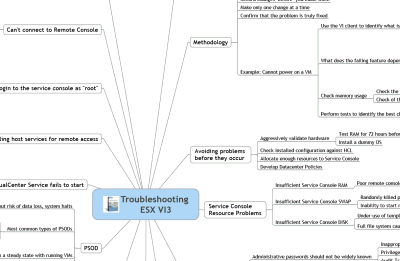
While reading my rss feeds in Feedreader, I saw this article:  http://www.virtualinsanity.com/index.php/2009/04/21/troubleshooting-esx/

I was at the Louisville VMUG on Friday talking about Troubleshooting ESX.  In my preparation for the event, I was looking for a good PowerPoint presentation I could reuse and I stumbled across a sweet little gem of a document.  Dudley Smith, a VMware Technical Account Manager (TAM) out of Virginia, created a cool one page Mind Map for Troubleshooting ESX.  Does it address every potential issue you’ll come across?  No, of course not.  But it’s a heck of a good place to start.  One look at his Mind Map and I thought to myself, “that would be a great thing to have printed out and hanging over every VMware admin’s desk.
image
image

You can download the pdf’s here:

http://www.virtualinsanity.com/index.php/2009/04/21/troubleshooting-esx/

VMware: vCenter 2.5 u4 released


VMware just released vCenter server 2.5 u4 with the following improvements:

  • Guest Operating System Customization Improvements – VirtualCenter now supports customization of Windows Server 2008 guest operating systems.
  • Performance Overview Charts – VirtualCenter 2.5 Update 4 introduces the Performance Overview plug-in, which provides a single view of key performance metrics for CPU, memory, disk, and network without having to navigate through multiple charts. The aggregated charts show high-level summaries of resource distribution.
    To install the Performance Overview plug-in, see Installing the Performance Overview Plug-In in VirtualCenter 2.5 Update4 (KB 1008296)

You can find the release notes here: http://www.vmware.com/support/vi3/doc/vi3_vc25u4_rel_notes.html

The download: http://www.vmware.com/download/download.do?downloadGroup=VC250U4