How to: Upload files to ESX 3.5


In VMware ESX 3.5 is nu het mogelijk om direct via de Datastore bestanden over te zetten naar je ESX server. Voorheen moest je hier software zoals Veeam FastSCP of WinSCP voor gebruiken. Ik heb getest met Veeam FastSCP en deze werkt niet meer met ESX 3.5. Gelukkig kunnen we het nu als volgt doen:

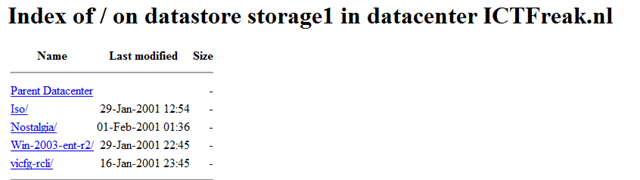
Open de nieuwe VI client. Login op je ESX server of VirtualCenter server. Klik op de host waar je het bestand naar toe wilt sturen, daarna klik je op het tabblad Configuration. De volgende stap is het dubbel klikken op de datastore of rechts klikken en Browse datastore…

 esx35upload_1

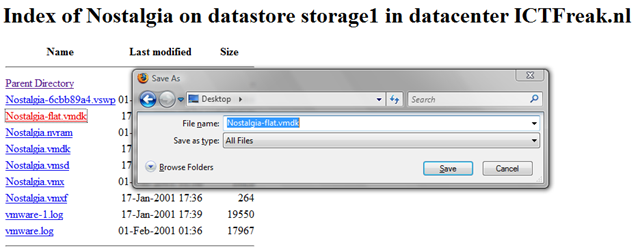
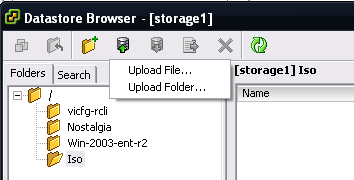
Zoals je ziet zijn er nu een aantal knoppen bij gekomen. Klik op het datastore icoon met het groene pijltje.

esx35upload_2

Ik ga één enkele file uploaden, dus ik kies voor de eerste optie.

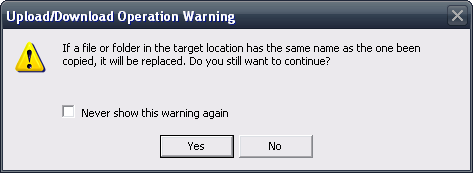
Zodra je een bestand hebt geslecteerd wat naar de ESX server gestuurd moet worden, krijg je de onderstaande waarschuwing.  Dit spreekt voor zich denk ik.

esx35upload_3

Zodra je op Yes geklikt hebt word het bestand naar de esx server gestuurd.

esx35upload_4


Error: Failed to log into NFC server

Als ik deze stappen doe via de VI client remote ingelogt op mijn VirtualCenter server. krijg ik onderstaande error. Log ik op de VirtualCenter server fysiek in. Dan gaat het wel goed.

Voor deze error moet ik nog een oplossing zoeken. Zodra ik deze heb post ik die hier.

esx35upload_error

VMware: Unity in Workstation 6.5


Eric Sloof (http://www.ntpro.nl) en Gabrie van Zanten (http://virtualgabe.wordpress.com) maakten hier al melding van, en zoals het nu eruit ziet komt Unity in Workstation 6.5.

Hier een Quote van http://www.chipx86.com

Unity in Friends and Family

Unity today works in Linux. It’s known to work in Metacity but hasn’t been thoroughly tested in other window managers yet. The basic things you’d expect all work for the most part. The rest will come later.

What works today

  • Windows 2000/XP guest support
  • Shaped windows
  • Dragging windows
  • Resizing windows
  • Minimize/maximize
  • Window stacking (Z-order)
  • Custom mouse cursors
  • Keyboard/mouse support
  • Windows of the same application in the VM can appear as groups in the taskbar like any other app’s windows.

What does not work today

  • Virtual desktops do not work. If you move windows to other desktops, you’ll have problems.
  • Multiple monitors might work but probably won’t.
  • Alt-dragging or otherwise moving a window in a way other than by using the titlebar will cause us to get out of sync.
  • If you attempt to drag a window off-screen, the window manager may block it, but the events will still be sent to the guest. This could cause the window to get “stuck.”
  • Minimizing a window using the taskbar may cause visual oddities.
  • Partially obscured windows may look wrong when in Compiz’s Expose mode or similar modes where all windows are displayed at once.
  • There’s no proper start menu integration. Exit Unity mode to launch new applications or press the Windows key or Control-escape while in a guest application to bring up the guest start menu.

These issues are being addressed for beta 1. In many cases where windows become “stuck,” simply leaving Unity and then going back into it should fix the problem.

VMware: New Whitepapers


VMware heeft wat leesvoer uitgegeven voor het weekend.

Virtual Machine Failure Monitoring

VMware® High Availability (VMware HA) monitors your virtual infrastructure for ESX Server host failures and restarts virtual machines that are interrupted by those failures on alternate hosts. Starting with ESX Server 3.5, VMware HA can also detect and handle the failures of individual virtual machines and respond appropriately based on your specifications.
With this additional functionality, called Virtual Machine Failure Monitoring, VMware HA deals with both host operating system and guest operating system failures.

Download de whitepaper hier: vi3_35_25_vmha.pdf


Firewall Configurations for Backup Clients on ESX Server 3

This document provides information about how to configure connections between different backup software products and VMware® ESX Server 3 hosts. The document explains how to open predefined firewall ports for supported backup products and how to open specific ports from a command line. If the backup product you use requires additional configuration changes to work with ESX Server 3, the document describes any specific steps you need to perform.

Download de whitepaper hier: vi3_35_25_vcb_firewalls.pdf


Round-Robin Load Balancing

VMware® ESX Server 3.5 and ESX Server 3i version 3.5 enhance ESX Server native multipathing by providing experimental support for round‐robin load balancing. This technical note explains how round‐robin load balancing works and how to set it.

Download de whitepaper hier: vi3_35_25_roundrobin.pdf


Configuring and Troubleshooting N-Port ID Virtualization

N‐Port ID Virtualization (NPIV) is an ANSI T11 standard that describes how a single Fibre Channel HBA port can register with the fabric using several worldwide port names (WWPNs). This allows a fabric‐attached N‐port to claim multiple fabric addresses. Each address appears as a unique entity on the Fibre Channel fabric.
The primary source of information on configuring NPIV in a VMware Infrastructure 3 environment is the Fibre Channel SAN Configuration Guide, available on the VMware Web site.
This technical note provides additional details about certain specific NPIV configurations and information on diagnostic techniques that may be helpful as you configure NPIV. It also includes information to help you understand error messages that may appear as you are working with NPIV in a VMware Infrastructure environment.

Download de whitepaper hier: vi3_35_25_npiv_config.pdf


Enabling NetFlow on Virtual Switches

NetFlow is a general networking tool with multiple uses, including network monitoring and profiling, billing, intrusion detection and prevention, networking forensics, and SOX compliance. NetFlow sends aggregated networking flow data to a third‐party collector (an appliance or server). The collector and analyzer report on various information such as the current top flows consuming the most bandwidth in a particular virtual switch, which IP addresses are behaving irregularly, and the number of bytes a particular virtual machine has sent and received in the past 24 hours.

Download de whitepaper hier: vi3_35_25_netflow.pdf


VMware OVF Tool

The Open Virtual Machine Format (OVF) is a virtual machine distribution format that supports sharing virtual machines between products and organizations. The format facilitates the use of virtual appliances, which are preconfigured virtual machines that package applications with the operating system they require. Because OVF runs on multiple platforms, a virtual appliance is ready to run without significant additional configuration.

Download de whitepaper hier: ovf_tool.pdf

VMware: Lots of VMware ESX 3.5 & VC 2.5 links


Eric Siebert heeft het weer voor elkaar. Een super lijst met handige links over ESX 3.5 en VC 2.5

Compatibility & Version Info:
VI3 Key Features & Benefits Summary by Version – http://www.vmware.com/files/pdf/key_features_35.pdf
VMware Infrastructure Compatibility Matrixes – http://vmware.com/pdf//vi3_35/esx_3/r35/vi3_35_25_compat_matrix.pdf
Details of What’s New and Improved In VI3 Version 3.5 – http://www.vmware.com/support/vi3/doc/whatsnew_esx35_vc25.html

Must Read:
RTFM Upgrade guide for ESX 3.5 and VirtualCenter 2.5 – http://www.rtfm-ed.eu/docs/vmwdocs/Appendix_C_What‘s_New_and_Different_in_Vi3-5.pdf

Release Notes/Install, Upgrade and Patch Guide:
ESX Server 3.5 and VirtualCenter 2.5 Release Notes – http://www.vmware.com/support/vi3/doc/vi3_esx35_vc25_rel_notes.html
ESX Server 3 Installation Guide – http://vmware.com/pdf/vi3_35/esx_3/r35/vi3_35_25_installation_guide.pdf
Upgrade Guide – http://vmware.com/pdf/vi3_35/esx_3/r35/vi3_35_25_upgrade_guide.pdf
ESX Server 3 Patch Management Guide – http://vmware.com/pdf/vi3_35/esx_3/r35/vi3_35_25_esxupdate.pdf

Additional documentation:
Configuration Maximums for VMware Infrastructure 3 – http://vmware.com/pdf/vi3_35/esx_3/r35/vi3_35_25_config_max.pdf
Quick Start Guide – http://vmware.com/pdf/vi3_35/esx_3/r35/vi3_35_25_quickstart.pdf
Basic System Administration – http://vmware.com/pdf/vi3_35/esx_3/r35/vi3_35_25_admin_guide.pdf
Virtual Infrastructure Web Access Administrator’s Guide – http://vmware.com/pdf/vi3_35/esx_3/r35/vi3_35_25_web_access.pdf
ESX Server 3 Configuration Guide – http://vmware.com/pdf/vi3_35/esx_3/r35/vi3_35_25_3_server_config.pdf
Resource Management Guide – http://vmware.com/pdf/vi3_35/esx_3/r35/vi3_35_25_resource_mgmt.pdf
Fibre Channel SAN Configuration Guide – http://vmware.com/pdf/vi3_35/esx_3/r35/vi3_35_25_san_cfg.pdf
iSCSI SAN Configuration Guide – http://vmware.com/pdf/vi3_35/esx_3/r35/vi3_35_25_iscsi_san_cfg.pdf
Virtual Machine Backup Guide – http://vmware.com/pdf/vi3_35/esx_3/r35/vi3_35_25_vm_backup.pdf
VMware Infrastructure 3 Primer – http://vmware.com/pdf/vi3_35/esx_3/r35/vi3_35_25_prim.pdf

Additional downloads:
Remote CLI Download – http://www.vmware.com/download/download.do?downloadGroup=VI-RCLI
License Server for ESX 3.5 – http://download3.vmware.com/software/vi/VMware-licenseserver-64192.exe
CPU Compatibility Tool for ESX 3.5 – http://download3.vmware.com/software/vi/CPU_Compatibility-64557.zip

Converter:
VMware Converter Enterprise for VirtualCenter 2.5 Admin Guide – http://vmware.com/pdf/vi3_vec_10_admin_guide.pdf
VMware Converter Enterprise for VirtualCenter 2.5 Release Notes – http://vmware.com/support/vi3/doc/vi3_vec_10_rel_notes.html

Update Manager:
VMware Update Manager Release Notes – http://vmware.com/support/vi3/doc/vi3_vum_10_rel_notes.html
VMware Update Manager Admin Guide – http://www.vmware.com/pdf/vi3_vum_10_admin_guide.pdf
VMware Update Manager Sizing Estimator – http://vmware.com/support/vi3/doc/vi3_vum_10_sizing_estimator.xls

Latest Hardware Compatibility Guides:
Systems – http://vmware.com/pdf/vi3_systems_guide.pdf
I/O – http://vmware.com/pdf/vi3_io_guide.pdf
Storage/SAN – http://vmware.com/pdf/vi3_san_guide.pdf
Backup Software – http://vmware.com/pdf/vi3_backup_guide.pdf

Blog & News Articles:
VMware ESX 3.5 goes live with key new features – http://searchservervirtualization.techtarget.com/originalContent/0,289142,sid94_gci1285629,00.html
What’s new in ESX 3.5 & VC 2.5? –
http://virtualgabe.wordpress.com/2007/12/08/what%e2%80%99s-new-in-esx-35-vc-25-part-2/
http://virtualgabe.wordpress.com/2007/12/08/what%e2%80%99s-new-in-esx-35-vc-25-part-3/
http://virtualgabe.wordpress.com/2007/12/08/what%e2%80%99s-new-in-esx-35-vc-25-part-4/
VMware VI Client 2.5 does not support 64-bit workstations – http://www.dabcc.com/article.aspx?id=6674

Relevant KB Articles:
Licensing:
Updates to your VMware VI3 Starter Licenses – http://kb.vmware.com/kb/1003299
Changes in licensing for VI3 Standard Edition When upgrading to VI 3.5 – http://kb.vmware.com/kb/1003301
Understanding VI 3.5 Licensing: Server and Host-based Licensing Models – http://kb.vmware.com/kb/1003295

ESX 3.5:
Installing ESX Server throws an “Anaconda Error” in the Partitioning Options screen – http://kb.vmware.com/kb/1003217
VMFS Partition cannot be created for “Typical” ESX Server Installation if Prior installation is detected – http://kb.vmware.com/kb/1003309
IBM System x3850 M2 and System x3950 M2 Servers fail to connect to 100Mbps Networks – http://kb.vmware.com/kb/1003226
Installing the Tivoli Storage Manager Client on the Service Console results in an error – http://kb.vmware.com/kb/1003142
Virtual Machine on a RDM Shared Storage becomes invalid after migration from ESX Server 2.5.x to ESX Server 3.5 or 3i – http://kb.vmware.com/kb/1003092
Vmotion is disabled after ESX Server upgrade – http://kb.vmware.com/kb/1003060
Certain Special Characters cause software iSCSI Initiator CHAP Configuration corruption – http://kb.vmware.com/kb/1003095
Connection to ESX Server host through VI Client is lost if you attempt to delete several VM’s at once from the Datastore Browser – http://kb.vmware.com/kb/1003250
Storage Devices connected to McData FC Switch through Qlogic adapters occasionally do not re-appear after reboot – http://kb.vmware.com/kb/1003250
Snapshot operations submitted directly to an ESX Server Host during Storage vMotion corrupts Virtual Machine data – http://kb.vmware.com/kb/1003114
Storage vMotion on a VM with I/O intensive workload may result incorrectly in a timeout error – http://kb.vmware.com/kb/1003276
Upgrading to ESX Server 3.5 when the Root Parition is nearly full might cause Incomplete System Configuration – http://kb.vmware.com/kb/1003311
Restarting Hostd (mgmt-vmware) on ESX Server hosts restarts Hosted Virtual Machines where VM Auto Startup/Shutdown is enabled – http://kb.vmware.com/kb/1003312
ESX Server becomes temporarily unresponsive under a Heavy I/O load – http://kb.vmware.com/kb/1003039
Consolidation of Large or Deeply Nested Snapshots using VirtualCenter, SDK or VCB might take longer on ESX Server 3.5 than on ESX Server 3.0.x – http://kb.vmware.com/kb/1003308

Consolidated Backup 1.1:
Upgrading Consolidated Backup version 1.0.x to 1.1 causes the installer to hang – http://kb.vmware.com/kb/1003045
Consolidated Backup cannot create Quiesced Snapshots of VM’s running Windows Vista – http://kb.vmware.com/kb/1003074
VCB 1.1 Command Line utility connection to port 902 causes an error message – http://kb.vmware.com/kb/1003088

VC 2.5:
When you install SQL Server Express on a System where SQL Native Client is present the installation might fail with error – http://kb.vmware.com/kb/1003076
VirtualCenter Server Fails to Start after your replace Default SSL Ceritifcates with Custom Certificates – http://kb.vmware.com/kb/1003070
Error Message During Installation: error 1603: error installing Windows installer engine – http://kb.vmware.com/kb/1003036
Administrative Credentials are Required for Oracle and SQL Database when Installing or Upgrading VirtualCenter – http://kb.vmware.com/kb/1003052
Client-side CD-ROM or Floppy can become disconnected – http://kb.vmware.com/kb/1003118
VirtualCenter Server does not detect changes in Host IP Address unless SSL Certificate Verification has been enabled – http://kb.vmware.com/kb/1003066
Permission problem if host had been in lockdown mode – http://kb.vmware.com/kb/1003117
Virtual Machines might lose Network Connectivity when moved to a different Port Group – http://kb.vmware.com/kb/1003061
Powering on Virtual Machines with multiple PCI Devices might fail – http://kb.vmware.com/kb/1003048
Incorrect Device Paths for LUNs displayed in Storage Summary – http://kb.vmware.com/kb/1003064
VirtualCenter Consolidation service Usernames and Passwords must use only ASCII characters – http://kb.vmware.com/kb/1003096
VI Client installation fails on Windows Vista Business Edition with enabled Anti-virus software – http://kb.vmware.com/kb/1003079
VirtualCenter Server might crash in a cluster with Manual or Partially Automatic DRS and Automatic DPM – http://kb.vmware.com/kb/1003027
Deleting Snapshots of VM’s with Heavy disk I/O might cause host to be Disconnected from VirtualCenter – http://kb.vmware.com/kb/1003024
Paravirtualization option is not Disabled for Unsupported Operating Systems – http://kb.vmware.com/kb/1003008
VirtualCenter Server installation fails or results in an error if your system does not have MDAC 2.8 SP1 or later installed – http://kb.vmware.com/kb/1003160
Installing Update Manager with Unified Installer might faile if Disparate Databases are used – http://kb.vmware.com/kb/1003277
Some Alarms may disappear after upgrading to VirtualCenter 2.5 – http://kb.vmware.com/selfservicekb/1003072
VirtualCenter Database upgrade fails with an exception when a Password that contains Apostrophes or Double Quotes is used – http://kb.vmware.com/kb/1003049
The VirtualCenter Server might Crash when using an older ODBC driver with Oracle 9i – http://kb.vmware.com/kb/1003049
Guest Operating System Standby feature removed in VirtualCenter Server 2.5 – http://kb.vmware.com/kb/1002414
Cannot specify Destination Folder on Non-default Datacenter when Cloning Virtual Machines – http://kb.vmware.com/kb/1003075
VirtualCenter Service will not start on a machine with non-Ascii characters in it’s Machine Name – http://kb.vmware.com/kb/1003075
vMotion from ESX Server 3.5 hosts to ESX Server 3.0.x hosts causes the console sessions of the migrated VM’s to become blank – http://kb.vmware.com/kb/1003038
Automatic VMware Tools upgrade does not upgrade to the latest version on VM’s with Insufficient space in the Root parition – http://kb.vmware.com/kb/1003051

Bron: http://communities.vmware.com/thread/117185?tstart=0

RTFM Guide: “What’s New & Different in Vi3.5″


Well, I’ve done it again. I’ve been on the Vi3.5 Beta Programme for sometime. I’ve written two guides – one of which is available today – on ESX3i and Vi-3.5. It’s the Vi-3.5 Guide that I am releasing today. It covers all the new features in this release, and also runs through lots of the minor enhancement that collectively amount to a major improvement from the initial Vi3.0.0 release

Dowload de guide hier: http://www.rtfm-ed.co.uk/?p=469

Script: RemoveHBA.sh (Update for ESX 3.5)


Na de reslease van ESX 3.5 kon natuurlijk het Removehba.sh script van Bouke niet achterblijven. Deze is nu bijgewerkt en ondersteund ESX3.5

This script removes the HBA drivers from an ESX ISO. This is only during installation of ESX. The RPMs are still installed so after the first reboot your server will get HBA drivers, thus FC/SAN support.

This latest version supports the ESX 3.5 CD! Many thanks for this one!

Download het script hier: removehba.sh

VMware: VirtualCenter 2.0.x and SQL 2005


Na een verse installatie van Windows 2003 SP2, SQL 2005 SP2 en VC 202 patch1 krijg ik de onderstaande foutmelding zodra ik de VC service wil starten.

vc2service_error

Dit kun je oplossen door de volgende stappen uit te voeren:

If the VirtualCenter Server service installs but does not start and logs the following error, this is a symptom that the SQL Server 2005 SP1 database is not configured correctly:

Failed to init tableDef: Column VER_ID does not exist in table VPX_VERSION. Database version may be incompatible.

This condition can occur if VirtualCenter Server was installed using a database login mapped to a user other than dbo. When the VirtualCenter login is the owner of the database, the login automatically maps to the dbo user.
There are two ways to achieve the correct configuration:

  • Configure a fresh installation.
  • Repair a fresh installation that does not start.

To configure a fresh installation:

  1. Connect to your SQL Server 2005 server with SQL Server Management Studio.
  2. Create a database login (*vclogin*) for VirtualCenter Server to use.
  3. Create a new database (*VCDB*) and change the owner from <default> to vclogin.
  4. Observe that vclogin maps to the dbo database user for VCDB.
  5. Change the default database for vclogin from master to VCDB.
  6. Install VirtualCenter Server according to the product documentation.

To repair a fresh installation that does not start:
If the database has already been created and VirtualCenter Server has already been installed, it is possible to modify the owner of the database with a system stored procedure. In the steps below, substitute <vcuser> and <vclogin> with your appropriate account names.

  1. Connect to your SQL Server 2005 server with SQL Server Management Studio.
  2. Go to the db_owner schema properties and change the owner from <vcuser> to dbo.
  3. Delete the <vcuser> database user (not the <vclogin> database login that maps to it).
  4. Open a new query window for the VirtualCenter database.
  5. Execute this command:
    EXEC sp_changedbowner @loginame = ‘<vclogin>’, @map = ‘true’
  6. Start the VirtualCenter Server service.

Reference the VirtualCenter Server Release Notes at http://www.vmware.com/support/pubs/vi_pubs.html for details on supported databases and client driver versions. For information how to identify your SQL Server version and edition, reference the Microsoft Knowlege Base article 321185 at http://support.microsoft.com/kb/321185.

De bovenstaande tekst komt van het volgende document: http://kb.vmware.com

Bij mij was dit niet de oplossing. Ik heb er uiteindelijk voor gekozen om geen gebruik te maken van een SQL account maar van een Windows (AD) account welke rechten had op VC database. Daarna starte de VirtualCenter Service gewoon op.