Script: Removehba.sh updated


image

Bouke Groenescheij van www.jume.nl heeft een update van zijn removehba script online gezet. Met dit script kun je in een handomdraai op een linux distro een ESX cd zo aanpassen dat je tijdens de installatie van een ESX server de HBA’s niet hoeft los te koppelen.

"So I went ahead and made some changes to the script which pulls apart the extra files, edits them and repacks it all up in one go…

Thanks to both of you for your work. I’ve been using my updated install media now for http deployments for a while without any issues. Its a great install process not having to worry about the san being disconnected. using the nework boot iso and a kickstart file, I can have a host rebuilt in under 15mins. That includes a reboot and configuring all my networks, hp agents & tweaks etc."

De download vind je hier: http://www.jume.nl

VMware: Hyper-V on Server Core vs ESXi


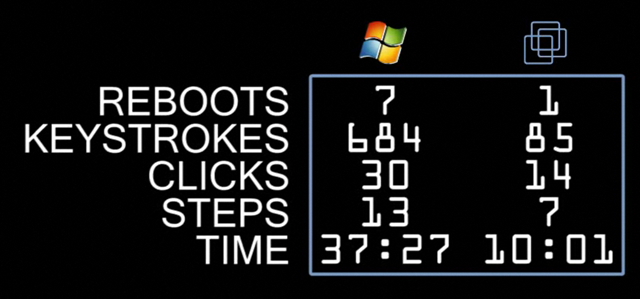
VMware heeft een vergelijking gemaakt tussen Hyper-V op Server Core vs ESXi. Hieronder zie je de uitkomst van deze test. Verder vind je twee videos met meer informatie over de installatie van beide Hypervisors en een video over het configureren van iSCSI op beide Hypervisors.

picture_3

Video 1: http://www.vmware.com/technology/whyvmware/resources/esxi-hyper-v-installation.html

This first video shows every step required to install Hyper-V and ESXi on a fresh machine.  We kept count of the elapsed time, reboots, mouse clicks and keystrokes each product needed and it clearly shows the huge advantage the truly thin and OS-free ESXi architecture has in installation speed and simplicity.  ESXi goes from bare-metal to fully installed in one-third the time, half the mouse clicks, hundreds fewer keystrokes and just one reboot vs. seven compared to Hyper-V.  The simplicity of the ESXi wizard-driven installation is striking compared to the arduous process needed to first get the Server Core OS installed and then configure Hyper-V in a command line environment.

Video 2: http://www.vmware.com/technology/whyvmware/resources/hyper-v-side-by-side-esxi.html

Our second video starts where the first left off and takes Hyper-V and ESXi through the steps needed to configure two iSCSI datastores for VM use.  iSCSI setup is a standard task for any virtualization user that wants to take advantage of shared storage for VM migration and high availability.  ESXi’s Windows-based Virtual Infrastructure client makes the iSCSI setup quick and easy.  For Hyper-V, the "Windows you know" is nowhere to be seen.  Instead, working with Server Core requires you to key in a long sequence of obscure commands to configure iSCSI initiators and targets, partitions and file systems.  We generously showed the Hyper-V setup executed with no delays, although it took us hours of digging through Microsoft documents and knowledgebase articles to find the right commands to use when configuring iSCSI in Server Core.

Bron: http://blogs.vmware.com/virtualreality/2008/09/esxi-vs-hyper-v.html

VI Toolkit: Set VMware Tools Upgrade Policy


Tijdens het googlen naar informatie over de VI Toolkit kwam ik het onderstaande script tegen.

Connect-VIServer <VirtualCenterServer>
#  NAME: set-VMautoUpdate.ps1
#  AUTHOR: angoletti1 / LucD
#  SOURCE:  http://communities.vmware.com/message/937094#937094

[Reflection.Assembly]::LoadWithPartialName("vmware.vim")

$vmConfigSpec = New-Object VMware.Vim.VirtualMachineConfigSpec
$vmConfigSpec.Tools = New-Object VMware.Vim.ToolsConfigInfo
$vmConfigSpec.Tools.ToolsUpgradePolicy = "UpgradeAtPowerCycle"

Get-VM | % { (Get-View $_.ID).ReconfigVM($vmConfigSpec)}


Via dit script kun je in één keer alle VM’s aanpassen.

Bron: http://www.blkmtn.org/the-value-of-digging-through-an-SDK

Release: VMware Server 2.0


Vmware heeft vandaag ook VMware Server 2.0 uitgebracht.

New Features in VMware Server 2

  • New operating system support: The broadest operating system support of any host-based virtualization platform currently available, including support for Windows Server 2008, Windows Vista Business Edition and Ultimate Edition (guest only), Red Hat Enterprise Linux 5 and Ubuntu 8.04.
  • 64-bit operating system support: Use 64-bit guest operating systems on 64-bit hardware to enable more scalable and higher performing computing solutions.  In addition, Server 2 will run natively on 64-bit Linux host operating systems. 
  • VMware Infrastructure (VI) Web Access management interface: VI Web Access management interface provides a simple, flexible, secure, intuitive and productive management experience.  Plus, access thousands of pre-built, pre-configured, ready-to-run enterprise applications packaged with an operating system inside a virtual machine at the Virtual Appliance Marketplace.
  • Independent virtual machine console: With the new VMware Remote Console, you can access your virtual machine consoles independent of the VI Web Access management interface.
  • More scalable virtual machines: Support for up to 8 GB of RAM and up to10 virtual network interface cards per virtual machine, transfer data at faster data rates from USB 2.0 devices plus add new SCSI hard disks and controllers to a running virtual machine.
  • Volume Shadow Copy Service (VSS):  Properly backup the state of the Windows virtual machines when using the snapshot feature to maintain data integrity of the applications running inside the virtual machine.
  • Support for Virtual Machine Interface (VMI): This feature enables transparent paravirtualization, in which a single binary version of the operating system can run either on native hardware or in paravirtualized mode to improve performance in specific Linux environments.
  • Virtual Machine Communication Interface (VMCI): Support for fast and efficient communication between a virtual machine and the host operating system and between two or more virtual machines on the same host.
  • Support for VIX API 1.5: This feature provides a programming interface for automating virtual machine and guest operations.

Vraag hier je licentie aan en download de software: http://www.vmware.com/freedownload/login.php?product=server20

Release: VMware Workstation 6.5


Ik keek net op de VMware site om Workstation 6.5 beta te downloaden en tot mijn verbazing lijkt Workstation 6.5 RTM te zijn.

image

Klik op het plaatje om naar de download site te gaan.

image

Hier vind je de release notes: http://vmware.com/support/ws65/doc/releasenotes_ws65.html

En de Guest OS guide vind je hier: http://blogs.vmware.com/guestosguide/2008/09/latest-update-2.html (thanks Duncan).

VI Toolkit: Create an Overview Of All cmdlets


Het volgende commando genereerd een html file met daarina een overzicht van alle VI cmdlets.

Get-Command -PSSnapin VMware.VimAutomation.Core | ConvertTo-Html –Property CommandType,Name,Definition -title "VIToolkit" > D:\vitoolkit_cmdlets.html

Voer deze code wel  uit als een oneliner!


Het volgende overzicht wordt gegenereerd:

image

Nu heb je in een oogopslag een overzicht van alle cmdlets.

VMware: Hot Add VMDK


In ESX 3.5 is het mogelijk een een VMDK live aan een VM te koppelen. Je hoeft dus niet eerst de VM down te gooien. Start de Add Hardware Wizard en voeg een nieuwe VMDK toe.

 image

Nadat de VMDK is aangekoppeld open je binnen de VM de Computer Management mmc. Ga naar Storage – Disk Management. Voer een Rescan Disks uit.

image

De nieuwe VMDK wordt gevonden en kan worden gepartitioneerd.

image

Via deze manier kun je heel snel, extra storage toevoegen aan een VM.

How to: Save Space with VCB backups


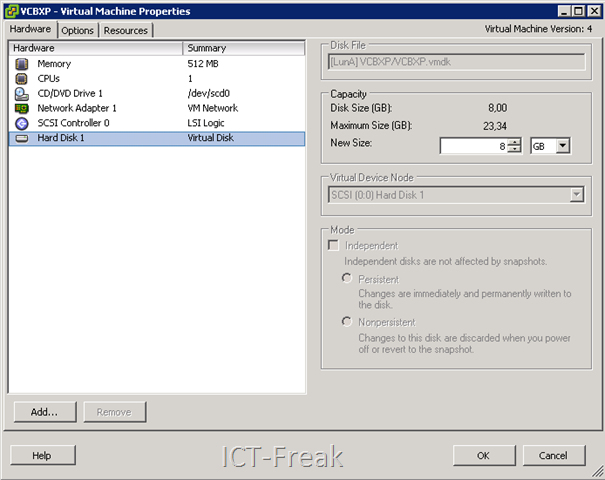
Ik heb de test gedraaid op een VM met de volgende configuratie. Deze VM was voorzien van Windows XP, VMware tools en een aantal standaard tools als Adobe Reader enz. zijn geïnstalleerd.image

Toen ik aan het internet aan het afstruinen was naar VCB informatie kwam ik de volgende post tegen op Duncan Epping van www.yellow-bricks.com zijn blog: vmware-consolidated-backup-and-deleted-files daar staat het volgende beschreven:

I re-wrote a vbs script, which was originally created by Doug Knox for defragmenting local disks to include zeroing out for every local disk in the server. The script uses the Sysinternals tool Sdelete, download it and copy it to c:\windows\system32\. It defragments the disk and than writes zero’s on all unused space.

Het gaat om het volgende script:

sdelfrag.vbs:

Set WshShell = WScript.CreateObject("WScript.Shell")
Dim fso, d, dc
Set fso = CreateObject("Scripting.FileSystemObject")
Set dc = fso.Drives
WshShell.RegWrite "HKCU\Software\Sysinternals\", 0, "REG_SZ"
WshShell.RegWrite "HKCU\Software\Sysinternals\SDelete\", 0, "REG_SZ"
WshShell.RegWrite "HKCU\Software\Sysinternals\SDelete\EulaAccepted", 1, "REG_DWORD"
For Each d in dc
If d.DriveType = 2 Then
Return = WshShell.Run("defrag " & d & " -f", 1, TRUE)'
Return = WshShell.Run("sdelete -c " & d, 1, TRUE)
End If
Next
Set WshShell = Nothing

Zodra je het script start wordt eerst de partitie gedefragmenteerd:

image

Daarja gaat SDelete er nog overheen.

image

Hieronder zie je de resultaten van de VCB backup:

Het linkerplaatje is de backup zonder eerst het sdelfrag.vbs script te hebben uitgevoerd. Rechts zie je een VCB backup na het uitvoeren van het sdelfrag.vbs script.
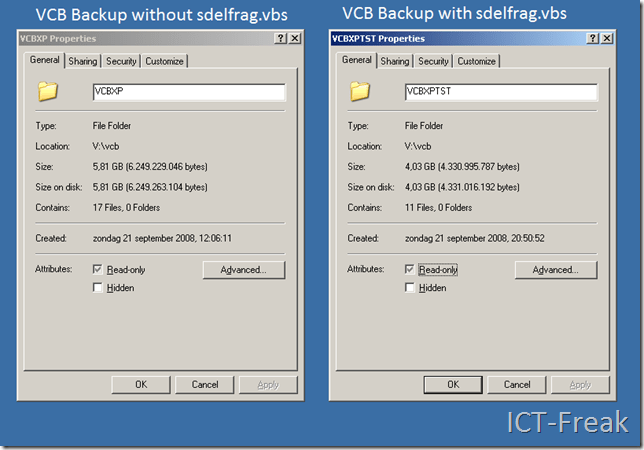
image

Zoals je ziet scheelt het 1,8 GB aan schijfruimte en kopieer actie. Dit is nog maar een test met een kleine XP VM met een VMDK van 8GB.


VMware: VCB with a standard user


Op mijn testmachine ben ik bezig met het testen van VCB (VMware-vcb-102898.exe). Tijdens deze test maak ik een backup van een tweetal VM’s die op een iscsi lun staan (hier later meer over).  Deze backup wilde ik maken met een user die de VMware Consolidated Backup user rechten.

image

Bij een default configuratie treedt de volgende foutmelding op:

[2008-09-19 23:39:27.251 ‘vcbMounter’ 2092 error] Error: No permission to perform this action.
[2008-09-19 23:39:27.251 ‘vcbMounter’ 2092 error] An error occurred, cleaning up.

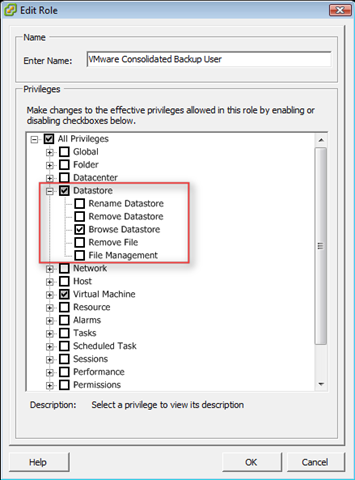
Bij de VMware Consolidated Backup User moet je de onderstaande optie (bron: vi3_35_25_u2_vm_backup.pdf)

toevoegen:

To create a VCB User role procedure should list the following additional
privilege:
Datastore > Browse Datastore

image

Na deze aanpassing dacht ik dat het probleem opgelost zou zijn, maar dit was helaas niet het geval. Toen ging er ineens een lampje branden. De VCB User moet ook nog rechten krijgen op de VM om deze te kunnen backuppen.

Ik wilde een backup maken van de VM’s in de folder VCBVMS . Ik heb via Add Permission de vcb user role en de ICTFREAK\vcb user toegevoegd.

image  

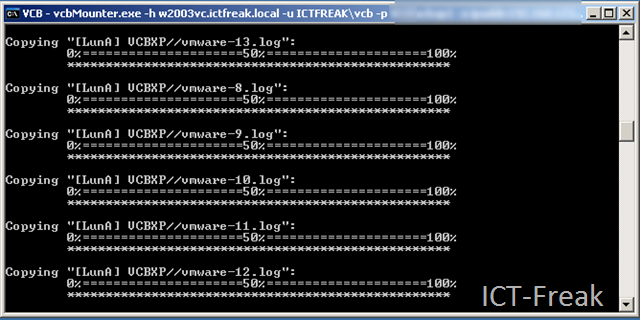
Vervolgens heb ik de VCB job opnieuw gestart en werkt de job wel met de ICTFREAK\vcb user.

image