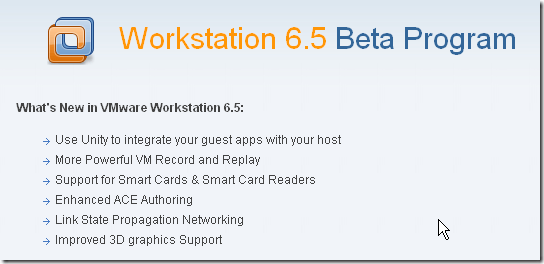
VMware: What’s new in VMware Workstation 6.5 beta 1


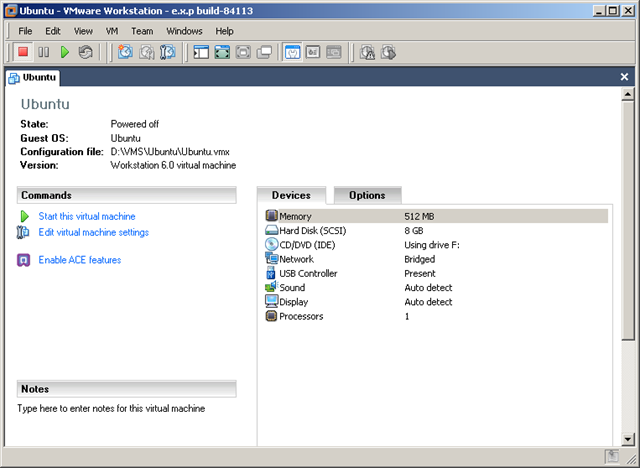
Het nieuwe virtualmachine scherm. Let op de gepimpte icoontjes.
image

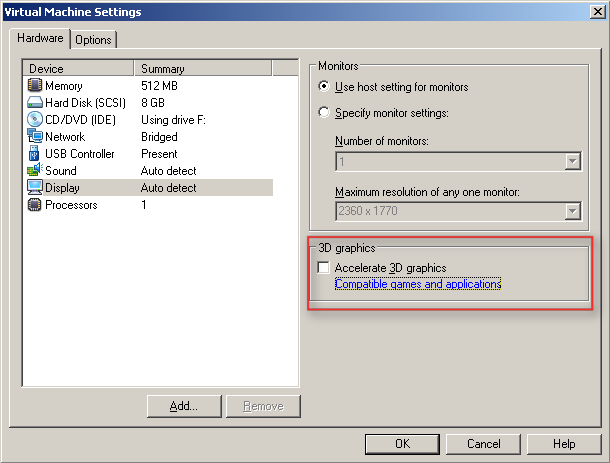
De nieuwe optie voor 3D graphics.

image

Meer informatie over de 3D graphics:

Support for Direct3D Graphics

To take advantage of the 3-D capabilities of Workstation, the virtual machine must be running the version of VMware Tools included with Workstation 6.5 or higher. For example, you do not need to upgrade a Workstation 6.0 virtual machine to Workstation 6.5, but you do need to upgrade the VMware Tools running inside it. If you move the virtual machine and want to use the 3-D capabilities, be sure you have the correct version of VMware Tools installed.

Support for applications that use DirectX 9 accelerated graphics applies only to Windows XP guests, on hosts running Windows 2000, Windows XP, Windows Vista, or Linux.


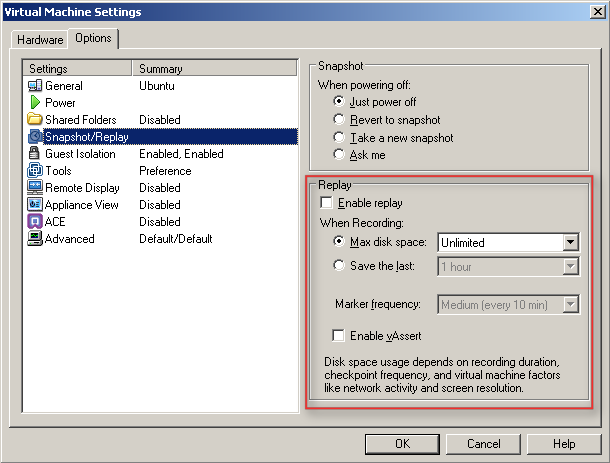
De snapshot en replay opties.
image

The replay control dialog box contains the following buttons:

  • Play/Pause – The button is labeled Play if you want to play the last recording you made for the selected virtual machine. If the virtual machine is powered off, it is resumed, as if it had been suspended. It is labeled Pause if you want to suspend the replay and click the button again to resume replay.
  • Go Live – Stops the replay that is in progress and reverts to the current state of the virtual machine.
  • Add Marker – Takes a replay-specific snapshot at the current location within the recording. You can use this marker during replay to skip ahead in a recording.
  • Go to Previous Marker – Plays the previous marker.
  • Go to Next Marker – Plays the next marker.
  • Current Replay Position Slider – Allows to preview a replay. You can drag and drop the Current Replay Position Slider to the nearest previous snapshot and start replaying. On Linux, the auto-scroll function of the zoomed in portion is enabled. The Current Replay Position Slider is a red arrow located in the progress timeline.
  • Zoom Control – Controls the zoom in and out function during replay.
  • Minimize – On Windows, the (-) button minimizes the dialog box to the bottom left hand side of the status bar. The minimized control allows you to view your recording in the virtual machine and use the controls in the status bar. The progress indicator in the status bar shows the timeline of the recording.
  • Note Keep in mind that you cannot close the replay control dialog box.

Replay Speed Control – Controls the replay speed of a recording. Click the right button to increase the replay speed to the maximum. Click the left button to decrease the replay speed to normal.

Note The speed of a playback depends on the host activity and workload of the guest.


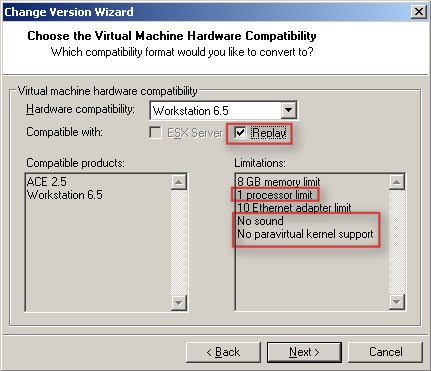
Voor de replay functie dien je wel de Hardware compatibility te verhogen naar Workstation 6.5.
image

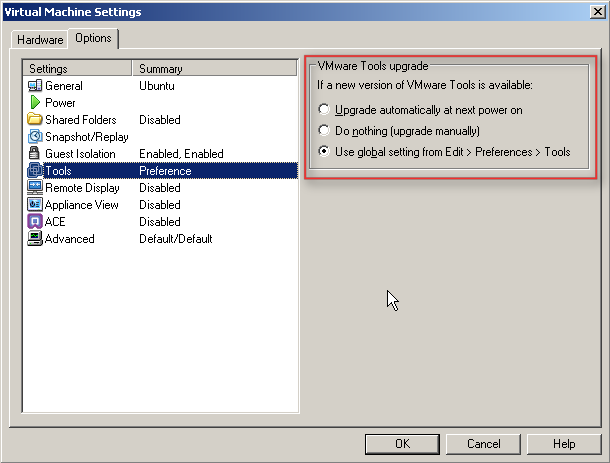
  Het upgraden van de VMware Tools heeft ook weer wat meer opties gekregen.
image

Bij het starten van de VM kwam de onderstaande melding.

image

Nadat je op Update Tools hebt gedruk krijg je netjes een uitleg over hoe je de upgrade uit kunt voeren.

image

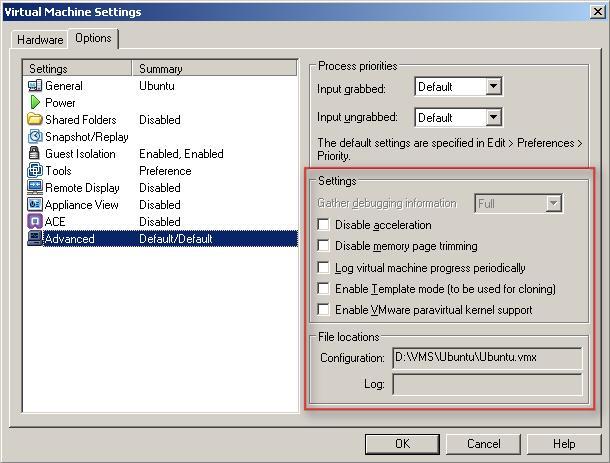
Wat verder opvalt bij de Advanced settings zijn de volgende opties:

  1. Disable Acceleration
  2. Disable memory page trimming
  3. Log virtual machine progress periodically
  4. Enable Template mode (to be used for cloning)
  5. Enable VMware parvirtual kernel support
image


Later meer……

VMware: Unity in Workstation 6.5 beta 1


Gabrie van de blog http://www.gabesvirtualworld.com/ heeft een filmpje gemaakt over de nieuwe Workstation 6.5 feature genaamd Unity. Met Unity kun je een Windows XP VM op de achtergrond draaien terwijl je de applicaties los op Linux desktop toont. Deze feature zit momenteel ook al in VMware Fusion.

Wil je zien hoe dit in zijn werk gaat, bekijk dan het onderstaande filmpje.


Gabrie keep up the good work.

Meer informatie over Unity vind je hier: http://www.chipx86.com/blog/?p=250

VMware: Releases new versions of Workstation, Server and Player


VMware Workstation 6.0.3

Download de nieuwe versie hier: http://www.vmware.com/download/ws/ 

Lees hier de release notes: http://www.vmware.com/support/ws6/doc/releasenotes_ws6.html


VMware Server 1.05

Download de nieuwe versie hier: http://www.vmware.com/products/server/

Lees hier de release notes:  http://www.vmware.com/support/server/doc/releasenotes_server.html


VMware Player 2.03

Download de nieuwe versie hier: http://www.vmware.com/download/player/

Lees hier de release notes:  http://www.vmware.com/support/player2/doc/releasenotes_player2.html

How To: Manually Assigning a MAC Address to a VM


Ga Control PanelNetwork Connections Properties van je network connection. Daarna ga je naar het tabblad Advanced  NetworkAddress hier kun je een MAC address invoeren via een vaste waarde van bv. 123456789E12.

Je kunt een bestaand MAC address gebruiken van een fysieke netwerkkaart welke je niet meer gebruikt en toch weg doet! Je kunt ook een MAC address genereren via een tool generate_mac_addresses_for_vmware.

image

Je kunt het ook via een parameter in het vmx bestand doen. Hoe dit werkt lees je hier: http://www.vmware.com/support of http://www.vmware.com/support/

Jurgen bedankt voor de tip!!

VMware: Unity in Workstation 6.5


Eric Sloof (http://www.ntpro.nl) en Gabrie van Zanten (http://virtualgabe.wordpress.com) maakten hier al melding van, en zoals het nu eruit ziet komt Unity in Workstation 6.5.

Hier een Quote van http://www.chipx86.com

Unity in Friends and Family

Unity today works in Linux. It’s known to work in Metacity but hasn’t been thoroughly tested in other window managers yet. The basic things you’d expect all work for the most part. The rest will come later.

What works today

  • Windows 2000/XP guest support
  • Shaped windows
  • Dragging windows
  • Resizing windows
  • Minimize/maximize
  • Window stacking (Z-order)
  • Custom mouse cursors
  • Keyboard/mouse support
  • Windows of the same application in the VM can appear as groups in the taskbar like any other app’s windows.

What does not work today

  • Virtual desktops do not work. If you move windows to other desktops, you’ll have problems.
  • Multiple monitors might work but probably won’t.
  • Alt-dragging or otherwise moving a window in a way other than by using the titlebar will cause us to get out of sync.
  • If you attempt to drag a window off-screen, the window manager may block it, but the events will still be sent to the guest. This could cause the window to get “stuck.”
  • Minimizing a window using the taskbar may cause visual oddities.
  • Partially obscured windows may look wrong when in Compiz’s Expose mode or similar modes where all windows are displayed at once.
  • There’s no proper start menu integration. Exit Unity mode to launch new applications or press the Windows key or Control-escape while in a guest application to bring up the guest start menu.

These issues are being addressed for beta 1. In many cases where windows become “stuck,” simply leaving Unity and then going back into it should fix the problem.

Virtualization: witch Hypervisor is your VM running At?


Dit kun je nagaan door naar het mac adres van de virtuele nic te kijken.

Via het volgende lijstje kun je zien welk mac-adres bij welke hypervisor hoort:

  • Microsoft: 00-03-FF
  • SWsoft: 00-18-51
  • Virtual Iron: 00-0F-4B
  • VMware: 00-0C-29 and 00-50-56
  • XenSource: 00-16-3E

Bron: http://www.techlog.nl/archive/2007/11/28/hey_vm_whats_your_hypervisor

VMware: Virtual Machine is Already a Member of a Team Error.


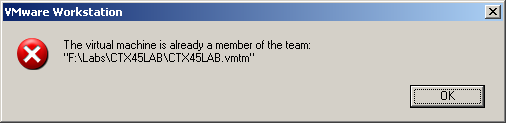
Ik was bezig met het aanmaken van verschillende teams binnen VMware Workstation 6. Daarbij kopieerde ik een VM verschillende keren over de verschillende teams. De VM is mijn M0nowall Router die een statisch configuratie heeft. Nadat ik deze had gekopieerd wilde ik deze toevoegen aan een nieuw team.

Dit lukte echter niet want ik kreeg de onderstaande error.

ws6teamerror

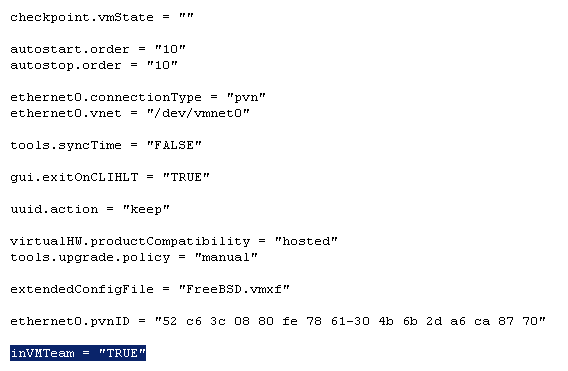
Dit kun je echter simpel oplossen. Open het VMX bestand van de gekopieerde VM en pas de waarde inVMTeam = “TRUE” aan naar “FALSE”.


ws6teamerror1

Nu kun je de VM wel toevoegen aan de andere teams.

Error Joining Domain: The Endpoint format is invalid.


Ik had een VM binnen VMware Workstation opgebouwd. Deze heb ik daarna via de VMware Converter overgezet naar mijn ESX omgeving met het vinkje: Install VMware Tools.

Door deze optie treed er een fout op binnen de VMWare Tools waardoor ik de volgende foutmelding kreeg bij het Joinen van het domein.

joindomain error

De oplossing vond ik op de blog van david hochstaetter. Het is vrij simpel. De VMWare Tools deïnstalleren. De VM opnieuw opstarten. Toevoegen aan het domein. Vervolgens de VM weer opnieuw opstarten. En als laatste installeer je de VMware Tools weer.