PowerCLI: VMware Tools one-liners


In this post I’ll show you three PowerCLI one-liners to perform some operations with VMware Tools.

The first one-liner will return all Powered on VM’s with Windows selected as guest OS and perform a VMware Tools upgrade without a reboot at the end.

Get-VM | Where {$_.PowerState -eq "PoweredOn" -and $_.Guest.OSFullName -match "Win*"} | % {Update-Tools -VM $_ -NoReboot}

Sometimes if you want to perform a vMotion or when you try set a host in maintenance mode, the VM won’t vMotion away from the host. Most of the time this is caused by a mounted ISO from a locale datastore. In my environment this is not possible because I use a shared storage datastore to storage all the ISO files. But there is one ISO that’s mounted from a locale datastore, this is the VMware Tools ISO.  Sometimes the ISO isn’t automatically dismounted from the VM. This one-liner creates a list of VM’s where the VMware Tools ISO is mounted:

(Get-VM | Get-View | Where {$_.Runtime.ToolsInstallerMounted}) | % {$_.Name}

The last one-liner will dismount the VMware Tools if necessary:

(Get-VM | Get-View | Where {$_.Runtime.ToolsInstallerMounted}) | % {Dismount-Tools -VM $_.Name}

I think there will be a lot more possibilities to script with PowerCLI and VMware Tools. So if you have a question or an idea, please leave a comment below.

Slow mouse performance on Windows 2008 R2 virtual machine


I wanted to migrate the lab to Windows Server 2008 R2 and found some problems with the video drivers provided with vSphere 4.0. After a quick search at
http://kb.vmware.com
I found the following KB article: KB1011709. This article mentioned the new WDDM driver:

Troubleshooting SVGA drivers installed with VMware Tools on Windows 7 and Windows 2008 R2 running on ESX 4.0

Details
  • You receive a black screen on the virtual machine when using Windows 7 or Windows 2008 R2 as a guest operating system on ESX 4.0.
  • You experience slow mouse performance on Windows 2008 R2 virtual machine.
Solution

This issue can occur due to the XPDM (SVGA) driver provided with VMware Tools. This is a legacy Windows driver and is not supported on Windows 7 and Windows 2008 R2 guest operating systems.

To resolve this issue, update to ESX 4.0 Update 1. A new WDDM driver is installed with the updated VMware Tools and is compatible with Windows 7 and Windows 2008 R2.

Note: After a VMware Tools upgrade, the driver files are located in C:\Program Files\Common Files\VMware\Drivers\wddm_video.

Read more of this post

Linux: Disk Timeout settings not increased by VMware Tools


Recently I had some issues with Linux VM’s which became read-only. In my earlier post about disk-timeout settings I wrote about the timeout value being increased during the VMware Tools installation. But how does the VMware Tools install change this value. I though the solution can be found within the vmware-config-tools.pl script. So to find the vmware-config-tools.pl script just run:

[root@linuxvm1 ~]# type vmware-config-tools.pl
vmware-config-tools.pl is /usr/bin/vmware-config-tools.pl

No run the less commmand:

less /usr/bin/vmware-config-tools.pl

press / and type 180 now you see the info we are looking for:

image

The disk timeout value can only be changed with Linux kernel 2.6.13 or higher. Ok so what if you use a Linux distribution with a kernel older than 2.6.13? From KB51306:

VMware has identified a problem wherein file systems may become read-only after encountering busy I/O retry or SAN or iSCSI path failover errors.

The same behavior is expected even on a native Linux environment, where the time required for the file system to become read-only depends on the number of paths available to a particular target, the multi-path software installed on the operating system, and whether the failing I/O was to an EXT3 Journal. However, the problem is aggravated in an ESX Server environment because ESX Server manages multiple paths to the storage target and provides a single path to the guest operating system, which effectively reduces the number of retries done by the guest operating system.

These guest operating systems are affected:

  • RHEL5 (RedHat)
  • RHEL4 U6
  • RHEL4 U4
  • RHEL4 U3
  • SLES10
  • SLES9 SP3 
    Note: This issue may affect other Linux distributions based on early 2.6 kernels as well, such as Ubuntu 7.04.

This situation can lead to serious issues and can only be solved with a reboot of the VM. But there is a workaround. From KB1009465:

Increasing the timeout value

The timeout value for a Linux block device can be set using sysfs.
Note: This is usually increased automatically when deploying VMware-Tools, but if it is not installed, you will need increase it manually.

Check the current values using the following command:

for a in /sys/class/scsi_generic/*/device/timeout; do echo -n "$a "; cat "$a" ; done;

Increase the timeout value for an individual disk using the following command. For example to change the values for device sdc, run:

echo 180 > /sys/block/sdc/device/timeout

Run the following command to change the timeout values for all devices to 180:

for i in /sys/class/scsi_generic/*/device/timeout; do echo 180 > "$i"; done

you can add the following command:

for i in /sys/class/scsi_generic/*/device/timeout; do echo 180 > "$i"; done

to the /etc/rc.d/rc.local file to make sure the disk timeout is changed during startup.

Source:  
KB1009465
http://kb.vmware.com/
KB51306
http://kb.vmware.com/
VMTN communities
http://communities.vmware.com/thread/257251

VMware Tools: VMwareService.exe or vmware-guestd High Memory Usage


Ever seen the VMwareService.exe or vmware-guestd process taking all your memory? Well I did see this issue on a few VM’s. Like this VM with Windows Server 2003 SP2 R2:

image

The VMwareService,exe took 1,3GB of RAM. Ok this is a problem but what started this memory “leaking”.

Read more of this post

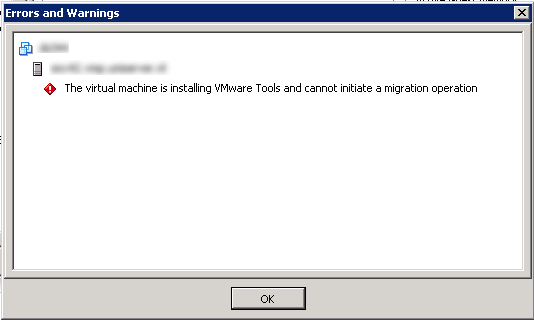
vSphere: The Virtual Machine is installing VMware Tools and Cannot Initiate a Migration Operation


image_thumb1_thumb[1]

After upgrading a large group Virtual Machines  to the latest build of VMware Tools. I got an error when I started a vMotion task on a some VMs.

image

The warning is pretty clear but I couldn’t cancel the VMware Tools wizard from the vSphere client. After a short search on Google I found a post from Bob Plankers

The solution is quite simple. Logon to the ESX host where the VM is running on and run the following command:

/usr/bin/vmware-cmd -l

Now you get a list of all the registered VMs on that host. Copy the full path of the vmx from the VM you want to migrate with vMotion. Now run the vmware-cmd pathtovmx getid command:

/usr/bin/vmware-cmd /vmfs/volumes/datastore-name/vm-folder/vmx-file.vmx getid

The latest step is to run the following command. Just replace the idnumber with number you get with the previous command:

/usr/bin/vmware-vim-cmd vmsvc/tools.cancelinstall idnumber

Now you are able to migrate the VM with vMotion again.

Source
http://lonesysadmin.net/2009/12/11/how-to-cancel-a-stuck-vmware-tools-install-from-the-esx-cli/

VMware Tools: Uninstall failed. Please correct the failure


image

Today a ran into an issue with the VMware Tools installer on Linux:

image

The solution was simple this time. Just remove the locations file from from /etc/vmware-tools. You can do this by running the following command:

rm –f /etc/vmware-tools/locations

Now you are able to run the VMware Tool installer again. If you are installing the VMware Tools on it default locations, you can add the –default parameter to the ./vmware-install.pl command to install the VMware Tools on it’s default location.

Source: KB1013159

VMware Tools: Default disk timeout settings


image 

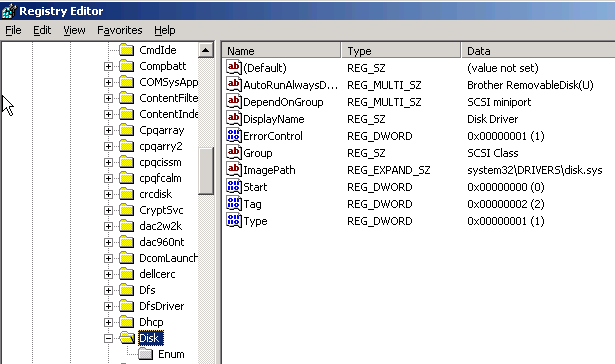
On a new Windows Server 2003 server without the VMware Tools installed, there are no TimeOut settings configured.

You can find this setting in the following registry key:

HKEY_LOCAL_MACHINE\System\CurrentControlSet\Services\Disk\

The picture below, you’ll see the default settings from Microsoft:

image

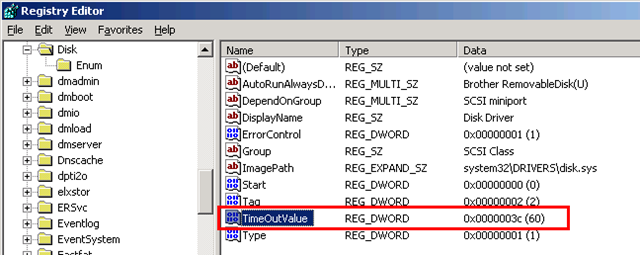
After the installation of the VMware Tools, a new dword value called TimeoutValue is added with the hexadecimal value of 3c. This value represents a timeout of 60 seconds.

image

On a Linux VM the default timeout is 60 seconds (on a CentOS setup). You can find the timeout settings in:

/sys/block/<disk>/device/timeout

image

After the installation of the VMware Tools, the timeout value is changed to 180 seconds.

image


More info about this subject can be found here:

How To: Install VMware Tools on CentOS 5.3


image image

The first step after a fresh install of a CentOS 5.3 server is too install the packages gcc and kernel-devel. When these packages are installed, update them and reboot of the VM:

yum install gcc kernel-devel –y
yum update –y
reboot

Now we have to create a new folder so we can mount the VMware Tools cd-rom.

mkdir /media/cdrom –p

Start the VMware Tools Installer via the GUI:

image

Mount the cd-rom:

mount /dev/cdrom /media/cdrom

create a folder and copy the tar.gz file from the cd-rom to the folder:

mkdir /root/tarz –p
cp /media/cdrom/VMwareTools-4.0.0-xxxxxx.tar.gz /root/tarz/

Open the folder and extract the tar.gz file:

cd /root/tarz
tar zxvf VMwareTools-4.0.0-xxxxxx.tar.gz

Open the vmware-tools-distrib folder and start the installer:

cd vmware-tools-distrib
./vmware-install.pl

You can change the vnic to vmxnet via the following commands:

/etc/init.d/network stop
rmmod pcnet32
rmmod vmxnet
modprobe vmxnet
/etc/init.d/network start

The final step is to reboot the VM.

PowerCLI: Upgrading vHardware to vSphere Part 2: VM’s


image

Disclaimer: use this script at your own risk ;-)

In part 1 you could find a script to upgrade your templates to hardware version 7. In this post you’ll find a script that will upgrade your VM’s to hardware version 7.

Note: This script will upgrade the VMware Tools if necessary and will shutdown the VM!!!!!

You can download the script here: upgrade-vhardware_vm and here:
http://poshcode.org/1217

The script will perform the following actions:

  • Connect to vCenter
  • Get all the VM’s in the folder you need to specify
  • Create a CSV file with some info about the VM. I will post the content later.
  • Update the VMware Tools if necessary (The VM will restart after the installation)
  • Shutdown the VM
  • Upgrade the vHardware to version 7
  • Start the VM
  • Create an Excel sheet with an overview of the VM’s and their IP settings

During the process of the script, the VM will be unavailable for 5 minutes or less. So be sure that nobody uses the VM.

The beforeHWchange.csv will look like this:

image

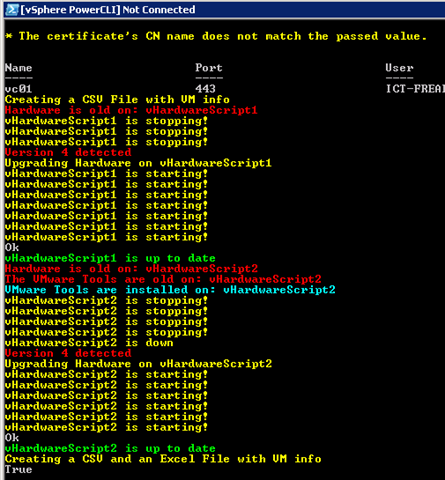
The script in action:

image

The last step, the creation of an Excel sheet with an overview of the VM’s. Here you can see if the IP Address is changed or not.

image

To do list:

  • Create a proper VM report function (export to csv) so I can capture multiple network adapters.
  • Create a before Excel sheet with a nice overview of the environment.

PowerCLI: Change VMware Tools Options


image

In this post you will learn how to change the VMware Tools settings in the Options menu which you can find in the vSphere Client:

image

You can enable or disable these features via the following PowerCLI script:

$vCenter = Read-Host "Enter vCenter Server name"

Connect-VIServer $vCenter

$vmConfigSpec = New-Object VMware.Vim.VirtualMachineConfigSpec
$vmConfigSpec.Tools = New-Object VMware.Vim.ToolsConfigInfo
$vmConfigSpec.Tools.AfterPowerOn = $true
$vmConfigSpec.Tools.AfterResume = $true
$vmConfigSpec.Tools.BeforeGuestStandby = $true
$vmConfigSpec.Tools.BeforeGuestShutdown = $true
$vmConfigSpec.Tools.SyncTimeWithHost = $true
$vmConfigSpec.Tools.ToolsUpgradePolicy = "Manual" # "UpgradeAtPowerCycle"

Get-VM | % { (Get-View $_.ID).ReconfigVM($vmConfigSpec)}

Disconnect-VIServer -Confirm:$false


Just change the $true values to $false if you want to disable the feature. If you want to change the Tools Upgrade Policy to Upgrade at startup just remove "Manual" # and it should change the Policy.

This is what you see when the VM is still active:

image image

This script will change the configured settings on All the VM’s.  If you want to change the settings on a particular VM just change Get-VM into Get-VM vmname

Follow

Get every new post delivered to your Inbox.

Join 1,108 other followers