PowerCLI: Two Virtual Switch and Portgroup one-liners


image

In this post you’ll find two Powershell one-liners to do some maintenance on Virtual Switches and PortGroups.

The first one-liner is inspired by Hany Michel his post: vMotion vs. VMotion .. Vote for your favorite! In this post he starts the debate about which name it should be. I voted for the “new” name vMotion. If you want to change the name of the VMotion portgroups to the “new” standard. You can do this by hand but why, we got PowerCLI 😉 The following one-liner will do the job:

Get-VMhost | % { Get-VirtualPortGroup -VMhost $_ -Name VMotion `
| Set-VirtualPortGroup -Name vMotion -Confirm:$false }

The vSwitches with the VMotion Protgroup name will be changed to vMotion:image


The next one-liner will change the number of ports on vSwitch0. The default setting on vSwitch0 is 24 ports.

image

With PowerCLI you can easily change this again with an one-liner. This one-liner will change the value to 120 ports:

Get-VMHost | % {Get-VirtualSwitch -VMHost $_ -Name vSwitch0 | `
where {$_.NumPorts -lt "128"}} | `
% { Set-VirtualSwitch -VirtualSwitch $_ -NumPorts "128" }

You’ll see the following output:

image

You need to reboot the ESX host to apply the new setting.

vSphere: Agent Pre-Upgrade Check Utility


image

When you start the autorun of vSphere vCenter 4.0 update, you will notice a new button called Agent Pre-upgrade Check. In this post you, I will show you the wizard.

image

Choose the right credentials to connect the vCenter database:

image

Choose your scan type:

image

And wait. My hosts are ready to upgrade:

image

VMware: vSphere & PowerCLI Update 1 released


image image

Finally the vSphere Client is supported on Windows 7 & Windows Server 2008 R2:

Windows 7 and Windows 2008 R2 support — This release adds support for 32-bit and 64-bit versions of Windows 7 as well as 64-bit Windows 2008 R2 as guest operating system platforms. In addition, the vSphere Client is now supported and can be installed on a Windows 7 platform.


You can find the downloads and release notes here:


ESX 4.0 Update 1: http://downloads.vmware.com/d/details/esx40u1/ZHcqYmQlcGpiZGVqdA==

Release note: http://downloads.vmware.com/support/vsphere4/doc/vsp_esx40_u1_rel_notes.html


ESXi 4.0 Update 1: http://downloads.vmware.com/d/details/esxi40u1/ZHcqYmQlcGhiZGVqdA==

Release Notes: http://downloads.vmware.com/support/vsphere4/doc/vsp_esxi40_u1_rel_notes.html


vCenter 4.0 Update 1: http://downloads.vmware.com/d/details/vc40u1/ZHcqYmQlcCpiZGVqdA==

Release notes: http://downloads.vmware.com/support/vsphere4/doc/vsp_vc40_u1_rel_notes.html


vSphere PowerCLI 4.0 Update 1: http://downloads.vmware.com/d/details/sdkwin40u1/ZHcqYmQlcHRiZGVqdA

Release notes: http://www.vmware.com/support/developer/windowstoolkit/wintk40u1/windowstoolkit40U1-200911-releasenotes.html

vSphere: Storage vMotion Fails with a Timeout


image

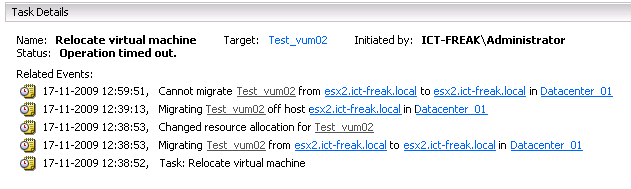
When I tried to Storage vMotion a VM to another LUN I got an “operation timed out error”:

image

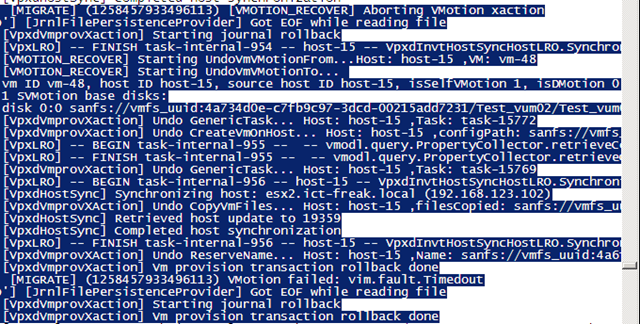
After analyzing the vpxd.log, I found the following lines:

image

The best part I found out, is that the VM was rolled back to it’s old location without losing data or getting corrupt.

This problem is documented in KB1010045. The following solution will resolve the timeout problem:

Increase the Storage VMotion fsr.maxSwitchoverSeconds setting in the virtual machine configuration file to a larger value.

The default is 100 seconds.

To modify fsr.maxSwitchoverSeconds:

  1. Right-click the virtual machine and click Edit Settings.
  2. Click the Options > Advanced > General.
  3. Click Configuration Parameters.
  4. From the Configuration Parameters window, click Add Row.
  5. For the Name field,  fsr.maxSwitchoverSeconds and for the Value field enter the new timeout value.
  6. Click OK twice to save.
  7. Restart the virtual machine for the changes to take effect.

You don’t want to change this by hand, so I created a PowerCLI script which will set the fsr.maxSwitchoverSeconds to 300 seconds for all your VM’s:

$vms = Get-View -ViewType VirtualMachine | where {-not $_.config.template}

    $vmConfigSpec = New-Object VMware.Vim.VirtualMachineConfigSpec
      
    $extra = New-Object VMware.Vim.optionvalue
    $extra.Key="fsr.maxSwitchoverSeconds"
    $extra.Value="300"

    $vmConfigSpec.extraconfig += $extra
    

foreach($vm in $vms){
    $vm.ReconfigVM($vmConfigSpec)
}

After changing the value to 300 seconds, I was able to Storage vMotion the VM.

PowerCLI: One-Liner to get VMs, Clusters, ESX Hosts and Datastores


image

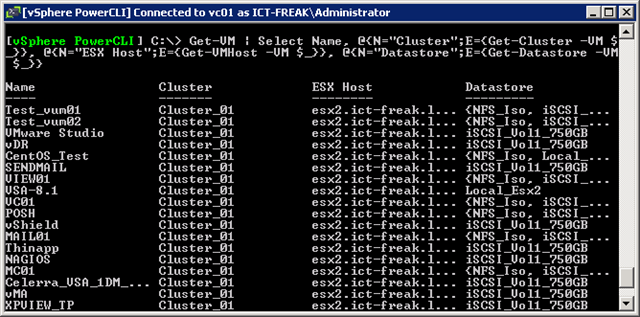
With the one-liner below, you’re able to create an overview of your VM’s, Clusters, ESX Hosts and Datastores.

Get-VM | Select Name, @{N="Cluster";E={Get-Cluster -VM $_}}, `
@{N="ESX Host";E={Get-VMHost -VM $_}}, `
@{N="Datastore";E={Get-Datastore -VM $_}} 

The following output will be generated:

image

If you add an extra line with the export-csv cmdlet, you can export the output to a CSV file.

Get-VM | Select Name, @{N="Cluster";E={Get-Cluster -VM $_}}, `
@{N="ESX Host";E={Get-VMHost -VM $_}}, `
@{N="Datastore";E={Get-Datastore -VM $_}} | `
Export-Csv -NoTypeInformation C:\Scripts\VM_CLuster_Host_Datastore.csv 

If you want, you can import the CSV file into Excel. Excel has some basic filtering options, so you’re able to filter on ESX Host, Cluster etc.

image

Project Onyx released – How to connect and use it


image image

Carter Shanklin just announced the release of Project Onyx. She his post here: http://blogs.vmware.com/vipowershell/2009/11/project-onyx-is-here.html

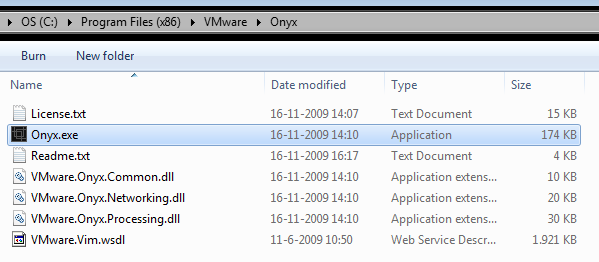
Download the zip file from here: http://bit.ly/vmwOnyx15 extract the zip file and start Onyx.exe. If you’re starting Onyx from your c: drive and you are running Windows Vista / , you’ve to run it with Administrator rights:

image

Accept the License Agreement to continue. The main screen opens. Click on connect and fill in the IP Address of you vCenter server:

image

When you’re connected to your vCenter server, Remember the second IP Address on top of the Onyx Screen:

image

Now open the vSphere Client and connect to the second IP Address with http:// on front of it:

image

You will see a warning message about the connection to server xxx.xxx.xxx.xxx is not secure. Click yes to continue.

The vSphere client opens and it will look and feel like we’re used to it. But here comes the great part. Click on the play button in Onyx:

image

Do the thing you wanted to do within the vCenter client and you will see that Onyx is generating some nice ready to use PowerCLI code:

image

To save the script, press the Save output to file button.

image

Event: Dutch VMUG Event 2009


image

11 December aanstaande is het weer tijd voor het jaarlijkse VMUG event.  De voorlopige agenda staat al een tijdje online en wordt per week beter en beter.  Wat het leuke aan dit event is dat er  presentaties worden gegeven door mensen uit de communitie zelf. Eric Sloof, Viktor van den Berg, Joep Piscaer, Bouke Groenescheij, Gabrie van Zanten en Luc Dekens. Deze sessie zullen technisch van aard zijn.

Nieuw dit jaar is de workshop.  Deze workshop gaat over het product vCenter Heartbeat. Wil je kennis maken met dit product, dan is de je kans. Tijdens deze workshop krijg je kort wat theorie en daarna kun je zelf met het product aan de slag.

Mocht je nog niet zijn ingeschreven, doe dit dan snel want ik heb gehoord dat er al bijna 400 inschrijvingen binnen zijn en er is plaats voor 600 deelnemers. Dus wacht niet langer en schrijf je snel in: http://www.vmug.nl/modules.php?name=Inschrijven

VMware Tools: Default disk timeout settings


image 

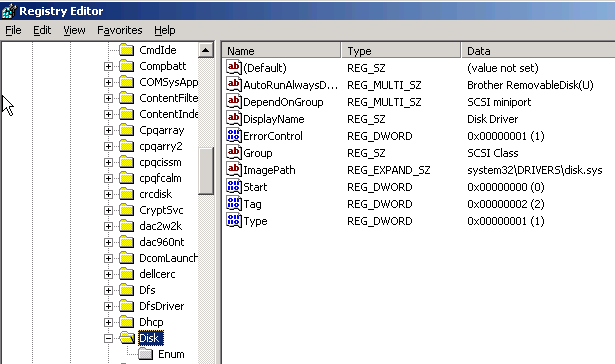
On a new Windows Server 2003 server without the VMware Tools installed, there are no TimeOut settings configured.

You can find this setting in the following registry key:

HKEY_LOCAL_MACHINE\System\CurrentControlSet\Services\Disk\

The picture below, you’ll see the default settings from Microsoft:

image

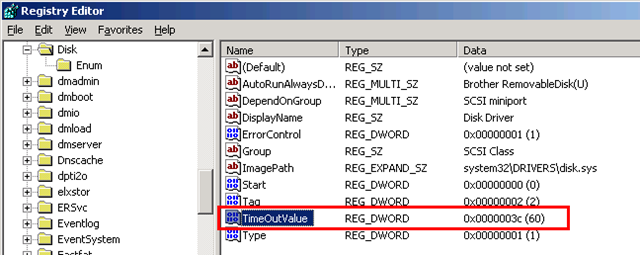
After the installation of the VMware Tools, a new dword value called TimeoutValue is added with the hexadecimal value of 3c. This value represents a timeout of 60 seconds.

image

On a Linux VM the default timeout is 60 seconds (on a CentOS setup). You can find the timeout settings in:

/sys/block/<disk>/device/timeout

image

After the installation of the VMware Tools, the timeout value is changed to 180 seconds.

image


More info about this subject can be found here:

vCenter 4.0 and SQL 2008 as a Database server


image

Last week I had to install a vCenter 4.0 server with a database on a SQL 2008 x64 server. Before you can connect to the SQL 2008 x64 you have to install the new SQL server 2008 Native client. You can find it here:

Download and install the package:

image

In my earlier post about how to create an ODBC connection to use with vCenter 4 on a x64 version of Windows 2008. You already read about the “special” way of starting the ODBC data Source Administrator. Start it via: Start –Run – %systemdrive%\Windows\SysWoW64\Odbcad32.exe. The next step is to select the new Native Client version 10.0

image 
The rest of the stuff is still the same 😉