How to return HP Serial Number via iLO and Powershell


Robert van den Nieuwendijk created the basis of this script and shared it on the VMware Communities. The problem I had with the original script was the default SSL certificate which HP uses on the iLO adapters. This resulted in an error and the script failed to return the XML file. So I started a search query on Google and found a post by Paul Brice who had the same problem while getting information via XML on an Iron Port setup. I tried his code to open the iLO XML information and it worked like a charm.

So I updated the script from Robert and added the information from Paul to it. The last thing I changed was the $url and added a RegEx to return the digits from the ESX hostname. For example esx72, the RegEx will return the 72.

Get-VMHost | Where-Object {$_.Manufacturer -eq "HP"} | `
Sort-Object -Property Name | ForEach-Object {
    $VMHost = $_
    $netAssembly = [Reflection.Assembly]::GetAssembly([System.Net.Configuration.SettingsSection])
    IF($netAssembly) {
        $bindingFlags = [Reflection.BindingFlags] "Static,GetProperty,NonPublic"
        $settingsType = $netAssembly.GetType("System.Net.Configuration.SettingsSectionInternal")
        $instance = $settingsType.InvokeMember("Section", $bindingFlags, $null, $null, @())
        
        if($instance) {
            $bindingFlags = "NonPublic","Instance"
            $useUnsafeHeaderParsingField = $settingsType.GetField("useUnsafeHeaderParsing", $bindingFlags)

            if($useUnsafeHeaderParsingField) {
                $useUnsafeHeaderParsingField.SetValue($instance, $true)
            }
        }
    }

    [int]$ip = (([regex]'\d+').matches($vmhost.Name) | select Value).Value

    [System.Net.ServicePointManager]::ServerCertificateValidationCallback = {$true}
    $url = "https://192.168.1.$ip/xmldata?item=All"
    $xml = New-Object System.Xml.XmlDocument
    $xml.Load("$url")
        New-Object PSObject -Property  @{
            "Name" = $VMHost.Name
            "Serial Number" = $xml.RIMP.HSI.SBSN
            "ILO Serial Number" = $xml.RIMP.MP.SN
            "ILO Type" = $xml.RIMP.MP.PN
            "ILO Firmware" = $xml.RIMP.MP.FWRI    
          }
} | Export-Csv -NoTypeInformation -UseCulture -Path C:\EsxSerialNumbers.csv 

The output of the script will be exported to a CSV file.

VMware Open Virtualization Format Tool


Download the VMware Open Virtualization Format Tool, formally known as OVF tool here. The documentation can be found here. More info can be fount on the Open Virtualization Format Tool Community.

The OVFTool works quite easy. Just open the VMware OVF Tool directory in a command prompt and run the following command:

ovftool.exe <path to vmx> <path to ovf>

The VM will be converted to OVF:

image

Continue reading “VMware Open Virtualization Format Tool”

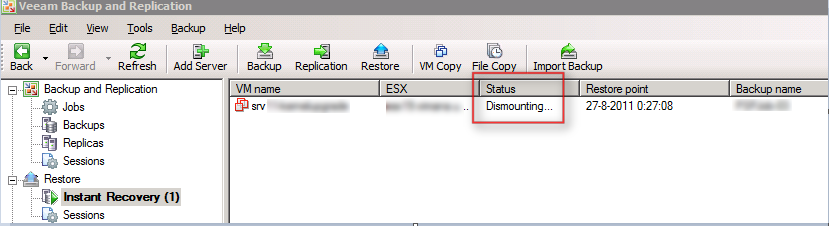
Veeam: Instant Recovery stops with status Dismounting…


Today I was investigating an issue with Veeam Backup & Replication Instant Recovery. One of the sessions stopped with the status Dismounting…

image

in the log of this sessions it stops on Removing VM from inventory.

image

The VM was removed from vCenter so why the jobs hangs, I don’t know. So the next thing was to stop and start the Veeam Backup Service. This didn’t help either. So I tried the a System reboot but unfortunately this didn’t work either. So I started to search the Veeam Forums and found a post of someone with the same error. After reading his post I contacted Veeam support and waited for a fix?

First off all before you continue, always contact Veeam support before trying the following solution.

Continue reading “Veeam: Instant Recovery stops with status Dismounting…”

Veeam Backup Academy Certified


Veeam launched the http://backupacademy.com/ website:

Backup Academy is an educational project designed to provide the necessary knowledge you need to become a VM Backup Expert.
You can:

  • – Watch videos to expand your backup knowledge and skills
  • – Pass the Backup Academy Exam
  • – Receive the Backup Academy Certificate

You can also follow the Backup Acedemy on twitter via http://twitter.com/BckpAcademy.

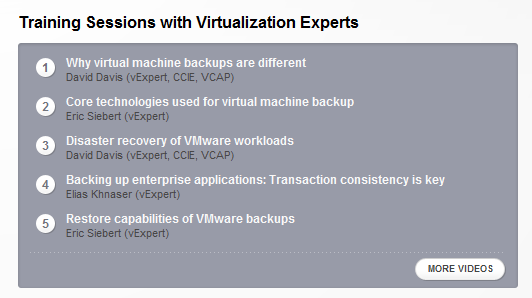
On the Backup Acedemy site you can watch some sessions presented by some of the best guys in the business:

image

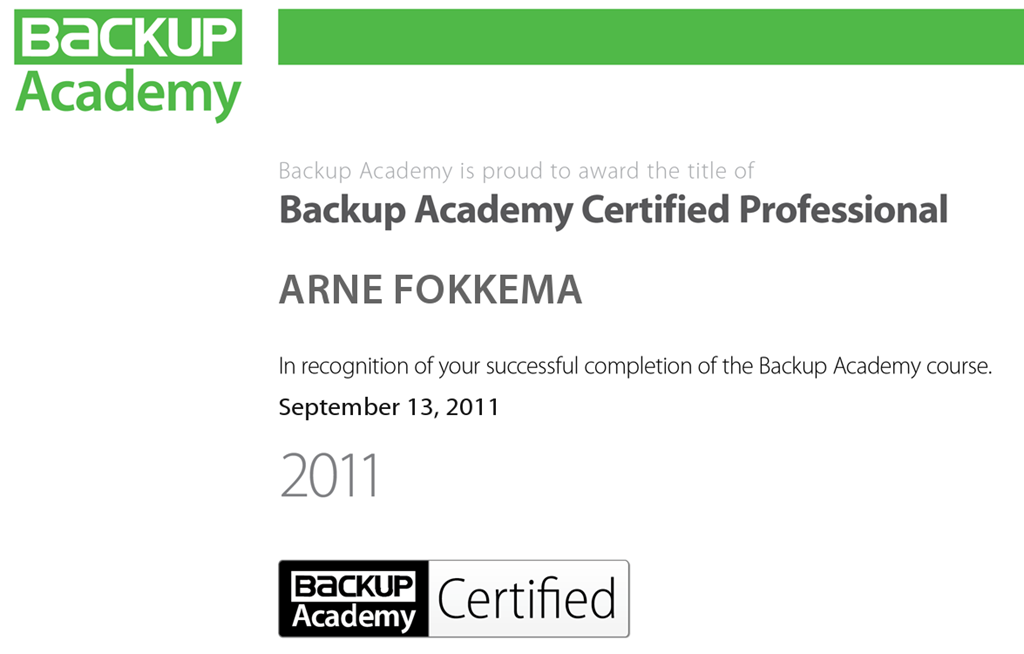
And when you think you’re ready to take the exam ,you can take the exam. You have to take 35 questions and I guess the passing score is 75%. So I took the exam during my lunch and 12 minutes later I passed the Exam Smile

image

I think Veeam did a great job by putting this website together with good information and sessions. When you’re working with Veeam Backup and Replication please take a look at http://backupacademy.com/

View Composer: Error during provisioning: Failed to authenticate to AD


Last weekend I was busy with a vCenter migration from vCenter 4.0 on a 32 bit Windows 2003 server to a vCenter 4.1 update 1 server on a Windows 2008 R2 64 bit VM. The database is already running on a separate database server.  The one thing special in this setup was VMware View Composer. So I started the migration and everything went well. vCenter was up and running and VMware View Composer service was started. So it was time to test the provisioning of new Desktops. I changed the pool to deploy 2 new desktops. The process ended with an error:image

I was unable to fix this by myself so I contacted VMware Support and after a while we came up with the following solution: Login to the VMware View Administrator and browse to the vCenter Server page:View Configuration – Servers and select the vCenter server in the the vCenter Servers window and press edit. Now select the Quickprep user for the Desktop pool with the error and press edit:

image

And enter the password for the Quickprep user:

image

After re-entering the password for the Quickprep user, we where ready to test the Desktop pools again. We did a test with an existing Desktop pool and a new pool and both worked as expected. The Desktop pools are working again. I want to thank VMware support for the quick and accurate support.