PowerCLI: Automatic expand the available ports for a dvPortgroup


Last year William Lam wrote a blog post on the VMware vSphere Blog about automatic expand a dvPort group port. You can find his post here: http://blogs.vmware.com/vsphere/.  There is also a KB article about this subject. You can find it here: KB1022312

Just a quote from the KB article KB1022312 to explain the auto expand feature and how you can enable it without using Perl of PowerCLI scripting:

Note:  vSphere 5.0 has introduced a new advanced option for static port binding called Auto Expand. This port group property allows a port group to expand automatically by a small predefined margin whenever the port group is about to run out of ports. In vSphere 5.1, the Auto Expand feature is enabled by default.

In vSphere 5.0 Auto Expand is disabled by default. To enable it, use the vSphere 5.0 SDK via the managed object browser (MOB):

  1. In a browser, enter the address http://vc-ip-address/mob/.
  2. When prompted, enter your vCenter Server username and password.
  3. Click the Content link.
  4. In the left pane, search for the row with the word rootFolder.
  5. Open the link in the right pane of the row. The link should be similar to group-d1 (Datacenters).
  6. In the left pane, search for the row with the word childEntity. In the right pane, you see a list of datacenter links.
  7. Click the datacenter link in which the vDS is defined.
  8. In the left pane, search for the row with the word networkFolder and open the link in the right pane. The link should be similar to group-n123 (network).
  9. In the left pane, search for the row with the word childEntity. You see a list of vDS and distributed port group links in the right pane.
  10. Click the distributed port group for which you want to change this property.
  11. In the left pane, search for the row with the word config and click the link in the right pane.
  12. In the left pane, search for the row with the word autoExpand. It is usually the first row.
  13. Note the corresponding value displayed in the right pane. The value should be false by default.
  14. In the left pane, search for the row with the word configVersion. The value should be 1 if it has not been modified.
  15. Note the corresponding value displayed in the right pane as it is needed later.
  16. Go back to the distributed port group page.
  17. Click the link that reads ReconfigureDvs_Task. A new window appears.
  18. In the Spec text field, enter this text:
    <spec>
    <configVersion>1</configVersion>
    <autoExpand>true</autoExpand>
    </spec>

    where configVersion is what you recorded in step 15.
  19. Click the Invoke Method link.
  20. Close the window.
  21. Repeat Steps 10 through 14 to verify the new value for autoExpand.

If you need to change this setting for hundreds of dvPortgroups this will not be one of your favorite changes in your VMware environment. Well you know me. Let’s see if we can PowerCLI this job.

$dvPG = Get-VirtualPortGroup -Name "VM Network"
$dvPGview = get-view $dvPG
$spec = New-Object VMware.Vim.DVPortgroupConfigSpec
$spec.AutoExpand = "True"
$spec.ConfigVersion = $dvPGview.Config.ConfigVersion
$dvPGview.ReconfigureDVPortgroup_Task($spec)
$dvPGview.UpdateViewData()

if you want to change all the dvPortgroups at one. You can use the following script:

Update: Thanks to Rafael Schitz from http://www.hypervisor.fr/ for the tip to filter out the dvUplink Portgroups. I have also added a check to find out if the dvSwitch is running the correct version to enable the autoExpand feature. Copy the script below and change de $dvSwitchName variable to the name of your dvSwitch.

$dvSwitchName = "dvSwitchName"
$dvSwitch = Get-VirtualSwitch -Distributed -Name $dvSwitchName
if($dvSwitch.ExtensionData.Config.ProductInfo.Version –notmatch "4.*"){
    foreach($dvPG in (Get-View -ViewType DistributedVirtualPortgroup|?{!($_.Tag|?{$_.Key -eq "SYSTEM/DVS.UPLINKPG"}) -and !$_.Config.autoExpand})){
        $spec = New-Object VMware.Vim.DVPortgroupConfigSpec
        $spec.AutoExpand = "True"
        $spec.ConfigVersion = $dvPG.Config.ConfigVersion
        $dvPG.ReconfigureDVPortgroup_Task($spec)
        Write-Host "Enable auotExpand for dvPortgroup: $($dvPG.Name)" -ForegroundColor Yellow
        $dvPG.UpdateViewData()
    }
}
else{
    Write-Host "dvSwitch: $($dvSwitch.Name) is not configured with version 5 or higher. Please upgrade.." -ForegroundColor Red
}

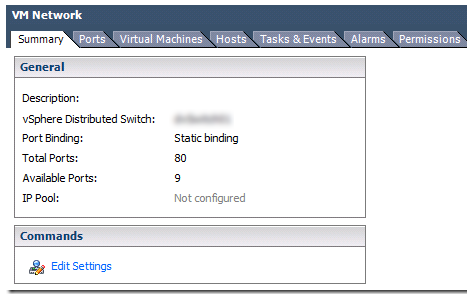
If the dvPortgroup has 0 available ports and a VM wants to connect a network adapter to the dvPortgroup, The total ports variable will be automatically expand with 10 ports. After a couple of tests I can confirm that it works.

My VM Network dvPortgroup had 70 ports. When al these ports where claimed by VM’s and a new VM was deployed or an existing VM was configured with a new network adapter, the Available ports variable was expanded with 10 ports without any impact for the running VM’s.
image

Sources: KB1022312, http://blogs.vmware.com/vsphere/, http://www.hypervisor.fr/?p=4633

Veeam: Host with uuid <uuid> was not found


Today I saw a new error with Veeam Backup and Replication. The error was:

Host with uuid “<uuid>” was not found

Within the Veeam console it looks like this:

image

After a quick search in the Veeam knowledge base I found the Knowledge base article with KB1063.

To fix this issue from the GUI go to Help – License – Licensed Hosts and revoke the license of the host with the new installation.

You can also remove all the licensed hosts via a MS SQL query on the de SQL Database by running the query below:

delete from [dbo].[HostsByJobs]

The reason for this error was a rebuild of the ESXi host.

Source: http://www.veeam.com/kb1063

PowerCLI: Easy NFS datastore setup vSphere 5.x


For vSphere 4.1 I wrote a PowerCLI script to attach NFS shares. You can find the script here.

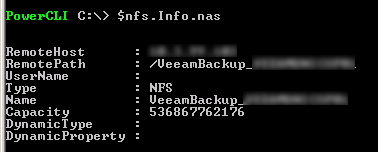
In vSphere 5 the properties has changed so I had to change the script. In fact the script is much simpler because all the properties can be found in $nfs.info.nas:

image

The RemoteHost presents the IP address, The RemotePath presents the Share and the Name property presents the name of the share. Now we have the correct variables so it’s time to fix the old script. You can find the result below:

$REFHOST = Get-VMHost "<esxi hostname>"
foreach($NEWHOST in (Get-Cluster <cluster> | Get-VMhost | Where {$_.Name -ne $REFHOST.Name}) | Sort Name){
    foreach($nfs in (Get-VMhost $REFHOST | Get-Datastore | Where {$_.type -eq "NFS"} | Get-View)){
        $share = $nfs.info.Nas
        if($share.Remotehost -match "\b\d{1,3}\.\d{1,3}\.\d{1,3}\.\d{1,3}\b"){
            $remotePath = $share.RemotePath
            $remoteHost = $share.Remotehost
            $shareName = $nfs.Name            

            if ((Get-VMHost $NEWHOST | Get-Datastore | Where {$_.Name -eq $shareName -and $_.type -eq "NFS"} -ErrorAction SilentlyContinue )-eq $null){
                Write-Host "NFS mount $shareName doesn't exist on $($NEWHOST)" -fore Red
                New-Datastore -Nfs -VMHost $NEWHost -Name $Sharename -Path $remotePath -NfsHost $remoteHost    | Out-Null
            }
        }
    }
}

vCOPS: Empty Dashboard after the upgrade to version 5.6


After the upgrade of vCenter Operations 5.0.3 (vAPP) to vCenter Operations 5.6 I got an empty screen when I started the vCenter Operations Manager website and the Dashboard view:

image

So I started to troubleshoot and a Goolge search. When I found the following thread on the VMware communities: http://communities.vmware.com/message/2158059. The fix is really easy. Just clear your browser cache and after that, the Dashboard view will work again.

image

Domain Controller keeps starting in Directory Service Restore mode


After installing the latest batch of Microsoft updates on one of my virtualized domain controllers. I needed to restart the virtual machine. Nothing interesting so far but when the virtual machine was started I logged on with the correct credentials and noticed that the virtual machine was started in

Check the safeboot parameter via bcdedit:

image

if the safeboot contains DsRepair the domain controller will start in Directory Services repair mode. I don’t know why or who changed the safeboot parameter. But I know how you can delete this value so the VM will start normally. Just run the following command to delete the DsRepair value: bcdedit /deletevalue safeboot and shutdown –r –t 10 to restart the virtual machine.

More information about Directory Services Restore mode can be found here.

Release: Veeam Backup & Replication 6.5


Yesterday was the release day of Veeam Backup & Replication 6.5. The first backup solution with full support for vSphere 5.1 and Windows Server 2012 Hyper-V 3.0.

An overview of the new features can be found in the this Youtube video:

I think the following features and enhancements are worth an upgrade. If you’re running a vSphere shop.

Features:

Restore from SAN snapshots
Version 6.5 also introduces Veeam Explorer for SAN Snapshots, which provides granular VMware recovery from HP StoreVirtual VSA and LeftHand snapshots. Codeveloped with HP, Explorer for SAN Snapshots lets you perform Veeam restores (Instant VM Recovery, Instant File-Level Recovery and Explorer for Exchange item
recovery) of VMware VMs directly from array-based snapshots.

You can find a short demo over here:


Reminder: Although SAN snapshots can provide excellent RPOs (recovery point objectives) for certain operational disasters, they cannot serve as real backups since they would be lost along with production data in the event of a storage disaster. Thus, you should never rely solely on SAN snapshots for data protection. To ensure protection against all types of disasters, continue to perform regular backup of all VMs to backup storage using Veeam backup jobs or VeeamZIP™.

vSphere 5.1 support:

Veeam Backup & Replication 6.5 provides full support for VMware vSphere 5.1.
And like vSphere 5.1, Veeam Backup & Replication 6.5 supports VMs running
Windows Server 2012 or Windows Server 8.

Enhancements:

Engine:

  • Synthetic full transformation and reversed incremental backup. Improved performance (up to
    several times, depending on backup storage).
  • Storage optimization. New storage optimization setting provides improved performance and
    resource utilization for backup jobs with backup files over 16TB in size.
  • Memory consumption. Average memory consumption by the job manager process has been
    reduced up to 3 times.
  • Network packet loss. Increased the processing engine’s tolerance to network packet loss.
  • Network traffic verification engine. New network traffic verification engine detects and automatically recovers from in-flight data corruption caused by malfunctioning network equipment and similar issues.
  • Improved NAT support. Control whether the source backup proxy server or the backup repository/
    target backup proxy server establishes network connectivity. This is helpful when deploying Veeam
    Backup & Replication in a network with NAT and firewalls.
  • Storage space notification. Added support for low disk space notification for CIFS-based backup
    repositories.
    File-level restore
  • Direct file restore. When restoring a guest file back to its original location from the backup console
    (Backup Browser), perform the restore with a single click. You no longer need to supply destination
    information, and Veeam Backup & Replication does not have to stage the file locally on a backup server
    or on a network share.
  • Dynamic disks. Extended support for file-level restores from dynamic disks to include spanned,
    striped, mirrored and RAID-5 volumes.
  • Backup Browser UI. Updated the Backup Browser’s user interface (UI) to match the new product UI
    introduced in version 6.1. Removed the hidden system partition from the volume tree. Now retrieves
    actual drive letters from restored guest OS settings (rather than simply assigning in sequential order).

Enhancements specific to VMware:

  • Improved processing performance. Significantly reduced data transfer initialization time in all
    transport modes by disabling excessive VDDK logging.
  • Direct file restore. Perform a direct file restore (described earlier) without a network connection
    between the backup server and the destination VM.

You can read about the rest of the enhancements in the What’s new PDF here.

Personally I hope that I can find some time to test the Restore from SAN snapshots feature soon. We are running a huge Lefthand shop so this feature might become handy in the near future.

Veeam: Move Backup job to a brand new Veeam Backup server


In this post I will show you how to move a Veeam Backup job to a new Veeam Backup server. You can also use this procedure to move the Backup files to a new drive and map the backup files to an existing backup job.

The short version of this procedure is:

  1. Move the backup files to the new Veeam Backup server.
  2. Create a new Backup repository and Import the existing Backup jobs.
  3. Create a new Backup job with exact the same the Virtual Machines. Select the new Backup Repository and map the backup files.
  4. Schedule or Start the backup job from the new Veeam Backup server.
  5. You’ll find the steps to take in detail for step 2 and step 3 below.

Continue reading “Veeam: Move Backup job to a brand new Veeam Backup server”

Veeam: Unable to install Windows 2008 R2 SP1 error 800F0A12


One of my test Veeam Backup servers was running Windows 2008 R2 without Service Pack 1. So I decided to install Service Pack 1 but all I got was the following error message:

image

To fix this error follow the next steps:

  1. Be sure there are now active Veeam Backup jobs. But I think that’s not the case during a maintenance windows.
  2. Open a command prompt and start DISKPART.
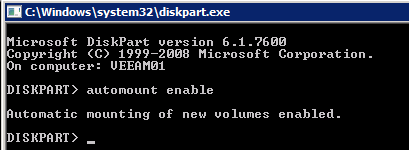
  3. Enable the automount feature via: automount enable:
    image
  4. Restart the Veeam Backup server.
  5. Install Windows 2008 R2 Service Pack 1.
  6. Restart the Veeam Backup server.
  7. Open a command prompt and start DISKPART.
  8. Disable the automount feature via: automount disable
  9. Restart the Veeam Backup server.

Source: http://blogs.technet.com

vCenter Operations: Disable the default web timeout


Just a quick note to remember how to disable the default web timeout of 30 minutes in vCenter Operations.

  1. Login as root on the UI VM.
  2. Open the the web.xml file with VI: vi/usr/lib/vmware-vcops/tomcat/webapps/vcops-vsphere/WEB-INF/web.xml
  3. Change the default value 30 to –1 to disable the timeout completely.
  4. image

  5. Save the changes via ESC, :wq
  6. restart the vcopsweb service via:  service vcopsweb restart
  7. Wait until the service is ready again.

Login to vCenter Operations and enjoy the view of your dashboards Smile

PowerCLI: Get-VirtualPortgroup -Distributed VlandId value is empty


Today I was busy with PowerCLI and dvPort groups.  I started to use the Get-VirtualPortgroup –Distributed cmdlet and parameter to retrieve some information about the dvPort group. But the default output doesn’t show the VlanId. See the screen shot below for the default output.

image

I don’t know if this is a known issue between PowerCLI 5.1 release 1 and vSphere 4.1 update 2. So I have to test it in a vSphere 5 environment.

But how can you find the vlanid of a distributed portgroup? You can use a PowerCLI script which I created  to fix this little “bug” and I have also added the PortsFree column to the output of the script.

$dvPortgroup = get-virtualportgroup -Distributed -Name "vlan1"
$dvPortgroupInfo = New-Object PSObject -Property @{            
    Name = $dvPortgroup.Name
    Key = $dvPortgroup.Key
    VlanId = $dvPortgroup.ExtensionData.Config.DefaultPortConfig.Vlan.VlanId
    Portbinding = $dvPortgroup.Portbinding
    NumPorts = $dvPortgroup.NumPorts
    PortsFree = ($dvPortgroup.ExtensionData.PortKeys.count - $dvPortgroup.ExtensionData.vm.count)
}  
$dvPortgroupInfo | ft -AutoSize

The output of the script:

image

If you want to create a report of all the dvPort groups. You can use the following script to achieve that goal:

$info = @()
foreach($dvPortgroup in (Get-VirtualPortgroup -Distributed | Sort Name)){
    $dvPortgroupInfo = New-Object PSObject -Property @{            
        Name = $dvPortgroup.Name
        Key = $dvPortgroup.Key
        VlanId = $dvPortgroup.ExtensionData.Config.DefaultPortConfig.Vlan.VlanId
        Portbinding = $dvPortgroup.Portbinding
        NumPorts = $dvPortgroup.NumPorts
        PortsFree = ($dvPortgroup.ExtensionData.PortKeys.count - $dvPortgroup.ExtensionData.vm.count)
    }  
    $info += $dvPortgroupInfo
}
$info | Export-Csv -UseCulture -NoTypeInformation C:\tmp\dvportgroup_info.csv