VMware: Performance Evaluation of VMXNET3 Virtual Network Device


image

VMware published a new paper about the performance evaluation of VMXNET3 virtual network device.

This paper compares the networking performance of VMXNET3 to that of enhanced VMXNET2 (the previous generation of high performance virtual network device) on VMware vSphere 4 to help users understand the performance benefits of migrating to this next‐generation device.

You can find the document here: http://www.vmware.com/resources/techresources/10065

vSphere: You do not have permission to run this command


vmware-logo-new-2009-400-300x48

Since the release of vSphere, there is a new feature called Hardware Status plug-in.

The new vCenter Sever 4 Hardware Status plug-in provides the ability to monitor the hardware health of your VMware ESX hosts,
including key components such as fans, system board, and power supply. The health information displayed by the vCenter Hardware
Status plug-in are defined and provided by the server hardware vendor through the industry-standard Common Information Model
(CIM) interface.

You can find it on a new tab at the host level in vCenter server:

image

But when I want to view the information in the Hardware Status tab I got the error: You do not have permission to run this command

Luckily I was not the only one with this problem and there is already a topic about this error on the VMware Communities: http://communities.vmware.com/message/1360601#1360601

These are the steps I took to fix this issue:

  1. Stop the VMware VirtualCenter Management Webservices service.
  2. Delete the C:\Program Files (x86)\VMware\Infrastructure\tomcat\webapps\vws\data\VcCache-default-0.XhiveDatabase.DB file.
  3. Start the VMware VirtualCenter Management Webservices service.
  4. Reconnect to the vCenter Server
  5. After reconnecting to the vCenter server, I was able to view the Hardware Status again.image

On Page 6 of what-is-new-in-vmware-vcenter-server-4.pdf you can find more information about the Hardware Status tab.

PowerCLI: Export, Import and Create DRS Rules v2


image

In my first post about this subject, I showed a script create by the PowerCLI Master @LucD. A couple of minutes later Hugo Peeters posted a comment why I did not used the object-oriented approach of Powershell. He also posted an example. So in this post I will show you the other way by using Export/Import-CliXml.

First we start with the export part. The following one-liner will export all the DRS Rules to a XML file:

# Export DRS
Get-Cluster -Name "Cluster_01" | Get-DrsRule | `
Export-CliXml 'C:\scripts\drs.xml'

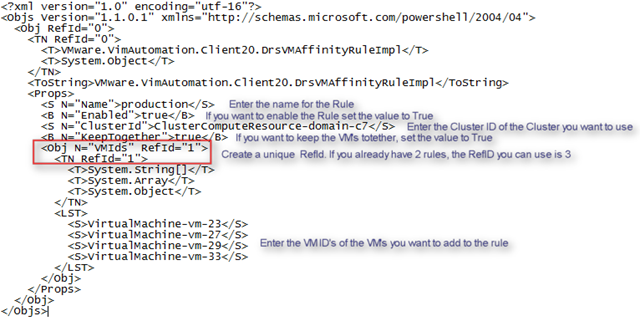
The XML file look like this:

<?xml version="1.0" encoding="utf-16"?>
<Objs Version="1.1.0.1" xmlns="http://schemas.microsoft.com/powershell/2004/04">
  <Obj RefId="0">
    <TN RefId="0">
      <T>VMware.VimAutomation.Client20.DrsVMAffinityRuleImpl</T>
      <T>System.Object</T>
    </TN>
    <ToString>VMware.VimAutomation.Client20.DrsVMAffinityRuleImpl</ToString>
    <Props>
      <S N="Name">production</S>
      <B N="Enabled">true</B>
      <S N="ClusterId">ClusterComputeResource-domain-c7</S>
      <B N="KeepTogether">true</B>
      <Obj N="VMIds" RefId="1">
        <TN RefId="1">
          <T>System.String[]</T>
          <T>System.Array</T>
          <T>System.Object</T>
        </TN>
        <LST>
          <S>VirtualMachine-vm-23</S>
          <S>VirtualMachine-vm-27</S>
          <S>VirtualMachine-vm-29</S>
          <S>VirtualMachine-vm-33</S>
        </LST>
      </Obj>
    </Props>
  </Obj>
</Objs>

The next one-liner will import the XML file, which we earlier created with the export one-liner. After the import, the one-liner will create a DRS rule:

# Import DRS
ForEach ($rule in (Import-CliXml 'C:\scripts\drs.xml')){
    New-DrsRule -Cluster (Get-Cluster -Name "Cluster_01") `
    -Name $rule.Name -Enabled $rule.Enabled `
    -KeepTogether $rule.KeepTogether `
    -VM (Get-VM -Id $rule.VmIds)}


If you want to see the DRS Rules for a cluster via the PowerCLI, You can run the following one-liner:

# DRS Rules One-Liner
Get-DrsRule -Cluster (Get-Cluster -Name Cluster_01) `
| Sort Name | Select Name, @{N="Enabled";E={$_.Enabled}}, `
@{N="KeepTogether";E={$_.KeepTogether}},`
@{N="Virtual Machines";E={$_.VMIds | % { Get-VM -Id $_ | `
% {$_.Name} }}} 

The following output will be generated:

Name Enabled KeepTogether Virtual Machines
appliances False False Nagios, vMA
production True True DC01,VC01,MC01,MAIL01

Before you can create a XML file with your new rules, you need to get the ID’s of the Cluster and the VM. You can get these ID’s via the following one-liner:

Get-VM | Sort Name | Select Name, `
@{N="VM ID";E={$_.Id}}, `
@{N="Cluster Name";E={Get-Cluster -VM $_}}, `
@{N="Cluster ID";E={Get-Cluster -VM $_ | % {$_.Id}}} | fl *

The output will look like this.

image

or you can export it to a CSV file:

Get-VM | Sort Name | Select Name, `
@{N="VM ID";E={$_.Id}}, `
@{N="Cluster Name";E={Get-Cluster -VM $_}}, `
@{N="Cluster ID";E={Get-Cluster -VM $_ | % {$_.Id}}} | `
Export-CSV -NoTypeInformation "D:\scripts\ps\vmids.csv"


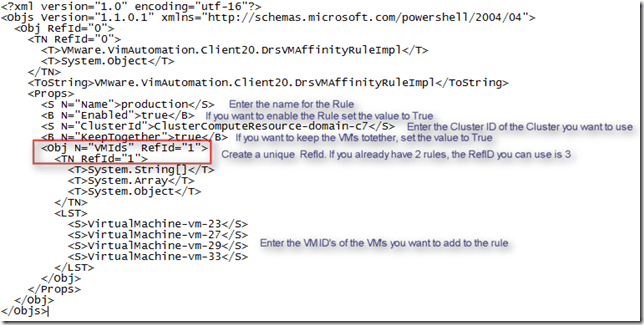
Now you have to create a XML file. You can use a file, you created with the export DRS one-liner and change the following lines:
image

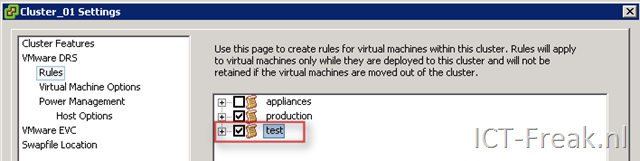
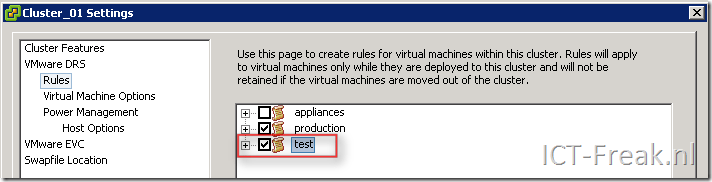
When you’re done with the XML file, you can run the Import DRS one-liner to import your new Rules. When you open the Cluster properties you will see that the new rule is added:
image

PowerCLI: Export, Import and Create DRS Rules


image 

I was trying to create a DRS Rule creation script but after a short search on the PowerCLI communities, I found some excellent stuff from @LucD. These are two scripts for Exporting and importing DRS rules.

To export your DRS-Rules, you can run the next script. The only thing you have to change is <cluster-name> to your cluster name.

#DRS-export-rules.PS1
$outfile = "C:\rules.txt" Remove-Item $outfile $clusterName = <cluster-name> $rules = get-cluster -Name $clusterName | Get-DrsRule foreach($rule in $rules){ $line = (Get-View -Id $rule.ClusterId).Name $line += ("," + $rule.Name + "," + $rule.Enabled + "," + $rule.KeepTogether) foreach($vmId in $rule.VMIds){ $line += ("," + (Get-View -Id $vmId).Name) } $line | Out-File -Append $outfile }


The import script looks like this:

#DRS-import-rules.PS1

$file = "C:\rules.txt"
$rules = Get-Content $file

foreach($rule in $rules){
  $ruleArr = $rule.Split(",")
  if($ruleArr[2] -eq "True"){$rEnabled = $true} else {$rEnabled = $false}
  if($ruleArr[3] -eq "True"){$rTogether = $true} else {$rTogether = $false}
  get-cluster $ruleArr[0] | `
    New-DrsRule -Name $ruleArr[1] -Enabled $rEnabled `
    -KeepTogether $rTogether `
    -VM (Get-VM -Name ($ruleArr[4..($ruleArr.Count - 1)])) 
}


If you want to create a new DRS-Rules, you only have to create your own rules.txt file like this:

<cluster-name>True,True,<vmname>,<vmname2>,<vmname3>

<cluster-name>,False,True,<vmname>,<vmname2>

Now run the Import DRS-Rules script and in a blink of an eye, the new rules are created.


Source: http://communities.vmware.com/thread/195733?start=10&tstart=0

PowerCLI: Reading the VMKERNEL logfiles with Powershell v2


image

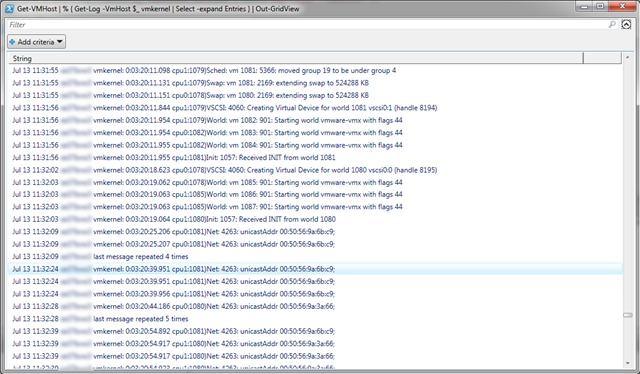
I was reading Alan Renouf his post about reading the vmkernel log files with PowerCLI. Carter Shanklin posted a comment with the Powershell v2 way of doing this task. I grabbed his one-liner and added a foreach ( % ) loop and the Out-GridView cmdlet. Now with the foreach loop, the one-liner will run against all my ESX Servers.

Get-VMHost |% {Get-Log -VmHost $_ vmkernel |Select -expand Entries } |Out-GridView

The Out-GridView cmdlet will show us all the vmkernel logfiles together in one window.

image

If want to filter on Warning messages only, run the following one-liner:

Get-VMHost | % { Get-Log -VmHost $_ vmkernel | 
Select -expand Entries | Select-String WARNING } | Out-GridView

If there are Warnings in the vmkernel log, the following GridView will be created:

image

If you want to filter the output in the GridView, just use the filter box and if necessary, you can add a criteria:

image

PowerCLI: Two One-Liners


image 

In this post I will show you two One-Liners that will get you some info of where the VM is placed or running on.

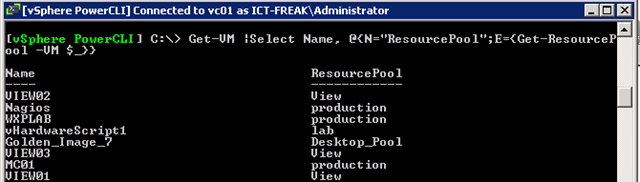
The first one-liner will show all the VMs’ and the ResourcePool where the VM’s are placed.

Get-VM |Select Name, @{N="ResourcePool";E={Get-ResourcePool -VM $_}}

 image

The second One-Liner will show the VM’s and the ESX server where the VM’s are running.

Get-VM |Select Name, @{N="ESX";E={Get-VMHost -VM $_}} 

image

PowerCLI: Set CPU Identification Mask


image

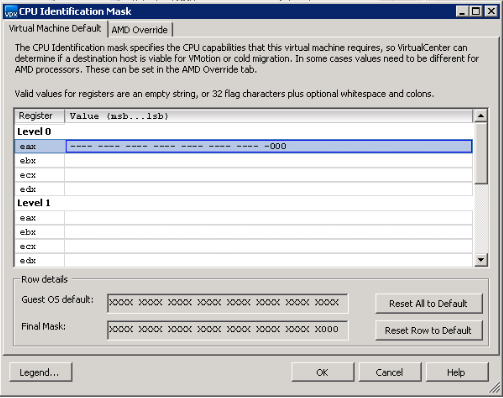
Today I received a question in my mailbox about setting the CPU Identification Mask on Multiple VM’s. The guy who asked the question wanted to set the following values:

image

So I started to search on the VMware Communities and I found the following function.

# Mask SSE 4.1 Extensions to the guest.
function Mask-Extensions($vm) {
    $view = get-view $vm.id

    $vmConfigSpec = new-object VMware.Vim.VirtualMachineConfigSpec
    $featureMask = new-object VMware.Vim.VirtualMachineCpuIdInfoSpec
    $featureMask.info = new-object VMware.Vim.HostCpuIdInfo

    $featureMask.info.ecx = "---- ---- ---- 0--- ---- ---- ---- ----"
    $featureMask.info.level = 1

    $vmConfigSpec.CpuFeatureMask = $featureMask

    $view.ReconfigVM($vmConfigSpec)
}

I changed it a little bit, so it matches the required settings (see picture above):

function Mask-Extensions($vm) {

    $view = get-view $vm.id
    write-host "Setting Mask for: "$vm.Name

    $vmConfigSpec = new-object VMware.Vim.VirtualMachineConfigSpec
    $featureMask = new-object VMware.Vim.VirtualMachineCpuIdInfoSpec
    $featureMask.info = new-object VMware.Vim.HostCpuIdInfo
    $featureMask.info.eax = "-----------------------------000"
    $featureMask.info.level = 0

    $vmConfigSpec.CpuFeatureMask = $featureMask

    $view.ReconfigVM($vmConfigSpec)
}

If you want to run this function against one VM, You can run the following command:

Mask-Extensions (get-vm "My VM")

You can also use this function in the pipeline:

get-vm | % {Mask-Extensions ($_)}


Source: http://communities.vmware.com/message/960123#960123

My vCenter Orchestrator Installation Notes


image 

In this post I will share my vCenter Orchestrator Installation Notes.  For the people who doesn’t know what vCenter Orchestrator is, click on the next url: http://www.vmware.com

Before you can install the vCenter Orchestrator service, you have to configure a database first. For this job a created a script. You can use the following lines to create a database on SQL 2005 server:

CREATE DATABASE VCO;
GO
CREATE LOGIN [VCOUSER] WITH PASSWORD=’vmware’, DEFAULT_DATABASE=[VCO], CHECK_EXPIRATION=OFF, CHECK_POLICY=OFF
GO

USE VCO
GO
EXEC sp_grantdbaccess [VCOUSER]
GO
EXEC sp_addrolemember ‘db_owner’, [VCOUSER]
GO
EXEC sp_addsrvrolemember [VCOUSER] ’sysadmin’
GO

Joep has posted his installation notes here: http://www.virtuallifestyle.nl so I was curious about the product and wanted to see if I could install it. So with Joep his post as a reference I tried to install the product. I tried to find the vCenter Orchestartor Configuration service. But I could not find it.

After installation, open the Microsoft Services tool to enable the ‘VMware vCenter Orchestrator Configuration’ service. I recommend it to start every time the OS starts up, i.e. ‘Automatic’. Start it manually as well to start working with Orchestrator immediately

So I mounted the vCenter 4 cd-rom and installed the vCenter Orchestrator via:

<cd-rom>\vpx\vmo\vCenterOrchestrator.exe

orchestrator_1

When the installation is finished, open Services.msc and check if the vCenter VMware vCenter Orchestrator Configuration is started. If this is not the case, set the service to start automatic and start the service.  When the vCenter Orchestrator Configuration service is started, Start the vCenter Orchestrator Web Configuration service.

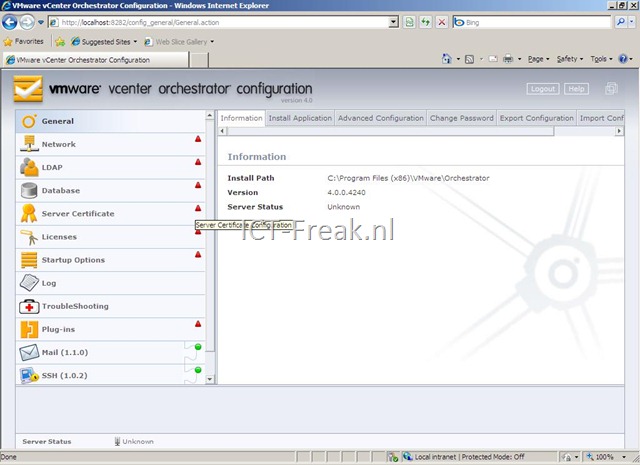
Now it’s time to configure the vCenter Orchestrator. Open a browser and go to http://vco-server:8282. Login with the default credentials: username vmware and password vmware.orchestrator_3

Change the default password. Go to General and press on the tab Change Password:

image

Click on Network to configure network settings. Select the IP Address of your vCenter server.

 image

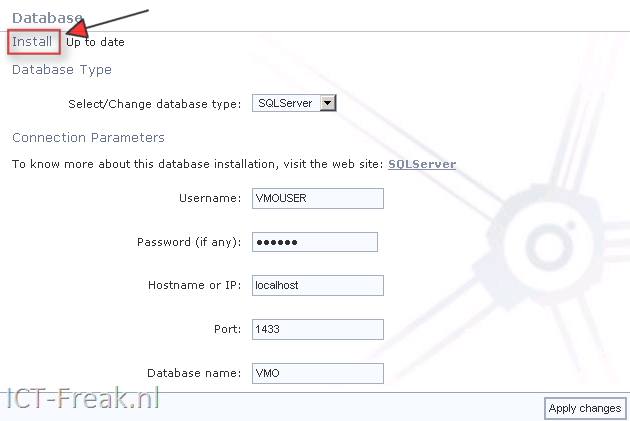
Click on Database to configure your database. Configure the Database connection settings and press install database. Click on Apply changes.

image

The rest of the setup can you read in Joep his post: http://www.virtuallifestyle.nl