VMware: Performance Overview Chart could not be loaded


After installing the new Performance Overview plugin for vCenter 2.5u4. There might be a change that the following “error” appears when you start the plugin.

image

But, VMware did a great job and  published this workaround:

Workaround: If VirtualCenter is upgraded when the VMware Infrastructure Web Access Service is running, you need to reinstall the Virtual Infrastructure Web Access feature and re-install the Performance Overview plug-in:

  1. In the Add or Remove Programs utility, change the VMware VirtualCenter Server program.
  2. Modify the VirtualCenter Server installation, and remove the Virtual Infrastructure Web Access feature.
    image
  3. In the Add or Remove Programs utility, change the VMware VirtualCenter Server program.
  4. Modify the VirtualCenter Server installation, and install the Virtual Infrastructure Web Access feature on the local hard drive.
    image
  5. Re-install the Performance Overview plug-in:
    1. In the command window goto to the folder vpx/perfCharts, the location where the Performance Overview plug-in is available.
      If you are using the ZIP file, go to the bin\perfCharts folder.
    2. Run uninstall.bat <VirtualCenter_Username> <VirtualCenter_Password>
    3. Run install.bat <VirtualCenter_Username> <VirtualCenter_Password>
  6. Connect the VI Client to the VirtualCenter Server, and enable the Performance Overview plug-in:
  1. In the VirtualCenter Server, click Plugins > Manage Plugins.
  2. In the Installed tab of the Plugin Manager window, for com.vmware.vim.stats.report select Enabled.

Source: KB1008330

VMware: vExpert


vExpert_logo_q109

Today I received an email from John Troyer with the following message:

Congratulations! On behalf of VMware, we would like to thank you for all the work you’ve done giving back to the virtualization community and sharing your expertise with others. We are pleased to present you with the VMware vExpert Award for 2009. VMware is giving this award to individuals who have contributed significantly to the community of VMware users over the past year.

Thanks John and thank you guys for nominate me!

More information about the vExpert program can be found here:

VMware: Installing the new Performance Charts plugin


These are the steps, you need to do, before you can install the Performance Charts plugin. Step one is one of the most important steps. I forgot to copy the files and the install gave me a nice “Access Denied” error.

  1. Copy the VirtualCenter 2.5 Update 4 build to the VirtualCenter Server system.
  2. If you are upgrading to VirtualCenter 2.5 Update4, stop the VMware Infrastructure Web Access service before upgrading the VirtualCenter.
  3. Install or ugrade to VirtualCenter 2.5 Update 4 and start the VMware Infrastructure Web Access service.
  4. Dowload Java SE Development Kit 6u11, and install JDK 1.6.
  5. Configure the environment variables:
    1. Right-click My Computer and click Properties.
    2. In the Advanced tab, click Environment Variables.
    3. In the System variable list, select Path and click Edit.
    4. In Variable value, enter C:\Program Files\Java\jdk1.6.0_11\bin\
      If an older version of JRE is present, run the following command in the command window:
      set path=C:\Program Files\Java\jdk1.6.0_11\bin\;%path%
    5. In the System variable list, select JAVA_HOME and click Edit.
      If JAVA_HOME does not exist, click New and in the Variable name, enter JAVA_HOME.

    6. In Variable value, enter C:\Program Files\Java\jdk1.6.0_11\bin\

    7. Log out and log back in to the VirtualCenter Server.

To install the Performance Overview plug-in:

  1. In the command window of VirtualCenter Server system, go to the vpx/perfCharts folder, the location where the Performance Overview plug-in is available.
    If you are using the ZIP file, go to the bin\perfCharts folder.
  2. Run install.bat <VirtualCenter_Username> <VirtualCenter_Password>

Download and Install the plugin:

image

After the install activate the plugin via the installed tab.

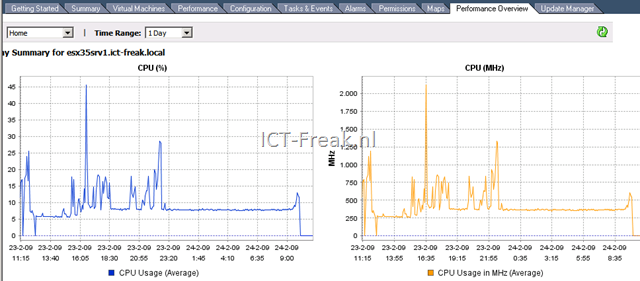
In the VI Client you’ll notice a new tab called Performance Overview. Here some screenshots from a host:image

image

image

And here is one screenshot from a VM:

image


Source: KB1008296

VMware: vCenter 2.5 u4 released


VMware just released vCenter server 2.5 u4 with the following improvements:

  • Guest Operating System Customization Improvements – VirtualCenter now supports customization of Windows Server 2008 guest operating systems.
  • Performance Overview Charts – VirtualCenter 2.5 Update 4 introduces the Performance Overview plug-in, which provides a single view of key performance metrics for CPU, memory, disk, and network without having to navigate through multiple charts. The aggregated charts show high-level summaries of resource distribution.
    To install the Performance Overview plug-in, see Installing the Performance Overview Plug-In in VirtualCenter 2.5 Update4 (KB 1008296)

You can find the release notes here: http://www.vmware.com/support/vi3/doc/vi3_vc25u4_rel_notes.html

The download: http://www.vmware.com/download/download.do?downloadGroup=VC250U4

VMware: New Visio Shapes released


I just saw a nice present in one of my RSS feeds:


  1. ThinApp-Stencil- Objects for ThinApp

  2. Build your Own-Stencil – Stand-alone objectsto create your own diagrams

  3. VM-STencil – Objects that are related Virtual Machines

  4. VMware-Stencil – General Objects for VMware

  5. Products-Stencil – Diagrams and objects that are related to VMware products or technologies

Grab your own copy here: http://viops.vmware.com/home/docs/DOC-1346


Source: http://technodrone.blogspot.com/2009/02/small-present-for-you-all-vmware-visio.html

VMware: VMname_2 na het opnieuw registreren van een VM


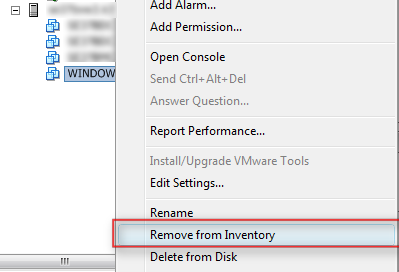
Het kan zijn dat je een VM, om wat voor reden dan ook, uit de vCenter inventory hebt verwijderd. Dit kun je doen via de Remove from Inventory optie.

image

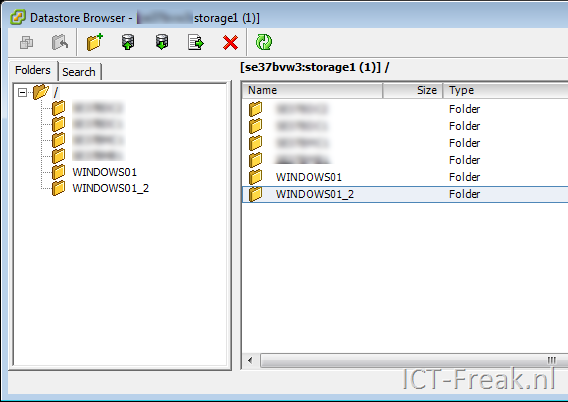
Als je na deze actie, gelijk weer een VM registreerd met dezelfde naam, dan zie je het volgende verschijnen in je Datastore.

image

Om deze actie voor te blijven, kun je het beste na de Remove from Inventory actie, eerst de vCenter service restarten.

Dit kun je als volgt doen: Op de vCenter server open je de commandpromt en voer je het volgende commando uit om de vCenter service te stoppen:

net stop “VMware VirtualCenter Server”

Vervolgens start je de service weer:

net start “VMware VirtualCenter Server”

Als je nu weer een VM registreert, met dezelfde naam, dan zal deze actie geen nieuwe vmname_2 folder aanmaken.

Virtual Appliance: EDA 0.87


image

Herco van Brug heeft een nieuwe versie van EDA uitgebracht. In versie 0.87 zijn de volgende punten gefixed / toegevoegd:

New in 0.87:
– editing the order of the scriptparts
– bulk creation and deletion of ESX hostnames/ip
– an fs.php page that allows for small remote updates
– ESXi support fixed again

Voor de mensen die niet weten wat EDA is, hier een quote:

ESX Deployment Appliance (EDA) is a small and easy to use appliance that makes deploying ESX servers a breeze. It has a very intuitive web-interface that can configure and deploy dozens of ESX servers in minutes. It has a script-builder that will allow any admin to create %post-scripts that will do most anything one needs to get the ESX hosts up and running! Even if deploying with RDP/Altiris or the UDA, this script-builder can help setting those up very quickly.

To set it up, just attach a ESX3 iso to it. It will automatically mount it and with one click, import the PXE bootfiles and strip the HBA drivers to do a save install while SAN LUNs are attached!

It also shares files with samba which makes getting files to the ESX host during installation very easy. the scriptbuilder will insert the correct scriptpieces to read files from the DL share (this is a readonly share). to put files on the EDA, go to the DL$ share (with the dollarsign) as root user.

This appliance is still in beta stage because there’s a todo list. But it’s fully functional and has been tested to work at least on HP DL380’s, BL460, BL480 and Dell 2950 servers.

Ik gebruik EDA sinds 0.71 en het werkt echt super. Het kost je misschien wat tijd om de %post scripts aan te maken en te testen maar als dat eenmaal op orde is, installeer je de ESX servers wel op een consistente manier. Herco keep up to good work!

Meer info en de download vind je hier: http://www.vmware.com/appliances/directory/1216

VMware: vCenter Converter released


VMware vCenter Converter can run on a wide variety of hardware and supports most commonly used versions of the Microsoft Windows and Linux* operating systems. With this robust, enterprise class migration tool you can:

  • Quickly and reliably convert local and remote physical machines into virtual machines without any disruption or downtime.
  • Complete multiple conversions simultaneously with a centralized management console and an intuitive conversion wizard.
  • Convert other virtual machine formats such as Microsoft Virtual PC and Microsoft Virtual Server or backup images of physical machines such as Symantec Backup Exec System Recovery or Norton Ghost to VMware virtual machines.
  • Restore VMware Consolidated Backup (VCB) images of virtual machines to running virtual machines.
  • Clone and backup physical machines to virtual machines as part of your disaster recovery plan.


image

Download your copy here: https://www.vmware.com/download/converter/

*Linux P2V support is available for Standalone version only

VMware: Dutch Blogger list


image

Tomas ten Dam van www.tendam.info heeft een lijst samengesteld met daarin een opsomming van de verschillende nederlandse blogsites.

Today, i have updated the Dutch bloggers list. I added a blogger called Rob van Hamersveld. I also made the page better readable and added rss feeds for each site. I placed an language icon with the bloggers name so you can see in which language the blogger writes.

There are now a total of 21 bloggers on the list! Go see for you self and add them to your rss reader.

De complete lijst kun je hier vinden: http://tendam.wordpress.com/dutchbloggers/