VMware: BUG in ESX 3.5 Update 2


De Bug:

Starting this morning, we could not power on nor VMotion any of our Virtual Machines. The VI Client threw the error “A general system error occurred: Internal Error”.
Further digging lead us to messages like this one in /var/log/vmware/hostd.log, and the log file for any virtual machine we tried to power on or VMotion:
Aug 12 10:40:10.792: vmx| http://msg.License.product.expired This product has expired.
Aug 12 10:40:10.792: vmx| Be sure that your host machine’s date and time are set correctly.
Aug 12 10:40:10.792: vmx| There is a more recent version available at the VMware Web site: http://www.vmware.com/info?id=4.

De workaround:

The work-around: turn off NTP (if you’re using it), and then manually set the date of all ESX 3.5u2 hosts back to 10th of August. This can be done either through the VI Client (Host -> Configuration -> Time Configuration) or by typing date -s “08/10/2008” at the Service Console command line on the ESX hosts.

As soon as the date was reset to the 10th – problem solved.

Note that running VMs were operating fine, this only seems to affect initial VM power-on (including from suspended state) and VMotion.

Bron: http://communities.vmware.com/thread/162377?tstart=0


Reactie van een medewerker van VMware:

“Dear VMware customers,

We are actively working on rootcausing the problem. Once we know the appropriate action to take here, we’ll provide an update.

Apologies for any inconvenience.

The ESX Product Team”

Bron: http://vmetc.com/2008/08/11/august-12-bug-in-esx-35-update-2/


Op het VMUG forum staat nu ook een topic: http://www.vmug.nl/modules.php?name=Forums&file=viewtopic&t=2953

Daarin schrijft JCvanDoorn het volgende:

Hier is een kort lijstje met wat recommendations van een van mijn collega’s:
1. Set DRS to manual
2. Do not VMotion
3. Do not power off or suspend VM
4. If you have some important VMs you need to turn on again
a. Create a quarantine host – a standalone host without any VMs
b. Set time on this host back
c. Verify, that your VM will not synchronize its time with that host
d. Cold migrate VM to the quarantine host
e. Power VM on, log into it and set check the time setting. If necessary set the time manually
You could also think about temporarily disconnecting the VM to power on from the Virtual Switch. This way you are certain that the VM will not be able to communicate with a DC while it’s out of time-synch. This allows you to set the time manually before connecting it back to the Virtual Switch.


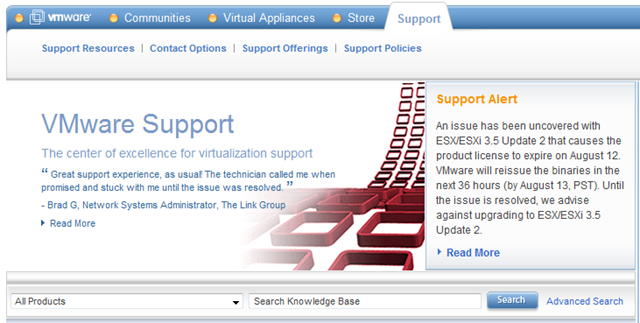
Inmiddels heeft VMware zelf ook een melding op hun supportsite geplaatst: http://www.vmware.com/support/
image

En het topic in de VMware communities is nog steeds groeiende:  http://communities.vmware.com/message/1020565

Whitepaper: VMware and VSS: Application Backup and Recovery


Veeam schrijft het volgende:

More and more organizations are choosing VMware Infrastructure to virtualize their mission‐critical applications (Active Directory, Exchange, SharePoint, SQL Server) to create a flexible, easily administered virtual infrastructure.
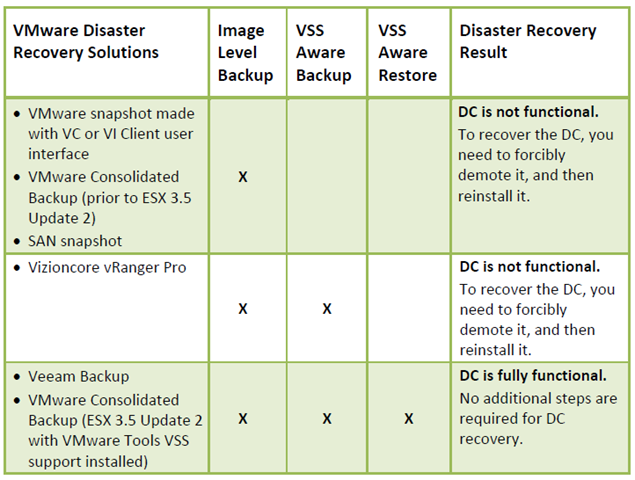
Virtual machines (VMs) and any applications they contain must be protected against failure. Typically, in the virtual world, this is done by performing an image‐level backup of the whole machine (for instance, using VMware Consolidated Backup). This method results in what is known as a crash‐consistent image. Restoring a crash‐consistent image is essentially equivalent to rebooting a server after a hard reset. For operating systems, this has not been an issue, since they can easily handle this type of activity. For database applications as well as for applications featuring replication, however, such a restore will often result in lost data, data corruption, or application failure.
To illustrate this concept, let’s review the consequences of using different VM disaster recovery methods for one of the most common mission‐critical applications: a Microsoft Active Directory domain controller (DC). Depending on the solution used, the following results will be achieved:

image

Download de PDF hier: VMwareandVSS-ApplicationBackupandRecovery.pdf

XtraVirt: VI3.5 in a box


image

De jongens van XtraVirt  hebben hun guide over VI in a Box bijgewerkt.

In 2007, like others in the global VMware community, Xtravirt developed a common methodology to install and run VMware ESX 3.x on VMware Workstation 6 together with a shared storage solution based upon an iSCSI software target. We called it ‘VI3 in a box’.

This allowed users and professionals in the IT community to create simple and cost effective VI3 infrastructures to test, learn about and demonstrate these environments.

Upon the release of VMware ESX 3.5 we found that this methodology did not continue to hold true. Although still possible to install ESX 3.5, when attempting to start a nested Virtual Machine on the ESX VM, the ESX VM panics, and a stop message appears.

However, with the release of VMware Workstation 6.5, build release 99530, a revised solution now exists.

This white paper documents the process to install and configure ‘VI3.5 in a box’.


Download de guide hier: ESXonWKS65beta99530.pdf

VMware: Windows 2008 Guest Customization


Helaas werkt de Guest Customization van een Windows 2008 VM / Template nog steeds niet out of the box in VirtualCenter 2.5.u2.

GuestCustomization20081

Gelukkig heeft Jasemccarty de oplossing in de VMware Communities geplaatst:

If you have a Windows 2008 guest that you wish to customize, it is fairly easy to do in VirtualCenter.

The sysprep.xml file is automatically generated by VirtualCenter, and does not require any additional tools from Microsoft, as they got smart, and included it in the base build of Windows Vista/2008.

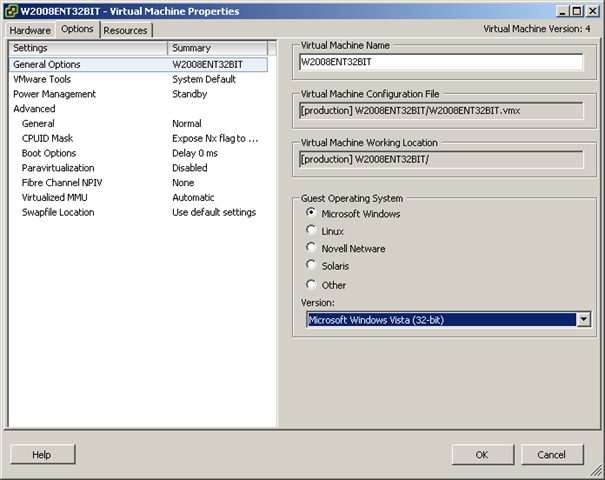
Unfortunately, VC won’t customize a Windows 2008 guest… But it will customize a Windows Vista guest. Because they are a similar architecture (if not almost identical), changing the guest type to Vista, will allow you to customize a Windows 2008 guest.

All you have to do, is change the guest you wish to clone, or the template, to be configured as a Windows Vista guest.

You can then customize the guest (2008) the same way you would Windows Vista. When you are done deploying the guest, before you power it on, change it to be configured as a Windows 2008 guest.


Converteer je Windows 2008 template weer terug naar een VM en stel de VM daarna in op Microsoft Windows Vista als Guest Operation System Version.

GuestCustomization2008

Daarna converteer je de VM weer terug naar een templat. Vanaf nu kun je de Windows 2008 template ook customizen.

Screenshot - 5-8-2008 , 18_15_55

VMware: Create script for VC & VUM Databases


Voor het installeren van VirtualCenter 2.5 heb je een twee tal databases nodig. Een voor VC en een voor VUM. Ik werd gek van dat geklik binnen de SQL Server Management Studio. Voor dit proces heb ik nu een SQL script gemaakt. Dit script heb ik getest in SQL 2005.

Het onderstaande script maakt het volgende aan:

  • Database met de naam VC
  • Database met de naam VUM
  • User met de naam VCUSER, wachtwoord vmware
  • User met de naam VUMUSER, wachtwoord vmware
  • De beide Users krijgen de db_owner role en de sysadmin role.

CREATE DATABASE VC;
GO
CREATE LOGIN [VCUSER] WITH PASSWORD=’vmware’, DEFAULT_DATABASE=[VC], CHECK_EXPIRATION=OFF, CHECK_POLICY=OFF
GO

USE VC
GO
EXEC sp_grantdbaccess ‘VCUSER’
GO
EXEC sp_addrolemember ‘db_owner’, ‘VCUSER’
GO
EXEC sp_addsrvrolemember ‘VCUSER’, ‘sysadmin’
GO

CREATE DATABASE VUM;
GO
CREATE LOGIN [VUMUSER] WITH PASSWORD=’vmware’, DEFAULT_DATABASE=[VUM], CHECK_EXPIRATION=OFF, CHECK_POLICY=OFF
GO

USE VUM
GO
EXEC sp_grantdbaccess ‘VUMUSER’
GO
EXEC sp_addrolemember ‘db_owner’, ‘VUMUSER’
GO
EXEC sp_addsrvrolemember ‘VUMUSER’, ‘sysadmin’
GO

[/code]

Dit script kun je binnen de SQL Server Management Studio uitvoeren en na een F5 voor een refresh zie je de nieuwe databases en de nieuwe users.

Installing VMWare ESX 3.5 u2 on a HP ML110G5


Ik was bezig met het installeren van ESX 3.5 u2 op de HP ML 110G5. Tijdens de installatie kon ik alleen geen VMKCORE en VMFS parities aanmaken. Gelukkig waren er al een paar mensen mij voor gegaan met het installeren van ESX op de HP. Bijvoorbeeld Aleks Nikolić van http://www.virtualistic.nl

Aleks heeft de oplossing gepost op het VMUG forum:

Toen ik de eerste keer de cd erin stopte van 3.5 werd de originele disk herkend als een IDE disk en wilde ESX alles EXT 3 maken. Ik dacht uit m’n hoofd dat de SATA controller toen in de BIOS aangevinkt stond als AUTO. Ik heb toen deze optie omgezet naar SATA. CD opnieuw erin en installatie gestart, de HD werd nu herkend als SCSI disk en zo werd het mogelijk om een VMFS aan te maken.


Bron: http://www.vmug.nl/modules.php?name=Forums


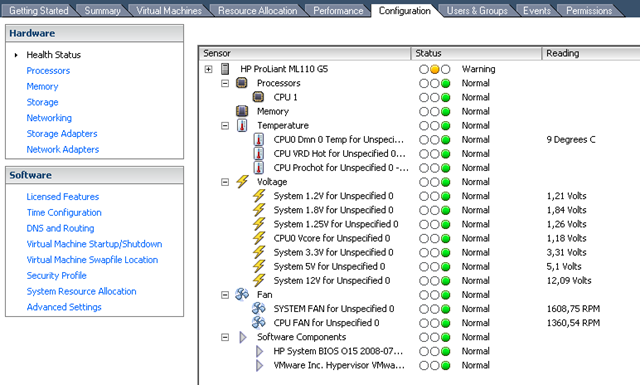
Na de installatie vond ik dit wel een leuk screenshotje om te showen:

image

VMware: VI Compatibility Matrixes


ESX Server, VirtualCenter, and Virtual Infrastructure Client Compatibility

The ESX Server, VirtualCenter, and Virtual Infrastructure Client Compatibility Matrixes guide provides details on the compatibility of current and previous versions of VMware Infrastructure 3 components, including ESX Server, VirtualCenter, and the VI Client.

Download de pdf hier: http://www.vmware.com/pdf/vi3_35/esx_3/r35/vi3_35_25_compat_matrix.pdf

VMware: DRS Performance and Best Practices Paper Posted


VMware Infrastructure 3 provides a set of distributed infrastructure services that make the entire IT environment more serviceable, available, and efficient. Working with VMware ESX 3, VMware VirtualCenter 2, and VMware VMotion, VMware Distributed Resource Scheduler (DRS) dynamically allocates resources to enforce resource management policies while balancing resource usage across multiple ESX hosts. This performance study focuses on understanding the effectiveness and scalability of DRS algorithms. It identifies various scenarios in which you can benefit from DRS and explains how to configure your environment to take best advantage of DRS.

Download de pdf hier: http://www.vmware.com/files/pdf/drs_performance_best_practices_wp.pdf

VMware: Hot Extend Virtual Disks Using ESX 3.5 Update 2


Paul Shannon van (http://www.vm-aware.com/) heeft een pdf gemaakt waarin hij de nieuwe feature Hot Extend Virtual Disks stap voor stap uitlegt.

One of the great new bits of functionality in ESX 3.5 Update is the ability to hot extend non-boot virtual disks without shutting down the VM.

I decided to give it a go with a Windows 2003 Standard VM and thought I’d provide a How To for anyone that might need/want it.


De pdf kun je hier downloaden: how-to-hot-extend-virtual-disks-using-esx-35-update-2