Book: Managing VI with Powershell


image

You can pre-order your book now: http://www.scriptingoutpost.com/

VMware is the king when it comes to virtualization. Windows PowerShell has gotten huge accolades as an extremely powerful tool for automation of IT tasks. These two technologies make a lot of sense together, and VMware is now making that happen with the release of their VI Toolkit for Windows.

In "Managing VMware Infrastructure with PowerShell", you will learn how to perform everything from simple ad-hoc reporting at the command-line ("are any of my virtual machines powered off?") to complex scripts to automate a massive deployment of hundreds of virtual machines. Simple, yet powerful; concise, yet robust; you will enjoy using this new language to solve your old problems using less code than you thought possible.

If you are a system administrator responsible for managing a VMware Virtual Infrastructure (version 2.0 or above), or a standalone ESX Server (version 3.0 or above), then you need this book. Aimed at scripters of every level, the book starts off with a PowerShell primer and continues well into the internals of virtualization on the VMware platform.

Table of Contents
  • Introduction – Why You Need This Book
  1. Windows PowerShell Crash Course
  2. Getting Started
  3. Scripting with Virtual Infrastructure
  4. Inventory and Reporting
  5. Deployment and Configuration
  6. Maintenance and Operations
  7. Troubleshooting and Problem Resolution
  8. Managing VMWare with PowerGUI

VMware: Workstation 6.5.2. Released


image

I was looking at the VMware Download site and saw a new build of VMware Workstation.  You can find the release notes here: releasenotes_ws652.html

The following issues are resolved in Workstation 6.5.2:

Security Fixes

  • Windows-based host privilege escalation in hcmon.sys
    A vulnerability in an ioctl function in hcmon.sys might be used to escalate privileges on a Windows-based host. The Common Vulnerabilities and Exposures project has assigned the name CVE-2009-1146 to this issue.
    New releases of hosted products address a denial-of-service problem described in CVE-2008-3761, which can only be exploited by a privileged Windows account.
  • A remote denial-of-service vulnerability in authd for Windows-based hosts
    A vulnerability in vmware-authd.exe might cause a denial-of-service condition on Windows hosts. The Common Vulnerabilities and Exposures project has assigned the name CVE-2009-0177 to this issue.
  • A VMCI privilege escalation on Windows-based hosts or guests
    Virtual Machine Communication Interface (VMCI) is an infrastructure that provides fast and efficient communication between a virtual machine and the host operating system and between two or more virtual machines on the same host. A vulnerability in vmci.sys might allow privilege escalation on Windows-based machines. This might occur on Windows-based hosts or inside Windows-based guest operating systems. Current versions of ESX Server do not support the VMCI interface and hence they are not affected by this vulnerability. The Common Vulnerabilities and Exposures project has assigned the name CVE-2009-1147 to this issue.
  • VMnc codec heap overflow vulnerabilities
    The VMnc codec assists in record and replay sessions. Record and replay records the dynamic virtual machine state over a period of time. Two heap overflow vulnerabilities might allow a remote attacker to execute arbitrary code on VMware hosted products. For an attack to be successful, the user must visit a malicious Web page or open a malicious video file.
    The Common Vulnerabilities and Exposures project has assigned the names CVE-2009-0909 and CVE-2009-0910 to these issues.
Miscellaneous
  • Creating ACE package fails on Windows virtual machines
    Creating ACE package fails with the error Tools is out of date, on virtual machines running Windows NT, Windows 9x and Windows Millennium Edition. This issue is resolved in this release.
  • Unable to install the latest version of VIX API on Workstation 6.5.0
    On Workstation 6.5.0, you cannot install VMware VIX API 1.6.2 due to an issue with the MSI installer for VIX API. This issue is resolved in this release.
  • Unable to connect to PPTP VPN using VMware NAT on Microsoft Windows guest operating systems
    When you try to open a PPTP VPN connection by using VMware NAT with Microsoft XP Service Pack 2, the following error appears:
    Disconnected. 619 connect to the remote machine could not be established.
    The issue is found on Cisco 1841 VPN and other PPTP VPN connections, and is applicable to all supported versions of Microsoft Windows host machines. This issue is resolved in this release.
  • Workstation displays wrong message after installing the latest version of VMware Tools
    After installing the latest version of VMware Tools and rebooting the guest operating system, Workstation displays the following message on the status bar:
    Your version of VMware Tools is out of date.
    This issue is resolved in this release.
  • Novell SLES 11 Beta is displayed as not supported when installing VMware Tools
    Virtual machines running the Novell SUSE Linux Enterprise Server 11 Beta operating systems as guests display the following warning message while installing VMware Tools:
    WARNING: Cannot determine dependencies of kernel module 'vmxnet'.
    This issue is resolved in this release.
  • vsock fails to load using load-vmware on Linux kernel 2.6.26 and later
    If CONFIG_MODVERSIONS is defined, vsock does not load when you run load-vmware command as the Module.symvers is missing on Linux kernels 2.6.26 and later. This issue is resolved in this release.
  • In Workstation, Google Earth displays extra lines for the country borders
    In Workstation, Google Earth displays extra yellow lines to draw the country borders, when the Direct3D Acceleration option is enabled.
    This issue is resolved in this release.
  • Unable to invoke vi editor from VMware Tools on SLES11 guest operating system
    When you try to edit VMware Tools scripts from vmware-toolbox window on SUSE Linux Enterprise Server 11 (SLES11), the following error appears in the console:
    Cannot edit script because the vi editor was not found
    This issue is resolved in this release.
    To edit vmware-tools scripts:
    1. Launch VMware Tools and select the Scripts tab.
    2. Select Custom script option and click Edit.
  • Only the first attempt succeeds when mapping original and cloned virtual disk files to drive letters
    On Windows hosts, if you make a linked or full clone of a virtual machine and then try to map the virtual disk files of the original virtual machine as well as of the clone to drive letters on the host, only the first mapping succeeds. Because both disks have the same signature, you can map only one of the disks at a time. This issue is resolved in this release.

Download the new version here: http://www.vmware.com/download/ws/

VMware: Adding the Enhanced vmxnet vnic


The Enhanced vmxnet adapter was already available in ESX 3.5 (see KB1001805). The support for this adapter is a lot better since Update 4 is released. Now you can also add the Enhanced vmxnet adapter to a Windows Server 2003 VM, without the workaround mentioned in KB1007195.

image

Some info about the Enhanced vmxnet from KB1001805:

  • Enhanced vmxnet — The enhanced vmxnet adapter is based on the vmxnet adapter but provides some high-performance features commonly used on modern networks, such as jumbo frames. This virtual network adapter is the current state-of-the-art device in virtual network adapter performance, but it is available only for some guest operating systems on ESX Server 3.5. This network adapter will become available for additional guest operating systems in the future.
    Enhanced VMXNET is supported only for a limited set of guest operating systems:

    • 32/64-bit versions of Microsoft Windows 2003 (Enterprise and Datacenter Editions). You can use enhanced vmxnet adapters with other versions of the Microsoft Windows 2003 operating system, but a workaround is required to enable the option in the VI Client. See http://kb.vmware.com/kb/1007195. Since Update 4, you can add the Enhanced vmxnet via the VIC.
    • 32/64-bit versions Red Hat Enterprise Linux 5.0
    • 32/64-bit versions SUSE Linux Enterprise Server 10
    • 64-bit versions Red Hat Enterprise Linux 4.0
  • And a warning:

    Migrating virtual machines that use enhanced vmxnet. Enhanced vmxnet is new with ESX Server 3.5. Virtual machines configured to have enhanced vmxnet adapters cannot migrate to older ESX Server hosts, even though virtual machines can usually migrate freely between ESX Server 3.0 and ESX Server 3.0.1.

    If you must migrate a virtual machine between newer and older hosts,don’t choose enhanced vmxnet but instead one of the older adapter types. Flexible or e1000 are offered whenever enhanced vmxnet is offered.

    VMware: ESX(i) 3.5 u4 released


    image

    VMware ESX 3.5 Update 4 has been released. You can find the download and release notes here:

    What’s New:


    Not all combinations of VirtualCenter and ESX Server versions are supported and not all of these highlighted features are available unless you are using VirtualCenter 2.5 Update 4 with ESX Server 3.5 Update 4. See the ESX Server, VirtualCenter, and VMware Infrastructure Client Compatibility Matrixes for more information on compatibility.

    1. This version of ESX Server requires a VMware Tools upgrade.

    The following information provides highlights of some of the enhancements available in this release of VMware ESX Server:

    Expanded Support for Enhanced vmxnet Adapter This version of ESX Server includes an updated version of the VMXNET driver (VMXNET enhanced) for the following guest operating systems:

    • Microsoft Windows Server 2003, Standard Edition (32-bit)
    • Microsoft Windows Server 2003, Standard Edition (64-bit)
    • Microsoft Windows Server 2003, Web Edition
    • Microsoft Windows Small Business Server 2003
    • Microsoft Windows XP Professional (32-bit)

    The new VMXNET version improves virtual machine networking performance and requires VMware tools upgrade.

    Enablement of Intel Xeon Processor 5500 Series — Support for the Xeon processor 5500 series has been added. Support includes Enhanced VMotion capabilities. For additional information on previous processor families supported by Enhanced VMotion, see Enhanced VMotion Compatibility (EVC) processor support (KB 1003212).

    QLogic Fibre Channel Adapter Driver Update — The driver and firmware for the QLogic fibre channel adapters have been updated to version 7.08-vm66 and 4.04.06 respectively. This release provides interoperability fixes for QLogic Management Tools for FC Adapters and enhanced NPIV support.

    Emulex Fibre Channel Adapter Driver Update The driver for Emulex Fibre Channel Adapters has been upgraded to version 7.4.0.40. This release provides support for the HBAnyware 4.0 Emulex management suite.

    LSI megaraid_sas and mptscsi Storage Controller Driver Update — The drivers for LSI megaraid_sas and mptscsi storage controllers have been updated to version 3.19vmw and 2.6.48.18 vmw respectively. The upgrade improves performance and enhance event handling capabilities for these two drivers.

    Newly Supported Guest Operating Systems — Support for the following guest operating systems has been added specifically for this release:

    For more complete information about supported guests included in this release, see the Guest Operating System Installation Guide: http://www.vmware.com/pdf/GuestOS_guide.pdf.

    • SUSE Linux Enterprise Server 11 (32-bit and 64-bit).
    • SUSE Linux Enterprise Desktop 11 (32-bit and 64-bit).
    • Ubuntu 8.10 Desktop Edition and Server Edition (32-bit and 64-bit).
    • Windows Preinstallation Environment 2.0 (32-bit and 64-bit).

    Furthermore, pre-built kernel modules (PBMs) were added in this release for the following guests:

    • Ubuntu 8.10
    • Ubuntu 8.04.2

    Newly Supported Management Agents — Refer to VMware ESX Server Supported Hardware Lifecycle Management Agents for the most up-to-date information on supported management agents.

    Newly Supported I/O Devices — in-box support for the following on-board processors, IO devices, and storage subsystems:

      SAS Controllers and SATA Controllers:

    The following are newly supported SATA Controllers.

    • PMC 8011 (for SAS and SATA drives)
    • Intel ICH9
    • Intel ICH10
    • CERC 6/I SATA/SAS Integrated RAID Controller (for SAS and SATA drivers)
    • HP Smart Array P700m Controller

      Notes:

      1. Some limitations apply in terms of support for SATA controllers. For more information, see SATA Controller Support in ESX 3.5 (KB 1008673).
      2. Storing VMFS datastores on native SATA drives is not supported.

    Network Cards: The following are newly supported network interface cards:

    • HP NC375i Integrated Quad Port Multifunction Gigabit Server Adapter
    • HP NC362i Integrated Dual port Gigabit Server Adapter
    • Intel 82598EB 10 Gigabit AT Network Connection
    • HP NC360m Dual 1 Gigabit/NC364m Quad 1 Gigabit
    • Intel Gigabit CT Desktop Adapter
    • Intel 82574L Gigabit Network Connection
    • Intel 10 Gigabit XF SR Dual Port Server Adapter
    • Intel 10 Gigabit XF SR Server Adapter
    • Intel 10 Gigabit XF LR Server Adapter
    • Intel 10 Gigabit CX4 Dual Port Server Adapter
    • Intel 10 Gigabit AF DA Dual Port Server Adapter
    • Intel 10 Gigabit AT Server Adapter
    • Intel 82598EB 10 Gigabit AT CX4 Network Connection
    • NetXtreme BCM5722 Gigabit Ethernet
    • NetXtreme BCM5755 Gigabit Ethernet
    • NetXtreme BCM5755M Gigabit Ethernet
    • NetXtreme BCM5756 Gigabit Ethernet

    Expanded Support: The E1000 Intel network interface card (NIC) is now available for NetWare 5 and NetWare 6 guest operating systems.

    Onboard Management Processors:

    • IBM system management processor (iBMC)

    Storage Arrays:

    • SUN StorageTek 2530 SAS Array
    • Sun Storage 6580 Array
    • Sun Storage 6780 Array

    How to: Update ESX3i (USB) Without VUM


    image

    In this post you’ll find the information you need, to update your ESX3 i host without the VMware Update Manager.

    In this whitepaper  vi3_35_25_3i_i_setup.pdf (page 115), you’ll find the following information about the Infrastructure Update tool:

    When you install the VI Client, the software installs Infrastructure Update. Infrastructure Update lets you learn about, download, and install maintenance and patch releases, which provide security, stability, and feature enhancements for VMware Infrastructure.

    Infrastructure Update downloads available updates. The downloads are background tasks and do not disrupt normal operation. The update service does not install updates for you. Instead, the update service displays a list of available updates that you can choose to install.
    When new updates are available, the system tray icon for Infrastructure Update displays a notification. The notifications appear only if you keep automatic update notifications enabled.

    This is how it works:

    Open the VI Client. Logon to your ESX 3i server. Close the VI Client. Go to Start –> Programs –> VMware and open VMware Infrastructure Update.

    image

    To update an ESX3i host via VMware Infrastructure Update tool. You will need to follow these three steps:

    Continue reading “How to: Update ESX3i (USB) Without VUM”

    Disable Multipathing on a VCB Proxy


    image

    In my journey of tuning my VCB Proxy for the best performance. I came across this post on the Veeam forums by drbarker: http://forum.veeam.com/. In this post, he describes the steps to be taken, if you want to disable multipathing on your VCB Proxy:

    1. Log on to your VCB proxy as a user with administrative privileges.

    2. Click Start. Right-click My Computer in the Start menu and select  Manage. The Computer Management window opens.

    3. In the Computer Management window, select Storage > Disk Management.

    If the Initialize and Convert Disk Wizard opens, close it.
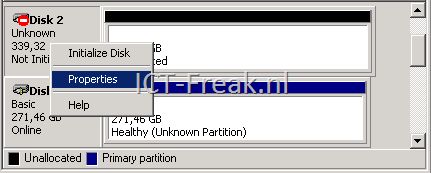
    The lower-right portion of the Computer Management window displays a list of all disks visible to the system.

    Inactive paths to disks are indicated by a No Entry icon placed over the disk.

    image

    4. To disable an inactive path, right-click its icon and select Properties from the context menu. The Disk Drive Properties dialog box opens.

    image 

    5. On the General tab, change the value for Device usage to "Do not use this device (disable)." This removes the disk from the list of devices presented by Disk Management.

    image

    6. Repeat Step 4 and Step 5 for all inactive paths.

    Veeam FastSCP3 on Windows 7 X64


    image

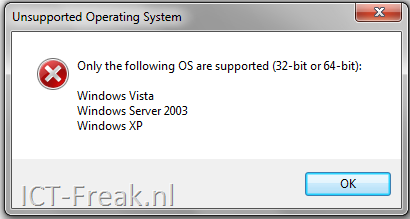
    If you try to install Veeam FastSCP3 on Windows 7 X64. You’ll get the following error:

    veeam_fastscp3_win7_error

    I asked a question about this error in the Veeam Forums: http://forum.veeam.com.

    Gostev suggested the following:

    the workaround is to hack installation package and remove OS version check (if you know how to do this) :wink:

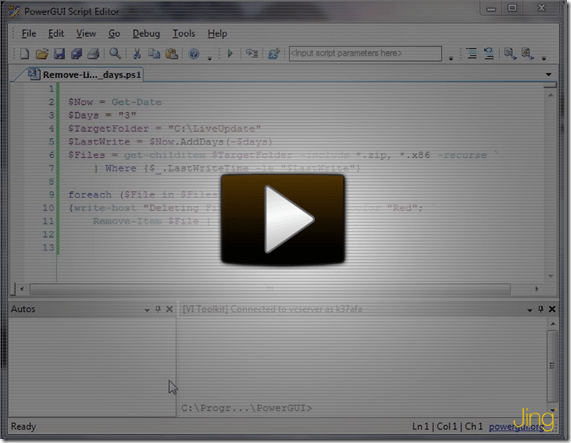
    So this is exactly what i did. I found a script on this page: http://lazynetworkadmin.com. This script does exactly what i needed. It removes the OS Version Check from the MSI.

    These are the steps:

    1. Download Veeam FastSCP 3 from here: http://www.veeam.com
    2. Extract the zip file.
    3. Download winrar and extract the veeam_fastscp_3.0.exe.
    4. Get the scrtipt from: http://lazynetworkadmin.com and save it on the desktop.
    5. Grab the extracted FastSCPSetup.msi and drop it on the script. After a couple of seconds, the following screens will popup: 
      image     image  image image
    6. You can install FastSCP 3 by running the FastSCPSetup.msi.