Vista: Photo Gallery Yellow Tint Background Problem


I had the same issue with a Samsung SyncMaster 940bw monitor.

When displaying and viewing photos in Windows Photo Gallery of Vista, some monitors or LCD flat panel displays may have a strange problem in which the images will be shown with a orange or yellowish tinge in photos’ background, affecting the display natural color of pictures to become something like Sepia effect. The entire window on WPG appears to be colored in slightly yellowish tint, and is therefore appear darker, including the panels on either side of the photo display which which appear yellow on the desktop but are white in actual.The yellow tinted photos may also affect other default image viewer in Windows Vista

image

The first workaround is by removing any existing ICC or WCS color profiles that are been associated with all display devices or monitors. Else, you can also try to change the default color profile for your system’s monitor to sRGB IEC61966-2.1, simply by clicking on Add, and then select sRGB IEC61966-2.1 from the list of profiles installed on system. After adding, click Set as Default Profile button. Exit from all dialogs and reboot your computer, and the color problem on Windows Photo Gallery is fixed.

If your system doesn’t have sRGB IEC61966-2.1 profile under the ICC Profiles, you can download the color profile from Adobe. Unpack the zip file, the right click on each of the .icc files in the RGB Profiles and CMYK Profiles folders (or simply just the one you need to use) and click “Install Profile” on context menu to install the color profile to system.

The first workaround was the solution for my system 😀
image

Source: http://www.mydigitallife.info/2007/07/11/windows-vista-photo-gallery-yellow-tint-background-problem/

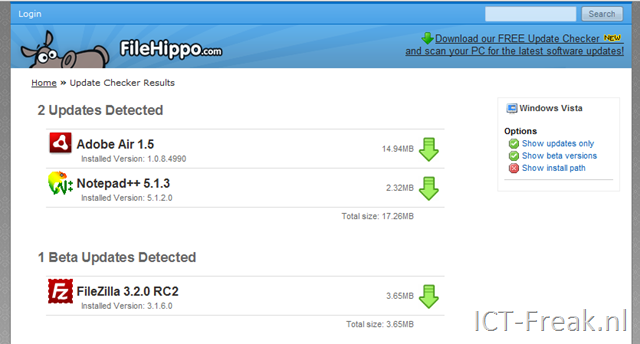
Tool: FileHippo.com Update Checker


image 

I was browsing trough my feeds when this little tool caught my attention:

Update Checker v1.030 Beta
FHSetup.exe (153kb)
Download now

Note: If you wish to download the standalone version without an installer then click here.

After downloadeing the executable version and running it against my computer.

image

The following page started in Firefox:

image

After downloading and installing the updates on my PC everything was up to date again 😀

Source: http://www.makeuseof.com/tag/filehippo-update-checker-keeps-your-pc-software-updated/

Tool: PowerGUI 1.6


Dimity just spread the news on Twitter:image

The new features include:

PowerShell v2 CTP3 compatibility.

  • [Editor] Dockable & re-arrangeable panes – now you can re-arrange the 3 panes (script, variables, and PowerShell console) any way you like, or even undock any of them and place it outside the main window – I myself am doing that to the PowerShell Console one, making it really large, and placing on my second monitor – makes so much difference!
  • [Debugger] Almost instant debugger start – this used to take significant time for larger scripts in our previous releases.
  • [Debugger] Ability to step into external scripts.
  • [Editor] Customizable toolbar and hotkeys – the first thing I did with that was placing Copy As HTML to the toolbar – this is the feature I am using all the time to blog my PowerShell code.
  • [Admin Console] Much improved column selection dialog box (the one you get when right-clicking the grid header and choosing More).

You can download the new version here: http://powergui.org/downloads.jspa

Printscreen:

image

Source: http://dmitrysotnikov.wordpress.com/2009/01/07/powergui-16-released/

VMware: Reference cards


Rick Scherer posted a post about some reference cards for VMware admins. The vmreference card by Forbes Guthrie is a well know one but the other two reference cards mentioned by Rick are also nice to have.

First is the vmreference VI3 card by Forbes Guthrie over at www.vmreference.com

Second and third are VI3 Command References and Linux Command References from the VMware Deploy, Secure & Analyze class.

Source: http://vmwaretips.com/wp/2008/12/12/esx-reference-cards/

Script: VI Toolkit Healthcheck


Ivo Beerens just released his second version of his Healthcheck powershell script.

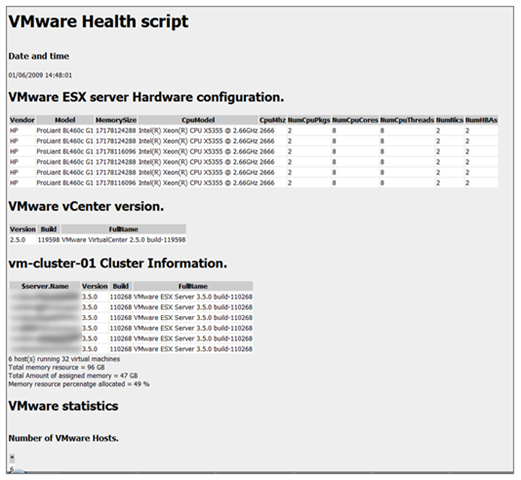
Version 2.0 of the Healthcheck script is released. The script reports the following:

– VMware ESX server Hardware and version         
– VMware vCenter version    
– Cluster information
– VMware statistics
– Active Snapshots    
– CDROMs connected to VMs   
– Floppy drives connected to VMs  
– Datastores Information such as free space
– RDM information 
– VM information such as VMware tools version,  processor and memory limits     
– VM’s and there datastore
– VMware timesync enabled  
– Percentage disk space used inside the VM
– VC error logs last 5 days

It is possible to schedule this script and output the content to HTML and e-mail it. 

image 

You can download the script over here: http://www.ivobeerens.nl/?p=256

BackupExec: Disable Corrupt Data Encounterd error.


Het kan zijn dat je Backup via Symantec Backup Exec in een error eindigt met de volgende foutmelding:

image

Deze melding kun je negeren. Hoe dit in zijn werk gaat lees je hier onder.

Voor Backup Exec 11/12

Als je deze melding wilt uitzetten voer je de volgende key in.

Windows Registry Editor Version 5.00

[HKEY_LOCAL_MACHINE\SOFTWARE\Symantec\Backup Exec For Windows\Backup Exec\Engine\Backup]
"Fail Jobs On Corrupt Files"=dword:00000000

Als je deze melding wilt aanzetten voer je de volgende key in.

Windows Registry Editor Version 5.00

[HKEY_LOCAL_MACHINE\SOFTWARE\Symantec\Backup Exec For Windows\Backup Exec\Engine\Backup]
"Fail Jobs On Corrupt Files"=dword:00000001


Voor Backup Exec 9/10

Als je deze melding wilt uitzetten voer je de volgende key in.

Windows Registry Editor Version 5.00

[HKEY_LOCAL_MACHINE\SOFTWARE\VERITAS\Backup Exec\Engine\Backup]
"Fail Jobs On Corrupt Files"=dword:00000000

 
Als je deze melding wilt aanzetten voer je de volgende key in.

Windows Registry Editor Version 5.00

[HKEY_LOCAL_MACHINE\SOFTWARE\VERITAS\Backup Exec\Engine\Backup]
"Fail Jobs On Corrupt Files"=dword:00000001


Bron: http://thebackroomtech.com/2008/12/04/howto-stop-backup-exec-from-failing-entire-backup-jobs-when-corrupt-files-are-encountered/

VMware: Interpreting esxtop Statistics


Scott Drummond of VMware has just created a document of the forums that details the Esxtop command. The document is splitted in the following sections:

Section 1. Introduction
Section 2. CPU
Section 2.1 Worlds and Groups
Section 2.2 Global Statistics
Section 2.3 World Statistics
Section 3. Memory
Section 3.1 Machine Memory and Guest Physical Memory
Section 3.2 Global Statistics
Section 3.3 Group Statistics
Section 4 Disk
Section 4.1 Adapter, Device, VM screens
Section 4.2 Disk Statistics
Section 4.2.1 I/O Throughput Statistics
Section 4.2.2 Latency Statistics
Section 4.2.3 Queue Statistics
Section 4.2.4 Error Statistics
Section 4.2.5 PAE Statistics
Section 4.2.6 Split Statistics
Section 4.3 Batch Mode Output
Section 5 Network
Section 5.1 Port
Section 5.2 Port Statistics
Section 6. Interrupt

The rest of the article can be found over here: http://communities.vmware.com/docs/DOC-9279

VMware: Autostart from the COS


Duncan heeft vandaag de volgende blogpost http://www.yellow-bricks.com/2009/01/01/check-if-autostart-is-enabled-from-the-cos/ online gezet, over het nakijken van de autostart (van VM’s) feature in het COS.

I didn’t know this was possible. But you can easily check via the COS if autostarting of VM’s in enabled or not according to this KB article:

Via het volgende commando kun je nakijken of de setting op false staat:

cat /etc/vmware/hostd/vmAutoStart.xml | grep ‘<enabled>false</enabled>’

image

Via de volgende commando’s kun je deze setting aanpassen:

Om de setting op true te zetten voer je het volgende commando uit:

perl -p -i.old -e ‘s/<enabled>false/<enabled>true/g’ /etc/vmware/hostd/vmAutoStart.xml 
de optie –i.old zorgt er voor dat er een backup gemaakt wordt

Om de setting op false te zetten voer je het volgende commando uit:

perl -p -i.old -e ‘s/<enabled>true/<enabled>false/g’ /etc/vmware/hostd/vmAutoStart.xml

IBM DS4300: Battery Nearing Expiration


Na deze error hebben we gelijk een call aangemaakt bij IBM. Na het doorsturen van de support data kregen we  een drietal oplossingen:

  1. Upgraden van de Firmware
  2. Nieuwe batterypack
  3. Het aantal dagen resetten

De engineer van IBM verzekerde mij dat deze melding genegeerd kan worden omdat de levensduur van de batterypack is verlengt naar 10 jaar. In deze post leg ik uit hoe je optie drie kunt toepassen.

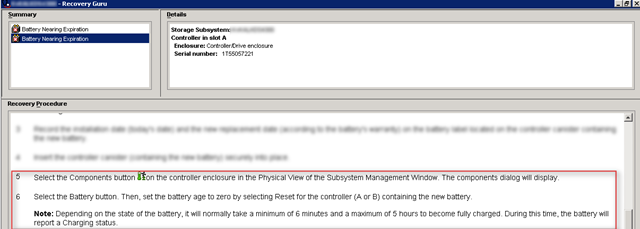
Als je in de Recovery Guru opent vindt je de oplossing.

image

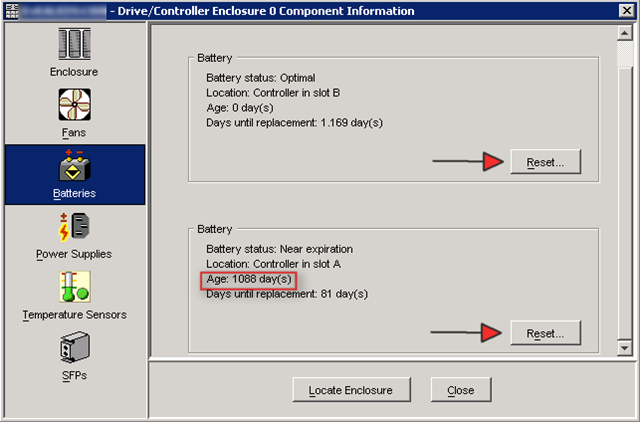
Open de Logical/Physical View en klik op Storage Subsystem. Daarna klik je op Components button (zie pijl)

image

Druk vervolgens op Reset om het aantal dagen terug te draaien naar 0.

 image

Open daarna de Recovery Guru en je zult zien dat de error weg is.

image