VMware: VMname_2 na het opnieuw registreren van een VM


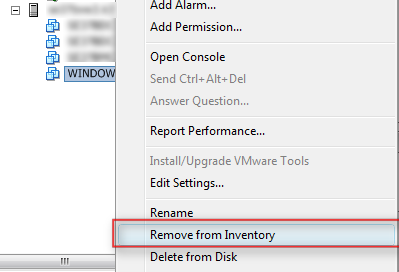
Het kan zijn dat je een VM, om wat voor reden dan ook, uit de vCenter inventory hebt verwijderd. Dit kun je doen via de Remove from Inventory optie.
image

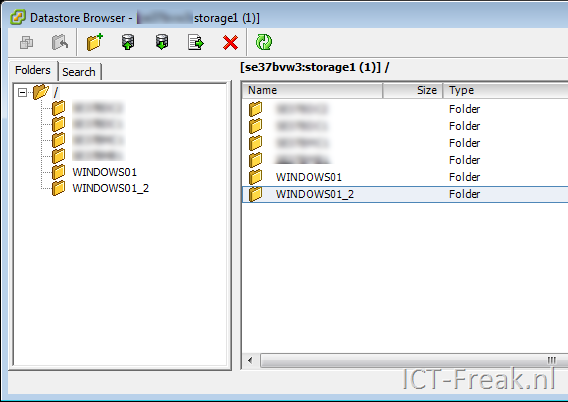
Als je na deze actie, gelijk weer een VM registreerd met dezelfde naam, dan zie je het volgende verschijnen in je Datastore.
image

Om deze actie voor te blijven, kun je het beste na de Remove from Inventory actie, eerst de vCenter service restarten.

Dit kun je als volgt doen: Op de vCenter server open je de commandpromt en voer je het volgende commando uit om de vCenter service te stoppen:

net stop “VMware VirtualCenter Server”

Vervolgens start je de service weer:

net start “VMware VirtualCenter Server”

Als je nu weer een VM registreert, met dezelfde naam, dan zal deze actie geen nieuwe vmname_2 folder aanmaken.

Veeam Backup: VM “vmname” (ref: “vm-##”) is “invalid”


 Veeam_logo

I had a strange problem with one of my VM’s. The VM-ID was changed and this change was not forwarded to my vCenter server. I use Veeam Backup for creating backups and the job skipped this VM with the following error:

image

This problem can be solved by restarting the services on the ESX server and the vCenter server.

The following command will do this on the ESX Server.

service mgmt-vmware restart

For vCenter (Windows) you can do this from the command line:

net stop "VMware VirtualCenter server"

net start "VMware VirtualCenter server"

After restarting the services, the backup job completed successfully.

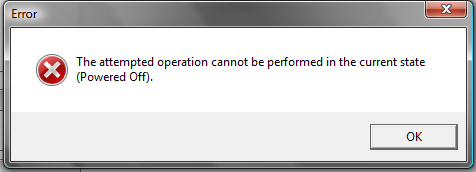
VMware: The attemped operation cannot be performed


Tijdens de migratie naar ESX 3.5u3 (ik draaide nog ESX 3.02 met een uptime van 553 dagen :-)) Wilde ik de VM’s verplaatsen via een VMotion. Dit ging goed op een VM na. Deze VMotion task stopte na 10% met een time-out foutmelding. Ik moest door met de migratie en had dus niet te tijd om dit grondig te onderzoeken. Ik heb de VM netjes afgesloten en daarna via een Cold Migration verplaatst. Dit ging allemaal goed totdat ik de VM weer wilde optstarten. De volgende foutmelding kwam naar voren:

image

Na wat zoeken op google kwam ik de volgende topic tegen:

In dit topic kwamen de volgende oplossingen naar voren:

Potentially, your VC client on esx server is having issue. I would restart both vmware-vpxa and mgmt-vmware service. If status of the VM would not still sync with VC then, I would think VM itself has an issue.

If this is the case, kill VMPID by performing following;

#this would return all running VMs vmid#
cat /proc/vmware/vm/*/names/

#lookup actual group id
less -S /proc/vmware/vm/(your vmid)/cpu/status

#kill vm with group id you got from above
/usr/lib/vmware/bin/vmkload_app -k 9 (yourgroupID)

1. Disconnected my esx server from virtualcenter
2. Closed VI Client
3. Restarted VirtualCenter (windows service)
4. Open VI Client and re-added my host.

Geen van de oplossingen was de oplossing voor mijn geval. Ik heb de VM uit de inventory van ESX gehaald. Vervolgens heb ik het VMX bestand verwijderd. Daarna heb ik de vCenter service opnieuw gestart en de VM opnieuw aangemaakt met de bestaande VMDK. De VM werkte daarna weer zoals het hoort.

Add Custom Fields to VI Client with Powershell (Samples)


Hugo Peeters heeft zijn Powershell scripts voor het vullen van Custom Fields in vCenter gepost:

Snapshot Count

I already showed you how to do this, but I have now added an IF-statement so that only changes are updated (equal values are not overwritten). And I have added Julian Wood’s correction. Add-VMSnapshotCount.ps1

Total Snapshot Size

The number of snapshots is quite inetresting, but even more interesting, is the total size of the delta files all snapshots are occupying. They might be eating up all your precious SAN space. Plus, reverting to or committing a large snapshot is tricky. Add-VMSnapshotSize.ps1

Host Hardware Model

Want to see what models of hardware you are using in your datacenter? You could look at the summary tab of each host. Or run this script to add the info to the every Hosts tab in the VI Client. Select your Datacenter, select the Hosts tab and enjoy! Add-VMHostModel.ps1

Host ESX Version

Did you update all your ESX Servers to the latest version? Check it quickly using this script. Add-VMHostVersion.ps1

Host LUN Count

Last but certainly not least: are you sure every datastore you are using is available to all your ESX Servers? It is visible at a glance when you add the LUN Count to your VI Client! Add-VMHostLUNCount.ps1


Check zijn site voor allerlei top Powershell scripts: http://www.peetersonline.nl/


Bron: http://www.peetersonline.nl/index.php/vmware/add-custom-fields-to-vi-client-with-powershell-samples/

VMware: Snapshot Information in vCenter


 image

Hugo Peeters heeft een powershell script gemaakt welke het aantal snapshots laat zien in een custom field binnen vCenter.

Although I spend quite some time in the Powershell Command Line Interface, the main tool for managing the Virtual Infrastructure remains the VI Client. So wouldn’t it be great if we could somehow show the results of our Powershell VI Toolkit scripts inside the VI Client?
Well, we can! Let’s take a closer look at Custom Fields / Custom Attributes.
If you select either a VMHost (ESX Server) or a VM in the VI Client and open the Summary tab, you will see the Annotations section in the bottom left. When you click Edit, I’m sure you have used the Notes section to enter Descriptions. But have you ever used the Attributes section? Here you can manually add and remove custom attributes and their values. Go ahead and create one. Then select a cluster or datacenter and click the Hosts or Virtual Machines tab. You will notice you can display your custom attribute in this table view, just like all the other properties of your VMs / Hosts. Pretty sweet!
image

Voor meer info zie Hugo zijn post: http://www.peetersonline.nl/index.php/vmware/add-snapshot-information-to-the-vi-client-using-powershell/

VMware: New product line names vCenter, View


Zoals de meeste mensen misschien al wisten is VMware bezig met het rebranden van haar producten. VirtualCenter en VDM zijn de eerste producten met een nieuwe naam:

VMware VirtualCenter  → VMware vCenter Server
The central management product for VMware Infrastructure
VMware Lifecycle Manager → VMware vCenter Lifecycle Manager
Workflow automation product for creation, deployment and decommissioning of virtual machines
VMware Converter → VMware vCenter Converter (for the version integrated into vCenter)
VMware vCenter Converter Standalone (for the separately downloadable version); comes in two flavors: Enterprise and Starter
Physical to virtual (P2V) conversion product
VMware Lab Manager → VMware vCenter Lab Manager
Automation product for application development environments
VMware Stage Manager → VMware vCenter Stage Manager
Automation product for application staging and deployment environments

VMware Update Manager → VMware vCenter Update Manager
Host and virtual machine patch management product integrated with vCenter Server
VMware Site Recovery Manager → VMware vCenter Site Recovery Manager
Disaster recovery orchestration product
VirtualCenter Foundation → vCenter Server Foundation
Node limited version of vCenter Server
VMFS → VMware vStorage VMFS
VMware’s cluster file system

VMware Virtual Desktop Infrastructure → VMware View
VMware’s integrated desktop virtualization solution that delivers enterprise-class control and manageability
Virtual Desktop Manager (VDM) → VMware View Manager
Enterprise class server which manages connections from end points to virtual desktops or hosted desktops while helping rapidly provision desktops

VMware Administrator Interface → VMware View Administrator
Administrator Interface for View Manager
VDM Agent → VMware View Manager Agent
Agent for View Manager to talk to the virtual desktop

VDM Web Access → VMware View Portal
Access to virtual desktops through web browser
VDM Client for Windows → VMware View Client for Windows
Client used to install on Win 32 PC or Win XP embedded thin client to connect to View Manager for virtual desktop access

VDM Client for Linux → VMware View Client for Linux
Client used to install on Linux thin clients to connect to View Manager for virtual desktop access

Bron: http://blogs.vmware.com/vmtn/2008/12/do-they-smell-a.html

VMware: vCenter Administrator Portal


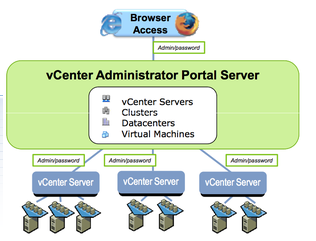
Duncan posted a news item about the vCenter Administrator Portal Server over here: http://www.yellow-bricks.com/ and here http://blogs.vmware.com/.

image


What can you expect at this moment:

  • Single sign-on to multiple vCenter Servers
  • Monitor events and alarms across multiple vCenter Servers
  • Search and track inventory across multiple vCenter Servers
  • Launch VI Client in context to manage vCenter Servers
  • Search for virtual machines across multiple vCenter Servers
  • Launch virtual machine consoles
  • Utilizes permissions setup in vCenter Servers
  • Unified view for: vCenter Servers, Datacenters, Clusters, Hosts, Virtual Machines
  • Access summary view of inventory objects, rolled up across vCenter Servers, for comparison and monitoring purposes


You can download your copy here: http://communities.vmware.com/community/beta/vcadminportal