Exchange: Clean Install Exchange 2007 SP1 On Windows Server 2003 SP2


exchange2007

In deze post lees je hoe je een Default Exchange 2007 SP1 setup uitvoerd op een Windows 2003 SP2 server/domain.

requirements

  • Windows 2003 SP1 of hoger
  • Microsoft .Net 2.0 SP1
  • Windows Powershell 1.0
  • IIS 6.0 (Zonder de SMTP role)
  • Domain Functional Level op Windows 2000 Native of Windows Server 2003

Download Exchange 2007 SP1 (in deze download zit de RTM geslipstreamed) hier:

Continue reading “Exchange: Clean Install Exchange 2007 SP1 On Windows Server 2003 SP2”

Microsoft: Command-line reference


Het volgende staat er op de technet website van Microsoft:

Command-line reference A-Z

To find information about a command, on the A-Z menu, click the letter that the command starts with, and then click the command name.

In addition to the tools installed with the Windows Server 2003 family there are over 40 support tools that you can install directly from the product CD. You can use these tools to diagnose and resolve computer problems. For more information about these support tools and how to install them, see Install Windows Support Tools.

For more information about changes to the functionality of MS-DOS commands, new command-line tools, command shell functionality, configuring the command prompt, and automating command-line tasks, see Command-line reference.

You must run command-line tools at the prompt of the Cmd.exe command interpreter. To open Command Prompt, click Start, click Run, type cmd, and then click OK. To view help at the command line, at the command prompt, type:

CommandName /?

As a security best practice, consider using an account without administrative credentials to perform routine, nonadministrative tasks. To perform only specific tasks with an account with administrative credentials, you can use the Runas command.

Een overzicht van alle command-line opties binnen Windows Server 2003 vind je hier: http://technet2.microsoft.com/windowsserver/

Citrix: Discovery error "errors occurred when using <servername> in the discovery process"


Zoals altijd, een plaatje zegt meer dan duizend woorden:

In het artikel CTX112853 staat het antwoord vermeld. Deze foutmelding treed op wanneer network COM+ access niet is geïnstalleerd op de Citrix/Terminal Server. Dit is meestal het geval wanneer er geen IIS wordt geïnstalleerd op de Citrix/Terminal Server.

Dit kun je op drie manieren voor elkaar krijgen:

  1. Installeer network COM+ access  via Add/Remove Software – Windows Components – Application Server (vink deze niet aan maar highlight) Enable network COM+ access 
  2. Je kunt dit proces ook automatiseren. Zorg ervoor dat de I386 map van de Windows CD op een lokale drive staat bijvoorbeeld C:\I386. Vervolgens pas je de onderstaande tekst aan, sla je deze op als sourcepath.reg en importeer je deze

    Windows Registry Editor Version 5.00

  3. [HKEY_LOCAL_MACHINE\SOFTWARE\Microsoft\Windows\CurrentVersion\Setup]
    “SourcePath”=”C:\\”
    “ServicePackSourcePath”=”C:\\”
    Let op! zet in de Pathnaam geen i386 deze vind de setup vanzelf.

    Nadat je de bovenstaande actie hebt uitgevoerd maken het het bestand Complus.inf.

    in dit bestand komt de volgende inhoud te staan:
    [Components]
    complusnetwork = ON

    Complus.inf sla je op een schijf waar je makkelijk bij kunt.

    De laatste stap is het aanmaken van een batchfile genaamd Complus.cmd

    in dit bestand komt de volgende inhoud te staan:
    “%SystemRoot%\system32\sysocmgr.exe” /i:”%SystemRoot%\inf\sysoc.inf” /u:”driveletter:\Complus.inf”

    Sla het batchbestand op en voer deze uit. Het onderstaande scherm verschijnt heel kort en nadat deze is verdwenen is de network COM+ access geïnstalleerd.

    complus

  4. Als laatste kun je dit ook meenemen in je WINNT.SIF. Dit doe je als volgt:

    Zoek de [Components] op in je WINNT.SIF en voeg de volgende regel toe:
    complusnetwork = ON

    Nu word network COM+ access automatisch geïnstalleerd tijdens de Windows Setup.

Windows: Offline Defragmentation of The Active Directory database


Ik was vandaag genoodzaakt om een offline defragmentatie uit te voeren op een domain controller. Dit heb ik gedaan door het volgen KB232122.

In deze post laat ik jullie via screenshots zien hoe dit in zijn werk gaat.

Let Op! Doe deze tutorial alleen als je door een KB van Microsoft word gevraagd om dit te doen.

Continue reading “Windows: Offline Defragmentation of The Active Directory database”

Error Joining Domain: The Endpoint format is invalid.


Ik had een VM binnen VMware Workstation opgebouwd. Deze heb ik daarna via de VMware Converter overgezet naar mijn ESX omgeving met het vinkje: Install VMware Tools.

Door deze optie treed er een fout op binnen de VMWare Tools waardoor ik de volgende foutmelding kreeg bij het Joinen van het domein.

joindomain error

De oplossing vond ik op de blog van david hochstaetter. Het is vrij simpel. De VMWare Tools deïnstalleren. De VM opnieuw opstarten. Toevoegen aan het domein. Vervolgens de VM weer opnieuw opstarten. En als laatste installeer je de VMware Tools weer.

Tool: MD5 for Windows


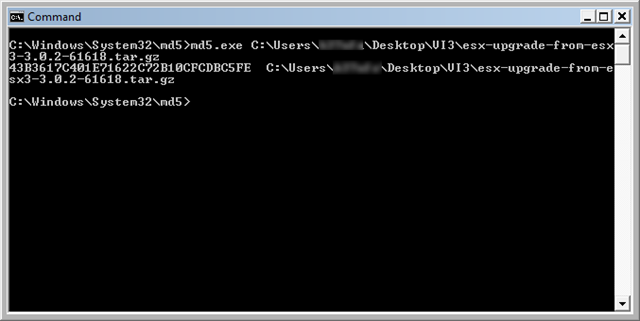
Met MD5.exe kun je md5sum bestanden controleren binnen Windows.

Dit doe je in de volgende stappen:

  1. Download md5 hier: http://www.fourmilab.ch/md5/md5.zip
  2. Extract het zip bestand naar een willekeurige directory (in dit voorbeeld c:\windows\system32\md5).
  3. Open een Command Prompt (in Vista moet je deze als Administrator uitvoeren).
  4. Voer het volgende commando uit: C:\Windows\System32\MD5\MD5.exe bestandsnaam.exe {enter}.

In het onderstaande plaatje zie je MD5.exe aan het werk:

md5

Citrix: Configure Version 10.x of the Presentation Server Client Using Group Policies


Een quote uit document CTX112957

To configure version 10.x of the Presentation Server Client for Windows using Windows Group Policies, Citrix has created a Group Policy template called icaclient.adm with 23 Citrix-specific rules used to lock down the Presentation Server Client.

These configurations are used to modify the behavior of the Program Neighborhood Agent, Program Neighborhood, and the Web client.

Use this method for client preconfiguration in lieu of modifying the .ini files on the Presentation Server Client.

Procedure

  1. The icaclient.adm template is attached to this article. To use the template, extract the .zip file and save the .adm file locally.
  2. Import the template into the Group Policy Object Editor using Active Directory Users and Computers or using the Local Group Policy snap-in.
  3. Configure the Group Policy object (GPO) rules.

Zodra je de ADM file hebt toegevoegd, kun je de verschillende zaken configureren.

citrixclientadm

Vista: Fix the Vista Network Speed Issue While Playing Sound


Nadat ik Windows Vista "eindelijk" heb geïnstalleerd, liep ik tegen het volgende probleem aan:

Zodra ik audio afspeelde en daarna een betand over het netwerk (gigabit) wilde kopieren dropte de performance dramatisch. Na wat zoekwerk op google kwam ik de volgende post van Courtney Malone tegen: http://courtneymalone.com/2007/08/28/a-note-on-vista-network-speed/

Het probleem zit hem in de Multimedia Class Scheduler. Deze service kun je stoppen maar dan stopt de Windows Audio ook en heb je dus geen geluid meer.

In de post die hierboven wordgenoemd legt Courtney haarfijn uit hoe je de  Multimedia Class Scheduler service kunt stoppen zonder dat de Windows Audio service word gestopt. En als het goed is, word het probleem hiermee opgelost.

VMWare: Install VMWare Tools on Windows Server 2008 Core


Ik zag de volgende post op de blog van Mike Laverick: http://www.rtfm-ed.co.uk/?p=451. In deze post word door Michael Maher word uitgelegd hoe je de VMware Tools kunt installeren in een Windows Server 2008 Core VM.

“For those unfamiliar with Server Core it is a command line only version of Windows Server 2008 (formerly Longhorn). I have been trying to install this on ESX 3.0. On the GUI version of Windows 2008 server, VMWare tools must be installed to get the NIC working. Server Core however is command line only. VMWareTools is a GUI installation so this is not an option for Server Core. The workaround is to transfer VMWareTools (contained in a file called windows.iso) from your ESX server to a local drive. This can be done using Winscp. Use Virtual Center to mount the windows.iso file as a CDROM drive in the Server Core VM. The driver files are located in \Program Files\VMWare\VMWare Tools\Drivers\VMXNet\w2k of the windows.iso file. The command used to install the drivers is

C:\Windows\System32>pnputil -i -a vmxnet.inf
Microsoft PnP Utility
Processing inf : vmxnet.inf
Successfully installed the driver on a device on the system.
Driver package added successfully.
Published name : oem2.inf

Next check the installation of the driver. Vmxnet should be displayed near the end of the list.

C:\Windows\System32>driverquery
ws2ifsl Winsock IFS driver Kernel 18/04/2007 04:52:40
vmxnet VMware Ethernet Adapte Kernel 22/04/2006 23:13:11

You can then enable remote access of Server Core with the command.


netsh advfirewall set allprofiles settings remotemanagement enable

To disable the firewall.
netsh advfirewall set allprofiles firewallpolicy allowinbound,allowoutbound”

In post word ook nog verwezen naar een ander blog van Justin Campbell. Daar vind je nog meer info over Server 2008 Core: http://cmsjustin.blogspot.com/2007/09/windows-server-2008-core-not-what-i-had.html