PowerCLI: Export, Import and Create DRS Rules


image 

I was trying to create a DRS Rule creation script but after a short search on the PowerCLI communities, I found some excellent stuff from @LucD. These are two scripts for Exporting and importing DRS rules.

To export your DRS-Rules, you can run the next script. The only thing you have to change is <cluster-name> to your cluster name.

#DRS-export-rules.PS1
$outfile = "C:\rules.txt" Remove-Item $outfile $clusterName = <cluster-name> $rules = get-cluster -Name $clusterName | Get-DrsRule foreach($rule in $rules){ $line = (Get-View -Id $rule.ClusterId).Name $line += ("," + $rule.Name + "," + $rule.Enabled + "," + $rule.KeepTogether) foreach($vmId in $rule.VMIds){ $line += ("," + (Get-View -Id $vmId).Name) } $line | Out-File -Append $outfile }


The import script looks like this:

#DRS-import-rules.PS1

$file = "C:\rules.txt"
$rules = Get-Content $file

foreach($rule in $rules){
  $ruleArr = $rule.Split(",")
  if($ruleArr[2] -eq "True"){$rEnabled = $true} else {$rEnabled = $false}
  if($ruleArr[3] -eq "True"){$rTogether = $true} else {$rTogether = $false}
  get-cluster $ruleArr[0] | `
    New-DrsRule -Name $ruleArr[1] -Enabled $rEnabled `
    -KeepTogether $rTogether `
    -VM (Get-VM -Name ($ruleArr[4..($ruleArr.Count - 1)])) 
}


If you want to create a new DRS-Rules, you only have to create your own rules.txt file like this:

<cluster-name>True,True,<vmname>,<vmname2>,<vmname3>

<cluster-name>,False,True,<vmname>,<vmname2>

Now run the Import DRS-Rules script and in a blink of an eye, the new rules are created.


Source: http://communities.vmware.com/thread/195733?start=10&tstart=0

PowerCLI: Reading the VMKERNEL logfiles with Powershell v2


image

I was reading Alan Renouf his post about reading the vmkernel log files with PowerCLI. Carter Shanklin posted a comment with the Powershell v2 way of doing this task. I grabbed his one-liner and added a foreach ( % ) loop and the Out-GridView cmdlet. Now with the foreach loop, the one-liner will run against all my ESX Servers.

Get-VMHost |% {Get-Log -VmHost $_ vmkernel |Select -expand Entries } |Out-GridView

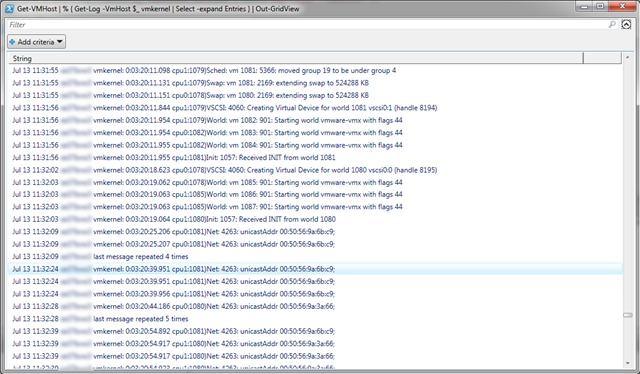
The Out-GridView cmdlet will show us all the vmkernel logfiles together in one window.

image

If want to filter on Warning messages only, run the following one-liner:

Get-VMHost | % { Get-Log -VmHost $_ vmkernel | 
Select -expand Entries | Select-String WARNING } | Out-GridView

If there are Warnings in the vmkernel log, the following GridView will be created:

image

If you want to filter the output in the GridView, just use the filter box and if necessary, you can add a criteria:

image

PowerCLI: Two One-Liners


image 

In this post I will show you two One-Liners that will get you some info of where the VM is placed or running on.

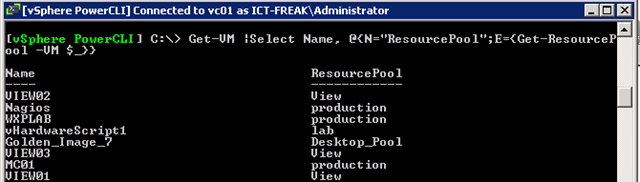
The first one-liner will show all the VMs’ and the ResourcePool where the VM’s are placed.

Get-VM |Select Name, @{N="ResourcePool";E={Get-ResourcePool -VM $_}}

 image

The second One-Liner will show the VM’s and the ESX server where the VM’s are running.

Get-VM |Select Name, @{N="ESX";E={Get-VMHost -VM $_}} 

image

PowerCLI: Set CPU Identification Mask


image

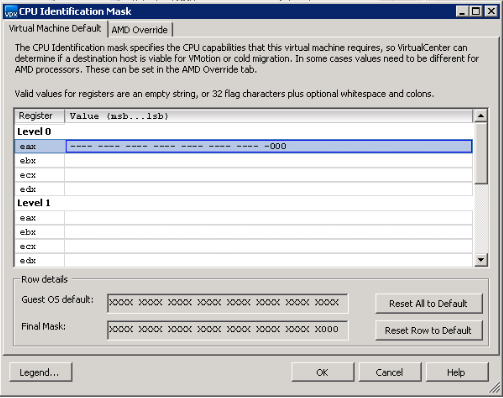
Today I received a question in my mailbox about setting the CPU Identification Mask on Multiple VM’s. The guy who asked the question wanted to set the following values:

image

So I started to search on the VMware Communities and I found the following function.

# Mask SSE 4.1 Extensions to the guest.
function Mask-Extensions($vm) {
    $view = get-view $vm.id

    $vmConfigSpec = new-object VMware.Vim.VirtualMachineConfigSpec
    $featureMask = new-object VMware.Vim.VirtualMachineCpuIdInfoSpec
    $featureMask.info = new-object VMware.Vim.HostCpuIdInfo

    $featureMask.info.ecx = "---- ---- ---- 0--- ---- ---- ---- ----"
    $featureMask.info.level = 1

    $vmConfigSpec.CpuFeatureMask = $featureMask

    $view.ReconfigVM($vmConfigSpec)
}

I changed it a little bit, so it matches the required settings (see picture above):

function Mask-Extensions($vm) {

    $view = get-view $vm.id
    write-host "Setting Mask for: "$vm.Name

    $vmConfigSpec = new-object VMware.Vim.VirtualMachineConfigSpec
    $featureMask = new-object VMware.Vim.VirtualMachineCpuIdInfoSpec
    $featureMask.info = new-object VMware.Vim.HostCpuIdInfo
    $featureMask.info.eax = "-----------------------------000"
    $featureMask.info.level = 0

    $vmConfigSpec.CpuFeatureMask = $featureMask

    $view.ReconfigVM($vmConfigSpec)
}

If you want to run this function against one VM, You can run the following command:

Mask-Extensions (get-vm "My VM")

You can also use this function in the pipeline:

get-vm | % {Mask-Extensions ($_)}


Source: http://communities.vmware.com/message/960123#960123

My vCenter Orchestrator Installation Notes


image 

In this post I will share my vCenter Orchestrator Installation Notes.  For the people who doesn’t know what vCenter Orchestrator is, click on the next url: http://www.vmware.com

Before you can install the vCenter Orchestrator service, you have to configure a database first. For this job a created a script. You can use the following lines to create a database on SQL 2005 server:

CREATE DATABASE VCO;
GO
CREATE LOGIN [VCOUSER] WITH PASSWORD=’vmware’, DEFAULT_DATABASE=[VCO], CHECK_EXPIRATION=OFF, CHECK_POLICY=OFF
GO

USE VCO
GO
EXEC sp_grantdbaccess [VCOUSER]
GO
EXEC sp_addrolemember ‘db_owner’, [VCOUSER]
GO
EXEC sp_addsrvrolemember [VCOUSER] ’sysadmin’
GO

Joep has posted his installation notes here: http://www.virtuallifestyle.nl so I was curious about the product and wanted to see if I could install it. So with Joep his post as a reference I tried to install the product. I tried to find the vCenter Orchestartor Configuration service. But I could not find it.

After installation, open the Microsoft Services tool to enable the ‘VMware vCenter Orchestrator Configuration’ service. I recommend it to start every time the OS starts up, i.e. ‘Automatic’. Start it manually as well to start working with Orchestrator immediately

So I mounted the vCenter 4 cd-rom and installed the vCenter Orchestrator via:

<cd-rom>\vpx\vmo\vCenterOrchestrator.exe

orchestrator_1

When the installation is finished, open Services.msc and check if the vCenter VMware vCenter Orchestrator Configuration is started. If this is not the case, set the service to start automatic and start the service.  When the vCenter Orchestrator Configuration service is started, Start the vCenter Orchestrator Web Configuration service.

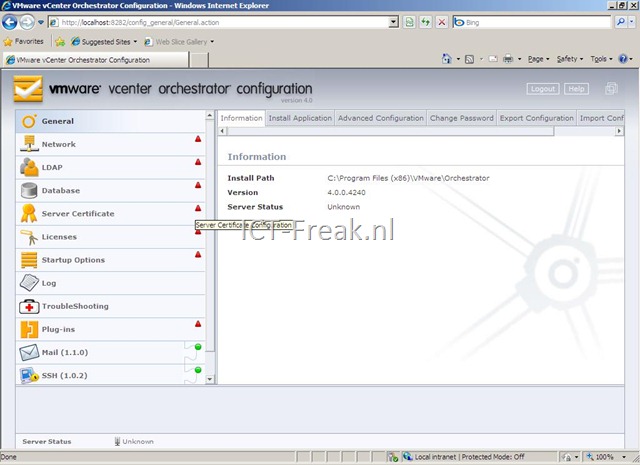
Now it’s time to configure the vCenter Orchestrator. Open a browser and go to http://vco-server:8282. Login with the default credentials: username vmware and password vmware.orchestrator_3

Change the default password. Go to General and press on the tab Change Password:

image

Click on Network to configure network settings. Select the IP Address of your vCenter server.

 image

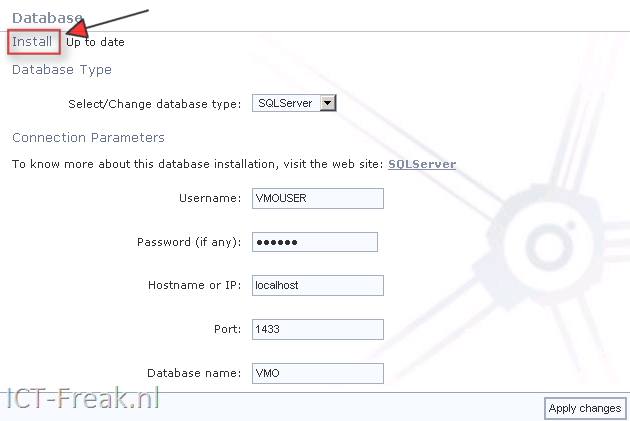
Click on Database to configure your database. Configure the Database connection settings and press install database. Click on Apply changes.

image

The rest of the setup can you read in Joep his post: http://www.virtuallifestyle.nl

PowerCLI: Set Custom Fields


 image

Last week I posted a script to add Notes to a VM. After posting this script there was a little discussion on Twitter with @vmdoug, @gabvirtualworld if the Notes field is the right field to add this kind of information. So @vmdoug introduced me to the world of Custom Fields.

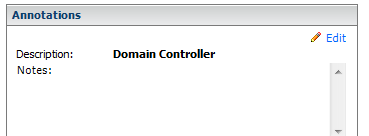
So I changed my CSV file and added the Field entry. This Field entry will be de name of your custom field. In my case I called it Description.

VMName,Field,Note
DC01,Description,Domain Controller
VC01,Description,vCenter Server

 
The following one-liner will fix this for you:

Import-Csv
"D:\*.csv" | % { Get-VM $_.VMName |
Set-CustomField -Name $_.Field -Value $_.Note -Confirm:$false }

After running the script you will see the Description field with a new entry:

image 

This one-liner will run very slow on a Large environment. So if you have large environment you should definitely check out LucD post on Alan Renouf’s Blog:  http://www.virtu-al.net

PowerCLI: Add Notes To Multiple VM’s


image

My colleague asked me to add some notes to the VM’s so he knows what this VM is doing. So this is a nice job for PowerCLI 🙂 . In this post you will see how powerful PowerCLI /Powershell is.  With only one line of code (one-liner),  you are able to achieve this job.

First you have to create a CSV file with the following entry’s:

VMName,Note
VM1,Domain Controller
VM2,Database Server

The second step is to run this one-liner. The one-liner will add the Notes:

Import-Csv "D:\*.csv" | % { Set-VM $_.VMName -Description $_.Note -Confirm:$false}

When the one-liner is ready, you will find the Notes in the vSphere Client:

image

Note: This script will overwrite the existing Notes, so use it at your own risk!

vSphere: Deploy Template grayed out


image

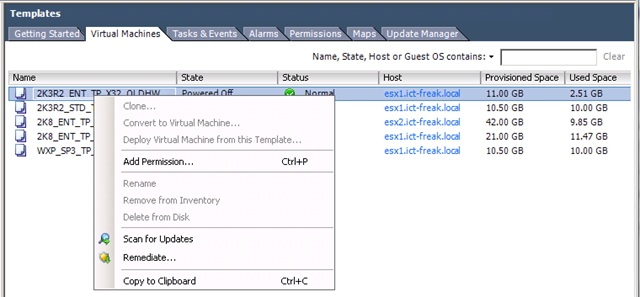
I wanted to deploy a template via the vSphere client but I was unable to achieve this task because the option was grayed out.  After restarting the vCenter services and the vCenter server I was still unable to deploy a template.

image

Non of the options where available. So PowerCLI to the rescue:

$templates = Get-Template *
    foreach($item in $templates){
        $template = $item.Name
                
            #Convert Template back to VM
            Set-Template $template -ToVM -RunAsync
            #Convert Template back to template :S
            $vmview = Get-VM $template | Get-View
            $vmview.MarkAsTemplate()
            
    }


After running the script above. I was able to deploy my templates again 🙂

image