VMware: Failed to get disk partition information in vSphere


image

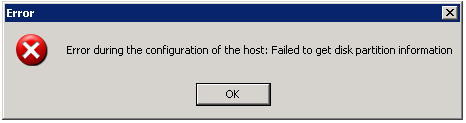
Today I wanted to add a new iSCSI Lun to my vSphere Lab. I got the following error:
image

I had this error in the past, see my previous post: vmware-failed-to-get-disk-partition-information. I tried the solution described in my previous post but it didn’t  work in vSphere.

So I had to search for another solution. Luckily VMware released a KB document. See KB1008886. In this KB document VMware uses the command esxcfg-vmhbadevs. This command is replaced with a new command called esxcfg-scsidevs.

So I ran the esxcfg-scsidevs command on the service console:

image

After running the command, write down the following line: Console Device: /dev/sdc. Start Parted and walk through the following steps.

Note: don’t forget to change the /dev/sdb to the device you need to fix. In my case /dev/sdc.

To change the label and partitioning scheme:

Caution: This removes the pre-existing partition table, and any data on the volume is no longer be available. Ensure you are operating against the correct disk.

  1. Start parted to analyze the existing partition. Print the existing partition information, taking note of the Partition Table, size, and name. Ensure this is the data intended to be removed.
    Run the following commands:
    [root@esx ~]# parted /dev/sdb
    GNU Parted 1.8.1
    Using /dev/sdb
    Welcome to GNU Parted! Type ‘help’ to view a list of commands.
    (parted) print
    Disk geometry for /dev/sdb: 0.000-512.000 megabytes
    Disk label type: gpt
    Number  Start   End    Size   File system  Name                          Flags 
    1      17.4kB  134MB  134MB               Microsoft reserved partition  msftres
  2. Change the partition table (disklabel) type to msdos. This deletes the pre-existing partitions. Print the partition table again to observe the changes. Quit parted.
    Run the following commands:
    (parted) mklabel msdos
    (parted) print
    Disk geometry for /dev/sdb: 0.000-512.000 megabytes
    Disk label type: msdos
    Minor    Start       End     Type      Filesystem  Flags
    (parted) quit
  3. Return to the VI Client and use the Add Storage wizard again. Choose the same LUN, create a new partition, and format it with a VMFS Datastore as normal.

Source: http://kb.vmware.com/selfservice/microsites/search.do?language=en_US&cmd=displayKC&externalId=1008886

PowerCLI: Fast vMotion script with GUI


image

Gabrie dropped the following message on Twitter:

@gabvirtualworld *sigh* Why do I always have to reselect the resource pool when migrating VMs? Now I can’t move multiple VMs at once when in diff pools.

Well I felt the same about this. For the people who don’t know what Gabrie means whit his tweet, I will add two screenshots to explain it. When you start the Migrate (VMotion) task, You need to select what kind of migration you want to do. I choose the Change host option:

image

If you want to migrate multiple VM’s then I think you will find the next screen as annoying as I and Gabrie find it.

image

So to get rid of this annoying option. I created a script with an UI to VMotion multiple VM’s at the same time. Note: You can only VMotion  to one Selected host.

This is a printscreen of the GUI of the script:

image

I created a movie of the script in action:

You can download the script here: http://poshcode.org/1220

Gabrie thanks for testing the script!

PowerCLI: Find and Set the Service Console Memory value


image

Last year I wrote a blog post about changing the COS memory. You can find the post here: https://ict-freak.nl/2008/11/26/vmware-service-console-memory/ (it’s written in Dutch). In that post there is already a one-liner made by LucD butt in this post you’ll get an extra one-liner to determine the COS memory value.

If you want to see how much memory is allocated for the Service Console run the next script:

Get-VMHost | Sort Name | Get-View | Select Name, `
@{N="Service Console Memory";E= {"" + `
[math]::round($_.Config.ConsoleReservation.ServiceConsoleReserved / 1MB, 0) + " MB "}}


Just add | Export-Csv -NoTypeInformation "D:\cosmem.csv" to export the data to a CSV file.

The output will look like this:

image

The script/one-liner:

Get-VMHost | Get-View | % { 
$_.Name | Where { $_.Config.ConsoleReservation.ServiceConsoleReserved -eq "314572800" }
(Get-View -Id $_.ConfigManager.MemoryManager).ReconfigureServiceConsoleReservation(800*1mb) }
 

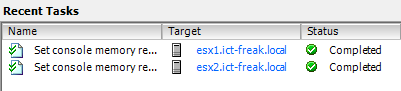
You can monitor the changes in vCenter:

image 

More information about the maximum values can be found here:  vsp_40_config_max.pdf.

The maximum value for the COS Memory is 800MB so that’s what the script will use to set the COS memory.

Note: You have to restart the server to apply the changes.

Xtravirt: VMware Documentation Downloader


image

Paul Buckle van www.xtravirt.com has released an awesome script called VMware Documentation Downloader. 

Requirements

  • Microsoft Windows
  • GetVMwareDocs.bat script (download latest version below)
  • wget.exe utility (wiki available here and download utility at http://users.ugent.be/~bpuype/wget)
  • Minimum of 650MB free disk space (this requirement will increase over time as VMware publish new documentation)
  • Internet access (direct, or via an HTTP proxy)
  • .txt files have been associated with a document viewer
  • .html files have been associated with a web browser

Installation

  • Create a folder to contain the script and the downloaded files (eg. C:\VMwarePDFs).
  • Download GetVMwareDocs.bat and wget.exe and save them to this folder.

Alternatively, copy an existing “installation” from another machine.

So if you want an offline copy of the VMware documents, grab a copy of the script here: http://xtravirt.com/xd10109 (you have to sign in). Download wget,exe and you’re ready to download the docs.

The script in action:

image

PowerCLI: Upgrading vHardware to vSphere Part 2: VM’s


image

Disclaimer: use this script at your own risk 😉

In part 1 you could find a script to upgrade your templates to hardware version 7. In this post you’ll find a script that will upgrade your VM’s to hardware version 7.

Note: This script will upgrade the VMware Tools if necessary and will shutdown the VM!!!!!

You can download the script here: upgrade-vhardware_vm and here: http://poshcode.org/1217

The script will perform the following actions:

  • Connect to vCenter
  • Get all the VM’s in the folder you need to specify
  • Create a CSV file with some info about the VM. I will post the content later.
  • Update the VMware Tools if necessary (The VM will restart after the installation)
  • Shutdown the VM
  • Upgrade the vHardware to version 7
  • Start the VM
  • Create an Excel sheet with an overview of the VM’s and their IP settings

During the process of the script, the VM will be unavailable for 5 minutes or less. So be sure that nobody uses the VM.

The beforeHWchange.csv will look like this:

image

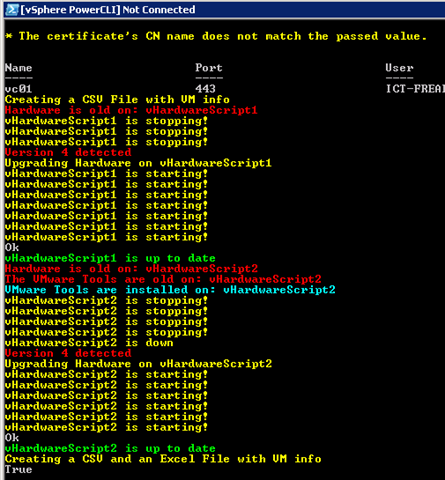
The script in action:

image

The last step, the creation of an Excel sheet with an overview of the VM’s. Here you can see if the IP Address is changed or not.

image

To do list:

  • Create a proper VM report function (export to csv) so I can capture multiple network adapters.
  • Create a before Excel sheet with a nice overview of the environment.

vSphere: Rescan for Datastores


image

Today I added a second Lun on my iSCSI box. The next step was to configure this Lun on one of my vSphere boxes. So I did a rescan on vmhba34 and formatted it to VMFS. The next step, which I think is an excellent new feature in vSphere, was a “Rescan for Datastores”:

image

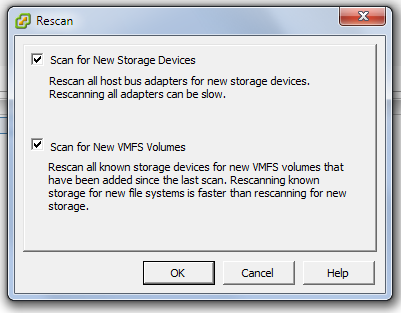
I started the wizard on a Cluster and it will only ask you to set two options:

image

So I checked both the options and did a Rescan. After a couple of seconds my other host was configured and showed the new Lun. 

VMware: Remove Snapshot stuck at 95%


 image

This morning a woke up and grabbed my BlackBerry to see if there was any news (mail / twitter). The first e-mail I read was one from our monitoring system that one of the VM’s did not respond anymore. So I started a remote session and logged on to vCenter. There I saw a running task which was running since last night :-S.

image

These are the steps I took to solve this issue:

  1. Connect to the ESX Host via SSH.
  2. Run this command Service mgmt-vmware restart to restart the service
  3. If the VM is still okay then you don’ t have to restart the ESX Host, otherwise restart the ESX Host.
  4. Open the snapshot manager of the VM and create a new snapshot
  5. Now delete all snapshots
  6. Poweron the VM


I want to thank @Depping, @diederikm, @laurensdekoning and @sanderdaems for pointing me in the right direction.

Release: vCenter 2.5 Update 5


image

Be sure to read the release notes: vi3_vc25u5_rel_notes.html especially the Know Issues: vi3_vc25u5_rel_notes.html#knownissues 

What’s new:

Support for High Consolidation in VMware HA Clusters – VirtualCenter 2.5 Update 5 includes significant performance and scalability improvements to VMware HA. Use VirtualCenter 2.5 Update 5 for environments with more than 35 virtual machines per host in an HA cluster.
For information on the ESX Server host settings required for this scalability improvement, see ESX Server host settings required for environments with up to 80 virtual machines per host in an HA Cluster (KB 1012002).

You can download the new version here: http://www.vmware.com/download/vi/

PowerCLI: Two “vHardware” One-Liners


image

The first one-liner will return all the Virtual Machines which are not upgraded to vSphere yet.

Get-View -ViewType VirtualMachine | Where-Object `
{-not $_.config.template -and $_.Config.Version -eq "vmx-04" } | Select Name

The second one-liner will return all the Virtual Machines which are not upgraded to vSphere and where the VMware Tools are not upgraded.

Get-View -ViewType VirtualMachine | Where-Object `
{-not $_.config.template -and $_.Config.Version -eq "vmx-04"`
-and $_.Guest.ToolsVersion -lt "8193"} | Select Name


Update: If you want to count the Virtual Machines then you can run this one-liner:

(Get-View -ViewType VirtualMachine | Where-Object `
{-not $_.config.template -and $_.Config.Version -eq "vmx-04"`
-and $_.Guest.ToolsVersion -lt "8193"} | Select Name).Count


These two one-liners are part of a much bigger script. So keep an eye on http://ict-freak.nl 😉

PowerCLI: Add multiple values to a VMX file


image

@bjornbats asked me if I knew a way to add multiple values to a VMX file via PowerCLI. I remembered a blog post from Carter at http://blogs.vmware.com/vipowershell/ about this subject. So I tested the code and changed it a little bit. Now you can create a CSV file with the Keys and Values you want to change and the script will add them to the VMX file.

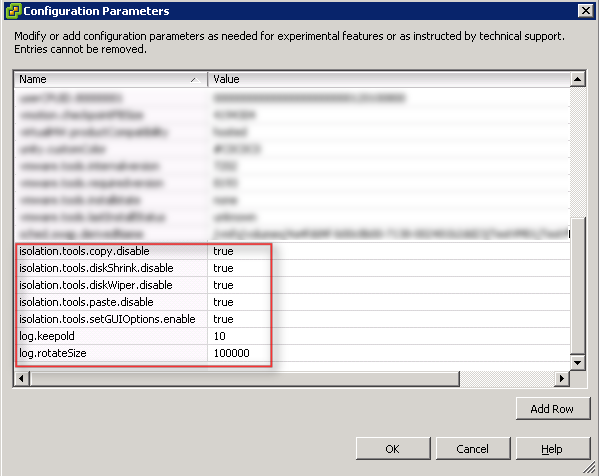
The CSV file I used looks like this:

Key,Value
isolation.tools.copy.disable,true
isolation.tools.diskShrink.disable,true
isolation.tools.diskWiper.disable,true
isolation.tools.paste.disable,true
isolation.tools.setGUIOptions.enable,true
log.keepOld,10
log.rotateSize,100000

The script below will add the entry’s from the CSV file to every VMX file, even when the VM is still running. I don’t know if you need to reboot the VM to apply the changes. So if someone can test that for me, please leave a comment with the results.

$vCenter = Read-Host "Enter your vCenter servername"
Connect-VIServer $vCenter

$import = Import-Csv "C:\Scripts\PS\vmxsettings.csv"

$vms = Get-View -ViewType VirtualMachine | where {-not $_.config.template}

$vmConfigSpec = New-Object VMware.Vim.VirtualMachineConfigSpec

    foreach($item in $import){

        $extra = New-Object VMware.Vim.optionvalue
        $extra.Key=$item.Key
        $extra.Value=$item.Value
        $vmConfigSpec.extraconfig += $extra
    }

    foreach($vm in $vms){

        $vm.ReconfigVM($vmConfigSpec)
    }

Disconnect-VIServer –Confirm:$false

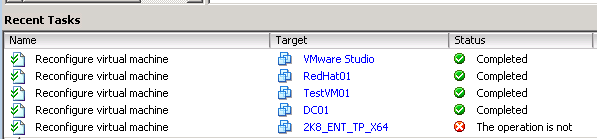
When you start the script, you will notice that vCenter is very busy reconfiguring the virtual machines:

image

You will notice The operation is not… warning in the recent tasks window. This is because the Get-View -ViewType VirtualMachine will also add the Templates.

And here you can see the added lines into your VMX file:

image